
Putting one sentence on each line the reliable way
This article goes deeper than the quick help on the Sentence Splitter. You will learn why a plain split fails, what each output mode gives you, which full stops the tool holds back, and how to read the counts it shows. A worked example walks through a real paragraph from start to finish.
Why a naive split goes wrong
The obvious way to break text into sentences is to cut at every full stop followed by a space. It fails badly. The phrase about a doctor who arrived at three in the afternoon holds full stops in Dr. and in p.m. that do not end anything. A plain cut would chop one sentence into three.
This tool is built to avoid that. It looks at each full stop and decides whether it truly ends a sentence. The result is one clean sentence on each line, which is exactly what translators, subtitlers, and anyone doing a line by line review need to work with.
Where one sentence per line is needed
This format is not just tidy; several kinds of work depend on it. Translators often load a text one sentence to a line so their software can match each sentence to its earlier translation and reuse it. Subtitle work leans on the same layout, since each caption tends to hold one sentence or part of one.
Reviewers and editors like it too. Reading a piece one sentence at a time makes a clumsy or overlong sentence jump out in a way that a solid paragraph hides. Any time you plan to feed prose into another tool line by line, splitting it cleanly first saves a lot of grief later.
The Text box
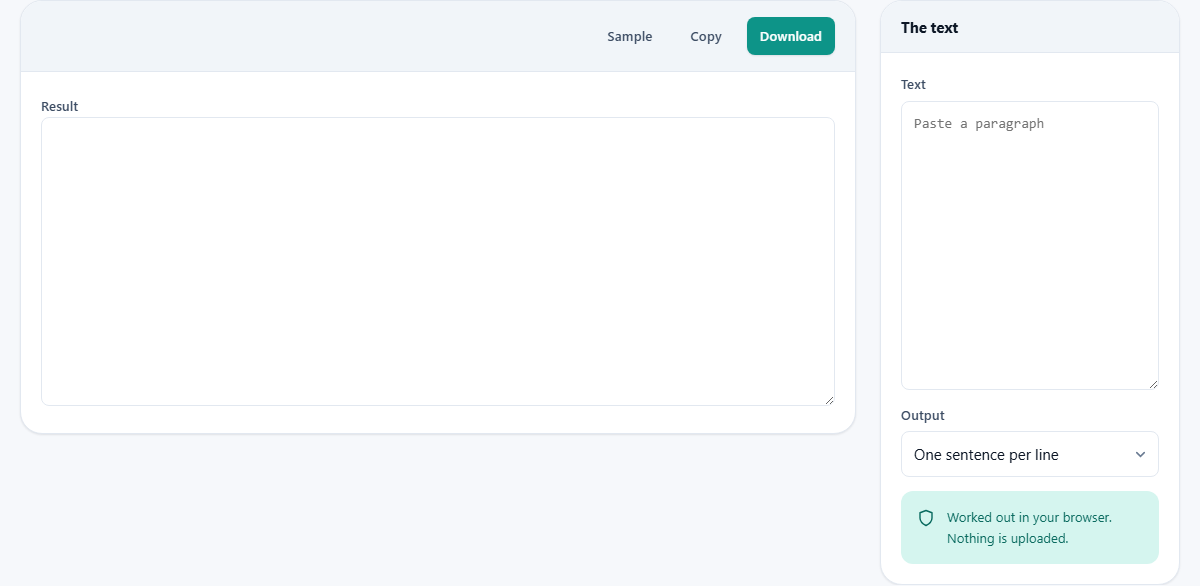
Paste your prose into the box labelled Text. It can come from anywhere: an article, an email, a page you copied. Any line breaks already in it are ignored and rebuilt, so text that was hard wrapped into short lines is joined back up before it is split.
Paragraph breaks are treated as real. A blank line between paragraphs is kept, so the shape of the piece survives. You do not press a run button; the output appears and updates a moment after you stop typing.
The three output modes
The menu labelled Output offers three ways to shape the result.
- One sentence per line is the main mode. Each sentence lands on its own line, ready for review or translation.
- One clause per line goes finer. It first splits into sentences, then breaks each one further at commas, semicolons, and colons, indenting the extra pieces so you can see they belong together.
- Join lines back into paragraphs does the reverse. It pulls hard wrapped lines back into flowing paragraphs, which is just what you want after copying text out of a document that broke every line.
The full stops it holds back
Three kinds of full stop are kept from ending a sentence. The first is an abbreviation. The tool knows around fifty common ones: titles like Mr and Dr, months and days, and business and academic short forms such as Inc, Ltd, and Vol.
The second is a decimal point. A dot with a digit on each side, as in a measurement, is left alone. The third is an initial. A lone capital letter with a dot, such as the parts of a three initial name, is read as an initial and not as three sentence ends. On top of all that, a full stop only ends a sentence when a space and then a capital letter, a digit, or a quote mark follow it.
The result and its counts
The finished lines fill the Result box. Above it, a short summary tells you how many lines there are, the average length in characters, and the length of the longest line. That is a quick way to spot a line that is far too long, which often means a sentence the tool failed to split.
When any full stops were held back, an amber notice appears. It says how many were kept and lists a few of them, so you can see where the tool used judgement rather than asking you to take it on trust. Sample loads a ready made paragraph, Copy sends the result to your clipboard, and Download saves it as a file named sentences.txt.
A worked example
Paste this line into the Text box: We drove 3.5 miles to St. Paul. Dr. Ochoa was late. Leave the mode on One sentence per line.
The result holds two lines. The first is the drive to St. Paul, kept whole even though St. and the number both contain dots. The second is the line about Dr. Ochoa. The summary reads 2 lines, average 25 characters, longest 31. The amber notice says it held back 2 full stops that do not end a sentence, and it names St. and Dr.
Now switch to One clause per line with a comma inside a sentence, such as: It was late, and we left. The clause mode keeps It was late on one line and drops and we left onto the next, indented, so you can see the split. Switch to Join lines back into paragraphs and any short broken lines you paste are melted back into a single paragraph.
Cleaning up text from a document
Text copied out of a paged document is often a mess. Every visible line ends with a hard break, so a single paragraph arrives as a stack of short, ragged lines. Pasting that into an email or a form looks wrong and is a pain to fix by hand.
The Join lines back into paragraphs mode is made for this. It removes the stray breaks inside a paragraph and rebuilds a clean, flowing block, while keeping the blank line that marks a true paragraph break. So you can rescue text from a report or a slide, tidy it in one step, and then, if you like, split it back into one sentence per line for the next stage of the work.
Common mistakes and their fixes
- An odd abbreviation still split the sentence: only about fifty are known, so a rare one like a road or degree short form is not caught. Rejoin those lines by hand.
- Two sentences ran together: there was no space after the full stop, and the tool needs a space then a capital to split. Add the space.
- A sentence that begins in lower case was not split off: the capital letter test could not fire. That is a limit of the method, not a bug.
- A number split in two: it probably had a space in it, like a figure typed with a gap after the point, so the dot looked like a sentence end.
- Unusual prose came out wrong here and there: this is a strong guess, not grammar, so give tricky passages a quick read.
Why it is a guide, not a grammar engine
Finding where sentences begin and end is genuinely hard. Real writing is full of dots that mean other things, and no short set of rules gets every case. This tool uses a careful, well tested method that clears the common problems, and it is honest about the rest.
That is the point of the held back count. Rather than hide its choices, it shows you where it stepped in. On plain, ordinary prose it will be right almost all of the time. On strange or highly technical text, treat the output as a strong first pass you can tidy.
Using the counts as a check
The little summary above the result is more useful than it looks. The line count tells you at a glance whether the split roughly matches the number of sentences you expected. If a paragraph you know holds five sentences comes back as three lines, something merged that should not have.
The longest line figure is the best warning sign. A line far longer than the average usually means two or more sentences stuck together, often because an unusual abbreviation held a full stop back. Scan that long line, add a break where it belongs, and the rest of your text is almost always fine.
When a different tool suits better
The capital letter test is built for languages that use capitals and spaces, which covers most European ones. A language with no capitals, or no spaces between words, needs a wholly different approach, and this tool is not the right one for it.
If your real aim is to count words, wrap text to a width, or change its case, a tool made for that will serve you better. Here the single job is finding sentence and clause boundaries, and joining wrapped lines back up, which it does with care.
The splitting happens on your device
The page even carries a small note beside the input to say so: the work is done in your browser and nothing is uploaded. Your text is read and cut by code running in the tab, and none of it is sent to a server or saved anywhere.
Because it needs no help from the network, you can pull the connection after the page loads and it still works. That makes it a safe place to split text you would rather not paste into an online box, from a private draft to a client's document.