
Turning a plain script into standard screenplay pages
This guide digs into the Screenplay Formatter below its quick help. You will see how it reads your plain text, how to force a line when the guess is wrong, what every print setting does, how to read the page and timing counts, and how to get the pages out. It closes with the traps that trip up new users.
Who it is for
A screenplay has a strict look. Wide margins, names above dialogue, a set width for speech, and roughly one page for each minute on screen. Getting that right by hand in a word processor is slow and easy to break.
This tool is for anyone who wants to skip that fuss. A writer drafting a scene, a student handing in a script, or someone who was sent a plain text file and needs proper pages to read or print. You write in simple text and the pages build themselves as you type.
How it reads plain text
You do not tag anything. The tool works out what each line is from its shape, using a small set of rules.
A line that starts with INT. or EXT. and has a blank line above it becomes a scene heading. A name typed in capitals, with a blank line above and dialogue on the next line, becomes a character cue. A line in capitals that ends in TO:, such as CUT TO:, becomes a transition to the right. Anything else is action. That really is the whole of it, and it covers most of a script without a single special mark.
Forcing a line when the guess is wrong
Sometimes a line is read as the wrong kind. A few lead characters let you take control. Begin a line with a full stop to make it a scene heading. Begin it with an at sign to make it a character name. Begin it with an exclamation mark to keep it as action. Begin it with a greater-than sign to make it a transition, or wrap it with a greater-than sign and a less-than sign to centre it.
You can also style words. Put single stars around text for italics, double stars for bold, and underscores around it for underline. To let two characters speak side by side, add a caret after the second name, and their speech is kept next to the first rather than read as a new one. A line of three or more equals signs forces a new page. Double square brackets mark a private note to yourself.
Adding a title page
A title page is optional and easy. At the very top of your text, before anything else, put a few label lines. Title: gives the name. Credit: is the line such as written by. Author: is your name. You can also add Source:, Draft date:, and Contact:.
The block ends at the first blank line, and the scene text carries on below. The title page itself carries no page number, which is what a reader expects. Numbering starts on the first real page of the script.
The print settings, one by one
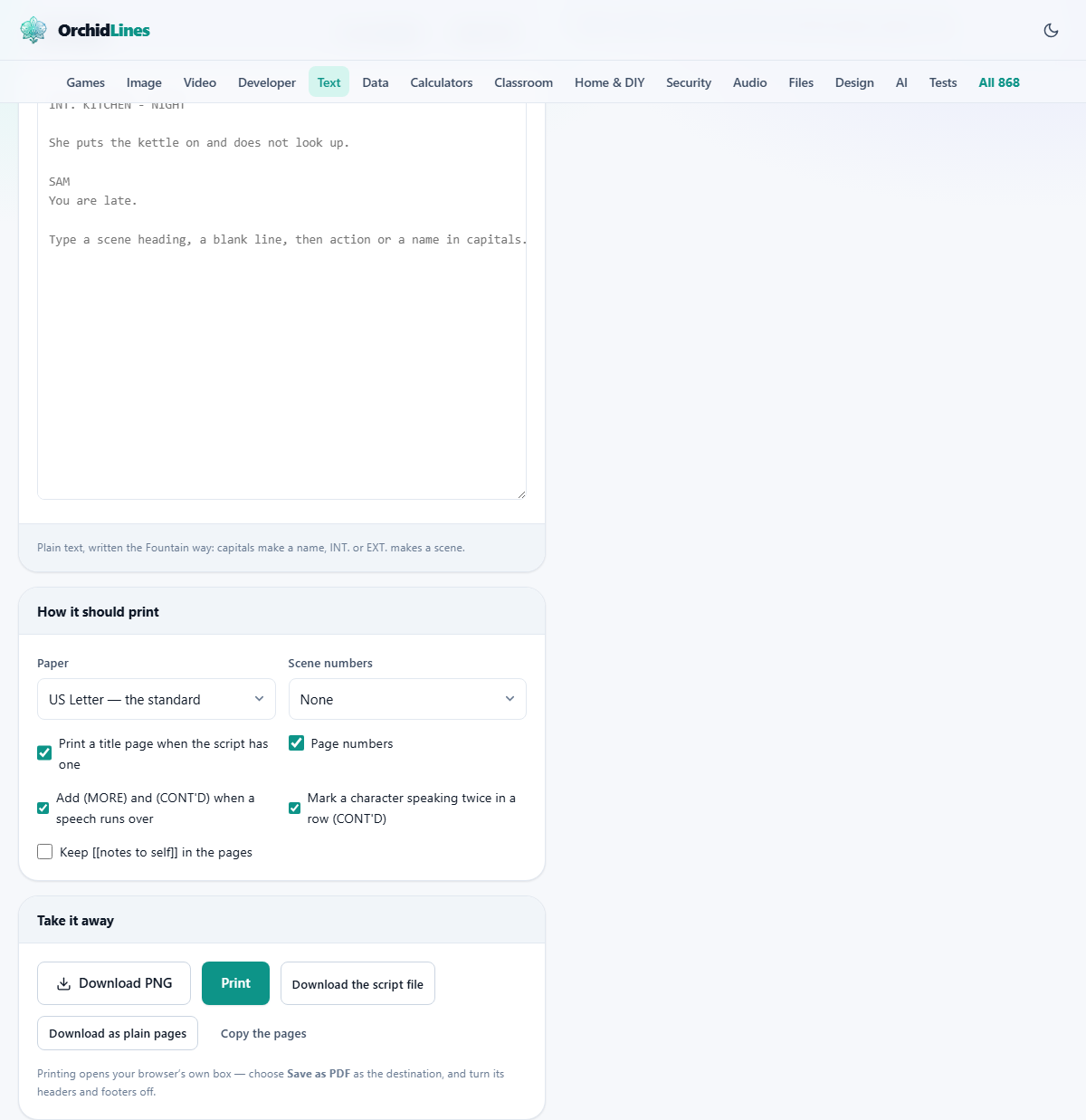
The panel headed How it should print holds the choices that change the finished pages.
- Paper: pick US Letter, the standard for scripts, or A4. The paper size changes how many lines fit on a page.
- Scene numbers: choose None, ask the tool to Number them for me, or Use the ones in my script if you wrote your own.
- Print a title page when the script has one: on by default, it shows the title block if you wrote one.
- Page numbers: on by default, it prints the page number in the top corner from the first script page.
- Add (MORE) and (CONT'D) when a speech runs over: on by default, it marks a speech that breaks across a page.
- Mark a character speaking twice in a row (CONT'D): on by default, it adds a note when the same person speaks again with no one between.
- Keep [[notes to self]] in the pages: off by default, so your private notes stay out of the printed script unless you tick it.
Reading the counts
Above the pages sits a row of chips. They show the number of pages, an estimate of minutes, the count of scenes, the number of speaking parts, the number of speeches, and how many lines fit on a page. Because one page is about one minute, the page count doubles as a running time.
Two messages may appear. If your device does not have the Courier typeface, the tool measures the letters and adjusts the size so the page count stays correct, and it tells you it did so. If it finds no scene headings, it reminds you what one looks like. It also tells you when a speech had to be split across a page.
Getting the pages out
The panel headed Take it away has four buttons. Print opens your browser's own print box. Choose your printer there, and turn off the browser's own headers and footers, or they land on top of your page numbers. In that same box you can pick Save as PDF as the destination if you want a PDF file rather than paper. The tool itself does not write a PDF; the browser does, and it does a good job of it.
Download the script file saves your plain text as a script file you can open again later with the Open a file button. Download as plain pages saves the laid out pages as a plain text file. Copy the pages puts that same laid out text on your clipboard. Above the editor, Try an example loads a short sample script so you can see the whole thing work at once.
How a speech breaks across a page
Long speeches sometimes reach the foot of a page. The tool handles this the way a script editor would. It leaves the word (MORE) at the bottom, then repeats the character name with (CONT'D) at the top of the next page, so the reader never loses the thread.
It also guards against two ugly page ends. A character name is never left alone at the foot of a page without the first line of their speech. A scene heading is never the last thing on a page, since that would send the reader over the page just to learn where they are. These small rules are why the pages read like a real script and not like text that was simply cut every so often.
A worked example
Type this into the editor, keeping the blank lines. First line: INT. LIBRARY - DAY. Blank line. Then: Nora slides a book across the desk. Blank line. Then a name in capitals: NORA. On the next line: You are three weeks late.
The pages build at once. The chips read pages 1, about 1 minute, scenes 1, speaking parts 1, speeches 1, and lines a page 54, because US Letter is the paper. Nora is centred as a name, her line sits under it in the speech column, and the heading spans the full width.
Now change Paper to A4 and watch lines a page jump to 58, since A4 is a little taller. Set Scene numbers to Number them for me and a 1 appears in front of the library heading. Nothing else moves, because the layout is fixed and only these settings are yours to change.
Common mistakes and their fixes
- A name is read as action: it needs to be in capitals with a blank line above and its dialogue on the very next line. Add the blank line, or force it with an at sign.
- A line of action is read as a name: a full line in capitals with a blank line above looks like a cue. Reword it, or force action with a leading exclamation mark.
- The script feels too long: pulling the margins in is not offered, because the page a minute rule depends on fixed measurements. If it runs long, the answer is to cut it.
- The title page has no number: that is correct. Numbering begins on the first page of the script, not the title.
- Headers or footers print over your numbers: turn the browser's own headers and footers off in the print box.
When another tool is a better fit
This formatter is built for scripts, not for general documents. If you want a letter, a report, or a flyer, a word processor gives you the fonts and free layout you need, and this tool would only get in the way.
It also expects the script style where capitals mark a name and INT. or EXT. marks a scene. If your text does not follow that at all, the guesses will miss, and you may spend more time forcing lines than it saves. For a plain outline or notes, a simple text tool is the calmer choice.
Your script stays on your computer
The whole layout is worked out inside the page. Your words are never sent anywhere, there is no account, and once the page has loaded it keeps working with no connection.
That privacy has one catch worth remembering. Since nothing is stored on a server, closing the tab is the end of that copy. When you are happy with a draft, use Download the script file so you keep a copy you can open and format again another day.