
Making many copies of one piece of text
This guide goes past the quick steps at the top of the page. You will see what each setting on the Text Repeater does, how the copies come out, and a full walk through a real job. It also explains the size limit, the way the output refreshes as you type, and the small traps that catch people out.
Jobs it clears in one press
Some tasks need the very same line over and over. Filling a sheet with test rows before an import. Printing a stack of table cards that all read the same number. Laying down twenty blank ruled lines for handwriting practice. Dropping one short notice into a document many times.
Doing that by hand means copy, paste, copy, paste, and losing your place halfway through. This tool does the whole batch at once. You write the text a single time, say how many you want, and read them all back together.
- Seed rows for a spreadsheet or a database test.
- Repeated dividers or spacer lines in a note.
- A block of identical placeholders to fill a layout.
- The same reply, ready to send to several people one at a time.
The How many times box
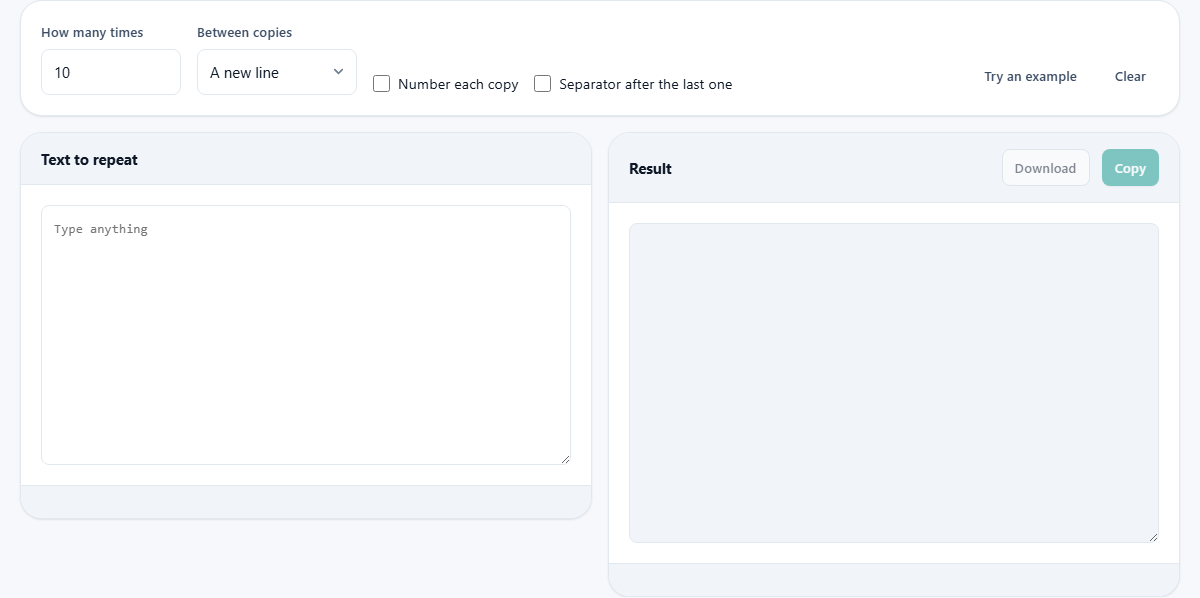
The box marked How many times sets the count. It starts at 10. You can type any whole number up to one hundred thousand. The result is rebuilt the instant you change the figure, so you can nudge it up or down and watch the block grow or shrink.
There is also a ceiling on the total size, not only on the count. A long piece of text repeated many times can turn into a very large block. Once the finished text would pass about five megabytes, the tool stops and shows a red line. That line tells you the largest count that still fits. The guard is there so the page never freezes and loses what you typed.
What sits between the copies
The Between copies menu decides what fills the gap from one copy to the next. It changes the whole feel of the output, so it is worth a look before you press anything.
- A new line puts each copy on its own line. This is the usual pick.
- A blank line leaves an empty line between copies, which keeps whole paragraphs readable.
- A space keeps everything on one line with a small gap between copies.
- A comma joins them with a comma and a space, handy for a quick run of items.
- Nothing runs every copy straight together with no gap at all.
- Something else opens a small field called Your separator, where you type your own text to place between copies.
Your own separator
The Your separator field is hidden until you pick Something else in the menu. Once it shows, whatever you put there is dropped between every copy. It could be a word, a dash, an arrow, or even a few characters that act as a marker you can search for later.
This is the setting to reach for when none of the ready made gaps fit. If you want each copy followed by a pipe and spaces, or by a tab of your own making, type it here and the tool uses it exactly.
The two tick boxes
Number each copy places a running count in front of every copy: one and a full stop, then two and a full stop, and so on. It turns a repeated line into a plain numbered list in one move, which is quick for sample data or a rough checklist.
Separator after the last one adds one more separator at the very end. Normally the final copy has nothing after it. Tick this when you want a trailing comma or a closing new line, for example when the block will be pasted in front of more text and needs to join on cleanly.
Reading the result
The copies appear in the Result box on the right. Below it, small chips report three things: how many copies were made, how many characters they add up to, and how many lines the block holds. A glance tells you whether the size is what you expected.
Copy places the whole block on your clipboard. Download saves it as a file named repeated.txt. For a very large result the file is the safer route, since a huge clipboard paste can be slow or drop text. Try an example fills the input with a sample so you can see the shape of the output at once, and Clear empties the input so you can start fresh.
A worked run from start to finish
Say you need eight identical rows to test a spreadsheet import. In the input box, type Sample Co,unpaid,0.00 as a single line. Set How many times to 8. Leave Between copies on A new line. Leave both tick boxes clear.
The Result box now holds eight copies of that row, each on its own line. The chips read copies 8, characters 175, and lines 8. Press Download and you have a small repeated.txt ready to feed into your sheet.
Now tick Number each copy and look again. Every row gains a count in front, so the first line reads: one, a full stop, then Sample Co,unpaid,0.00. That is perfect for a numbered list, but the extra numbers would break a real comma file. So leave numbering off whenever the rows must stay clean.
A second, inline example
The same tool can build a one line list. Type the word red in the input. Set the count to 5. Change Between copies to A comma. Now tick Separator after the last one.
The Result reads red, red, red, red, red, with a trailing comma at the end because you asked for one. Turn that tick off and the final comma disappears. This shows how the separator and the trailing option work together, and how the same input gives a very different shape once the gap changes.
The output refreshes as you work
Nothing here needs a build or a go button. The block is redrawn each time you change the text, the count, the gap, or a tick box. That makes the tool a good place to try ideas, because you see the effect straight away.
A tidy way to work is to set the count low first, say to three, and get the gap and the numbering exactly right on a small block you can read in full. Once it looks correct, raise the count to the real figure. You avoid staring at a wall of text while still guessing at a setting, and you spend far less time undoing a wrong choice.
Where people slip up
- Everything came out on one line: the separator is set to A space or Nothing. Switch it to A new line.
- The count was refused: the finished block would pass the size limit. Use the smaller count the message offers, or build it in batches and download each one.
- Numbers appeared inside your data: Number each copy is on and adds a count in front of each copy. Turn it off for clean rows.
- Your own separator field vanished: it only shows while Something else is the chosen menu item.
- A stray gap at the very end: Separator after the last one is ticked. Clear it if you do not want that trailing mark.
Handling a very large job
When you truly need a huge number of copies, the size guard can get in the way. The fix is to work in rounds. Ask for the largest count the message says will fit, download that file, then repeat and download the next batch under a fresh name.
Prefer Download over Copy for these big runs. A file lands on disk in one clean step, while pasting a very long block can hang the program you paste into. If the goal is filler for a test, a smaller count of numbered rows is often plenty, since the numbers already tell each row apart.
When another tool suits better
This maker builds exact copies. It cannot make each copy different. If you need a run of rows where a date, a name, or a number changes each time, it is the wrong choice. A spreadsheet fill handle or a mail merge is built for varying content.
It is also not a spam machine. Sending the same message many times gets accounts blocked fast, and it is unpleasant for whoever receives it. If your aim is to count words, change case, or trim a text, pick the matching text tool for that job instead.
The copying happens on your machine
The text you type, and every copy built from it, stay inside the browser tab. Nothing travels to a server, there is no account to make, and no one else can read your words. The work itself is plain: the tool joins copies of your text with the gap you chose and shows the total.
Because the whole job runs in the page, it keeps working even with the network switched off once the page has loaded. Close the tab and the copies are gone, so download the file or copy the block out if you want to keep the result for later.
A quick recap
Write the text once, choose a count, choose the gap between copies, and add numbering only if you want a list. Read the chips to check the size, then Copy or Download to take the result away. Keep the count sensible so the size guard stays out of your way, and remember that every copy is the same on purpose.