
Turning two drafts into one marked-up document
This guide explains the Redline Document Maker: how it weaves an old and a new version into a single marked document, how you accept or reject each change, and what each of the four ways to save it gives you. It is written for anyone who has to show what changed and let the other side respond.
What a redline actually is
A side-by-side view tells you two documents differ. A redline is something you can send: one running document, with the old words struck through and the new words underlined in place. The reader sees the change where it happened, not in a separate column they have to line up by eye.
This is the daily currency of contract work, but it is not only for lawyers. Anyone trading edits on a policy, a proposal, a set of terms or a shared chapter needs the same thing: a clear record of what moved, and a way for the other person to answer it.
Paste the two versions
Put the earlier draft in the left box and the later one in the right. The tool needs very little structure: a blank line between paragraphs is enough for it to tell them apart.
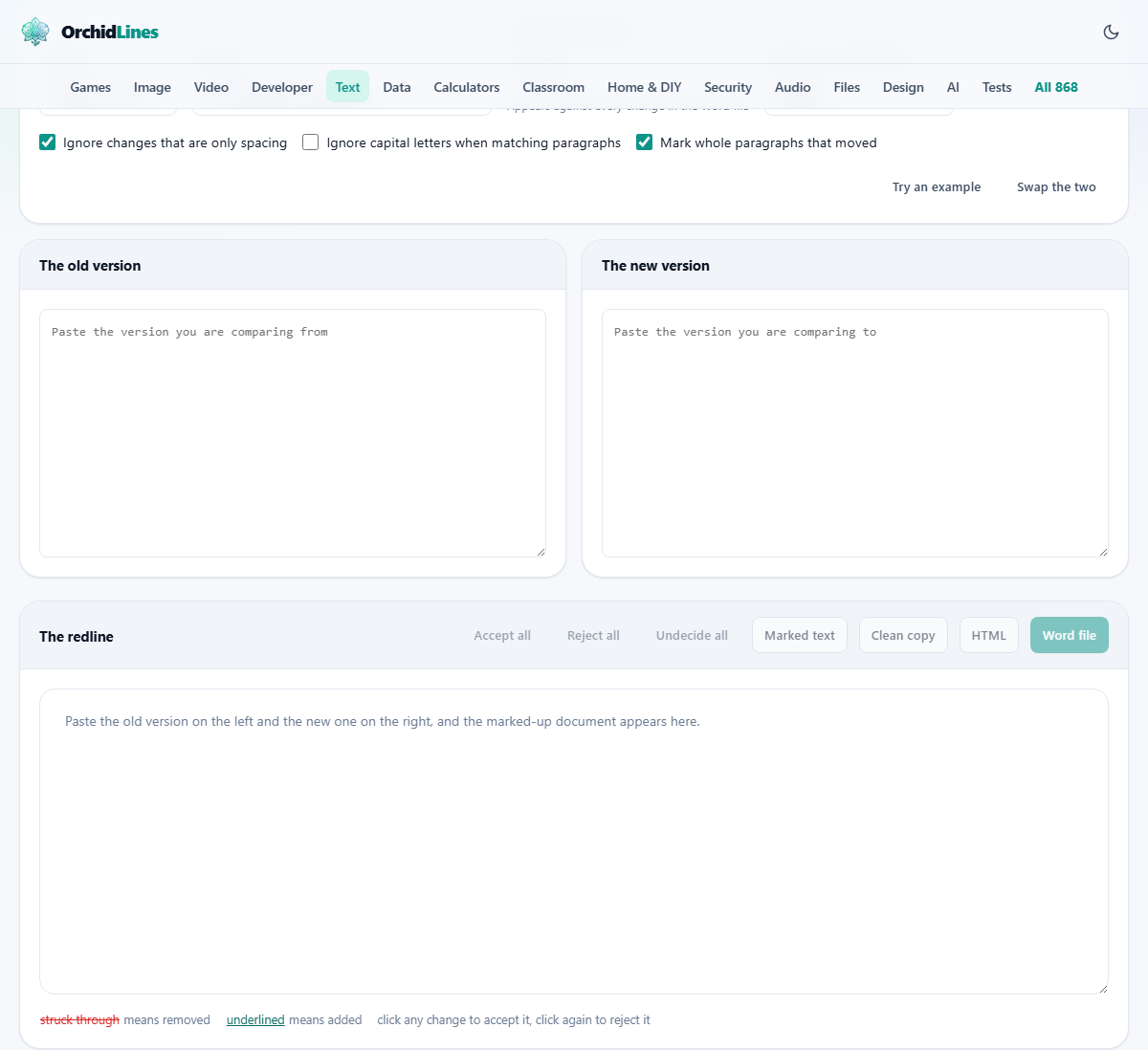
If you loaded them the wrong way round, the Swap the two button flips them without a retype. The Try an example button fills both boxes with a short before and after so you can see the markup before committing your own text.
Word by word, or letter by letter
The Compare menu sets how fine the comparison is. Word by word is the default and the right choice almost always. A changed word is shown as a whole word removed and a whole word added, which is how a person reads an edit.
Letter by letter goes down to single characters. It is worth it now and then, for a changed reference number or a fixed typo, where seeing exactly which character moved is clearer than replacing the whole token. For prose it tends to be noisier than it is useful.
How it lines things up
Comparing every word of a long document in one go is a trap. The comparison finds clever but useless links between a word in an early clause and the same word forty clauses later, and the result is unreadable.
So paragraphs are matched first, and only then are the words inside a matched pair compared. That keeps every change inside the paragraph it belongs to. A paragraph that was reworded is compared word by word; two paragraphs too different to be the same one are shown as one dropped and one added, rather than forced together.
Marking a move, not a rewrite
Move a clause to the top and most tools show the whole thing deleted in one place and written afresh in another. A tidied document then looks completely rewritten, which buries the real edits.
With Mark whole paragraphs that moved left ticked, a paragraph that leaves one spot and arrives unchanged in another is labelled at both ends as a move. Nobody has to wonder whether it was rewritten. Two more switches help the matching: one ignores differences that are only spacing, and one can ignore capital letters when it decides whether two paragraphs are the same.
Naming the change and the file
Two text boxes set what ends up in the saved file. Name on the changes is the author stamped against every edit, so when you send a Word file the other side sees who proposed each one. It starts as a placeholder you should replace with your own name.
Title for the exported file sets the heading written into the saved document. Neither box changes the markup on screen; they only shape what the export carries, so you can adjust them at any point before you save.
Deciding changes on the spot
You do not have to leave every change for later. Click a change once to accept it, click again to reject it, and a third click returns it to undecided. The colour shifts each time so you can see where you are.
Three buttons handle the whole document at once: accept all, reject all, or clear every decision back to undecided. A row of counts above the document keeps score, showing words added, words removed, paragraphs edited, new and dropped paragraphs, moves, and how many changes you still have to decide. The Show me menu can flip the view to how the document reads once every change is taken.
The four ways to save it
The Word file is the headline output. It carries real tracked changes, not coloured text dressed up to look like them, so a word processor or a free office suite shows them in its review pane and lets the reader accept or reject each one, with your name and the date attached.
There are three more. HTML saves a tidy web page with the same struck-through and underlined markup. Marked text saves a plain file that writes a removal as [-old-] and an addition as {+new+}, which travels through email untouched. Clean copy saves the settled result, the document as it reads once the changes are applied.
A worked example
Put one sentence on the left: Payment is due within 14 days of the invoice date. Put the edited version on the right: Payment is due within 30 days of the invoice date. Leave the comparison on word by word.
The document below shows the sentence once, with 14 struck through and 30 underlined. The counts read one word removed, one word added, one paragraph edited, one change still to decide. Click the change and it settles to the new figure. Save the Word file and it arrives as a document with a single tracked change, stamped with your name and today's date, ready for the other side to accept or reject.
Pitfalls to watch
A redline is a proposal, so leaving a change alone counts as agreeing to it. In the clean copy and the exports, any change you neither accept nor reject keeps the new wording. If you do not want a change, reject it rather than ignore it.
Two more things to expect. If the two versions are so far apart that lining them up word by word would take too long, the tool shows those parts as replaced whole and tells you, which usually means a rewrite rather than an edit. And editing the text, or changing how the comparison works, resets the decisions you have made, because the changes have been renumbered.
Reading the row of counts
The counts above the document are more than decoration. Words added and words removed give the size of the edit at a glance. Paragraphs edited, new paragraphs and dropped paragraphs break it down by shape, so you can tell a light touch from a heavy rewrite before reading a line.
The moved count shows how much was reordered rather than changed. The last figure, still to decide, counts the changes you have not yet accepted or rejected. Watch that number fall to zero and you know you have been through every one.
What the clean copy is for
The clean copy meets a different need from the marked file. It is the document as it would read once every pending change is applied, with no strike-throughs and no underlines. You reach for it when the arguing is over and you just want the settled text.
Because a pending change counts as accepted, the clean copy shows the new wording unless you have rejected something by hand. Reject the changes you do not want first, then take the clean copy, and it is the exact document both sides agreed to.
A note on very different drafts
The comparison is fast when the two versions are close, and slower the further apart they drift. So a sensible limit is built in. Past it, the tool stops trying to match a stretch line by line and marks it as replaced whole.
That is honest rather than lazy. When two versions share almost nothing, a word-level markup is noise, and calling it a wholesale replacement is the truer description. The page tells you when this has happened, so the result is never a surprise.
When something else fits
This tool compares text you paste, not two document files directly. If your versions are Word files, open each one, copy the text out and paste it in. The site's own Word document viewer will open a file and let you copy from it.
And if you want changes tracked live as you keep typing, a word processor's own review mode is the place for that. Come here when you have two finished versions and need a single marked document to send.
Both drafts stay with you
The two versions of a document, especially a contract, are private by their nature. Here they stay that way. The comparison runs inside your browser, and the Word file is built there too.
Neither draft is uploaded, and no copy is kept once you close the tab. Everything you paste, and everything you save, lives on your own machine from start to finish.