
Taking personal details out of plain text
This guide covers the Text Redactor and PII Scrubber: the kinds of detail it can find on its own, the part only you can supply, and the three ways it can hide what it finds. It also shows why it does sums on a number before deciding whether to remove it.
When you need to scrub text
Text often has to be shared with the personal bits taken out. You want to paste a support ticket into a public forum. You are filing a bug report that quotes a real user. You are handing a colleague a sample record. You are preparing a dataset or a court bundle for other eyes.
In each case the same problem appears. The useful content and the private content are tangled together in ordinary prose, and picking one from the other by hand is slow and easy to botch. This tool does the first pass for you.
- Posting a log or a ticket in public.
- Quoting a real message in a bug report.
- Sharing an example record with a supplier.
- Cleaning a dataset before you send it on.
- Preparing documents for disclosure.
Why finding is the hard part
A spreadsheet keeps its private data in named columns, so hiding it is easy: you point at the column. Free text has no columns. The email address, the phone number and the account sit loose in the middle of a sentence.
So the real work is spotting the values in the first place. Hiding them once found is the simple step. That is why most of this tool is about detection, and why the honest failure it guards against is grabbing something that only looks like a match.
The arithmetic behind the numbers
A run of sixteen digits might be a card number, or it might be an order reference that happens to be the same length. Guessing wrong means either blacking out an ordinary reference or leaving a real card in place.
So the tool does not guess. A payment card ends in a digit worked out from the others, and a bank account number carries a similar check. Both are tested by the same maths the banks use before anything is removed. A number that fails its own check is left alone, which keeps order numbers and reference codes out of the firing line.
What it finds on its own
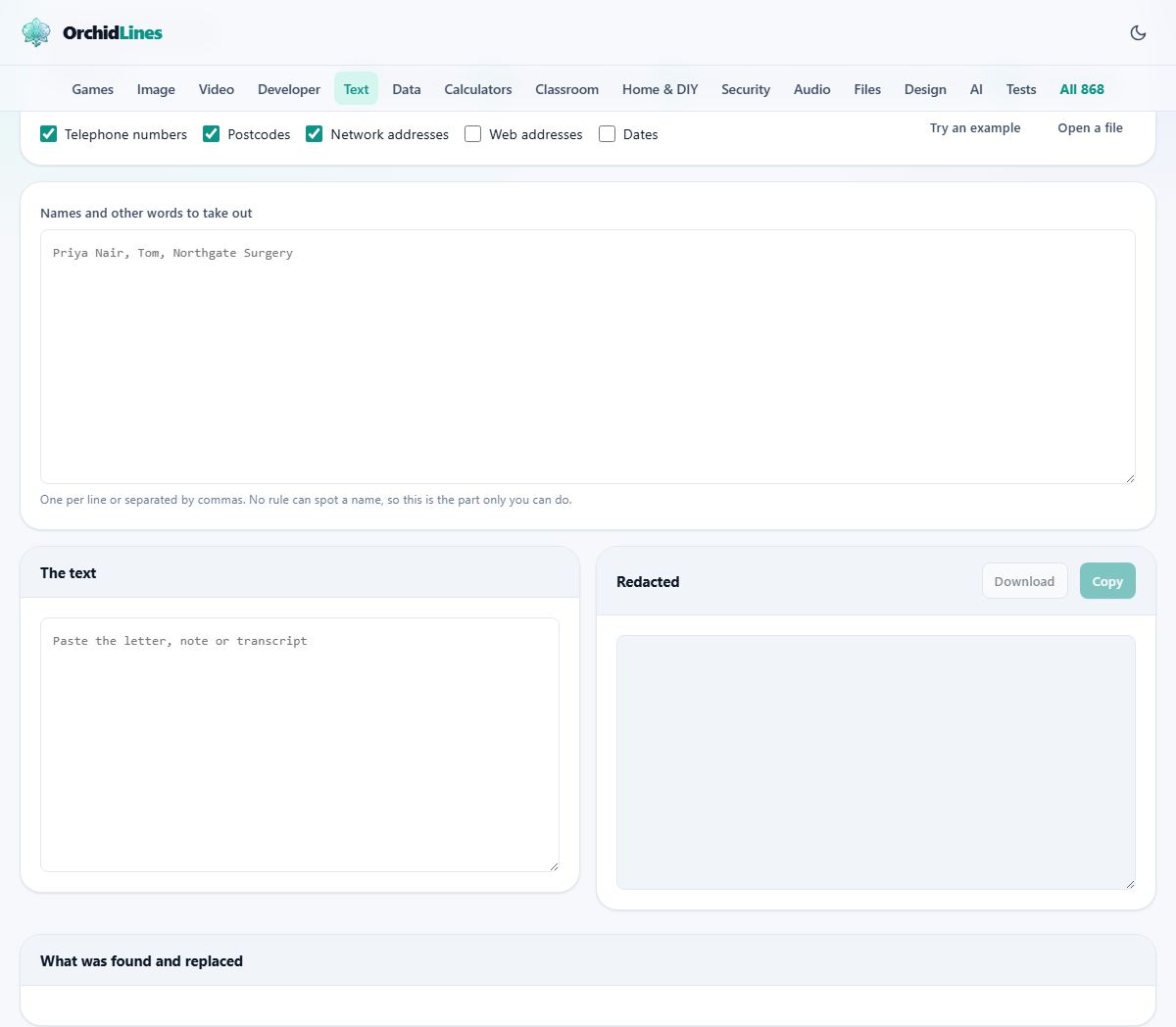
A row of switches decides which patterns are hunted. Ticked to start with are card numbers, bank account numbers, national insurance and social security numbers, email addresses, telephone numbers, postcodes and network addresses.
Two switches start off. Web addresses and dates are left alone by default, because in most documents they are harmless and you rarely want them gone. Turn them on when the context makes them sensitive. Untick anything you would rather keep, and the tool stops looking for it at once.
The part only you can do
No rule can tell a person from a place or a product. Nair could be a surname or a street. So names, company names and the like are your job, and there is a box for them.
Type each name you want gone, one per line or separated by commas. Every mention of each is removed, whatever the capitals. To nudge you, the tool counts pairs of capitalised words that look like names, and if you have listed none it warns you that some may be sitting in the text unhandled.
Three ways to hide it
The first menu sets what happens to each match. Black it out covers the value with block characters, so nothing of the original shows through. This is the choice when the reader has no need to tell one record from another.
Keep the last few characters leaves a tail behind, such as the final four digits of a card, so two records can still be told apart. Replace with a label swaps each value for a tag like [EMAIL_1] or [NAME_1]. The same value always gets the same tag, so the text still reads as a story, which is ideal when you are sending someone an example.
The report underneath
Below the panes sits a table of everything that changed. It lists each kind found, how many there were, one example of the original, and what it was replaced with. A line above it sums up the total across all kinds.
If nothing matched, the tool says so, and adds a pointed reminder: nothing matching is not the same as nothing being there. The table is a record of what the rules caught, not a certificate that the text is now clean.
A worked example
Paste one line: Charge the card 4539 1488 0343 6467. The order reference is 8891244300. Leave the card switch ticked and the mode on Black it out.
The card is covered over, because it passes the card check. The order reference is left exactly as typed, because at ten digits it cannot be a valid card and is almost certainly a plain reference. The report shows one card number found. Switch the mode to labels and the card becomes [CARD_1] instead, while the reference still stands untouched. That difference is the whole idea: the maths decides, not the length.
Getting the result out
The cleaned version appears in the right box. A Copy button puts it on your clipboard, and a Download button saves it as a text file called redacted.txt. Both wake up only once there is a result to hand over, so a greyed-out button simply means nothing has matched in the text yet.
Notice that you get fresh text, not your original file with something drawn over it. That is deliberate, and it is safer, which the next section explains.
What it is not
Drawing a black box over a name in a document leaves the name in the file underneath, where a copy and paste brings it back. Replacing the characters, which is what happens here, is the kind of removal that survives someone looking properly.
Even so, a clean report proves nothing on its own. Someone named only by their job, or a detail that only matters in context, will pass straight through untouched. Read the result yourself before you send it. The tool is a strong first pass, not the last word.
Phones, addresses and postcodes
The finder is tuned to real formats, not any run of digits. A telephone number is accepted only when its digit count falls in the range a real number uses, so a short string of figures is not mistaken for one. A network address is checked so that each part sits in range, which keeps ordinary version numbers safe.
Postcodes are matched by their shape. There is on purpose no rule for a bare five-digit code, because that shape is shared by order quantities, reference numbers and year ranges. A rule for it would black out half of an ordinary letter, so those you add to the word list yourself.
How the labels are numbered
The label mode rewards a closer look, because it is the one that keeps the text readable. Each kind of detail gets its own tag: a card is a card tag, an email an email tag, a person a name tag. The number after the tag counts up within that kind.
The useful part is that it is consistent. The same value always becomes the same tag, every time it appears, and a fresh value takes the next number. So one person stays a single tag throughout, and a second person is plainly someone else. A reader can still follow who did what, without ever seeing a real detail.
Open a file, or just paste
You can work from the clipboard or from a file. The Open a file button accepts plain text, notes, comma separated data and log files. Whatever you load lands in the box, ready to scrub, and opening it sends it nowhere.
Long documents are no problem. The scan runs as you type, or the moment a file lands, so the result and the report update in front of you. There is no length you must stay under and no wait for a server to reply.
When another approach fits
If your sensitive values sit neatly in spreadsheet columns, a find and replace there is more direct than pulling the text out. If you need to redact a scanned page or an image, this tool cannot see inside a picture; it works on text you can select.
Its home ground is loose prose: letters, notes, transcripts and logs, where the private details are scattered through the sentences and there is no column to point at.
Why staying on your device matters here
Of every tool on this site, this is the one where local work matters most. The whole reason you are here is that the text holds things you do not want to send anywhere.
So it is not sent anywhere. The document is opened and scrubbed inside your browser, and no version of it is uploaded, stored or logged. The original and the cleaned copy both stay with you, which is the only arrangement that makes sense for a tool built to handle secrets.