
Numbering an outline the way a contract needs
This guide walks through the Outline and Clause Numbering tool: how it reads your indenting, what each style produces, and the checks it runs so a renumber does not quietly break your document. By the end you will know which menu to touch for the result you want.
What it puts numbers on
Any list with a shape can be numbered here. The obvious case is a contract, where clauses sit inside clauses and each needs a label. Policies, bylaws, terms of service, standards and long procedures all work the same way.
The moment it earns its keep is after an edit. You add a clause near the top, or delete one in the middle, and every number below should shift. Doing that by hand is slow and easy to get wrong. Paste the whole thing in and it renumbers in one pass, top to bottom.
- Contracts and agreements with nested clauses.
- Company policies and staff handbooks.
- Standards, specifications and test plans.
- Meeting agendas and long checklists.
- Any draft that has been edited and needs a fresh run of numbers.
The level comes from your indent
Most tools assume a fixed step and guess your levels. This one reads them from the text. It gathers every different indent width in your document, sorts them, and ranks them. The smallest indent is level one, the next is level two, and so on.
That approach is honest about whatever you actually typed. Tabs work, spaces work, and a mix of both works, though a mix is flagged so you can check it. Put one item on each line and indent each step in from the margin. How deep a line sits decides its level.
The ready-made styles
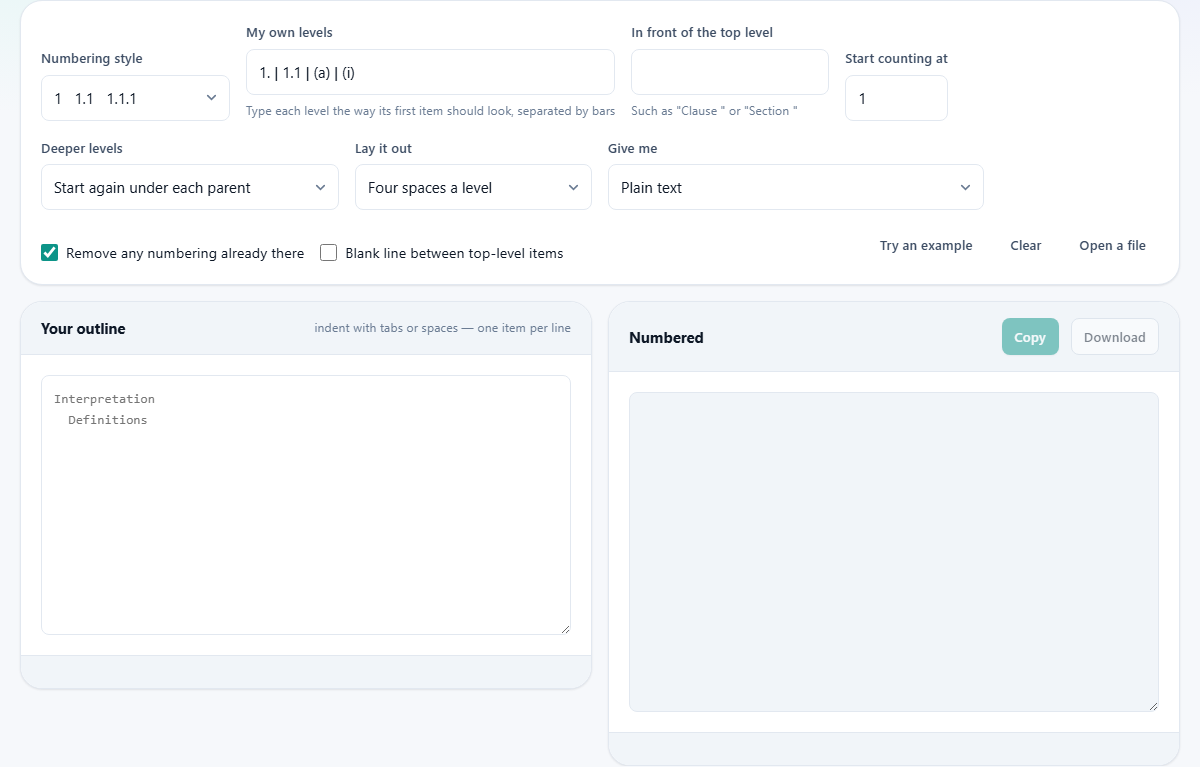
The Numbering style menu holds five built-in patterns. The first gives plain decimal numbers: 1, then 1.1, then 1.1.1, joining each level to its parent with a dot. This is the common house style for modern contracts.
The others cover the older shapes. One follows the legal habit of 1. then 1.1 then (a) then (i). One is the classic outline of I, A, 1, a. One opens on a capital letter, and one uses closing brackets like 1) and a). Roman numerals and letters are handled properly, and a list longer than twenty six items keeps going as AA, AB and so on rather than starting over.
Writing your own style
If none of the five fit, choose the last option and type your own in the My own levels box. You write each level the way its first item should look, and you separate the levels with a bar.
So 1. gives a top level that ends in a full stop. Add 1.1 as the next level and a child joins to its parent. Add (a) and the third level sits in brackets. The counter itself is written with 1, A, a, I or i, and the tool reads only that as the number, so you can wrap real words around it. That is how a prefix like Section becomes part of the label.
The smaller controls
In front of the top level lets you set a word that leads every first level item, such as Clause or Section, with the space included. Start counting at sets the first number, so a schedule that continues from an earlier file can begin at seven rather than one. It accepts any whole number up to several thousand.
Deeper levels decides what a sub-item does with its counter. The default starts each set again under its parent, so every clause has its own 1.1, 1.2 and so on. The other choice keeps counting straight through the whole document, which some numbered specifications prefer.
How it is laid out and handed back
The Lay it out menu controls the shape on the page. The default indents four spaces per level. One choice lines each number up under the text of the line above, the way a printed contract looks. One presses everything flat against the margin, for pasting somewhere that will handle its own indenting.
The Give me menu sets the format. Plain text is the default. Another writes the number, a tab, then the text, which pastes into a word processor or a sheet with the numbers in their own column. A third produces HTML paragraphs. Whatever you pick, a Copy button and a Download button are ready, and the download saves as outline.txt. A short readout tells you how many items were numbered and how deep the outline runs.
Old numbering is stripped first
By default the Remove any numbering already there box is ticked, and it does exactly that. Bullets, 1., (a), iv) and the rest are peeled off before the new labels go on.
This is what lets you paste a document that has already been numbered and get a clean result, instead of a muddle like 1. 1. Definitions. If you have a rare case where the leading marks are really part of the text, untick the box and they are left alone.
The warnings that save a review
Because the level is read from the indent, one stray space becomes a level of its own. Rather than obey that in silence, the tool spots indents that sit only a space or two from the one above and reports them, since that pattern almost always means a typo, not a real sub-level.
It also catches a line that jumps two levels deeper in one step. A clause cannot have a grandparent and no parent, so the line is pulled back one level and you are told. Mixing tabs and spaces is flagged too, and if your outline runs deeper than the chosen style defines, the deepest levels reuse the last one and the tool says so.
The cross-reference check
This is the part that catches the fault a human review misses. Clause 7 might say subject to clause 3. That 3 is just text. Insert a clause near the top and every number shifts, but the sentence still reads 3, now pointing at the wrong place or at nothing.
So every reference of that shape, whether it names a clause, a section, a paragraph, a schedule or a part, is checked against the numbers this run actually produced. Any that point nowhere are listed for you. The tool cannot know which clause you meant, and it does not pretend to. It simply tells you where to look.
A worked example
Paste two short clauses, each with an indented child, and give one child a reference. Line one reads Payment. Indent line two and write Fees are due within 30 days. Line three reads Termination. Indent line four and write Either party may end this agreement under clause 3.
Leave the style on decimal. The result comes back as 1 Payment, then 1.1 for the fees, then 2 Termination, then 2.1 for the ending. Below it sits a warning: one cross-reference points at a number this outline does not contain, clause 3. That is correct, because there is no clause 3 here, only clause 1 and clause 2. The check has found in a second what a reader would have signed straight past.
Numbers, letters and Roman numerals
The counters themselves are handled with care. Roman numerals come out right at the awkward spots, so four is IV and nine is IX, never IIII or VIIII. Letters run from A to Z and then carry on as AA, AB and so on, the way spreadsheet columns do.
This matters more than it sounds. A legal or outline style leans on both kinds of counter, a sub-clause might be numbered i, ii, iii, and a long schedule can run well past twenty six items. A label that repeats or a numeral that is malformed is exactly the small slip a reader notices, and trusts you less for.
The counts it returns
Alongside the numbered text, a short readout gives four figures: how many items were numbered, how many sit at the top level, how deep the outline runs, and how many old markers it stripped on the way in.
Treat them as a quick sanity check. If the top-level count is higher than you expected, a line you meant to indent is sitting flat against the margin. If the depth is one more than you planned, a stray space has invented a level somewhere. A glance at these four numbers catches a bad paste before you build anything on top of it.
When another tool suits better
If your document lives in a word processor and you want the numbers to stay live as you keep editing, that program's own list styles are the better home. This tool produces a fixed run of text at a moment in time, not a field that updates itself.
It shines when you have plain text, a messy or hand-numbered draft, or a need to check cross-references that a live list will never do for you. Number it here, then paste the clean result back wherever it belongs.
Your draft stays on the page
A contract in progress is exactly the sort of document you would not want to send to a stranger's server, and you do not have to. The numbering is worked out by the script running in your own browser.
No text is uploaded, kept or logged. The whole thing lives in the tab while you use it and is gone when you close it, which is the only sensible way to treat a document you are still drafting.