
Turning digits into written words
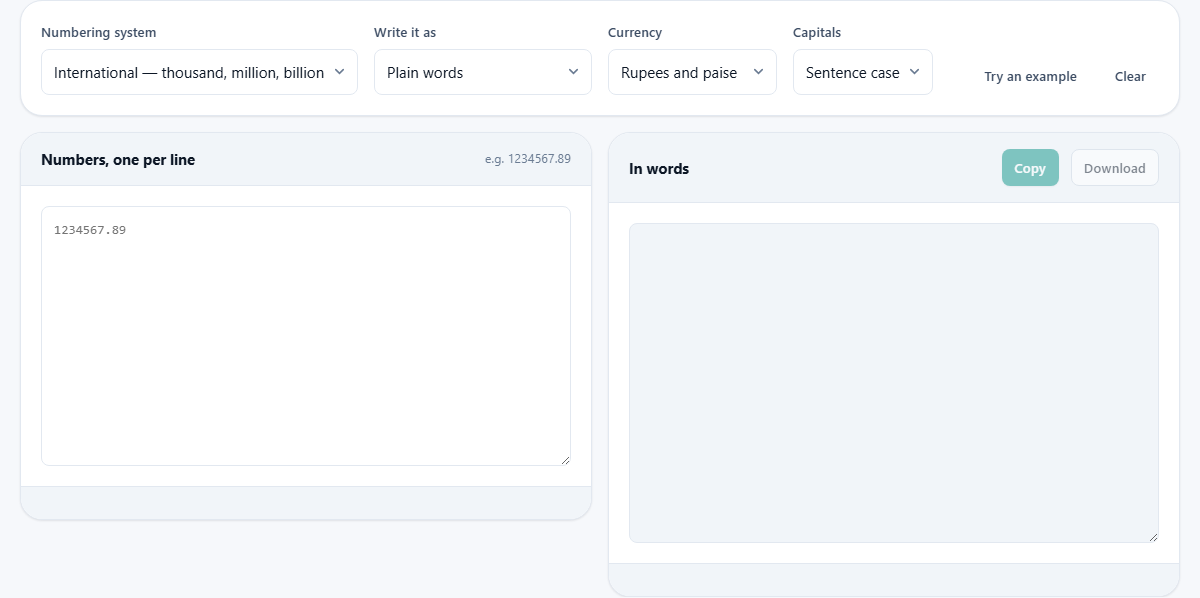
This guide shows how the Number to Words tool spells a figure out in full, and when that is the thing you actually need. You will learn what each menu changes, how the two counting systems differ, and how to get the exact wording a cheque or an invoice expects.
The jobs it was built for
Some numbers have to be written as words, not digits. A cheque is the plain example. A bank wants the amount spelled out, so a single pen stroke cannot turn a nine into a ninety.
There are quieter uses as well. An invoice may repeat its total in words for safety. A contract can state a sum both ways. A teacher may build a spelling sheet. A parent may want to check how a child should write a large figure for homework. Each of these asks for the same thing: clean, correct words for an ordinary number, and no fuss.
The tool also takes a whole batch at once. Paste a column of figures and every line is turned on its own, so you are never doing this one number at a time.
- Writing the amount on a cheque or a money order.
- Repeating a total in words on an invoice or receipt.
- Spelling a sum inside a legal clause.
- Building number practice for a class.
- Converting a full column pasted from a sheet.
International against Indian
The Numbering system menu holds two choices, and each changes more than a word or two. International counts in thousands, millions and billions. Indian counts in thousands, lakhs and crores. The same figure gets a different name in each.
Take one plain number. In the International system 1000000 is one million. In the Indian system the very same value is ten lakh. Neither is more right than the other; they are simply the words a different reader expects.
The commas move too. International puts them every three digits, so you read 1,234,567. Indian keeps the last three digits together and then steps in twos, so the same value reads 12,34,567. The tool prints this grouping back under the result, which is a quick way to confirm the system you meant is the one in use.
Choosing the style
The Write it as menu sets the shape of the words. Plain words is the default and gives the number on its own. An amount of money adds a currency and the small change. An ordinal turns three into third and twenty one into twenty first. Cheque wording does all the money style does and then adds one word at the end: only.
That closing only is not for show. It seals the line so nobody can add another word after your amount. A gap after Five Thousand has room for more; Five Thousand only does not. This is why a bank asks for it, and the cheque style writes it for you every time.
Currency and capitals
Once you pick a money or cheque style, the Currency menu starts to matter. You can set rupees and paise, dollars and cents, pounds and pence, euros and cents, dirhams and fils, or taka and poisha. Both the main unit and the minor unit come from this one choice, and the tool gets the singular right too, so one rupee never reads one rupees.
The Capitals menu decides the letters. Sentence case raises only the first letter and is the usual pick. You can also choose all lower case, Title Case with a capital on each word, or full upper case for a heading or a printed form. The words themselves do not change; only their letters do.
What goes in, what comes out
Type or paste your figures into the left box, one to a line. You may leave the commas in place. The tool removes them, and a leading money sign as well, before it reads each value. So a column copied straight out of a sheet works with no cleaning at all.
The right box fills as you go, one line of words for every line of digits. Above it a small count tells you how many lines were converted. A Copy button lifts the whole result to your clipboard. A Download button saves it as a plain text file called numbers-in-words.txt, ready to sit back beside the original column.
A cheque, step by step
Suppose you are writing a cheque for four thousand five hundred and sixty seven dollars and fifty cents. Type 4567.50 on the first line. Set the system to International, the style to Cheque wording, and the currency to dollars and cents.
The result reads back as: Four thousand five hundred and sixty seven dollars and fifty cents only. The half turns into fifty cents, not point five, because in a money style the part after the point is always the minor unit. Copy that one line and write it on the cheque as it stands.
Switch the style to Plain words and the same figure loses its dollars and its only, leaving just the number in words. Switch to An amount of money and you keep the dollars and cents but drop the closing only. One menu, three quite different lines.
The Indian system in practice
The Indian choice is not only about swapping million for lakh. The grouping and the words both shift with it, so it helps to try a round figure and watch what happens.
Type 250000 and set the system to Indian. The words come back as two lakh fifty thousand. The grouping printed underneath reads 2,50,000, with the last three digits held together and the rest stepping in pairs. Push the figure higher and crore takes over above a hundred lakh, so one crore is where the next name begins.
This matters most on salaries, property prices and bills written for a reader who thinks in lakhs. The same digits, set to International, would read two hundred and fifty thousand instead. Pick the system your reader uses, not the one the page happens to open with.
Ordinals, and a whole list at once
The ordinal style answers a slightly different question. Not how many, but which one in the order. One becomes first, two becomes second, nine becomes ninth. It sorts out the awkward endings for you, so twenty becomes twentieth and twenty one becomes twenty first, with no rule to remember.
Because each line stands on its own, a list is no harder than a single value. Paste a run of ranks or day numbers, one to a line, choose the ordinal style, and every one comes back in order. The output holds the same number of lines as the input, so it drops back into a table with the rows still matched up.
Where people slip up
If a line is not a number at all, the tool does not invent one. It marks that line as not a number, so you can find and fix it, and it carries on with the rest of the batch untouched.
A few habits are worth knowing. In plain style a decimal is read out digit by digit after the word point, so 0.75 becomes zero point seven five. A negative value gets the word minus in front. Zero is written as the word zero, never left as an empty line.
There is also a ceiling. Past roughly nine hundred trillion a browser can no longer hold a number exactly, so very long figures would drift. Rather than print something subtly wrong, the tool shows a warning when you are near that edge. For everyday money and counts you will never reach it.
Reading the result back
A line written in full is only useful if it is right, so it pays to glance at it. Two quick checks catch most slips. Read the grouping the tool prints and make sure it matches the number you meant. Then, on a money line, check that the minor unit reads the way your bank writes it, since paise, cents and pence are not the same word.
If a value looks wrong, the cause is nearly always in the input rather than the words. A stray space, a comma in an odd spot or a second dot will change what the tool reads. Correct the digits on the left and the words on the right settle themselves at once.
When another tool is the better pick
This one runs in a single direction, from digits to words. If you have the words and want the digits back, it will not do that. If all you want is a figure grouped with commas and no words at all, a spreadsheet cell format already handles that on its own.
Its real strength is the wording that carries a legal weight: the cheque line, the invoice total, the sum inside a clause. When the words themselves are the point, and they have to be right, this is the tool that gets you there without a second guess.
It all happens on your device
Nothing you type is sent anywhere. The figures you paste, which could be a salary, a fee or a private balance, are turned into words by code that already sits inside the page on your machine.
Because the work is local, it is quick and it stays yours. There is no upload, no account and no copy left on a server. Close the tab and the numbers go with it.