
A scratch pad your browser keeps for you
This is a plain text box that hangs on to whatever you put in it. No sign-up, no file to name, no save button to remember. Open the page, type, and it is still there when you come back. This guide covers where the note is kept, how to change the way it looks, how to copy or save it, the one button that can wipe it, and the limits worth knowing before you lean on it.
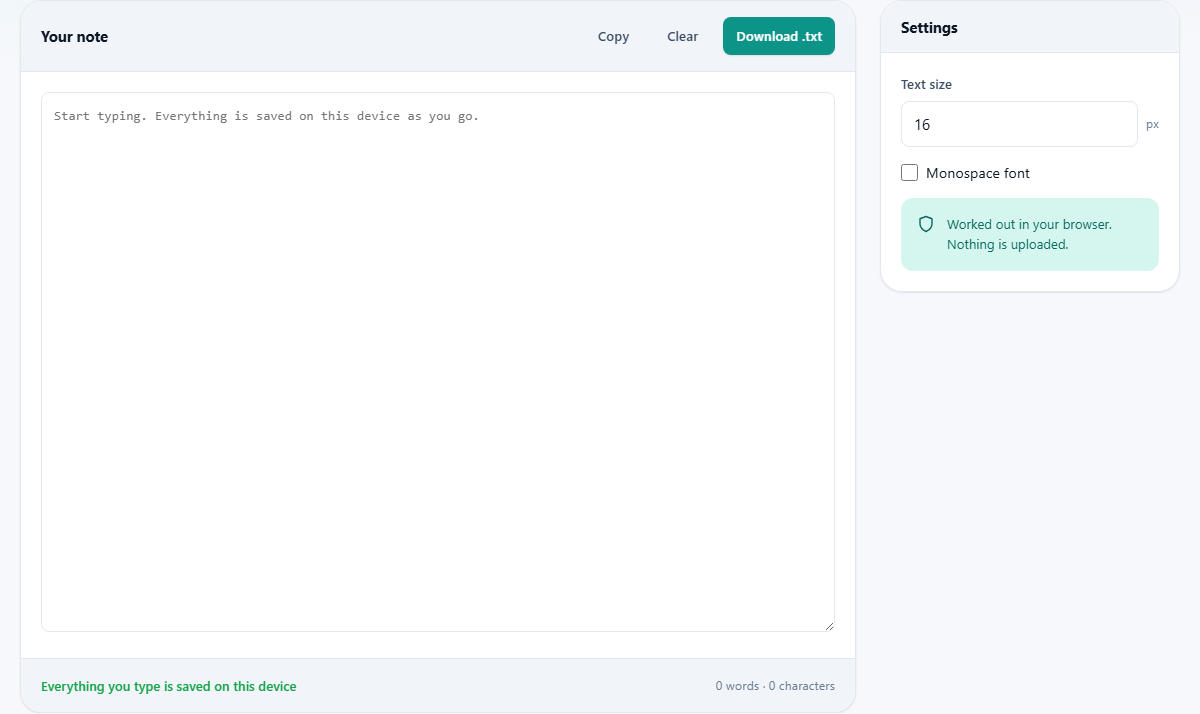
The pad that is always open
The gap this fills is the one between your head and a proper document. You are on a call and someone reels off a phone number. You copy a paragraph from one tab and need to hold it before pasting into another. You want to rough out a message where nobody is watching you type. None of these deserve a new file, but all of them need somewhere to land.
People who like this keep it open in a pinned tab and treat it as a shelf. Anything that will matter for the next ten minutes goes on the shelf. Most of it gets used and cleared the same afternoon, which is exactly what a scratch pad is for.
Typing, and the little save light
The big box is your note. Start typing and there is nothing to click. A short moment after you pause, the status line under the box changes from Typing to Saved, which is your sign that the note is safely stored. It also saves the instant you click away from the box, and again as the tab closes, so a sudden shutdown does not cost you the last line.
To the right of that status sits a running count of words and characters. It updates as you go, which is handy when you are keeping a draft under a length limit or just want to know how much you have jotted so far.
Coming back later
Close the tab, shut the laptop, come back tomorrow: your note is waiting. When the page loads and finds a saved note, it drops the text back in and the status line tells you when it was last written, such as Restored from a date and time. That timestamp is a quiet reassurance that you are looking at the version you left.
There is a boundary to understand. The note lives with this one browser on this one machine. It will not turn up in a different browser on the same computer, and it will not follow you to your phone or another laptop. If you need it elsewhere, move it yourself with the buttons below.
The Settings rail
A narrow panel beside the note holds two controls for comfort. Text size takes a number of pixels, from 11 up to 32, starting at 16. Nudge it up for tired eyes or a shared screen, down to fit more on the page. Monospace font is a tick box that switches the note to a fixed-width typeface, which lines up columns and code neatly.
These two are about how the note looks right now, not what it says, so they are not saved with the text. Come back later and the words return, but the size sits at 16 again and the monospace box is clear. A small line in the rail repeats the promise that the tool runs in your browser and uploads nothing.
A couple of handy habits
One neat side effect is that the box holds plain text only. Paste something styled, copied from a web page or a formatted document, and it lands here stripped of its colours, fonts and links. Copy it straight back out and you have clean, unstyled text to drop into a form or an email that was choking on the original formatting.
It also makes a good parking spot during research. As you read across several tabs, drop the useful lines and addresses here in a rough pile. When you are done, you have one gathered list to tidy up, rather than a dozen half-remembered pages to track down all over again.
Getting the note out
Two buttons move the note beyond this page. Copy places the whole thing on your clipboard in one press, ready to paste wherever it is really going. Download .txt saves it as a plain text file, named for the day you saved it, so a note kept on the tenth of a month arrives as something like note-2026-08-10.txt.
Downloading is how a scratch note grows up. The moment a jotting turns into something you would hate to lose, save it as a file with a real name and put it somewhere you trust. The pad is a waiting room, not a filing cabinet.
Clearing it, and why it double-checks
The Clear button empties the note in one go. Because there is no undo and no history, it asks you to confirm first whenever the box actually holds something, so a stray click cannot wipe an afternoon of jottings. If the box is already empty, it just clears without the question.
Once you confirm, the note is gone and the status line reads Cleared. There is no hidden copy to fish back out, which is the honest trade for a tool this simple. If any part of the note still had value, copy or download it before you clear.
A worked example
Open the page and type a quick shopping list: milk, bread, batteries, a birthday card. As you type, the status flicks to Typing, then settles on Saved a second after you stop, and the counter shows six words and a character count climbing with each letter. You have pressed nothing.
Now close the whole tab and open the page again a minute later. The list reappears on its own, and the status reads Restored from the time you left. Bump Text size up to 20 to read it across the kitchen, then press Download .txt to keep a copy as note-2026-08-10.txt for the trip to the shop. Nothing here asked who you were or connected to anything.
If you would rather not keep a file, press Copy instead and paste the list into a message to whoever is going out. Either way the note also stays in the pad until you clear it, so you end up with both the copy you sent and the original still in place.
Why there is no login
It is worth saying plainly why this tool never asks for an account. An account would mean a server holding your notes, a password to manage, and a company to trust with whatever you jot down. For a scratch pad, that is a heavy price for very little.
Skipping all of it keeps the tool instant and keeps your words to yourself. The cost is the boundary already described: the note stays on this device and does not sync. For the quick, disposable notes this is built for, that is a fair and simple bargain.
Where the note actually lives
Behind the scenes, the text is tucked into a small store that your browser keeps on your own device. That is why it survives a closed tab without any account. It also explains what can erase it. Wiping your browsing data clears it along with everything else. Working in a private or incognito window means it is dropped the moment that window closes.
By design there is just one note, not a stack of them. New text sits in the same single space, so this is a place you overwrite, not a notebook you add pages to. When you need more than one, that is your cue to start downloading them as separate files.
Common surprises, and their fixes
A few things startle people, and each has a plain cause:
- The note disappeared after you cleared cookies. A browsing-data reset removes it along with everything else, so download anything you mean to keep.
- It is not on your other device. The note stays in the one browser where you wrote it; carry it across with Copy or Download.
- You cleared it by accident. There is no undo, and the confirm prompt is the only guard, so read that question before agreeing to it.
- The text size went back to normal. Size and font are per-visit view settings and are not stored with the words.
- Nothing was kept in a private window. Incognito storage is thrown away the instant that window closes.
Private is not the same as safe
Because the note never travels, it is private in the sense that no server sees it. That is not the same as secure. The text sits in plain form, and anyone who can open this browser profile on this device can read it. It is fine for a shopping list and wrong for a password.
So keep secrets out of it. For anything you would not want a passer-by at your desk to see, use a text encrypter or a proper password manager instead. And since a browser reset can take the note with it, download a copy of anything you would genuinely miss, rather than trusting it to stay forever.
When a different tool fits better
This pad is deliberately small, and that shows you its edges. If you want many separate notes, folders and search, a real notes application earns its keep. If you need the same note on your laptop and your phone at once, you want something that syncs across devices, which this does not.
And if the point is secrecy rather than convenience, reach for the encrypter mentioned above. Matched to its actual job, though, a single self-saving box that opens instantly and asks nothing of you is hard to beat for the quick, throwaway stuff that fills a day.