
Turning letters into beeps, and beeps back into letters
Morse code sends each letter as a rhythm of short and long beeps. This tool writes it, reads it back, and plays it out loud so you can hear the pattern for yourself. Here is a walk through both directions, every slider and button on the page, what the little counters mean, a full example you can follow, and the reason the sound never has to leave your device.
Two directions, and where the text goes
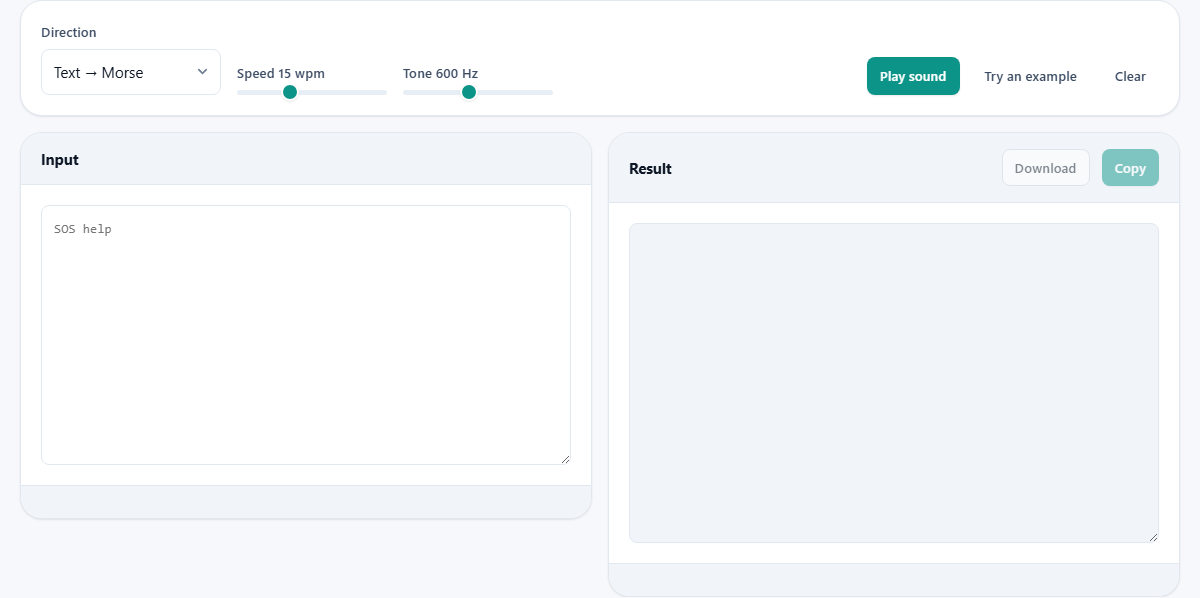
The Direction menu at the top sets which way the tool works. Text to Morse takes ordinary writing and returns dots and dashes. Morse to Text does the reverse: paste dots and dashes and read the plain message that comes back.
Your writing goes in the box marked Input on the left. The answer appears in the box marked Result on the right, filling in as you type. Below the Input box a small status line reports anything the tool needs to flag, such as a character it could not translate. There is no convert button to hunt for; the result simply keeps up with you.
How the written code is laid out
On the page, Morse follows three spacing rules. The dots and dashes of one letter are packed tight against each other. A single space then divides that letter from the next. A forward slash, with a space on each side, marks the jump from one word to the next.
The slash is the part people forget. Leave it out and a reader cannot tell where one word ends and another starts, so the whole message slurs together. Keeping it is what lets a line you wrote today be read back correctly by someone else tomorrow.
Numbers, punctuation and letter case
Letters are only part of the set the tool knows. Each digit carries its own code, five symbols long, so a phone number or a date encodes without a fuss. A handful of everyday marks are covered as well, among them the full stop, the comma, the question mark, the slash and the at sign. That is plenty for a plain sentence or a short address.
Case is ignored on the way in. A capital S and a small s share one code, because Morse draws no line between them at all. When you decode, the letters come back in capitals only, so a message will not remember which parts you had typed in upper or lower case. This is normal, not a mistake to chase.
The Speed slider
Speed sets how fast the beeps play, counted in words per minute. The slider runs from 5 up to 35 and starts at 15. Slide it low and each beep is long and unhurried, which is where a beginner should sit. Slide it high and the rhythm tightens toward the pace a seasoned sender keeps.
This is a true words-per-minute scale, the same one used on the air, so a number here means what it would mean to anyone sending by radio. Moving the slider does not change the dots and dashes at all, only how quickly they sound, and the time counter under the result shifts to match.
The Tone slider
Tone sets the pitch of the beep, counted in hertz. It runs from 300 up to 1000 and starts at 600. A low value gives a deep hum. A high value gives a thin whistle. This setting touches only the sound, never the timing and never the symbols.
Pick whatever is kindest to your ears, above all over headphones or across a long practice run. There is no correct choice. A pitch you can pick cleanly out of background noise is the one to keep.
Playing it, and stopping it
Press Play sound and the tool sounds out the Morse in the Result box, using your chosen speed and tone. While it plays, the same button turns into Stop, so one press cuts the audio off partway when you need quiet. Each beep is eased in and out, so it lands as a clean tone rather than a sharp click.
Nudge a slider, then press Play again to hear the change. This is the step that actually teaches. Staring at dots on a screen sinks in slowly; hearing the shape of each letter is how the code takes hold.
A quick loop for practice
Here is a routine that uses only what is on this page. Type a single short word, then set the Speed low, around eight. Press Play and listen a few times until the rhythm feels familiar in your head. Then look away from the Result box and play it once more, trying to name the letters by ear alone.
When that word gets easy, raise the Speed by a notch and go again. Working one word at a time, climbing the slider slowly, builds your ear far quicker than staring at a long line at full pace on day one. The tool never tires of replaying, so repeat as often as you like.
The counters under the result
Small chips sit below the Result box and swap with the direction. Going from text to Morse, one chip counts the symbols, meaning every single dot and dash, while another shows how long the message would take to play at the current speed. Going from Morse to text, a single chip counts the letters that came back out.
Treat these as quick checks. A symbol count that looks wildly high can hint at a pasting mistake, and the playing-time figure tells you at a glance whether you have a short call sign or a long haul ahead.
Decoding is forgiving on purpose
People write Morse in several ways, so the reader takes them all. Between words it accepts a slash, an upright bar, or simply a wide gap. It reads a centred dot or a round bullet as a dot, and a long dash or an underscore as a dash. Text copied from a book, a forum or a chat therefore decodes without you tidying it first.
When a cluster of dots and dashes matches no known letter, the tool refuses to drop it quietly. It prints a small dot in that spot and adds it to the status count, so a garbled patch stays visible instead of vanishing from the message.
A worked example, start to finish
Leave the Direction on Text to Morse and press Try an example. The Input box fills with the words SOS help. The Result box shows three dots, a space, three dashes, a space, three dots, then a slash, then the pattern for the word help. The chips report twenty-two symbols and, at fifteen words a minute, a spoken length of about six seconds.
Press Play sound to hear it: three short, three long, three short, a word gap, then help. Now switch the Direction to Morse to Text, and that same line of dots and dashes turns straight back into the words SOS help. Running a round trip like this is the fastest way to trust the tool before you feed it something that matters.
Common mistakes, and how to clear them
A handful of things trip people up. Each has a plain fix:
- The Result reads like nonsense. Check the Direction menu first. Text and Morse each look wrong when read the other way round.
- Words run into one another when you decode. The line you pasted was missing its word gaps; add a slash or a wide space between words and try again.
- Two letters merged into one unknown dot. They were written with no gap between them. A single space between letters keeps each one separate.
- A character vanished while encoding. It has no standard code, and the status line will confirm how many were dropped.
- Your capitals came back as capitals. Morse keeps no record of case, so that is expected rather than a bug.
What has no code, and what to reach for instead
The tool covers the international standard: the letters A to Z, the digits, and common punctuation. Anything beyond that has no agreed pattern, so it is skipped during encoding, and the status line tells you how many characters were left out. Accented letters from other languages sit among those gaps, since their extra codes are not built in here.
If your goal is to hide a message rather than send it, Morse is the wrong pick, because it is a public code that anyone can read. A text encrypter suits secrecy far better. And if you only need to spell a word aloud over a phone, the phonetic alphabet tool does that with plain spoken words rather than beeps.
Taking it with you, and where it runs
The Copy button lifts the Result onto your clipboard. The Download button saves it as a plain file named morse.txt. Because the tool remembers your last message and your slider settings, your work is waiting the next time you open the page, and the Clear button empties the Input whenever you want a clean sheet.
The sound is not a recording fetched from anywhere. Your browser builds each tone as it plays, straight from the timing rules of the code, so nothing is streamed in and nothing is downloaded to make it. Your text stays on your machine throughout. You can practise on a train with no signal, and every beep will still be there.