
Writing formatted text without leaving plain text behind
Markdown lets you format writing using ordinary punctuation, so a few hashes and asterisks become headings and bold without any hidden codes. This page is a place to write it, watch it turn into a finished page as you type, and carry away either the source or the HTML. Here is what each button does, which formatting works, and a worked example of drafting a short document.
Why people write in markdown
Markdown sits in a sweet spot between a plain text file and a word processor. The source stays completely readable on its own, since a heading is just a line that starts with a hash and a list is just lines that start with dashes. Yet it turns into proper formatted output the moment something renders it. You get structure without wrestling a mouse through menus.
That is why it turns up everywhere developers and writers meet. A project's read-me file, the notes in a code repository, posts on many forums and chat tools, and a growing number of blogs and note apps all speak it. Learning the handful of marks pays off across all of them, and this editor is a low-stakes place to practise while seeing the result immediately.
Two panes and a preview that keeps up
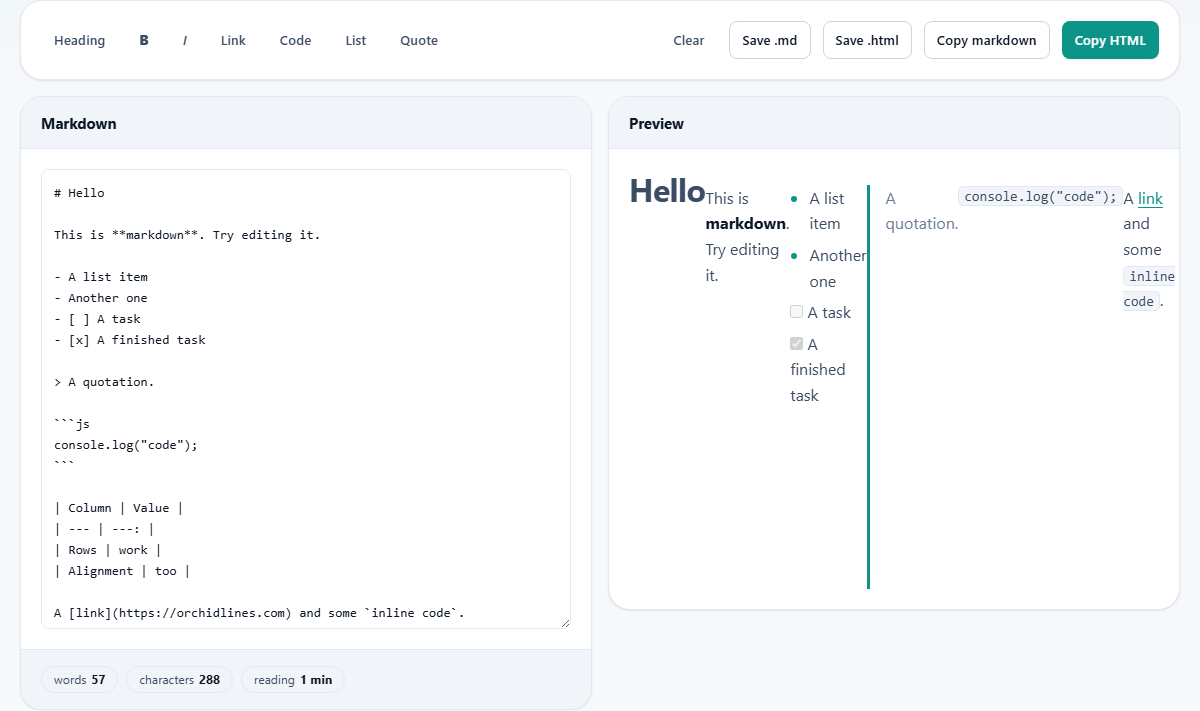
The screen splits in two. You write markdown in the pane on the left, and the pane on the right shows it rendered, redrawing with every keystroke. There is no convert step and no wait; the finished look is always sitting beside the source, so you learn the marks by watching them take effect.
Under the writing pane, a small row of chips keeps a running tally: how many words you have, how many characters, and a rough reading time. That is handy when a post has a length target, or when you just want to know whether the piece has grown longer than it feels.
The toolbar, for when you are still learning
Above the panes sits a row of buttons: Heading, a bold B, an italic I, Link, Code, List and Quote. Each one wraps whatever text you have selected in the right marks. Select a phrase and press the bold button and it gains the asterisks that make it bold; press Link and it is wrapped as a link with a placeholder address ready to fill in.
If nothing is selected when you press a button, it inserts a small placeholder so you can see the shape of the mark and type over it. The toolbar is training wheels, really. Once the marks are in your fingers you will type them directly, but early on it is a quick way to see what each piece of syntax looks like without memorising anything.
What formatting you can use
The renderer covers the marks you are likely to want. Hashes make headings, one to six deep. Asterisks around a word make it bold with two, italic with one, and both with three, while a pair of tildes strikes text through. Lines starting with a dash become a bulleted list, and lines starting with a number become an ordered one.
Beyond that, it handles the useful extras. Task lists render as tick boxes when you write a bracket pair before the item. Tables are drawn from rows of bars, and a colon in the divider row sets a column to the left, right or centre. A greater-than sign makes a blockquote, three backticks fence off a code block, backticks around a word give inline code, and the image and link marks bring in pictures and links.
Why typed HTML is shown, not run
Ordinary markdown lets you drop raw HTML into a document and passes it straight through. This editor makes a deliberate exception: any HTML you type appears as literal text in the preview rather than taking effect. The reason is safety. The preview places its output right into this page, so letting raw HTML through would let a document you pasted from somewhere run code here, and people paste markdown from all sorts of places.
Links get the same guarding. Only ordinary web and email addresses are allowed to become clickable links; anything trying to smuggle in a script through a link is defused and points nowhere. None of this touches the formatting you actually came for. Every normal mark still works exactly as expected; it is only the trapdoor of raw HTML that is closed.
Taking your work away
There are four ways out, because you might want either format. Copy markdown puts the source on the clipboard to paste wherever markdown is understood. Copy HTML gives you the rendered version as a block of markup, ready to drop into a template or a content box. Save .md downloads the source as a file, and Save .html downloads a complete web page you can open in a browser on its own.
One difference is worth holding on to. Copy HTML hands you the body content, the formatted piece itself, not a whole page with a head and a title around it. When you need a file that stands alone and opens straight in a browser, reach for Save .html instead, which adds the wrapping that makes it a real document. A Clear button empties the editor when you want to start fresh.
Your draft is kept for next time
You do not have to finish in one sitting. As you write, the draft is quietly saved into your own browser, so closing the tab and coming back later leaves your words where you left them. Nothing about that involves an account or an upload; the saving is local, the same way a browser remembers a half-filled form.
The first time you open the page it holds a small sample document instead of a blank box. That sample shows a heading, a list, a task list, a quote, a code block, a table and a link all at once, so you can see the marks in action and then clear them out and begin your own.
A worked example: drafting a read-me
Lena is writing the read-me for a small tool. She clears the sample and types a line beginning with two hashes to make an Install heading, then wraps the install command in three backticks so it renders as a code block rather than plain prose. On the right, the heading grows bold and the command drops into a grey box as she types.
Next she adds a short checklist of things left to do, each line starting with a dash and a bracket pair, and they appear as tick boxes. She builds a small table of options with bars and a divider row, using a colon to right-align the second column. When she pastes in the project's two contact lines and they merge into one, she remembers the line-break rule, adds two spaces at the end of the first line, and they split apart again.
Glancing at the chips, she sees the read-me has passed three hundred words, longer than she meant, so she trims a rambling paragraph before finishing. Happy with it, she has a choice: Copy HTML to paste the rendered result straight into the project's website, or Save .md to keep the source in the repository so the next person can edit it. She does both, and because the draft is held in her browser, it is still there the next morning when she spots a typo.
Surprises that catch newcomers
The most common is line breaks. A single new line in the source is treated as part of the same paragraph, so two lines you typed one under the other flow together into one. To force a break within a paragraph, end the first line with two spaces, or leave a blank line to start a whole new paragraph.
The next is expecting typed HTML to render, which it will not, by the design described above. And a small one at the end: if you paste the copied HTML somewhere and it looks unstyled or bare, remember it is a fragment of content, not a styled page. The Save .html option is the one that gives you something complete.
When another tool is a better fit
This editor is built for writing and previewing markdown, and for getting clean HTML out the other side. If your job is the reverse, taking existing HTML and turning it back into markdown, this is not that tool. If you want to generate blocks of dummy text to fill a layout, a placeholder text maker does that directly. And if you only need to count the words in a passage, the chips here will tell you, but a dedicated counter gives a fuller breakdown.
For the core loop of writing structured text, seeing it rendered, and copying either side of it, though, this is the whole job in one screen. No install, no sign-in, no switching between an editor and a separate preview.
It works on your machine, even offline
The part that turns markdown into HTML is written into the page itself, not fetched from a service each time. That has two happy results. Your writing never leaves your computer, since the conversion runs in your own browser and nothing is sent anywhere to be processed. And once the page has loaded, it keeps working with the network switched off, because there is no outside library left to wait on. Your draft, and the HTML it becomes, stay entirely with you.