
Filler text that earns its keep in a layout
Placeholder text stands in for real words while a design is still being built, so you can judge spacing, line breaks and balance before the copy exists. This page makes that filler in several styles and shapes. Here is what each setting changes, a walk through filling a real layout with it, and the small habits that stop dummy text causing trouble later.
What placeholder text is for
A blank template tells you very little. The moment words drop into it, the real questions appear. Does the heading wrap on a phone. Does a long name break the button. Does the third card sit oddly because its blurb is shorter than the rest. People pour in filler exactly to force those questions out early, while they are still cheap to answer.
The same need turns up across many trades. A web page mocked up before the writer has typed a word. A newsletter template that needs a body of text to test its width. A printed page waiting on the final article. A data screen that must look right with a hundred rows in it. In each case you want text that reads like text but carries no meaning worth arguing over.
Three word sets, three moods
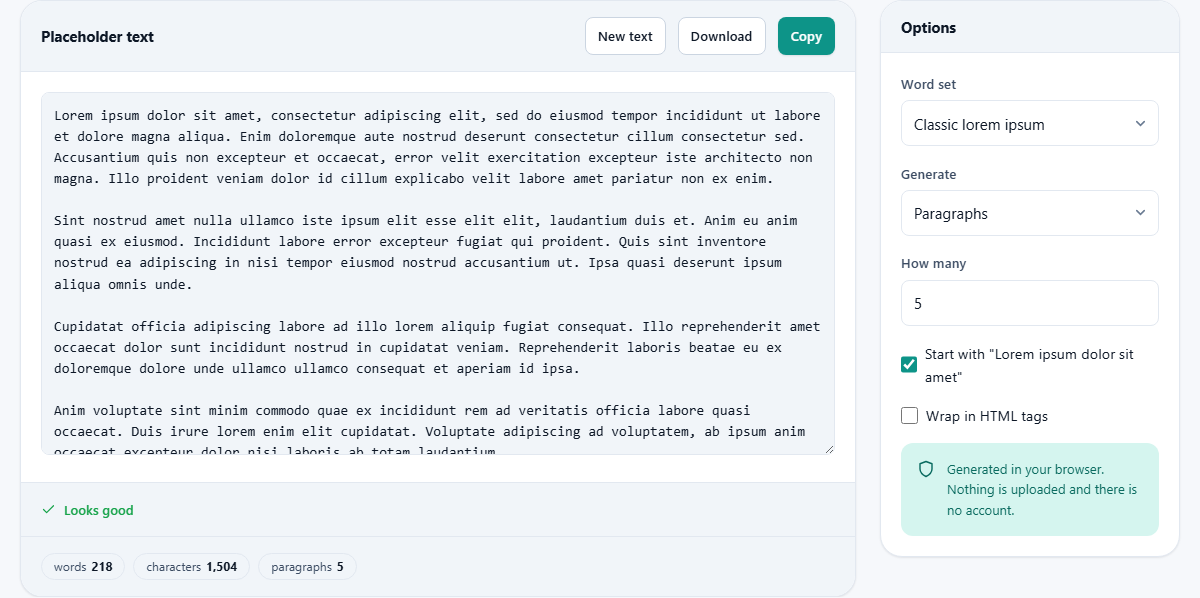
The Word set menu decides which vocabulary the filler is drawn from. The default is Classic lorem ipsum, the jumbled Latin that has stood in for copy for centuries. Its one clear virtue is that nobody mistakes it for finished writing, so a draft is never shipped by accident.
Common English words is the second choice, and often the wiser one. It pulls from the words English leans on most, so the result has the rhythm and average length of a real sentence. Ragged edges and line breaks then behave close to how the finished page will, which Latin cannot promise. Pick it and a short note confirms you are now testing against English rather than Latin.
- Classic lorem ipsum: plainly fake, ideal when a draft must never be confused with real content.
- Common English words: realistic spacing and word length, best for judging how a layout truly reads.
- Hipster nonsense: a playful set of trendy cafe words, more of a novelty for a light demo than a serious test.
Choosing the unit
The Generate menu sets the shape of the output. Paragraphs give you blocks of body copy, each built from a few sentences, which is what you want sitting behind an article or a long description. Sentences give you one flowing run with no paragraph breaks, handy for a caption or a short intro line.
Words produces a single line of the length you ask for, the right pick for a headline or a menu label where only a few are needed. List items give several short lines that vary in length, and this is the unit people forget. A row of cards, a navigation menu or a set of tags is tested far better by short uneven lines than by one fat paragraph, because that is the shape real menus actually take.
Latin or English: a quick way to decide
If you cannot choose between the two serious sets, let the goal decide for you. When the point of a mockup is to show a client the shape of a page, and you worry they might read the words and start editing them, the Latin set keeps their eyes on the design. Its strangeness is the whole feature. Nobody pauses to argue with a sentence they cannot parse.
When the point is to judge the design itself, English wins. Real words carry short joining words, like the and of, that hold a line together, and a spread of long and short that decides where each line breaks. Latin has neither in the same measure. So a paragraph that looks perfectly settled in Latin can turn ragged the day the English copy lands. If the layout has to survive real text, test it with words that behave like real text.
How much, and the traditional opening
How many sets the count, from one up to five hundred of whatever unit you chose. Five is the starting value and enough to reveal a pattern. Push it higher when you suspect the real copy will run long, because copy almost always does.
One tick box reads Start with 'Lorem ipsum dolor sit amet'. It places that famous opening at the front of the first block, which is what people expect a lorem generator to make and a quick way to prove the tool did its job. It only applies to the classic Latin set. Choose English or hipster words and the switch quietly steps aside.
Plain text or ready-made HTML
By default the filler comes out as plain text. Paragraph units are parted by blank lines, and list items are marked with a small round bullet. That drops neatly into a document or a plain text field.
Tick Wrap in HTML tags and the output arrives as markup instead. Each paragraph is wrapped in a paragraph tag, and the list unit becomes a bulleted list with every line as its own item. If you are pasting straight into a template or a code editor, that saves you tagging it up by hand afterwards.
A worked example: filling a pricing grid
Maya is building a three-column pricing section and the marketing text is a week away. She wants to know today whether the cards stay aligned when their descriptions differ in length. She sets Word set to Common English words, Generate to List items, and How many to nine, which is enough for three cards of three lines each.
The result is nine short lines of uneven length. She pastes three under each plan, and at once the middle card sits a shade taller because one of its lines ran long. Far better to learn that now than after launch. She taps New text a couple of times to see other length mixes, then switches Generate to Paragraphs and How many to two to fill the longer compare-plans panel below. Copy carries the block straight into her template.
Before she moves on, she glances at the count row and sees the paragraphs came to roughly ninety words. The real blurb is meant to stay under sixty, so she drops How many back to one and regenerates. Matching the filler to the true budget this early means the panel will not suddenly overflow when the finished sentence, which she now knows must be shorter, finally arrives.
Reading the counts you get back
The little row beneath the output is easy to ignore, but it turns guesswork into a check. It reports the number of words, the number of characters, and the number of units in the current sample. Characters matter when a field has a hard limit, such as a meta description or a card title that must not spill onto a third line.
Because each press of New text makes a new random block, the counts shift a little every time. That is useful in itself. Generate a unit five or six times and you get a feel for the spread of lengths the real content might land in, rather than testing against a single lucky sample that happened to fit.
More places a block of filler helps
Full page layouts are the obvious use, but the same block of nonsense earns its keep in plenty of smaller spots where you need something plausible in a hurry.
- Form fields: paste a long line into a text box to see whether the label and the input still sit together neatly.
- Chat or comment bubbles: a few sentences show how a bubble grows and where the name and time end up.
- Table cells: list items of differing length expose a column that is too narrow long before the real data does.
- Empty states: a screen that only looks finished once it holds content can be dressed with filler for a screenshot or a demo.
Getting the text out, and starting over
Every generation is random, so New text hands you a fresh sample without touching any setting. Tap it a few times until the length feels like the real copy will. Copy places the current text on the clipboard, and Download saves it as a plain text file if you would rather keep it beside the project.
Under the output a small row of counts shows how many words and characters you made, and how many units. That is a fast way to match the filler to a real word budget, say a description that has to stay under forty words.
Common slips, and when to reach elsewhere
The classic mistake is publishing with the filler still in place. It happens more than anyone admits. Before a page goes live, search the project for the word lorem and clear whatever is left behind. The second slip is testing with too little. A design that looks calm under one tidy paragraph can buckle under the three long ones the real copy brings, so err on the generous side.
This tool invents meaningless words on purpose, which makes it the wrong place once you have real things to say. When the actual content exists and you want to structure it, the markdown editor here turns your headings and lists into clean HTML. And if your goal is to trim padding out of writing you already have, rather than to make more of it, a writing checker fits that job better.
Where the words are made
Every sample is assembled by code that ships inside this page, so the filler is built on the computer in front of you and sent nowhere. There is no account to create and no request to a server for the text. Once the page has loaded you could switch the network off and keep generating, which tells you plainly that the work is local. Nothing you make here is kept anywhere but your own clipboard or the file you choose to save.