
Reshaping a list into the format the next step wants
A list is often trapped in the wrong shape. You have one item per line and the database wants a bracketed clause, or you have a comma string and your code wants a proper array. This page moves a list between those shapes and quotes each item the way the target needs. Below: what each format setting does, the quoting rules that keep the output valid, and a full worked example.
The everyday reshaping jobs
The need shows up whenever data crosses from one place to another. You copied a column of order numbers and now have to drop them into a database query. A colleague sent a comma-separated line and your program expects a list it can loop over. You have a plain block of items and the document you are writing wants them as neat bullets.
Each of these is the same underlying task: read a set of items in one shape and write them out in another. Doing it by hand invites small errors, a missing quote here, a stray comma there, that break the result in ways that are annoying to trace. This page does the reshaping and the quoting together, so what comes out is ready to use.
Reading the list in: Input format
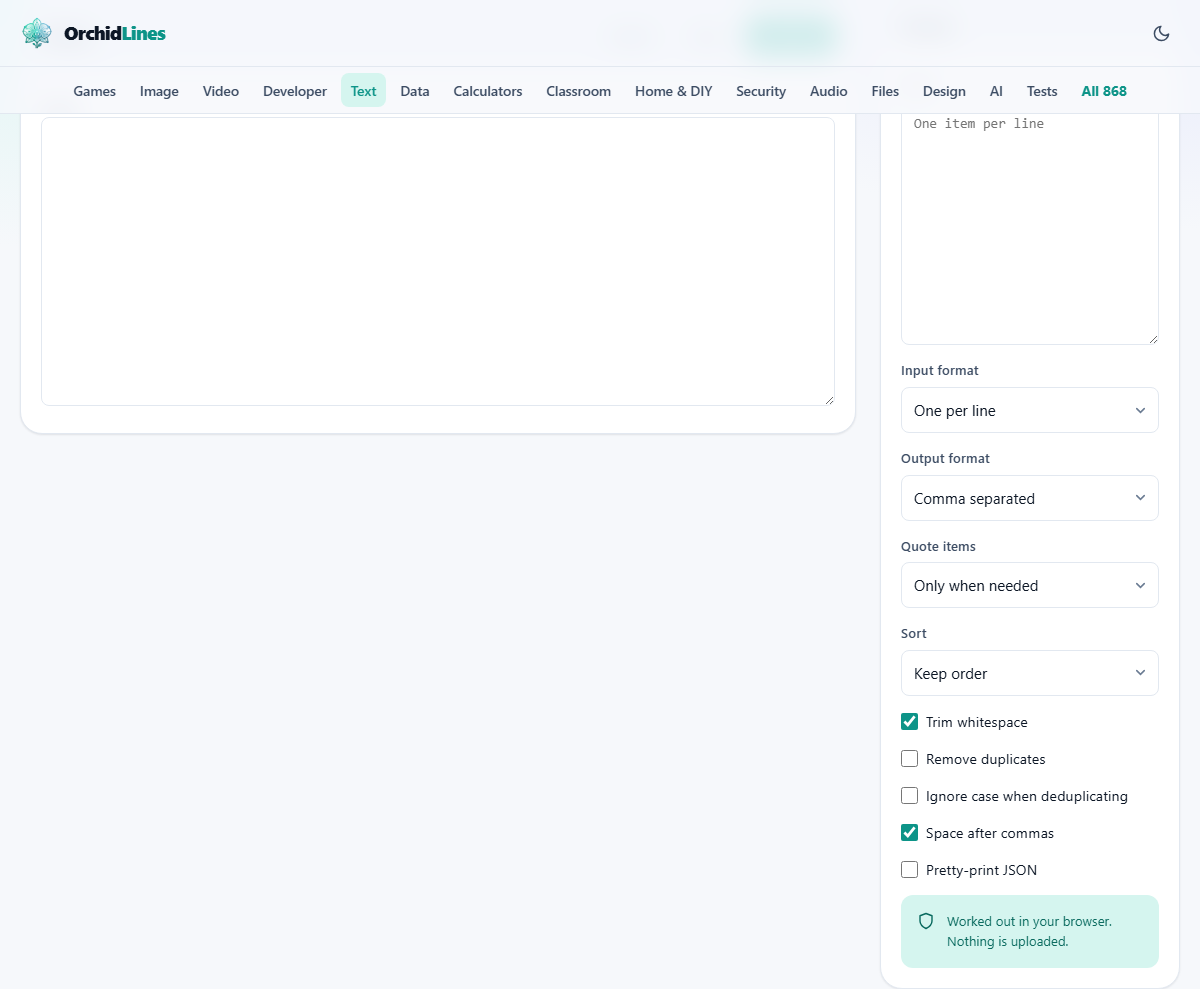
Input format tells the tool how your pasted text is already arranged. One per line treats every line as an item. Comma separated splits on commas. JSON array reads a proper array written in code, and if that fails to parse it quietly falls back to reading line by line.
The careful part is items that contain the separator. A name like Smith, John is one item, not two, so comma input is parsed with quote handling rather than a blind split, and a quoted piece stays whole. As the list is read, common decorations are stripped for you: leading dashes or dots from bullet points, and the numbers from a numbered list, so pasting a formatted list does not carry its formatting through.
Writing it out: Output format
Output format is where the real work shows. Comma separated joins the items with commas. One per line stacks them back into lines. JSON array produces a valid array ready for code. SQL IN clause wraps the items in brackets for a database query. Bullet list and Numbered list format them for a document. Pipe separated and Space separated join them with a bar or a space for the odd tool that expects those.
The result appears in the panel on the left the instant you change anything, with a heading above it telling you how many items were found. There is no run button to press; typing in the input or flipping any setting refreshes the output on its own.
Quoting items, and the SQL rule
Quote items decides how each value is wrapped. Only when needed, the default, leaves plain items bare and adds quotes just to the ones that would otherwise break the format, such as a comma-bearing item in a comma list. Always double wraps every item in double quotes; Always single uses single quotes.
The SQL clause follows its own rule regardless, because databases are strict. It wraps each value in single quotes and escapes an embedded apostrophe by doubling it, so O'Brien becomes the quoted form with two apostrophes in the middle. That is the standard way, and it matters: the backslash style some people reach for works in one database and is an outright error in others.
Sorting and the tick boxes
Sort offers Keep order, A to Z or Z to A. Keep order is the default, so unless you ask, the items come out in the sequence you pasted them. Trim whitespace, on to start with, cleans stray spaces off each item. Remove duplicates drops repeats, keeping the first of each, and Ignore case when deduplicating lets Smith and smith count as the same entry so only one survives.
Two switches shape specific formats. Space after commas adds a space following each comma in the comma output, which reads better for a person but can be turned off when a machine wants it tight. Pretty-print JSON spreads the array over several indented lines instead of one long string, which is easier to read when the list is long.
The item count and the warnings
The heading over the result always shows how many items the tool found. That number is your first check: if you pasted what you thought was twenty things and the count says forty, the input was split somewhere you did not intend, usually a comma inside an item that was read as a separator.
Above the result, a notice appears when something needed handling. If your items contain commas and you asked for comma output without forcing quotes, it tells you the affected items were quoted so the output does not read back as more items than you started with. If an item contains an apostrophe and you chose SQL, it explains how that apostrophe was escaped. The warnings are there to stop a silent surprise later.
A worked example: building a database clause
Tom needs to pull a few rows by full name, and the names are in Last, First form. He presses Sample and four lines appear, among them Smith, John and O'Brien, Mary, plus smith, john in different capitals. Because each name holds a comma, he leaves Input format on One per line. Had he picked Comma separated, the tool would have read Smith and John as two separate people, and the item count would have jumped, the giveaway that something went wrong.
He sets Output format to SQL IN clause. The result is a bracketed list of quoted names, and O'Brien's apostrophe is safely doubled so the query stays valid. He ticks Remove duplicates and Ignore case when deduplicating, and Smith, John and smith, john collapse into one. The heading now reads three items. He presses Copy and pastes the clause straight into his query.
A generated clause is not a substitute for parameters
A word of care about the SQL output. Pasting a clause into a query you are running yourself, on data you trust, is fine. Building a query by gluing user-supplied text into it, though, is the classic route to a security hole, no matter how carefully each value is quoted.
When the values come from anywhere you do not control, the right approach in real code is to pass them as bound parameters, letting the database keep the data and the query separate. Treat this page as a convenience for one-off, hand-run queries, not as a way to assemble SQL inside a program.
Mistakes worth watching for
The biggest is choosing the wrong input format for items that contain the separator, which splits your list without warning. Watch the item count. If it is higher than the number of things you pasted, switch the input format and look again.
A gentler point: the A to Z sort here is a plain character sort, so it does not do the number-aware ordering you might expect from a file manager. If you need item 2 to land before item 10, a dedicated line sorter handles that. And remember that sending JSON out and reading it back in should give you the exact same items; if it does not, something in your input was not quite the shape you assumed.
Copying and saving the result
Two buttons sit above the result panel. Copy places the formatted output on the clipboard, ready to drop into a query, a document or a code file. Download saves it as a plain text file, which is the tidier choice when the list runs long or you want to keep it beside the project rather than pasting it right away.
The Sample button is there for learning. It fills the input with a short list of names, some sharing a value in different capitals and one carrying an apostrophe, so you can watch the quoting and the deduplication behave before trusting the tool with real data. It is the quickest way to see what each setting actually changes.
When to reach for something else
This page is at its best turning a modest list from one format into another. If your real task is ordering, filtering or numbering a long stack of lines, a line-focused tool does that with less fuss. If you need to split on some separator that is not a comma or a newline, do that swap first with a find and replace, then bring the one-per-line result here for the final format.
And a practical limit worth naming: a database clause holding thousands of values is usually the wrong design, whatever tool builds it. Past a few hundred, most databases would rather you loaded the values into a temporary table and joined against it.
It all happens in your browser
The parsing, quoting and formatting are done by the page itself, on your own computer. A list of customer names or internal identifiers is reshaped on your device and uploaded to nobody, which is exactly what you want when the values are ones you would never paste into an unknown website. There is no account and no server in the loop. Close the tab and the list is gone, left only wherever you keep your own copy.