
One change, made everywhere at once
Renaming a product across a price list, fixing a misspelled surname in meeting minutes, deleting a timestamp from every line of a log: these are all the same job. This article walks through the plain search options, makes a gentle case for learning pattern matching, and explains the guard rails that keep a careless replacement from ruining your afternoon.
The jobs that bring people here
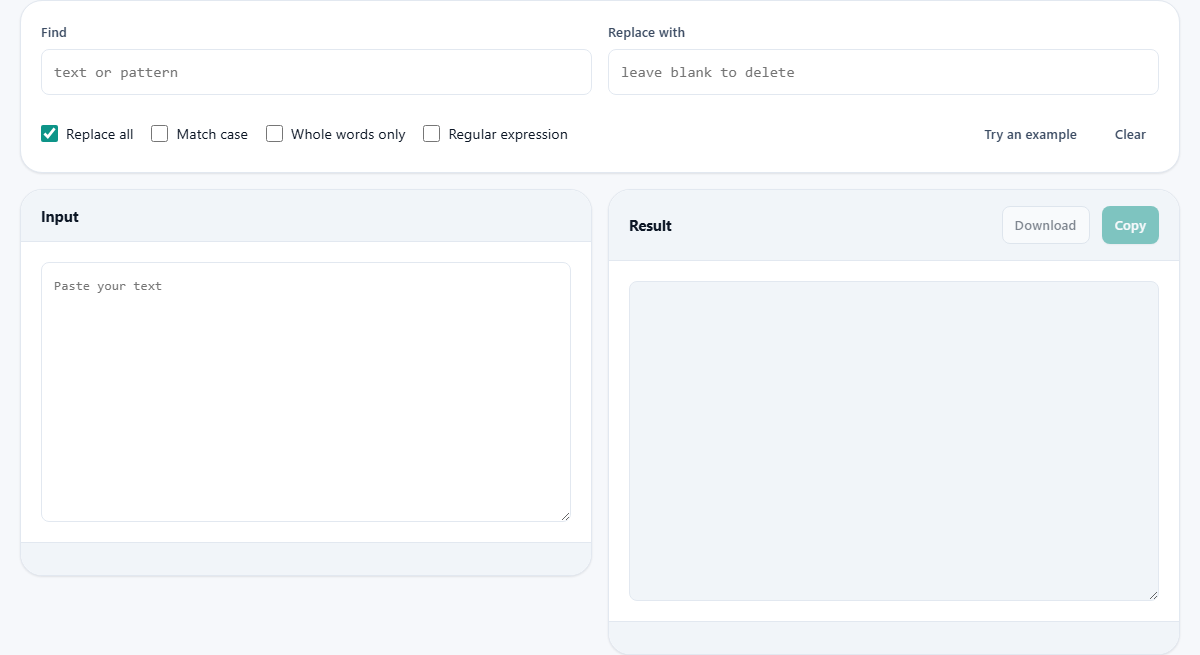
Word processors have had find and replace forever, but reaching it means opening a document, and much of the text people need to fix never lives in a document. It is a chunk of a webpage, a column dragged out of a spreadsheet, a log file, a chat export, a block of code. This page accepts any of it: paste into the input pane on the left, describe the change once, and the corrected version appears in the result pane on the right.
The scale is the other reason. Pasting five hundred lines into a word processor just to change one recurring name feels absurd. Here the paste is the whole setup, and the counters underneath the result tell you exactly how many changes were made, which is your first sanity check that the operation did what you believed it would.
The two fields that do the work
The field labelled Find takes the text you are hunting. The field labelled Replace with takes what should stand in its place, and its placeholder points out the trick that is easy to miss: leave it blank and every match is simply deleted. Stripping a recurring prefix, killing a repeated disclaimer, removing tracking junk from a list of links, all of that is a find with an empty replacement.
In the default plain mode, both fields mean exactly what they say. Full stops, brackets, currency signs, none of it is special. Searching for $9.99 finds the literal price, and a dollar sign in the replacement comes out as a dollar sign. This sounds too obvious to state, but it distinguishes plain mode from pattern mode, where several of those characters take on jobs of their own.
Four tick boxes, four behaviours
Replace all is ticked from the start, so every match changes in one pass. Untick it and only the first occurrence changes, which suits surgical edits where you know the second occurrence should stay.
Match case makes capital letters significant. With it off, polish and Polish are the same word to the search; with it on, they are different, which is exactly the distinction you need when one is a verb and one is a nationality. Whole words only stops the search matching fragments inside longer words. The classic accident it prevents: replacing cat with dog also turning category into dogegory and concatenate into condogenate. The fourth box, regular expression, changes the game entirely and gets its own sections below.
A plain-mode walkthrough
Priya has a supplier price list of about three hundred lines, and the supplier has renamed itself from Norfield Supply to Norfield and Sons. She pastes the list into the input pane, types Norfield Supply into Find, types the new name into Replace with, and leaves everything ticked as found. The status line reports 41 replacements, which roughly matches the number of rows she expected the old name to appear in.
Then she scans the result pane before copying, and this scan catches something the counters cannot: three rows where the old name was typed as Norfield Supply with a double space, still unchanged. A second pass with the doubled space in the Find box fixes those. Two small lessons travel with this story. Check the count against your expectation, and remember that a replacement is cheap to run twice.
Patterns, for the searches words cannot describe
Some changes cannot be named as a fixed string. Delete every number in brackets. Change any date written one way into another way. Find lines that start with a quote mark. For these you tick the regular expression box, and the Find field stops being text and becomes a pattern language.
The essentials are small. A dot matches any single character. Square brackets match any one character from a set, so [0-9] is any digit. A plus sign means one or more of the previous thing, so [0-9]+ is a whole number of any length. Backslash-n written as \n stands for a line break, which lets you join lines by replacing it or split them by inserting it. With just those pieces, deleting every bracketed number becomes a one-line pattern instead of three hundred hand edits.
Capture groups, the reordering trick
Wrap part of a pattern in round brackets and the match remembers what that part was. In the replacement, dollar-one and dollar-two, written $1 and $2, paste those remembered pieces back in whatever order you like.
The everyday use is flipping name lists. A roster arrives as Tanaka, Yuki, one per line, and you need Yuki Tanaka. Find (\w+), (\w+) and replace with $2 $1, and the whole roster flips in one action. The same shape handles reordering dates, swapping columns in delimited data, and wrapping matched text in something new, since the replacement can mix remembered pieces with literal characters freely.
The traps in pattern mode
The most common mishap is punctuation you meant literally. In a pattern, a full stop means any character, so searching for 3.50 in pattern mode also matches 3450 and 3x50. Escape it with a backslash, writing 3\.50, or ask yourself whether you needed pattern mode for this search at all. The FAQ above covers this exact stumble because it is that frequent.
The second mishap is a pattern that matches far more than intended, usually a greedy quantifier grabbing a whole line. The habit that catches it: read the replacement count before touching Copy. Expecting around forty and seeing four thousand means the pattern is wrong, and since your original is still sitting in the input pane, recovering is nothing more than adjusting and letting it run again.
A second job: stripping timestamps from a chat export
Here is the same tool doing something a plain search cannot. An export of a support chat runs to twelve hundred lines, and every one of them opens with a bracketed date and time before the speaker's name. You want the conversation without the clock.
Tick Regular expression and put this in Find: a caret, an escaped opening bracket, then one or more characters that are not a closing bracket, then the escaped closing bracket, then a marker for any spaces after it. Leave Replace with empty. The caret means the start of a line, and pattern mode matches line by line rather than treating the whole paste as one long string, so that anchor applies to every line and not only the first. The counter reports twelve hundred matches, and the two character counts differ by the weight of the timestamps you just deleted.
Two boxes that do not work together
One combination surprises people. Whole words only has no effect while Regular expression is ticked. It is not broken and it is not an oversight: in pattern mode you are expected to write the boundary into the pattern yourself, using the backslash b marker at each end of the word, because a pattern can describe far more shapes than a simple word.
So if you turn on pattern mode and your search starts catching fragments inside longer words again, the tick box is not going to save you. Add the boundary markers to the pattern, or turn pattern mode off if you never needed it. Everything else combines freely: match case, replace all and pattern mode all apply together.
Reading the three counters
The row under the result carries three figures rather than one. Matches is the headline number and the one to check against your expectation. Characters in and characters out give the size of the text before and after.
That pair earns its place on deletions. Remove a repeated phrase and the difference between the two numbers should be roughly the number of matches multiplied by the length of what you deleted. If it is wildly larger, your pattern swallowed more than the phrase. There is also a plainer signal for the commonest mistake of all: when nothing matches, the status line turns to a warning and repeats exactly what it was looking for. Seeing your search term written back at you is usually enough to spot the stray space or the wrong capital that caused it.
Guard rails you will rarely notice
Two protections run underneath. A pattern that can match an empty string, which would otherwise loop forever inserting at every position, is refused with a message instead of freezing the tab. And a replacement that would affect more than 200,000 matches is declined outright, because past that point the browser stops responding and no one is well served.
Neither limit shows up in normal work. Text size itself has no fixed cap beyond your machine's memory, so book-length input with thousands of replacements is routine.
Getting text in and results out
- The example button loads a small demonstration text, useful for testing a pattern idea on safe material first.
- Clear resets both panes for the next job.
- Copy puts the finished result on the clipboard once a replacement has run.
- Download saves the result as a file, better than copying when the output is huge.
- The counter row doubles as your audit trail: match numbers first, clipboard second.
Where a different tool wins
Structured changes to structured data deserve structured tools. If you are editing one column of a spreadsheet, the spreadsheet's own replace confines the change to that column, which this page cannot. Recurring transformations you run weekly belong in a script. And if what you need is not replacement but reshaping a list, sorting, deduplicating, prefixing every line, the line-oriented tool on this site is built for precisely that shape of work.
For everything in between, a one-off change to a pile of text of any size, the pasted-in approach is hard to beat. The text stays on your machine throughout; the searching and replacing are done by your own browser, nothing is transmitted, and the original disappears when you leave. Paste with confidence, even when the material is a contract or a client list.