
Folding text into a fixed-width column that reads cleanly
Some places still want text wrapped to a set number of characters per line: plain email, code comments, a README, a message going into a terminal. This page folds a paragraph to a width you choose, and can line up both edges if you want that newspaper-column look. Here is what each control does, a worked example, and how to avoid the ugly results.
Where fixed-width text still matters
Most screens wrap text for you, so it is easy to forget that plenty of places do not. A plain-text email is meant to have real line breaks baked in. Comments in code are kept to a tidy width so they read the same everywhere. A note pasted into an old terminal, a commit message, a README file: all of these look best folded to a column.
Doing that by hand means hitting return over and over and counting characters as you go. This page does the counting. You give it the paragraph and the width, and it inserts the breaks in the right places, leaving you a block that holds its shape wherever it lands.
The text box and the sample
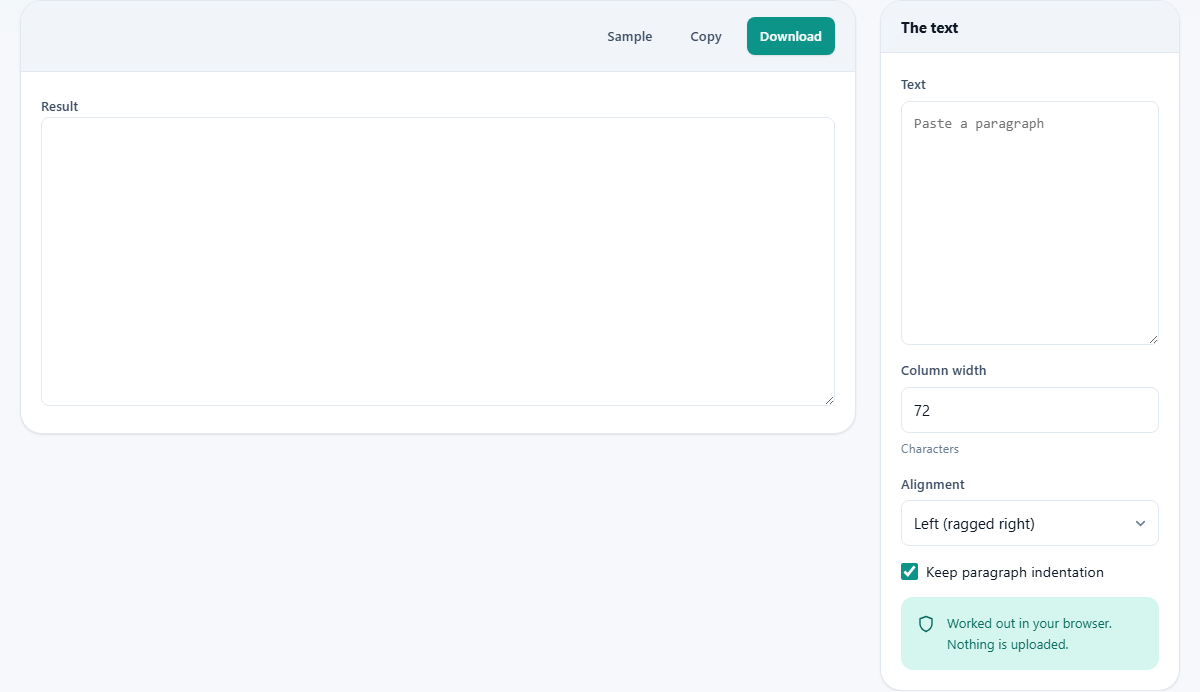
The controls live in a panel on the right, headed The text. The large box there takes what you want to wrap; paste a paragraph in and the folded version appears in the result box on the left at once.
A Sample button loads a two-paragraph passage so you can see the wrapping and the alignment before committing your own words. It is the quickest way to get a feel for how a change to the width or the alignment changes the shape of the block.
Column width
Column width is the number of characters allowed on a line, and it is the main dial. It runs from a narrow twenty up to a roomy two hundred, and starts at seventy-two.
That starting figure is not random. Seventy-two is the polite width for a plain-text email, leaving space for the angle brackets a reply adds down the left. Eighty is the traditional terminal width. For ordinary reading, somewhere between sixty-five and seventy-five characters is the comfortable range, wide enough to flow and narrow enough that the eye finds the next line easily.
Alignment
The Alignment menu offers four ways to set the text against the column. Left, the default, gives a straight left edge and a ragged right one, which is what nearly all readable text uses. Justified stretches each line so both edges are straight, the look of a printed column. Centred sits each line in the middle, and Right pushes every line against the right edge.
Left is the safe choice almost every time. Justified has its place in a fixed-width column but needs care, which the next section covers. Centred and Right are for short, decorative blocks such as a heading or an address, not for paragraphs of prose.
Centred and right in practice
The two decorative alignments earn their keep on short blocks rather than on paragraphs. Centred is the natural pick for a title line or a small heading sitting above a fixed-width block, where a middle position looks deliberate and neat.
Right pushes the text against the right edge of the column. It suits a short signature, a date, or an address you want tucked to the right-hand side. Both pad the line with spaces to place it, so like everything else on this page they assume the result will be read in a fixed-width font.
Keep paragraph indentation
This tick box, on by default, decides what happens to spaces at the start of a paragraph. With it on, any leading indent you typed is kept, and every wrapped line of that paragraph is shifted in to match.
Untick it and the leading spaces are dropped, so each paragraph starts hard against the left margin. Turn it off when you are pasting text that arrived with messy or uneven indenting and you just want a clean, flush block.
How justify keeps the edges clean
Making both edges straight means adding spare spaces between words until a line reaches the full width. The clumsy way is to dump all the spare space into one gap, which leaves a wide hole and, line after line, a pale channel running down the column that the eye keeps snagging on.
This tool spreads the spare space across the gaps nearest the start of each line instead. A reader tracking left to right barely notices a slightly wider gap early in a line. There is one more rule that does most of the work: the final line of every paragraph is never stretched. A closing line of three words pulled across the whole width is the tell-tale sign of text that was justified badly, and leaving it alone avoids that entirely.
Reading the result and the summary
The folded text lands in the result box on the left, shown in a fixed-width font so the columns actually line up as you read them. Above it a short summary reports three things: how many lines the result has, the length of the longest line, and the target width you set.
That longest-line figure is a quick sanity check. If you asked for a width of seventy-two and the longest line reads seventy-two, everything fitted. If it reads higher, a single long word would not fit, and the tool is telling you so.
Copy and Download
Two buttons above the result save your work. Copy places the wrapped text on the clipboard, ready to paste into your email, your code file or wherever it was headed.
Download writes it out as a plain text file. That is the better choice when the block is long, or when you want to keep it as a file rather than pasting it straight on. Both give you exactly the text shown in the result box, breaks and all.
Why a line can stick out past the width
Sometimes one line in the result is longer than the width you asked for, and a warning says so. The reason is always the same: a single word that is wider than the whole column. A long web address is the usual offender.
The tool never breaks a word to force it in. Splitting a word correctly needs a hyphenation dictionary for the language, and a wrong split reads worse than a line that pokes out a little. So the long word is left whole, the line runs over, and you are told which lines did it, so nothing is a surprise.
It only lines up in a fixed-width font
The whole idea rests on every character being the same width. That is true in a fixed-width font, the kind used for code and terminals, where an i and an m take up the same space. It is not true in the fonts most documents use, where letters have different widths.
So if you paste this wrapped text into a normal word processor, the careful edges will not line up any more, because the program is measuring in variable-width letters while the tool counted in fixed ones. Keep the result somewhere fixed-width, which is exactly where this kind of text belongs anyway.
A worked example
Press Sample to load the two short paragraphs. Leave the width at seventy-two and the alignment on Left. The result box fills with the text folded into neat lines: a straight left edge, a ragged right one, and a blank line still separating the two paragraphs. The summary above it reports the line count, the length of the longest line, and the target of seventy-two you set.
Now change Alignment to Justified. The right edge snaps straight as spare spaces are tucked into each line, except on the last line of each paragraph, which stays as it was. Drop the width to forty and press nothing else: the block re-folds into a narrower column with more lines. This is the loop, change a control, read the result, until the shape is what you need.
Common mistakes
The frequent one is justifying text that is going somewhere that wraps on its own, such as a web page. There, hard breaks fight the browser and the result looks worse, not better. Save justification for genuinely fixed-width places.
The other is wrapping a whole document written in a markup style. Wrapping flows list items and indented code back into ordinary prose, which scrambles them. If your text has structured parts, wrap it a paragraph at a time and leave the structured bits out.
When another tool fits, and where the text stays
If you want the opposite job, taking wrapped lines and joining them back into flowing paragraphs, a sentence-splitting tool with a join mode is built for that and undoes this cleanly. For laying out prose in a normal proportional font, a word processor is the right home. For formatting source code, a proper code formatter beats a plain wrap.
For the plain task of folding text to a fixed column, this page is quick and quiet. And it is private: the wrapping is worked out by your own browser, the paragraph you paste is not sent anywhere, and it vanishes when you close the tab. You can fold a confidential email or an internal note without any of it leaving your screen.