
Catching the characters that hide inside pasted text
Text copied from a web page or a word processor often carries passengers you cannot see: marks with no width, spaces that are not really spaces, quotes that are the wrong shape. They sit there quietly and then break a password, a formula or a line of code. This page finds them, tells you what they are, and hands back a clean version.
The bug with no visible cause
The frustrating thing about these characters is that everything looks fine. A password you copied is rejected as wrong, though it matches on screen. A line of code throws an error, yet the line reads perfectly. Two cells in a spreadsheet look identical but a lookup swears they are different.
In almost every case the culprit is a character your eyes cannot see or cannot tell apart. It came along for the ride when you copied, hidden between the letters you meant to take. This tool exists to drag those passengers into the light so you can decide what to do with them.
Pasting the suspect text
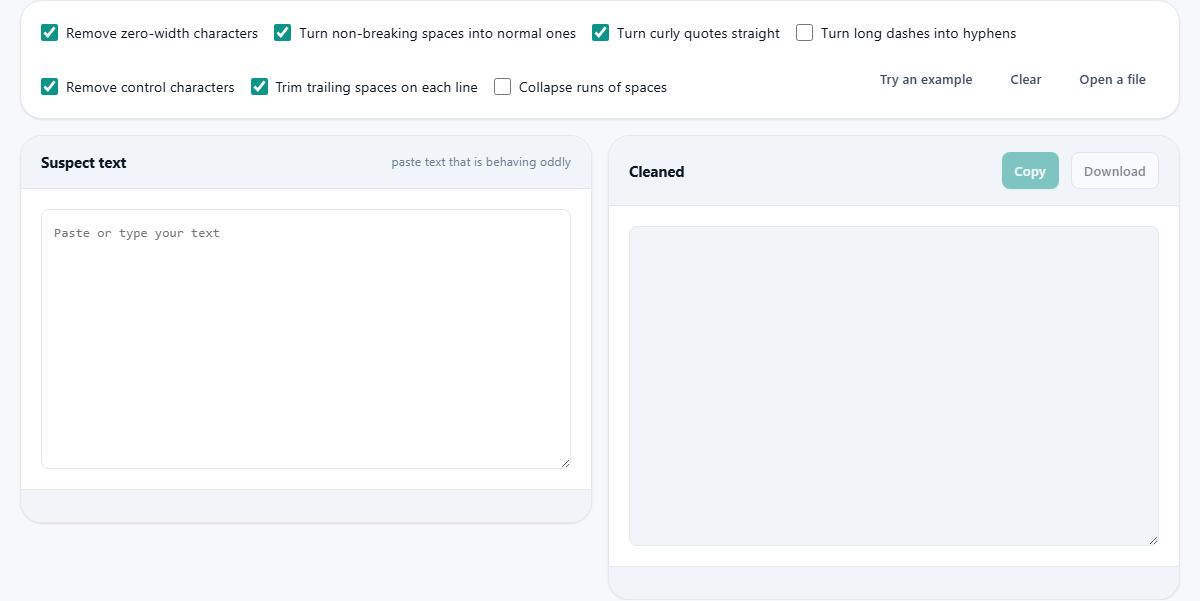
Drop the misbehaving text into the box on the left, marked Suspect text. This is usually something copied from a website, a document, a chat message or a PDF. The moment you paste, the tool scans it and fills in the panels around it.
Three buttons help you load material. Try an example puts in a short line that is deliberately full of hidden characters, so you can watch the scanner catch them. Clear empties the box. Open a file reads a plain text file when the text you are checking is long.
Reading the report
The most useful part sits below the two boxes, in a panel headed What was in there. It is a table with a row for each kind of hidden character it found. Each row names the character, gives its code, counts how many times it appeared, and says in a few words why it causes trouble.
A small strip of figures adds the totals: characters in, characters out, how many were removed, and how many suspects were found in all. The count is a clue to the source. One or two stray marks suggest an accidental paste. Hundreds, spread evenly, mean the whole document came out of a formatter that peppers text with them.
Remove zero-width characters
This box, ticked from the start, deals with the sneakiest group. A zero-width space is the ringleader: it takes up no room and shows no mark, yet still counts as a character. Alongside it this option clears the zero-width joiner and non-joiner, the byte order mark left at the start of some files, the word joiner, the soft hyphen, and the marks that set text direction.
These are wiped out entirely, since none of them should be in plain text you are pasting into code or a form. If a value refuses to match another that looks the same, one of these is very often sitting between the letters.
Turn non-breaking spaces into normal ones
A non-breaking space looks exactly like an ordinary space, but it is a different character underneath. Web pages use it to stop a phrase wrapping onto two lines. Paste that into code or data and it quietly fails to match a plain space.
This option, on by default, swaps it and its relatives for a normal space. That family includes the figure space used in tables, a narrow no-break space, a thin space, and the wide space used in Chinese and Japanese writing. After this pass, every space in your text is the same plain space.
Turn curly quotes straight
Word processors love to make quotes pretty. They swap the straight quotation mark for a curly opening or closing one, and they do the same to the apostrophe. The result reads well on paper and breaks a great deal of code, because a programming language wants the plain straight version.
With this box ticked, the curly single and double quotes are turned back into straight ones. That single fix cures a whole class of errors that appear when you paste a snippet from an email or a document into an editor.
Turn long dashes into hyphens
This one is off to begin with, on purpose. It replaces the longer dashes, the en dash and the em dash, and the mathematical minus sign, with a plain hyphen. Those long dashes are often slipped in automatically as you type in a word processor.
Leave it off when the long dashes are meant to be there, as they are in ordinary prose. Turn it on when you need every dash to be a simple hyphen, which matters in code, in file names, and in data that has to match exactly.
Remove control characters
Control characters are old, non-printing marks that were never meant to sit inside readable text. Most do nothing visible, but they can confuse a file, a form or a database, and they are almost impossible to spot by eye.
This option, on by default, strips them out. It is careful to keep the ones that matter: the tab, the line break and the carriage return that hold your text's shape are all left untouched. Only the genuinely useless marks are removed.
Two ways to tidy spaces
Two more boxes clean up ordinary whitespace. Trim trailing spaces on each line, on by default, removes the invisible spaces that hang off the end of a line. Those are easy to leave behind when editing and they cause needless differences when comparing two files.
Collapse runs of spaces is off to start with. Tick it and any stretch of two or more spaces in a row is squeezed down to one. That is handy for text pulled out of a layout where columns were padded with spaces, though you would leave it off for anything where the spacing is deliberate, such as code that is lined up on purpose.
Getting the clean text out
The box on the right, headed Cleaned, holds the fixed version. It updates as you change the options, so you can watch the effect of each tick box in real time. When it looks right, use the two buttons above it.
Copy places the clean text on your clipboard, ready to paste back where it was going. Download saves it as a plain text file. Either way, what you get is text with the hidden passengers dealt with, safe to drop into an editor, a form or a spreadsheet.
A worked example
Press Try an example. It loads a line that, on screen, looks like an ordinary sentence with some fancy quotes and a long dash. The scanner tells a different story. The report lists five suspects: a zero-width space hiding inside a word, a non-breaking space, a curly opening and a curly closing double quote, and an em dash.
With the defaults, four of those are handled. The zero-width space is removed, the non-breaking space becomes a normal one, the curly quotes turn straight, and the trailing spaces at the end are trimmed. The em dash is listed but left as it is, because its box starts unticked. Tick Turn long dashes into hyphens and it becomes a plain hyphen too. That is the whole loop: paste, read the report, then decide which boxes to turn on.
A common case: two values that will not match
Here is a scene that brings many people here. You have two lists of names that ought to line up, and one entry refuses to match its twin even though the pair look word for word the same on screen. A lookup returns nothing. A comparison insists they are different.
Copy one of the stubborn values and paste it into the suspect box. Very often the report names a non-breaking space or a zero-width space tucked inside, left there by whatever page or export the data came from. Clean it, paste the fixed value back, and the match springs to life. Running both lists through at once is usually faster than hunting the single bad character by eye.
When to leave a character alone
Not every invisible character is a mistake. Some are doing an important job, and stripping them blindly would damage the text. The marks that set text direction are essential in Arabic and Hebrew. The joiner is what holds together many emoji and several letters in Indic scripts. Remove those and the writing breaks.
This is exactly why the tool shows you the report before you copy. Read the list first. If your text is only English code or data, clearing everything is safe. If it carries another language or emoji, check what was found and untick the group that would harm it. For comparing two files character by character, a dedicated difference tool suits that better than this one.
Nothing you paste is sent out
All of the scanning and cleaning is done by the browser on your own device. The text you paste is never uploaded, never stored, and never seen by anyone else. When the tab closes, it is gone.
That is genuinely useful here, because the very things that pick up hidden characters are often sensitive: an access token, a password, a line of a private config file. You can clean any of them on this page in confidence, knowing the snippet never travels anywhere off your machine.