
Finding a character your keyboard will not type
The help above shows the basics of searching and clicking. This piece goes further. It explains how the search really matches, what the category menu holds, how the collect line works, and why the plain symbols are the quiet star of the tool. There is a worked example and a clear account of why a character sometimes shows as an empty box.
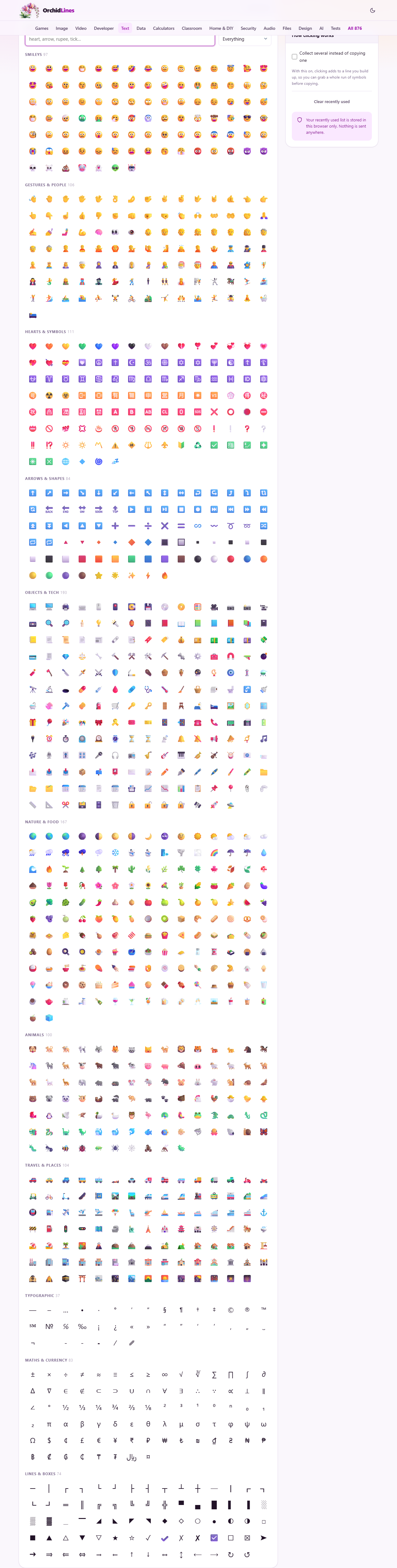
Two problems, one grid
There are two reasons people come to a picker like this. The first is the obvious one: you want an emoji for a message and cannot remember where it lives on your keyboard. The second is quieter and, for a lot of writing, more useful. You need a real character that no key gives you: a proper dash, a degree sign, a multiplication cross, the rupee symbol, a tidy set of quote marks.
Both live in the same grid. You search for the meaning, you click, and it is on your clipboard. No app to open, no code to look up.
Search by what you mean
The search box is the fast way in. Type a plain word for the thing you want and the grid filters to match. Every character carries a short list of everyday keywords, so you search the way you would describe it to a friend, not by its official name.
Plain words win. Type arrow and you get arrows. Type tick and you get the check marks. Type rupee and you get the rupee sign. You do not need the technical name or a code number; the keywords are written the way people actually talk. A small count beside the panel tells you how many characters matched, or, when the box is empty, how many the tool holds in total.
Or narrow by category
Next to the search box is a Category menu. Leave it on Everything to search the whole set, or pick one group to look inside it. This is the better route when you are after a shape or a line rather than a picture, and you would rather browse than guess a search word.
The groups are Smileys, Gestures and people, Hearts and symbols, Arrows and shapes, Objects and tech, Nature and food, Animals, Travel and places, Typographic, Maths and currency, and Lines and boxes. The last three are where the hard-to-type marks hide, and they are worth a browse even when you are not looking for anything in particular.
Clicking copies, and remembers
By default, one click on a character copies it straight to your clipboard, and the cell gives a quick flash so you know it worked. Paste it wherever you were typing.
Whatever you pick is added to a Recently used row that sits at the top of the grid while you are browsing everything with an empty search box. It saves you hunting for the same symbol twice in one sitting, which is common: you often want the same arrow or the same currency sign several times in a row.
Collecting several at once
Sometimes one character is not enough. Turn on the switch marked Collect several instead of copying one, in the panel on the right. With it on, a click no longer copies on its own. Instead each character you click is added to a line that builds up in a small box.
When the line looks right, press Copy the line to take the whole run in one go, or Clear to start it again. This is the tidy way to grab a short string of symbols, a row of stars for a rating, say, or a handful of maths signs for a formula, without pasting them one at a time.
The plain symbols are the hidden value
Emoji get the attention, but the symbol groups are where this tool earns its keep, because these are the characters a keyboard truly cannot produce.
The Typographic group holds the marks that make writing look finished: the long em dash, the shorter en dash, a real ellipsis, curly opening and closing quotes, the degree sign, the section and paragraph marks, and the copyright and trademark signs. The Maths and currency group holds plus-or-minus, the proper multiplication and division signs, less-than-or-equal and its partner, the square root, pi, and a long list of currency symbols from around the world. The Lines and boxes group holds the pieces for drawing frames and tables in plain text, the sort you slot into code comments or a terminal.
Any one of these would take a lookup or an awkward key combination to type by hand. Here each is one click away.
A worked example
Say you are writing a short note and want a neat arrow between two steps. Type arrow into the search box. The grid fills with every arrow the tool knows, split under its group headings, with a small number on each heading showing how many matched there.
You spot the plain right-pointing arrow, click it once, and it flashes. It is now on your clipboard, so you paste it into your sentence between the two steps. It also drops into the Recently used row, so when you need the same arrow for the next step, it is right there at the top without another search.
Now suppose you want a row of three stars and a degree sign for a weather line. Turn on Collect several, click a star three times and the degree sign once, watch them gather in the line, then press Copy the line and paste the lot. Two different needs, an arrow and a short run of symbols, both met with a click or two and no digging through menus.
The dashes and quotes, and when to use them
A few of the typographic marks are worth knowing by name, because using the right one lifts a piece of writing at once. The em dash is the long one, used to break off a thought mid-sentence. The en dash is a touch shorter and marks a range, as in a span of pages or years. A keyboard offers neither; it gives you only the short hyphen, which is a third thing again.
The quote marks are the other quiet upgrade. A keyboard types straight quotes that lean neither way. Proper writing uses curved opening and closing marks that hug the words, and a curved apostrophe to match. They sit in the Typographic group side by side, so you can pick the opener and closer you need. Once you have seen the difference, straight quotes start to look unfinished.
Drawing frames with the line pieces
The Lines and boxes group is a small kit for drawing in plain text. It has horizontal and vertical lines, the four corner pieces, the junctions where lines meet, and blocks and shades for filling space. On their own they look odd; placed together they make a frame or a table that survives anywhere plain text goes.
The trick is that these are single characters, so they line up perfectly in a fixed-width font, which is what code editors and terminals use. Copy the corner, the line and the other corner, lay them out row by row in your editor, and you have a box around a note or a neat grid in a comment, with no pictures and no special format needed.
Why a character sometimes shows as a box
Now and then a character in the grid, or one you have pasted, shows up as a plain empty rectangle. That is not a fault in the tool. It means your device has no drawing for that character in any of its fonts, usually because the character was added to the shared standard after your system was last updated.
The same standard is why an emoji can look different once it lands somewhere else. The character you send is a code, not a picture, and each device draws its own version of that code. Your reader's phone may show a slightly different face. It is worth a moment's thought before you lean on a brand-new emoji in something that matters: on an older device it may arrive as that empty box instead.
What is left out on purpose
You will notice the set does not include skin-tone versions of the hand and people emoji, and it does not include flags. That is a deliberate choice, not an oversight.
Both of those are built by joining several characters together behind the scenes, and that joining is handled unevenly from one app to the next. Rather than offer characters that might break apart or show wrongly when pasted, the tool sticks to single, dependable characters that behave the same wherever they land.
Your recent picks stay private
The Recently used row is kept in your own browser and nowhere else. It is never sent anywhere, and no server sees what symbols you reach for. If you would rather it were empty, the Clear recently used button wipes it at once.
Everything else works the same way. The whole set of characters ships with the page, the search runs in front of you, and clicking to copy is a local action. Nothing you do here travels off your device.