
Editing a Word document without handing it to anyone
The help above lists the steps. This article explains the parts underneath: what a .docx file really is, which pieces of it the browser can read and which it cannot, what every toolbar button does, and what the Save button actually builds. It ends with a full example and the cases where a full word processor is still the better call.
Why edit a Word file here
You are on a machine with no word processor, and a document needs a quick fix before you send it on. Or the file is a contract, a reference or a medical letter, and dropping it onto the first converter a search throws up is not something you want to do. Or you simply have no internet where you are sitting.
This page opens the file, lets you change it, and saves a fresh Word file back, all on the device in front of you. It is not just a reader. You can retype a line, add a heading, drop in a picture or a table, and get a real .docx out the other end.
What a Word file actually is
A modern Word document is not a single sealed thing. A file ending in .docx is really a zip. Rename a copy to end in .zip, open it, and you find a small tree of folders inside.
The words live in one file within that tree, called document.xml. It is written in tags, in the same spirit as the tags that build a web page. Any pictures sit next to it in a folder called media. This layout is a published open standard, known by the names ECMA-376 and ISO/IEC 29500, which anyone is free to build for. That is how other office programs read and write the same files.
Because the format is open, this tool reads and writes it directly with code that already lives on the site: a part that opens a zip, a part that writes one, and a part that reads the tags. No outside software is loaded, and no Word fonts are shipped or needed.
Opening a document
There are two ways in. Press Open .docx and pick the file, or drag the file from your folder and drop it anywhere on the page. Either way the text appears on the white sheet in the middle, ready to edit.
Only the newer .docx files open here. The older .doc format, from the 1990s, is a completely different kind of file: not a zip, but a dense binary blob that would need a much larger reader. If you have one, open it once in a word processor and save it again as .docx. Then it will open here without trouble.
What the browser can read from the file
The import is careful, and it brings across the things that make a document readable. Here is what survives:
- Paragraphs, and headings at every level, so an outline still reads as one.
- Bold, italic, underline and struck-through text.
- Raised and lowered characters, the kind used for footnote marks and simple maths.
- Text colour, and a font size when it differs from the normal one.
- Left, centre, right and justified alignment.
- Bulleted and numbered lists, keeping their kind and their indent level.
- Tables, including cells that have been merged across columns or down rows.
- Pictures, pulled out of the file and placed where they belong.
- Links to a web address, which stay clickable.
What it cannot show, and how it tells you
Some parts of a document have no place on a single flowing sheet, and the tool does not pretend to draw them. It leaves out headers and footers, footnotes and endnotes, text boxes, page columns and any floating layout. Tracked changes and comments are not shown either.
What it does instead is count those parts and own up to them. If your file has any, a notice appears at the top listing what was left out, and it reassures you that the rest of the document is intact and that saving will keep exactly what you see. So you are never misled into thinking a header simply vanished; you are told it was there and why it is not on screen.
The toolbar, button by button
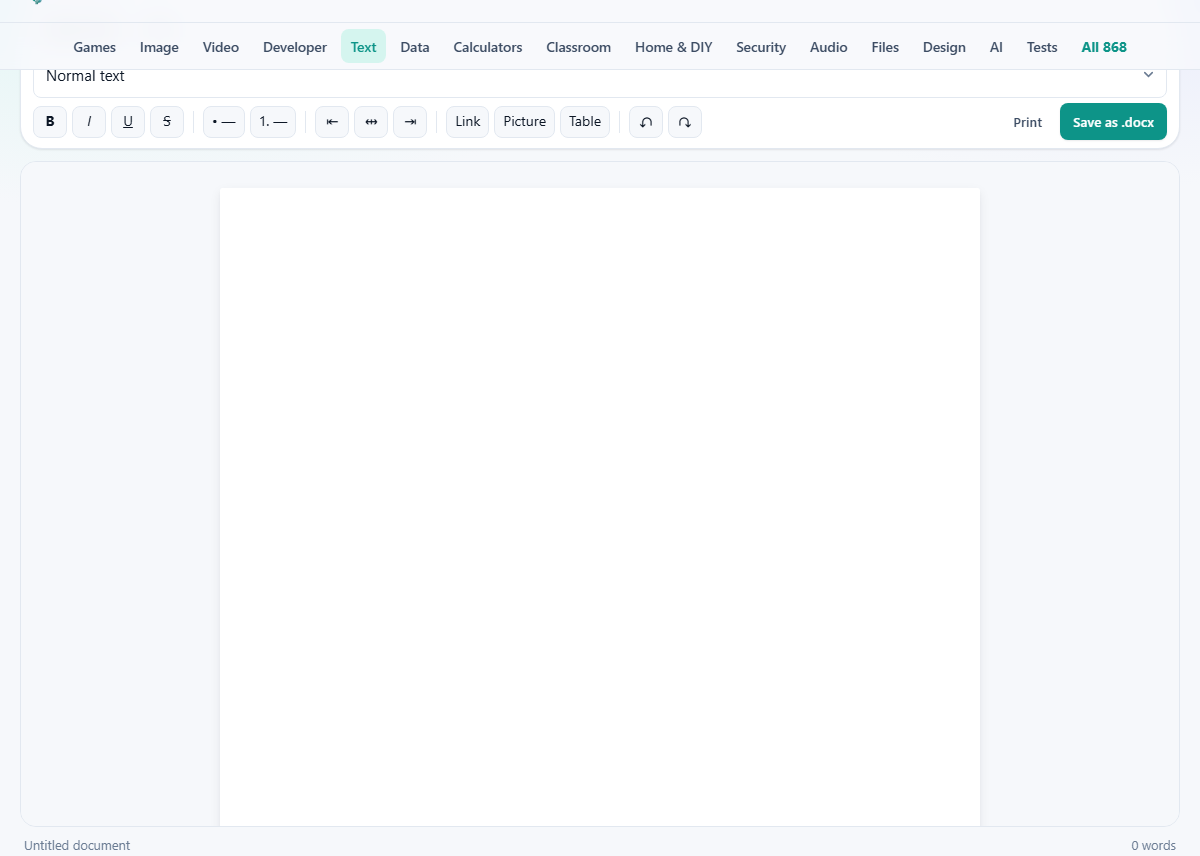
Above the sheet is a single toolbar. On the left, Open .docx and New start a document. The dropdown next to them sets the paragraph style: Normal text, or Heading 1, 2 or 3.
Then come the formatting buttons: bold, italic, underline and strikethrough, marked B, I, U and S. After those are a bullet list and a numbered list, then left, centre and right alignment. Link turns selected text into a web link, so you select the words first and then give the address when asked. Picture inserts an image from your device. Table drops in a three-by-three grid to fill in. Undo and redo step back and forth through your edits.
On the right sit Print, which hands the page to your browser's own print box, and Save as .docx, which is the one that gives you a file. A small status line under the sheet shows the document name and a live word count as you type.
What the Save button builds
Save as .docx does not patch the file you opened. It writes a brand-new, clean Word file from what is on the sheet right now. That is simpler and more predictable than trying to edit the original in place, and it is what an editor that re-flows text should do.
The new file is laid out on A4 pages with normal one-inch margins. It keeps your headings, your bold and italic and the rest, your colours and sizes, your lists, your tables, your pictures and your links. It names no font at all, on purpose, so Word, other office programs and online editors each open it in their own default face, exactly as they would any plain document. One limit is worth knowing: a cell merged tall down several rows is flattened to a single row on the way out. Simple tables come back exactly; very tall merges do not.
A worked example
You open quarterly-report.docx by dropping it on the page. It has a running header on every page and two footnotes. The sheet fills with the text, and a notice appears at the top: opened, but a header or footer part and two footnote marks could not be shown, with the promise that the rest is intact.
You read down, fix a wrong figure in the third paragraph, and use the style dropdown to turn one line into Heading 2. The word count in the status line ticks over as you go. Then you press Save as .docx, and a file called quarterly-report.docx downloads to your device.
You open that saved file in a word processor later. The heading, the corrected figure and the formatting are all there. The header and the footnotes are not, exactly as the notice warned when you first opened it. Nothing about the file went anywhere but your own machine and back.
Starting a document from nothing
You do not need a file to begin. Press New and a blank sheet opens. From there the toolbar is enough to build a real document: set a line to Heading 1, type under it in normal text, add a bulleted or numbered list, drop in a picture from your device, and insert a table to fill in.
When you save, that fresh document comes out as a proper .docx, the same clean file that an opened-and-edited one produces. So the page works as a small word processor in its own right, not only as an editor for files you already have. It is a quick way to write a one-page letter or a short note and hand over a Word file at the end, with nothing installed.
Common mistakes, and when to use something else
The most common stumble is trying to open an old .doc file and being turned away. The fix is the one above: resave it as .docx first. The second is expecting the sheet to look pixel-for-pixel like Word, with the same page breaks and the header on every page. This is an editor for the content, not a copy of Word's page layout.
If your task is to accept or reject tracked changes, leave comments for a colleague, or lay out pages to the millimetre, a full word processor is the right tool and this one is not. And if you only need to read a document and pull its text out, without changing anything, a plain viewer is lighter than an editor. This site has one of those too.
Nothing leaves the device, and your work is held
This is the whole point of doing it here. Your file is opened by code running in the page, read straight from your disk into memory. There is no upload, no queue on a server, and no copy left with anyone. Load the page once, switch your internet off, and opening, editing and saving all still work. Only fetching the page in the first place needs a connection.
As you type, the document is quietly kept in your own browser, so closing the tab by accident does not lose your work; it is waiting when you return. That saved copy sits on your machine alone. When you want the actual file, press Save as .docx, and when you want a clean slate, press New.