
Splitting a long message so every part fits
Some boxes will not take everything you want to say. A text message caps out. A post has a limit. A form field or a database column has a hard ceiling. So you have to break a long piece of writing into parts that each fit, without slicing a word in half and without losing count. This page does the breaking for you, numbers the parts, and leaves room for the numbers. This guide covers every setting and walks through a real split.
The jobs it is built for
Anyone who writes more than a box will hold ends up here. You have a long update to send as a run of text messages. You have an announcement that must go out as several short posts in order. You have a note that has to drop into a form field with a strict cap. In every case the writing is done and the problem is only the size of the container.
Cutting it by hand is fiddly and error-prone. You lose your place, you split a sentence in an ugly spot, and you forget which part is which. This page takes the whole piece, packs it into parts that each obey the limit, and marks them one of three, two of three, and so on, so a reader can follow the order.
Pasting in and setting the ceiling
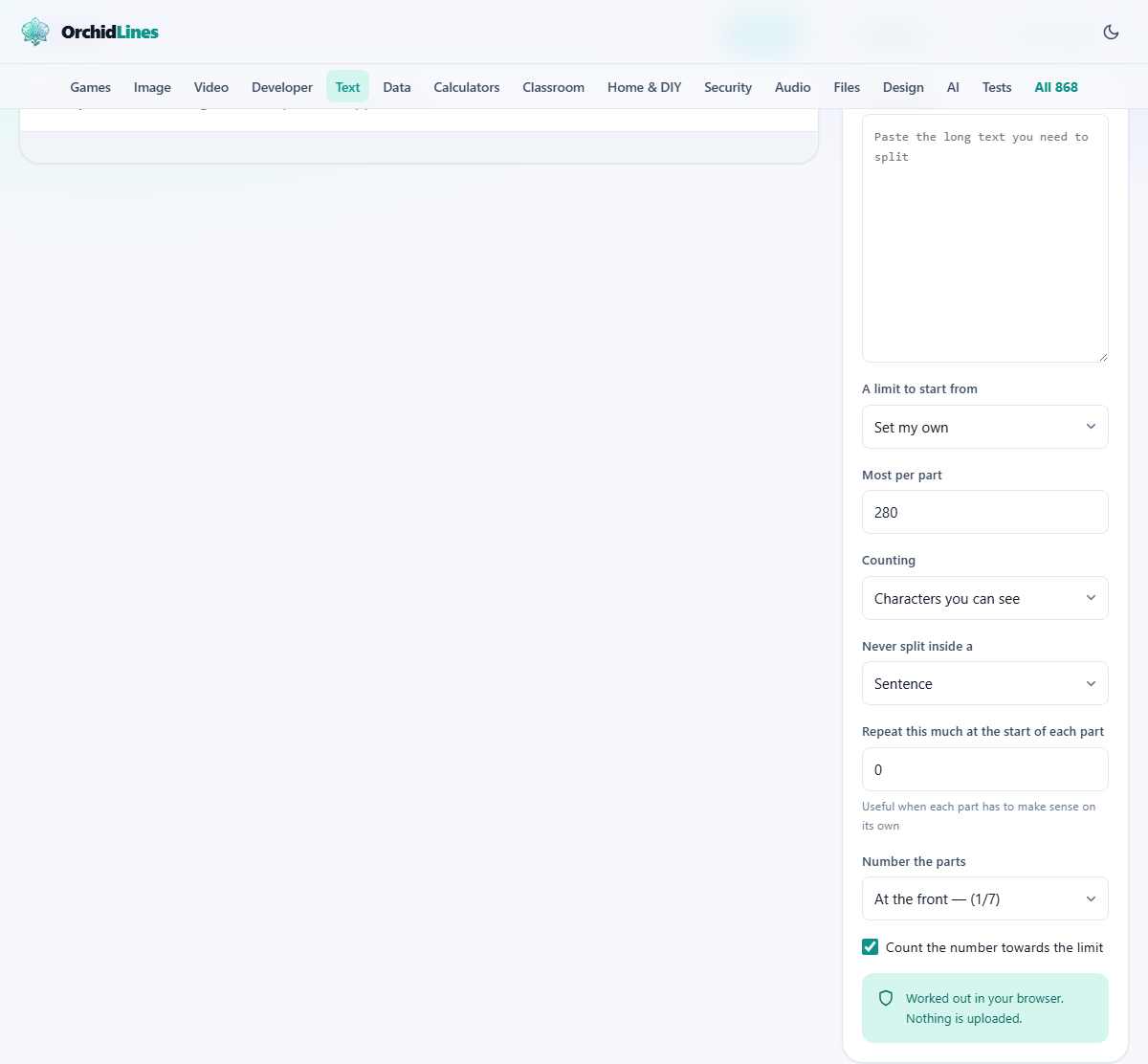
On the right is a box headed Your text. Paste the long piece there. The parts on the left rebuild themselves whenever you change anything, so you can try a limit, see the result, and adjust.
Two controls set the size. A limit to start from is a menu of common ceilings, each with a note: one text message, a short post, a short form field, and so on. Pick one and it fills the number for you. It also switches the counting to the way most websites count, since that is what those limits assume. If none of the presets fit, leave the menu on Set my own and type a figure into Most per part. That box takes any number from two upward.
What counts as one character
This is the setting most tools get wrong, and it has its own menu called Counting. The trouble is that a character is not one fixed thing. Different boxes count differently, and choosing the wrong meaning is how a part that looked fine gets rejected.
There are four choices. Characters you can see counts each visible symbol as one, which is what a person means by a character. Characters the way most sites count is what a typical website uses. Units a database column counts is the stricter measure some storage fields apply. Words counts words instead of characters. A single emoji shows why this matters. A thumbs-up with a skin tone is one thing you can see, two under the middle setting, and four to a database. Match the menu to the box you are pasting into, and the count will agree with what that box tells you.
Where it is allowed to break
The menu Never split inside a decides how clean the cuts are. It offers Paragraph, Sentence, Word and Split anywhere. Sentence is the sensible default, and it means a part will never end in the middle of a sentence if a whole sentence can fit.
The tool always tries the tidiest cut first. It breaks between paragraphs where it can. If a paragraph is too big for one part, it breaks between sentences. If a single sentence is too big, it breaks between words. Only a word longer than the whole limit is ever cut through the middle, and in real life that means a long web address. When that happens, you are told, so it is never a silent surprise.
The repeat that makes a part stand alone
Sometimes each part needs to make sense on its own, because a reader might arrive halfway through a thread. The box Repeat this much at the start of each part handles that. Set a number and the tail of one part is copied to the top of the next, so the thread is never lost.
It is measured in the same units as your limit. There is a safety cap: the repeat can never be more than half the limit. Without that cap a large repeat would copy the whole part forward and the split would never move on. Leave the box at zero when you do not need it, which is most of the time.
Numbering, and the room it needs
The menu Number the parts sets where the count goes. At the front puts something like one of seven before the text. At the end puts it after. On a line of its own gives each part a small header line. Not at all leaves the parts bare, which suits a case where you will add your own labels later.
There is a clever detail behind the tick box Count the number towards the limit. The number is text too, and it takes up room. So the tool sets that room aside before it packs, which keeps every finished part inside the limit even after the label is added. It goes further. When there are ten or more parts the label grows a digit and needs a touch more room, so the packing runs again. That is why the part count sometimes settles one higher than you first guessed, and why the last part is never over.
Reading each part
The parts appear on the left, each in its own card. The card header says which part it is and how many there are in total. On the right of the header is a size chip that reads the count against the limit, such as a number out of a number. That chip changes colour as it fills. It turns to draw your eye when a part is very close to the limit, and turns to a warning colour on the rare occasion a part goes over.
Every card has its own Copy button, so you can grab one part, paste it, and come back for the next. A line under the whole list sums it up: how many parts there are, the size of the longest, and the size of the shortest. That last figure is a quick check that no part is oddly tiny.
A split from start to finish
Say you have a short announcement of about three hundred and twenty characters. You want to post it in parts of two hundred and eighty. You paste it in, set the counting to the way most sites count, leave the break on Sentence, and choose to number at the front.
The page produces two parts. The first is packed almost full, then the label one of two is added in front. A note appears telling you the label took six characters, so each part was packed to two hundred and seventy-four before the label went on. The size chip on the first card sits just under two hundred and eighty, coloured to show it is close. The second card holds the rest and is shorter. The summary line reads two parts, with the longest and shortest sizes beside it. You press Copy on the first card, post it, then Copy on the second.
When a warning appears
A warning strip sits above the parts and only shows when there is something to say. Each message is plain. If a part is still over the limit, it is because a single unbreakable piece of text is larger than the limit itself; the fix is a bigger limit or a shorter word.
If a long run had to be cut through the middle, it names how many, which is almost always a web address longer than the limit. If room was reserved for the numbering, it tells you how much and what the working limit became. And if your repeat was larger than half the limit, it lets you know it was trimmed to the cap. None of these stop the split; they explain it.
Taking all the parts at once
Two buttons at the top handle the whole set. Copy all puts every part on your clipboard in one go, with a plain divider line between them so you can tell where each begins. Download all saves the same thing as a text file named parts.txt. Both stay greyed out until there are parts to take.
The per-card Copy buttons are for posting one at a time in order. The two top buttons are for keeping the whole job, or for pasting it somewhere you will finish it later. Try an example, up beside your text, loads a sample so you can watch the splitting behave before you trust it with your own writing.
When another tool is the better fit
This page is about fitting a size limit. If you only want to know how long your text is, without cutting it, a counter answers that more directly. If you want to reshape a list, sort it or strip blank lines, a line tool is built for that shape of work.
And if your writing is already short enough for its box, you do not need this at all. Reach for it when the container is the problem, when the count has to be exact, and when the parts must break cleanly and carry their own numbers.
The splitting happens on your device
Every cut is made by this page, inside your browser, on the machine in front of you. The text you paste is not uploaded, not logged and not stored on any server. Whether it is a public post or a private note, it goes no further than this tab.
There is no fixed cap on how much you can paste beyond what your own device can hold, so a long document splits as happily as a short message. Close the tab and the text is gone. Nothing lingers, and there is nothing to sign into.