
Six Dots, Sixty-Four Patterns, One Careful Converter
Braille looks opaque from the outside, but it is a tidy system with a small number of rules, and this converter follows the ones that matter. This article explains how the cell works, why capitals and digits need special markers, what the two directions of conversion do, where the output is genuinely useful, and where a character converter must hand over to a human transcriber.
The cell, explained from scratch
Every braille character is built on the same frame: a cell of six dot positions, arranged two across and three down. Each position is either raised or flat, which allows sixty-four distinct patterns per cell. Those patterns cover the alphabet, digits, punctuation and a set of special markers.
The first ten letters, a through j, use only the top four positions of the cell. The next ten repeat the same shapes with one lower dot added, and the letters after that add the other. Once you see this stacking, the alphabet stops being sixty-odd arbitrary shapes and becomes one small pattern applied three times, which is exactly how learners are taught to memorise it.
What Grade 1 means, and what it does not
This tool produces Grade 1 braille, also called uncontracted: one cell per printed letter, plus the required markers. It is the form used for teaching, for short labels and for checking individual characters.
Published books rarely use it. They use Grade 2, contracted braille, where around 180 abbreviations compress common words and letter clusters into fewer cells, because reading by touch rewards brevity enormously. Contraction rules are context-sensitive and genuinely subtle, which is why this converter does not attempt them. Knowing which grade you are looking at is the single most useful fact when comparing this page's output against braille you have seen in the world, since the two will differ on almost any full sentence.
Capitals and digits work by prefix
Braille has no separate upper case alphabet. Instead, a capital sign is placed before a letter to announce that it is upper case, and this converter inserts that marker properly. Skipping it, as many casual converters do, produces text that a braille reader would read as entirely lower case, wrong for names and sentence openings.
Digits are cleverer still. There are no separate number shapes at all: the digits 1 through 9 and 0 reuse the cells for the letters a through j, with a number sign placed in front to switch the reader into number mode. That mode has to be switched off too, which is why a letter following digits needs a letter sign; without it, the letter would read as another digit. This page handles that bookkeeping for you, and it is precisely the bookkeeping that quick converters get wrong.
The direction menu and the honest question mark
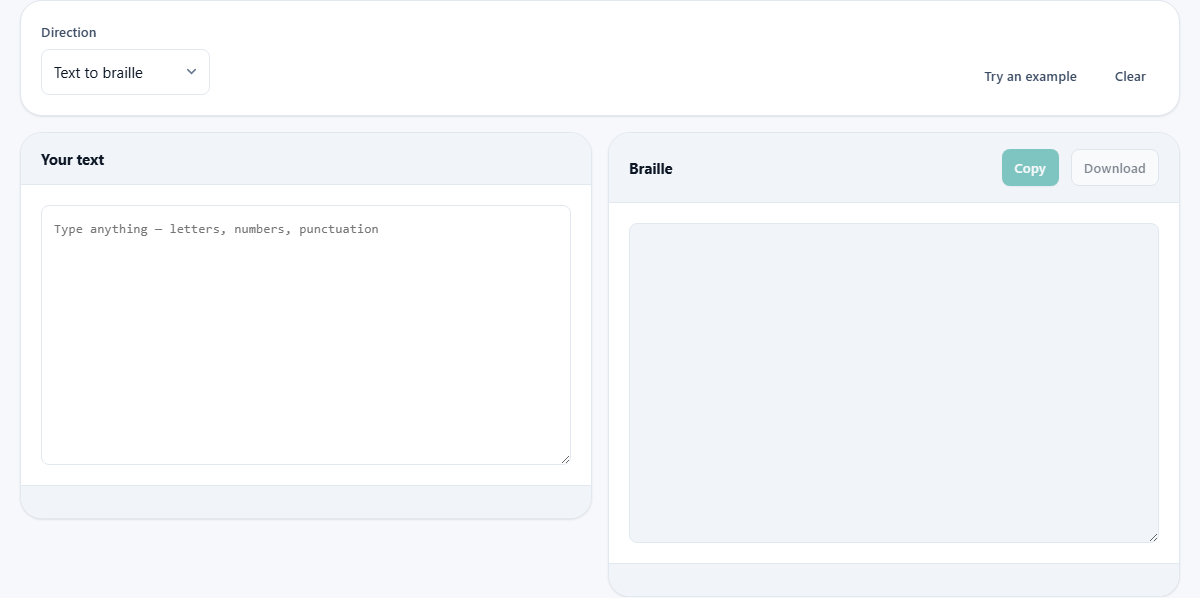
The Direction control offers Text to braille and Braille back to text. The first is the common journey. The second is for reading: paste braille cells from anywhere and recover the plain text, useful for checking work, decoding an exercise, or verifying a label someone else produced.
During decoding, a cell that has no meaning in this converter's table is shown as a question mark rather than silently dropped. That choice is about honesty. A vanished character would hide the fact that something was there; the question mark tells you exactly where the table ran out, usually because the source used a contraction or a code from another language.
What the output actually is
The result is made of Unicode braille characters, ordinary text as far as your computer is concerned. That means it copies, pastes, resizes and prints like any other writing. Drop it into a document, a label design, a slide, a piece of artwork or a message, and it behaves exactly like text because it is text.
One caution comes free with that convenience. On screen, these are pictures of dots and carry no tactile value. Real braille is read by touch and needs an embosser or a refreshable display to exist physically. Software for those devices will accept text like this as input, which is where the two worlds connect.
A short label, converted by hand and by page
Take the label Bus 42 and walk through what should happen. The capital B needs the capital sign first, then the cell for b. Then come u and s as plain cells, then the space. The digits need the number sign, followed by the cell that doubles as d, meaning 4, and the cell that doubles as b, meaning 2.
Type Bus 42 into the input and compare the output against that description: seven cells and a space, two of them markers. Running small checks like this is the fastest way to convince yourself the converter is doing the right thing, and it doubles as a genuinely good exercise if you are learning the system yourself.
Good uses within its limits
Within its scope, the page earns its keep in several places. Learners use it to check their own attempts in both directions. Parents and teachers make flashcards and worksheets. Designers put braille motifs into artwork and signage mockups. Anyone can sanity-check a single name or number on an existing label.
The pattern across all of these: short text, individual characters mattering, no contraction rules in play. That is exactly the territory where letter-for-letter conversion is the correct tool rather than a compromise.
A second walkthrough, and a lesson in length
Try a longer piece of signage: Room 42, Floor 3. Type it in and count what comes back. The capital R costs two cells, the marker and the letter. The rest of the word is four more. The space is a cell of its own. The digits cost three between them, one marker and two figures. The comma is one. Then the second space, the capital F and its word at six cells, another space, and a final number sign with one digit.
That comes to twenty cells for sixteen printed characters, and the chip under the result will say so. The lesson is in that gap. Letter for letter braille is always longer than print, because markers take room and every cell is the same width. Stretch the same arithmetic across a whole book and you can see why contracted braille was invented. It is also a practical warning if you are designing a sign: measure the braille, not the printed words, when working out whether the line will fit.
The punctuation it knows, and what happens to the rest
The table covers a short list of marks, chosen because they carry most everyday writing.
- The comma, semicolon and colon.
- The full stop, the question mark and the exclamation mark.
- The apostrophe, the hyphen and the forward slash.
Characters the table does not hold
Anything outside that list is passed straight through and appears in the output as itself. Brackets, quotation marks, an at sign or a currency symbol will sit in the middle of your cells looking exactly as they did when you typed them.
This is worth understanding rather than being annoyed by. A plain character among the dots is a visible signal that the converter reached the edge of what it can express, and it points at the spot. Compare that with the other direction, where an unknown cell comes back as a question mark. In both cases the tool refuses to pretend.
The letter sign, and the only case that needs it
The number sign switches the reader into figures, and that mode has to end somewhere. A space ends it. So does any punctuation mark, and so does a line break. In all those cases no extra marker is needed, which is why the comma in the sign above did the job quietly.
One case remains. If a letter follows a digit with nothing between them, and that letter is one of the first ten, it would be read as another figure. So a letter sign is inserted to close the run. Type 4a and you will see four cells: the number marker, the cell that means both four and a, the letter sign, then a. Type 4z and there are only three, because z is nowhere near the first ten letters and cannot be mistaken for a digit. Watching that fourth cell appear and disappear is the clearest way to understand the rule.
Blank cells, line breaks and the count
A space in your text does not become an ordinary space in the output. It becomes an empty braille cell, a character in its own right with no dots raised. That keeps the rhythm of the line correct and means the result is one unbroken run of braille characters rather than a mix of two kinds of gap. Decoding turns those empty cells back into ordinary spaces, so the round trip is clean.
Line breaks are treated differently and simply survive, so a three line label comes out as three lines of cells. Under the result, a single chip counts the cells when you convert into braille, or the characters when you read back out. The Download button saves the whole thing as a plain text file, which is the tidiest way to hand cells to embossing software.
The edges: language and the embosser
Two boundaries deserve plain statement. First, the table covers the letters a to z, digits and common punctuation, which serves English. Accented characters and other languages have their own braille codes, and they are not included, so text containing them will not convert faithfully.
Second, anything destined for permanent, public or published use, signage above a door, a printed booklet, packaging, should pass through a qualified transcriber before production. Contraction grade, layout standards and dot spacing are specified in detail for such uses, and they sit beyond any character converter. Use this page to draft and to understand; let a professional certify.
On-device, like everything on this site
The conversion table lives inside the page, and your text is transformed by script running on your own machine. Nothing you type is sent, logged or retained anywhere. The Copy and Download buttons move the result directly to your clipboard or your disk, and closing the tab ends the whole affair. For classroom text that is merely tidy; for a label bearing someone's name it is the correct default.