
Big Type in Places That Only Allow Plain Text
Some places cannot show a heading: a terminal, a log file, a plain readme, the top of a script. This article looks at how giant lettering built from ordinary characters fills that gap, what each style and option on this page is for, and the small technical facts that decide whether your banner arrives crisp or scrambled.
Why anyone still draws letters out of characters
A configuration file, a build log and a command window all share one limit: text is the only material. No fonts, no sizes, no colour you can rely on. Yet these are exactly the places where something needs to stand out. The name of a project at the top of its readme. A warning in a script that people skim. A greeting that appears when a server session opens. A divider between stages in a long log.
Oversized letters assembled from hashes and blocks solve this with the material available. They cost nothing to render, survive every copy and paste, and work over a remote connection from thirty years ago as well as they work today. That is why the habit never died out among people who live in terminals.
Six styles, six jobs
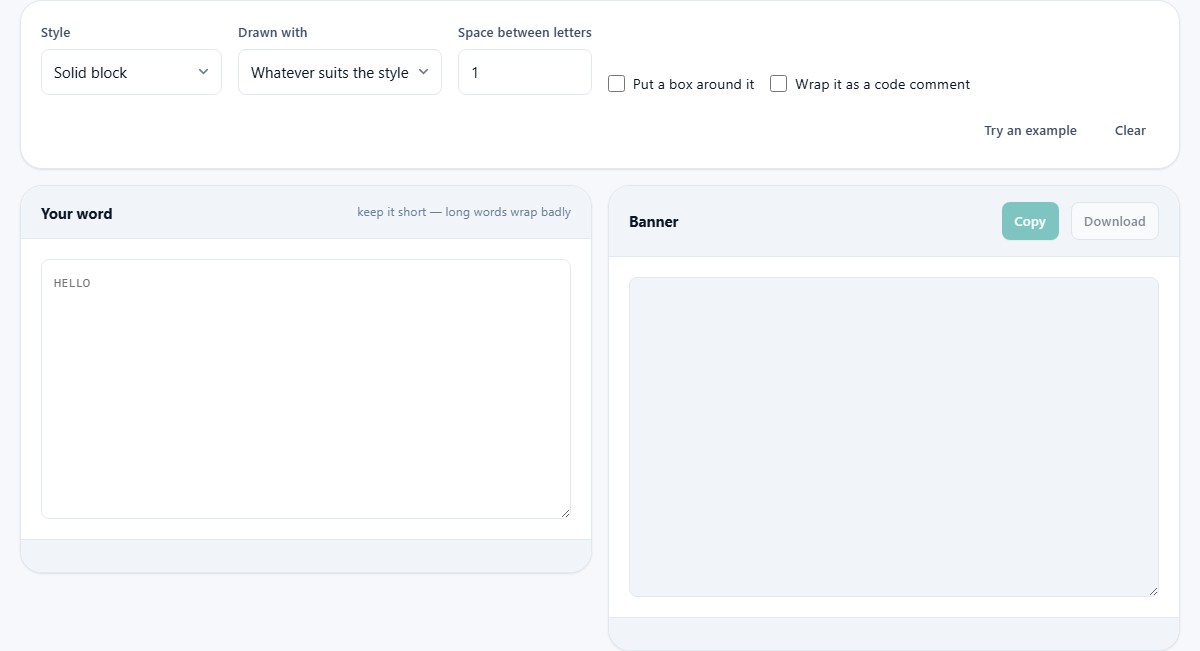
The Style menu holds six typefaces, each with a personality. Solid block is the heavyweight: filled shapes that read from across the room, right for a project name. Outline draws only the edges, so it feels lighter on the page and suits a subheading. Block with a shadow adds a dark offset behind each letter, which gives depth when you want one word to feel important.
Narrow squeezes the letterforms so more characters fit before you run out of room, the practical choice for a longer word. Dotted builds letters from scattered points, quieter and a little decorative. Hash banner is the old-school stripe of dense marks, the style people associate with vintage printouts. If in doubt, start with Solid block and only move on when the width forces you to.
Choosing the ink
The Drawn with menu decides which character forms the strokes. The default, Whatever suits the style, lets each style use its natural material, and is the right answer most of the time. The alternatives are hashes, stars, at signs, dots, and the solid block character.
There is a trade hidden in that last one. The solid block character produces the cleanest, most poster-like result, but it is not part of basic ASCII, and a few old terminals and strict systems render it as a hollow box or a question mark. Hashes and stars are humble but indestructible: every system on earth prints them correctly. For a file that strangers will open on unknown machines, plain marks are the safe ink.
Spacing, the frame and the comment wrapper
Space between letters accepts 0 through 4 columns and starts at 1. Tighten it to 0 when a word barely overflows the room you have; widen it when a short word looks cramped. The difference in legibility is bigger than one column suggests.
Put a box around it draws a border of characters right round the finished text, turning a headline into a sign. It looks great, but the frame adds columns of its own, so watch the width readout after switching it on. Wrap it as a code comment adds comment markers down the side so the whole banner can sit at the top of a source file without upsetting the language. That option is the difference between decoration you paste into a chat and decoration that compiles.
The eighty column budget
The stats row under the result reports how many columns wide the banner is, and that number deserves respect. Eighty columns is the classic terminal width, and plenty of tools, code reviews and email systems still behave as if it were law. A banner wider than its destination does not shrink; it wraps, and a wrapped banner is unreadable soup.
The input hint says to keep the word short, and this is the reason. Six or seven characters in Solid block usually lands under eighty columns. If your word is longer, switch to Narrow, cut the letter spacing to 0, or accept that the result belongs somewhere wider than a standard terminal, such as a readme viewed on a desktop.
A worked run: labelling a build script
Say you maintain a deployment script and want the word DEPLOY unmissable at the top. Type deploy in the input; lower case is fine, since the letterforms are drawn as capitals anyway. Pick Block with a shadow for weight, leave the ink on automatic, and keep spacing at 1. The preview shows the word at around seventy columns: inside budget.
Now tick Wrap it as a code comment. Comment markers appear down the left edge. Press Copy, paste the block at the top of the script, and run it once to confirm nothing complains. Anyone who opens that file for the next decade will know exactly what it is before reading a single line of logic. Total time spent: under a minute.
The rule that decides everything: fixed width
Character art has one structural requirement. Every character cell must be exactly as wide as every other, or the columns that form the letter shapes drift out of line and the picture dissolves. Terminals and code editors guarantee this. Word processors, email bodies and chat windows usually do not; they use proportional fonts where an i is slimmer than an m.
So the banner is not fragile, but its destination can be. If you must paste into a chat or a document, use a code block or a preformatted style, which forces even-width rendering. Where no such option exists, a screenshot of the banner is more faithful than the text itself.
What the letter set covers
The drawn alphabet includes letters, digits, spaces and common punctuation such as hyphens and full stops. Lower case input is converted to capitals because the shapes live on a fixed grid that suits capital forms. Anything outside the set, an accented letter, a symbol, an emoji, comes out as blank space rather than an error.
So a blank gap in your output is a message: some character you typed has no drawn form. Rewrite the word with plain letters, or accept the gap if it happens to fall somewhere harmless.
What the input box will and will not accept
Two limits are built in, and both are friendlier than they sound.
- Only the first line is drawn. Paste a paragraph and you get a banner of its opening line, nothing else. If you want two stacked words, make two banners and join them yourself.
- Anything past twenty four characters is refused outright, with a short message instead of a result. That is a mercy: at twenty five characters even the narrowest style produces something no screen can hold.
- Past eighty columns the width readout changes to a warning and says so in words. It still gives you the banner; it just stops pretending the result will fit a standard terminal.
- Beside the width sit two more counts, the height in lines and the number of letters drawn, which are handy when you are budgeting vertical room in a log header.
A second run: a header for a small project
A different shape of job. You have a repository called ATLAS and want its readme to open with something better than a plain heading. Type atlas and choose Narrow, which draws each letter half as wide as the other styles. Set Space between letters to 2, since narrow letters sit too close at the default and start to read as one blob.
Choose Hashes as the ink so the file looks the same for everyone, whatever their terminal or editor. Tick Put a box around it and the whole thing gains a border of dashes and bars. The width readout lands somewhere in the thirties, which is comfortable anywhere. Rather than copying, press Download and the banner arrives as a plain text file you can keep beside the project and reuse whenever the readme is rewritten.
Three small surprises in the options
A few behaviours catch people out the first time, and each has a reason.
Ticking the box option while Hash banner is selected appears to do nothing. That is deliberate: the hash style already surrounds itself with a solid border, so a second frame would only be a box inside a box. Switch to any other style and the border appears at once.
The comment wrapper uses the slash and star markers, opening the block, prefixing every line with a star, and closing it. That covers a large family of programming languages, but not the ones whose only comment marker is a hash. For those, leave the option off and add your own marks to each line after pasting. And note that the shadow style paints its shadow with a shaded block character rather than a plain one, so if your destination is an unusually strict terminal, solid block letters drawn with hashes remain the most portable combination on the page.
When this is the wrong page
If the destination renders real formatting, a document, a slide, a web page, ordinary styled text will always beat character art: sharper, searchable, accessible to screen readers. Character banners are also poor for long sentences; they are headlines, not paragraphs. And they carry no colour of their own, so if you need a coloured logo, you need an image, not text.
Reach for this page when the destination is plain text and the message is short. That intersection is narrow, but inside it nothing else works at all.
Nothing to send, nowhere to send it
The lettering is assembled by script running on your own machine, in the page you already loaded. The word you type is never transmitted, stored or logged anywhere, and the Copy and Download buttons hand the result straight from the page to your clipboard or disk. You could disconnect from the network after loading and the tool would carry on working exactly the same.