
The plan and the record, in one place
A meeting has two documents. The plan you write before, and the record you write after. This page keeps them on the same list. You give each item a number of minutes, it works out the clock times, and it warns you when the plan will not fit. When the meeting ends you switch to notes and capture what was said. Here is how each part behaves and how to walk one meeting through from start to finish.
Why minutes against every line
Most agendas are just a list of topics. That looks fine on paper and then the meeting runs long, because nobody ever added up how long the topics would take. The last item never gets reached, and it is usually the one that mattered.
This tool asks for a number of minutes beside each item. Once it has that, it can do arithmetic. It gives every line a start and an end on the clock, adds the whole thing up, and tells you before the meeting whether the plan is honest. People who run weekly check-ins, project reviews, committee meetings or class sessions reach for it because it turns a wish list into a timed plan.
Filling in the meeting
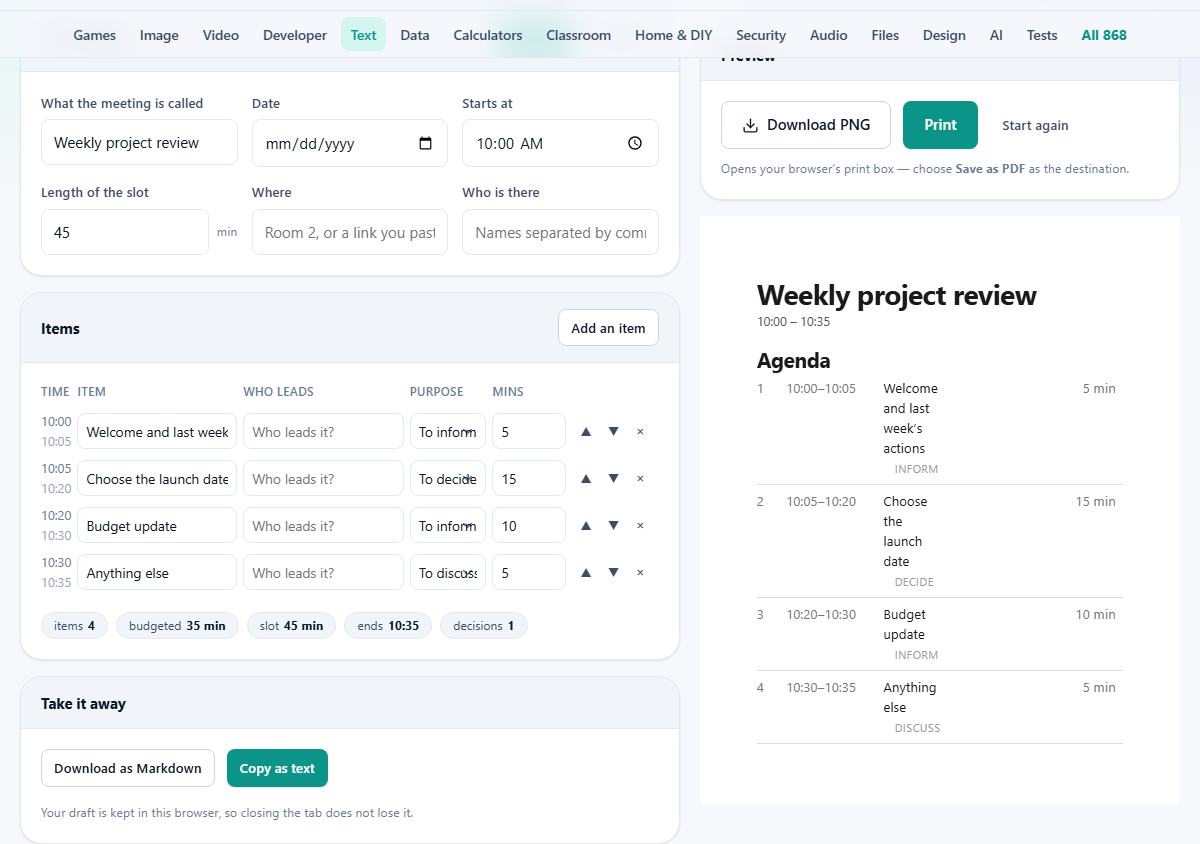
The top panel holds the facts about the meeting itself. What the meeting is called sets the heading on the printed sheet. Date and Starts at fix the day and the clock time the first item begins. Everything after that is measured from the start time, so it is worth getting right.
Length of the slot is the box that makes the rest work. Type how many minutes you actually have. It steps in fives and accepts anything from five minutes up to eight hours. Where takes a room name or a link you paste in yourself. Who is there takes names separated by commas. Both are optional and both print on the sheet.
Building the item list
Under the meeting panel is the item table, on the Agenda tab. Press Add an item and a row appears. Each row has a name box, a Who leads box, a Purpose menu and a Mins box. The Time column on the left is not something you type. It fills itself in from the start time and the minutes above it.
Purpose has three choices: To inform, To discuss and To decide. This one field is worth using well. A meeting made only of items to inform is really an email. Marking the ones that need a decision makes that plain to the room. Mins is a plain number and defaults to ten. The small arrows on the right move a row up or down, and the cross removes it. Every time you move or change anything, the clock column and the totals below work themselves out again.
The chips and the warnings
Below the table sits a row of small chips. They report the item count, the minutes you have budgeted, the length of the slot, the clock time the meeting ends, and how many items need a decision. Read them as a quick health check on the plan.
A warning line appears when something is off. Go over the slot and it tells you by how many minutes, and reminds you the last item is the one that gets cut. Fill the slot to the very minute and it nudges you to leave a little spare, because meetings start late. Put your first decision item near the bottom of a long list and it asks you to move it up. None of these stop you. They just say out loud what you would otherwise notice too late.
A worked example
Say you are planning a Friday stand-up. You type Friday stand-up as the name, set Starts at to 09:30, and set the slot to 30 minutes. Then you add four items: Last week's actions led by Sam, to inform, 5 minutes. Pick the demo date led by Dana, to decide, 10 minutes. Budget check led by Sam, to inform, 10 minutes. Anything else, to discuss, 10 minutes.
The budgeted chip now reads 35 minutes against a 30-minute slot, and a warning appears: you are five minutes over, and something on the list will not happen. So you trim. You drop Budget check to 5 minutes and Anything else to 5. The budget falls to 25 minutes, the warning clears, and the ends chip shows 09:55. The clock column now reads 09:30 to 09:35 for the first item, then 09:35 to 09:45, then 09:45 to 09:50, then 09:50 to 09:55. The plan fits, with five minutes in hand.
Turning the plan into a record
When the meeting starts, press the Minutes tab. The same items are waiting for you, in the same order, each with a box for What was said and a box for What was decided. You are not retyping the agenda. You are writing on top of it.
Type as the meeting goes. The decision box can stay blank when nothing was settled, and the placeholder says so. Because the notes follow the agenda order, the record comes out tidy without any effort from you. This is the whole reason to keep the plan and the record in one tool rather than two.
The action list and why it nags
Under the notes is an Actions panel. Press Add an action and you get a row with three boxes: What, Who and By when. The What box wants one job, starting with a verb. The Who box wants one person. By when is a date.
A warning counts any action that is missing a name or a date. It also flags an action whose owner is two people, because a job shared by a crowd is a job owned by nobody. Say you add Book the demo room and set the owner to Dana and Sam. That counts as vague, because it names two people. The fix is two rows: one for Dana, one for Sam. An action with one name and one date is the single most useful line in any set of minutes.
Getting it off the screen
The Take it away panel has two buttons. Copy as text puts the whole thing on your clipboard. Download as Markdown saves a file named agenda.md. Markdown is plain text with light marks for headings and lists, so it opens anywhere and pastes cleanly into most editors and wikis.
The saved file has a clear shape. The meeting name is the heading. Then a line with the date, the clock range and the place. Then an Agenda section with every item numbered, timed and tagged by purpose. If you have written any notes, a Minutes section follows, and any actions come out as a checklist. On the right, a live preview shows the sheet as it will look. Press Print to send that sheet to your browser's print box, where you can choose a real printer or save to a document. Start again wipes the draft back to a fresh weekly review.
Common slips and quick fixes
A few things trip people up, and each has a plain fix. If the clock times look wrong, check the Starts at box first. A blank or badly typed start time falls back to ten in the morning, so a stray value there throws every row off. Set it and the whole column corrects itself.
If the ends chip shows a time earlier than the start, your meeting has run past midnight, and the clock has simply wrapped around the day. That is rare but it is not a bug. If a warning will not clear even after you cut minutes, look at the item you shortened. A number below zero is treated as zero, and a box left empty counts as nothing at all, so a hidden gap can keep the total higher than you expect. And if the printed sheet looks thin, remember the notes only show once you have typed them on the Minutes tab. An empty notes box simply does not print.
When another tool fits better
This page is built around time and a to-do list. If your meeting has no clock pressure and you only want a shared scratchpad, a plain notes app is lighter. If the outcome is a long formal document with sign-off, a word processor gives you more control over layout.
And if all you need is to send a list of tasks to a tracker, copy the action lines out and paste them where your team already works. The strength here is the timing and the tidy record, so lean on it when a meeting keeps overrunning or when the actions keep getting lost.
Your draft stays with you
The plan and the notes are saved in this browser as you type, so closing the tab and coming back does not lose your work. That saving is local. Nothing is sent to a server, there is no sign-in, and no one else can read what you wrote.
One thing follows from that. The draft lives on this one machine in this one browser. Open the page on a different computer and you start with a blank sheet. When you want a colleague to have the minutes, that is what Copy and Download are for. Send them the text yourself, and you decide exactly who sees it.