
Turning a folder into a picture made of characters
How the two ways in differ, what each of the seven settings does to the shape of the result, a run through the built in example with the exact counts it produces, and the reasons a tree can come out looking wrong.
The little diagram in every readme
Somewhere near the top of most project notes there is a small picture of the folders, drawn with dashes and vertical bars. It exists because a list of paths is hard to hold in your head and a picture is not. One glance and a newcomer knows where the styles live and where the tests live.
People type these by hand more often than you would believe, and they get them wrong: a bar in the wrong column, a folder that was renamed last month, a file that no longer exists. This page draws it from something real instead, either a folder on your machine or a list of paths you already have.
- A readme that has to explain the layout to somebody joining next week.
- A handover document for work you are passing to another team.
- A support message where the exact place a file belongs is the whole question.
- Teaching notes where the class needs to see the same layout you have.
Two ways to give it something to draw
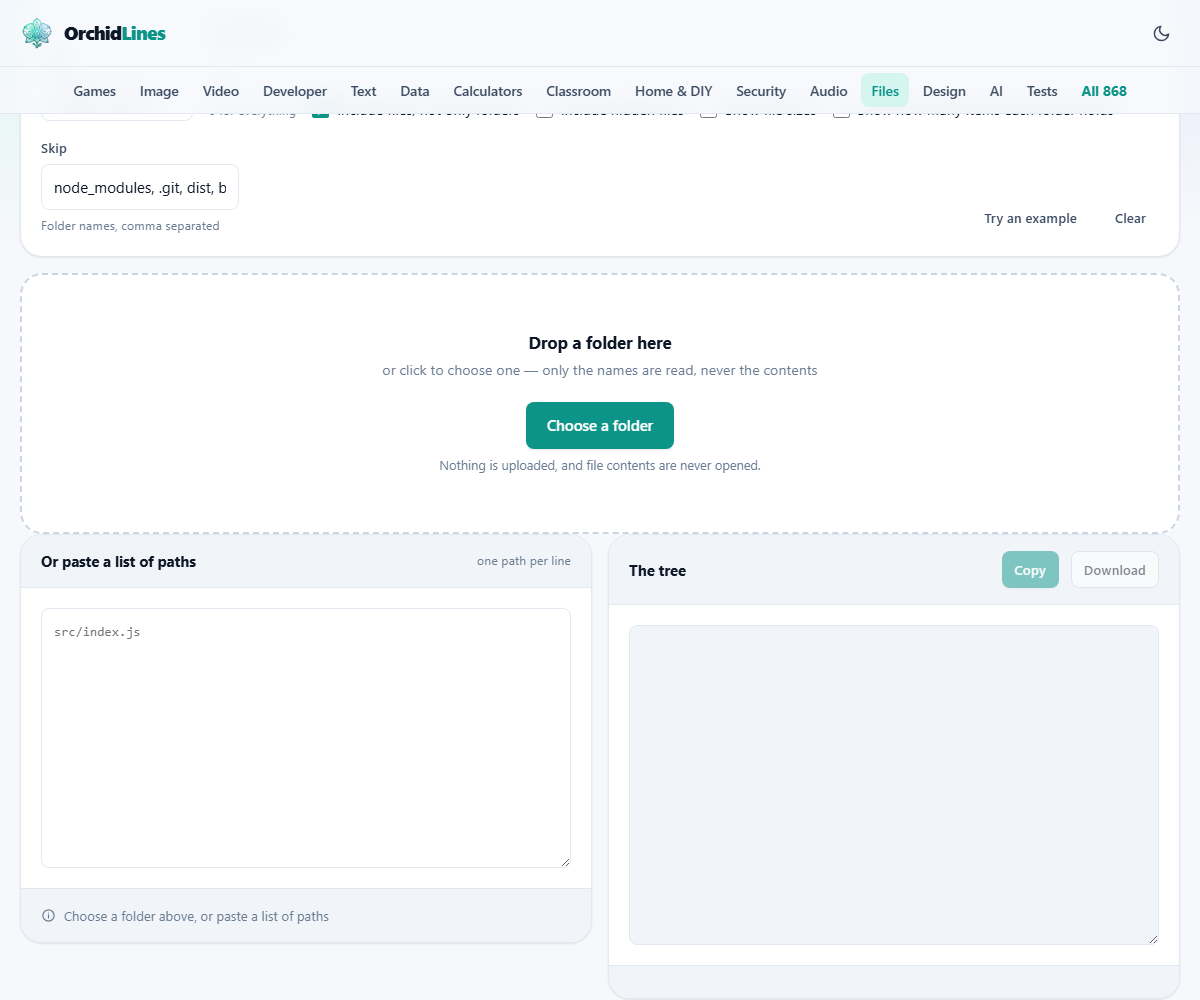
The first way is the dashed box. Click it, pick a folder, and your browser hands over a plain list of what is inside: the path of each file, its size and its date. No file is opened, so the drawing is made from names and numbers alone.
The second way is the panel on the left, headed Or paste a list of paths. One path per line is all it wants. This suits a machine you only reach through a terminal, where you can print a listing and paste it in. Backslashes are turned into forward slashes on the way through, so a Windows listing needs no tidying. A line ending in a slash is treated as a folder even though it has nothing under it, which is how you get an empty folder to appear.
Try an example fills that panel with a small project so you can see the machinery working before you point it at anything of your own.
Lines: four ways to draw the same shape
The choice changes nothing about which files are included. It only changes the characters used to join them up, so you can try all four in a second and keep whichever reads best where it is going.
- Neat box lines. The default, and the one people picture. It uses proper drawing characters, which look right anywhere the text is shown in a fixed width font.
- Plain characters. The same shape built from vertical bars, dashes and a backtick. Choose this for places where fancier characters turn into question marks: old ticketing systems, plain text email, code comments.
- Just indentation. No connecting lines at all, only spaces. The quietest option, and the best one when the tree is going into a document that already has plenty of visual noise.
- Bullet list. Every line begins with a dash. This is the one to pick when the text will be rendered rather than shown as it is, since a dash and two spaces is how a list is written in markdown.
Levels deep, and the line of dots
Levels deep takes a whole number from 0 to 12 and starts at 4. It counts levels of names, so 2 gives you the things at the top plus what is directly inside them, and nothing further.
When a folder has more inside it than the setting allows, it is not silently truncated. A line holding three dots is drawn underneath it, so a reader can see that the branch continues and that you chose not to show it. Setting the number to 0 removes the limit and draws everything, which is the right answer for a small folder and a poor one for a large project.
Depth is the setting that decides whether the result is useful or unreadable, and the useful answer is nearly always a small number. Two or three levels describe the shape of a project. Six levels describe a filing cabinet nobody will read.
The four tick boxes
- Include files, not only folders. On to begin with. Turn it off and you get the skeleton, folders and nothing else, which is often the clearest thing to put in a document.
- Include hidden files. Off to begin with. Anything whose name starts with a dot is left out, and so is everything inside such a folder. Turn it on when the dot files are the point, as they are in a project where the settings live in them.
- Show file sizes. Adds the size in brackets after each file name. This only means something when you picked a real folder, since a pasted list carries no sizes and every file will read as nothing.
- Show how many items each folder holds. Adds a count and a total size in brackets after each folder, both including everything nested below it. It turns the picture into a rough weight chart and answers the question of which branch is the heavy one.
The Skip box
Skip arrives holding node_modules, .git, dist, build, separated by commas. Any path with one of those names anywhere along it is dropped before the drawing starts.
These are exact names, not patterns. Writing node_modules works; writing node* does not, and neither does a pattern like *.log. Add the names of your own generated folders to the list, since those are the ones that turn a readable picture into ten thousand lines about libraries nobody wrote. One folder of downloaded dependencies can easily outnumber the real project by fifty to one.
The example, and what it actually prints
Press Try an example. Eleven paths land in the left panel: a few things under src, two under public, one test, a package file, a readme, and one dot file.
With everything left as it comes, the right panel draws ten of those eleven. The dot file is missing, because hidden files are off. Folders are listed before files at every level and each group is in alphabetical order, so the top of the tree runs public, then src, then tests, then the two loose files. Inside src the same rule applies: the app and styles folders first, then the single file that sits directly in src. Underneath, the counters read 15 items and 15 lines, and the size reads nothing at all, because pasted paths have no sizes attached.
Now tick Include hidden files. The dot file appears and the count rises to 16. Untick it again, and set Levels deep to 2. The tree shrinks: the top level and one level below it are drawn, and where the app and styles folders were opened out you now get a line of three dots instead. Switch Lines to Bullet list and the same shape is redrawn as an indented list of dashes, ready to paste into a document that understands markdown.
Taking the result away
Two buttons sit above the output. Copy puts the text on your clipboard, which is what most people want, since the destination is usually a document already open in another window. Download saves it as tree.txt if you would rather keep it as a file, or attach it to something.
Along the bottom, three small counters report items, total size and lines. Lines is the useful one when you are aiming at a document: if it says 220, the picture is too big for a readme and the depth needs to come down. The status line above repeats the count, and when the list came from a real folder it adds a reminder that no file was opened to make it.
The settings and the text you pasted are remembered on this device, so coming back tomorrow finds the page as you left it.
When the result looks wrong
- The lines do not join up. The text is being shown in a font where letters have different widths. Put it in a code block, or anywhere a fixed width font is used, and it snaps into place.
- Every file says nothing for its size. Sizes only arrive with a real folder; a pasted list has none.
- A file you expected is missing. Check the hidden setting and the Skip box, in that order. Those are the only two things that remove anything.
- A branch stops with three dots. That is the depth limit doing its job. Raise the number or set it to 0.
- A huge folder takes a while to appear. Your browser has to walk the whole thing before the page sees anything, and that walk is the slow part.
- The picture disagrees with your file manager. It was drawn from the moment you picked the folder. Pick it again to redraw it.
Neighbouring pages
- Which folder is eating the disk: the Folder Size Analyser ranks by weight rather than drawing structure.
- Two copies of a project that should match: Folder Compare lists what each side is missing.
- The same file saved in four places: the Duplicate File Finder groups by content.
- Names that need fixing in bulk: the Bulk Renamer, with the Filename Compatibility Checker for names that will not survive another system.
Only the names ever leave the folder
This page never opens a file. It receives a list of names, sizes and dates from your browser, arranges them, and prints characters. The contents of your documents are not read even once, which is a stronger promise than a page like this usually needs to make.
Nothing is uploaded either. The sorting and the drawing are ordinary work done by your own machine, so there is no server that has ever seen your folder layout. That is worth something on its own. Paths give away client names, project codes and half of what a team is working on, and a picture of them is exactly the sort of thing that ends up pasted in public later.