
Hunting down the files you already have
A disk fills up with the same file saved twice, then three times, under names that give nothing away. This page finds those copies by reading what is inside each file. Below: how the scan is done, what every figure in the result means, what the saved archive holds, and the places where the answer can fool you.
Where copies come from
Nobody sets out to keep two of everything. It builds up quietly. A camera card gets imported twice because you were not sure the first import finished. A phone backup is restored into a new folder beside the old one. Two old drives are tipped into one new drive, and now half the holiday is in there twice.
Work folders do the same thing in a different way. Five people save the same slide deck, each with a name that made sense to them that afternoon. A downloads folder ends up with report.pdf, report(1).pdf and report-final.pdf, all three the very same document.
Names cannot settle any of this. A name is a label somebody typed, and a copy is usually given a new one. Dates are no better, because copying a file often stamps it with today. The only thing that never lies is the content, and that is what gets compared here.
Getting the files in
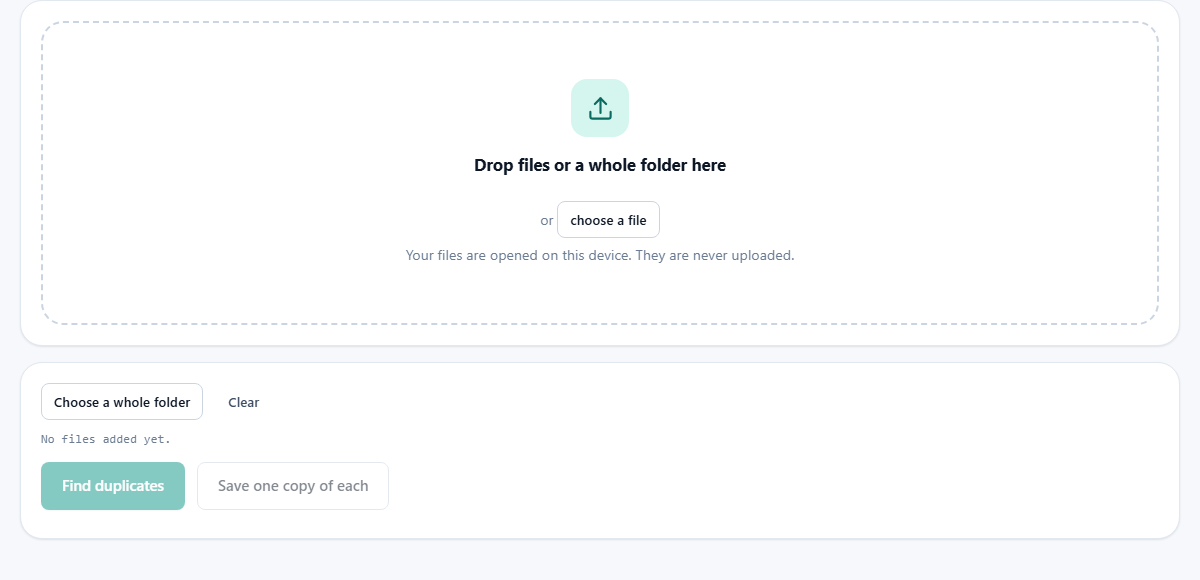
The large panel at the top of the page takes what you drag onto it. Below it sits a small button, choose a file, which opens the normal file picker for your system. You can select a whole run of files in that picker, not just one.
Choose a whole folder does what it says. Pick a folder and every file inside it is added, including the files sitting in folders inside that folder. This is the usual way the job starts, and it works in browsers that allow a folder to be picked at all.
The grey line under the buttons keeps a running tally, such as 620 files and 4.1 GB. That is what you have handed over, not what is unique. Clear empties the list and starts again. Use it between jobs, because each new drop is added to what was already there.
What happens when you press Find duplicates
The button wakes up once there are at least two files to compare. The scan then runs in two passes, and the first pass is why a big folder does not take all afternoon.
Pass one sorts everything by exact byte length. Two files of different lengths cannot possibly be the same, so any file whose size nothing else shares is put aside without being read. In a normal folder that removes most of the work in a fraction of a second.
Pass two reads the survivors from beginning to end and works out a fingerprint for each. The fingerprint is called SHA-256: a 64 character code built from every byte in the file. Change one byte anywhere and the whole code changes. Two files with matching codes hold matching bytes.
While that runs, a bar fills across the panel and a line under it counts, such as Checking 61 of 240. The pace depends on how fast your disk hands the bytes over, so a folder of video takes far longer than a folder of documents.
The four figures at the top
When the scan ends, a strip of numbers appears above the results. Each answers a different question.
- files looked at: everything you added, however it got there.
- compared byte for byte: how many survived the size pass and were actually read. A small number here is good news, not a sign that files were missed.
- duplicate sets: how many groups of matching files were found. A set of three copies still counts as one set.
- space taken twice: the size of every copy after the first, added up. That is the figure you would win back by deleting them.
Reading one set
Each set gets a small panel. Its top line reads something like 3 identical copies, 4.2 MB each, followed by the first 16 characters of the shared fingerprint. That short code is there so you can see at a glance that two sets are not the same thing.
Under the line come the files themselves. Each row shows the file name, then either the one to keep or a duplicate, then the date that copy was last changed. The dates often differ wildly even though the contents match, which is exactly why sorting by date never solved this.
The one to keep is simply the first file of the set that the page came across. It carries no judgement about which copy lives in the better folder. If a later row has the date or the location you would rather keep, keep that one instead.
If nothing matches, you get a single line saying no duplicates were found and that every file is different. That is a real result and worth having.
Save one copy of each
Once a set exists, the second button becomes available. It hands you a ZIP archive named without-duplicates.zip. Inside are all the files you added, with every second and later copy left out.
The files go into that archive as they are, with no squeezing applied. So the download is roughly the size of the files it holds, and it is all built in memory first. Ten gigabytes of photos will not come back as a tidy little archive, and on a modest machine it may not come back at all.
Names inside the archive are the plain file names, with no folders around them. If your input came from many folders and two different files share a name, they will clash in there. For a large tidy-up, treat this button as a bonus and do the real deleting yourself.
A short message tells you how many files were saved and how many copies were dropped. Nothing on your disk is touched at any point. The page reads; it never writes over your originals or removes anything.
A run through a holiday folder
Say you have Pictures/2019, filled by two imports of the same camera card plus a batch that came back from a friend. Press Choose a whole folder and pick it. The tally line reads 1240 files and 9.7 GB.
Press Find duplicates. The bar barely pauses, then the counter climbs: Checking 318 of 402. Most of the 1240 files never got read at all, because no other file shared their exact length.
The strip of figures settles on: files looked at 1240, compared byte for byte 402, duplicate sets 96, space taken twice 1.8 GB. The first set says 2 identical copies, 4.6 MB each, then a code beginning 7c31d0be. Its rows read IMG_4410.JPG, the one to keep, dated 12 July 2019, and IMG_4410 (1).JPG, a duplicate, dated 3 February 2021.
That second date is the day of the second import, which is the whole story of how the copy arrived. You now know a precise figure of 1.8 GB is sitting there twice, and you have the exact names to delete in your file manager. Scroll the sets, check nothing surprising is in them, then go and tidy up with confidence.
Where the result can mislead you
Almost every complaint about a duplicate finder comes down to one of these:
- Two photos of the same moment are not copies. Press the shutter twice and the sensor noise alone makes two different files. This page will call them different, because they are.
- A picture that an editing program re-saved is a new file. Same scene, same size on screen, different bytes. Only untouched copies match.
- Dropping the same folder in twice makes every file appear to be duplicated. If your very first result claims that everything is doubled, that is what happened. Press Clear and start once.
- A half-downloaded video and its complete twin have different lengths, so they never even reach the fingerprint pass. Two files broken in exactly the same way, though, do match: the comparison is about bytes, not about whether the file still opens.
- A file the browser cannot read, because it vanished mid-scan or another program has it locked, is skipped without fuss. Compare the two counts at the top if you want to be sure of the coverage.
- Shortcuts, aliases and symbolic links are not the files they point at. Feed the page real files.
When another page suits the job better
If your question is whether two folders hold the same things, Folder Compare answers it directly and tells you what is missing on each side. That is the right tool for checking a backup finished properly.
If your question is what is eating my disk, the Folder Size Analyser draws that picture. Duplicates are often not the main culprit, and it is worth knowing before you spend an evening on them.
If you are chasing near copies rather than exact copies, such as the best frame out of a burst, no fingerprint can help. That comparison has to look at the picture itself. And if a file is a mystery altogether, the File Type Identifier reads its first bytes and tells you what it really is.
Why the reading stays on your machine
Every byte that gets fingerprinted is read by the browser tab from the disk in front of you. The fingerprint itself is worked out by the browser, using the maths engine built into it. No part of a file is sent anywhere.
That is partly about privacy, since a folder of family photos or client work is nobody else's business. It is also plain common sense. Sending nine gigabytes up a home connection to be told which of them are copies would take hours, and the answer would be no better than the one you can have in a minute here.
You can test the claim. Open the page, turn the network off, and run a scan. Everything works, because everything it needs arrived when the page loaded.