
Cutting a file into pieces that will actually send
What the numbered pieces really are, what each setting on the page changes, how the rebuild box orders and checks them, and a full send-and-rebuild run with a real video so you know what every line on screen should say.
The wall people hit
Almost every route a file can travel has a ceiling on it. Mail servers bounce anything past a set size. Web forms reject a big upload with a message that tells you nothing useful. A memory stick formatted the old way refuses a single file over four gigabytes, even with plenty of room left on it.
Cutting the file into numbered pieces walks around all of that. Each piece travels on its own, and the person at the other end glues them back into a file that is byte for byte the one you started with. Nothing is compressed, nothing is re-encoded, and no quality is lost, because the pieces are simply the original file cut into lengths.
- A video that is fine on your disk and far too big for one message.
- An old backup drive that will not take a single huge database dump.
- A patchy connection where sending ten small things beats retrying one enormous one.
- A shared drive with a per file limit that nobody can raise for you.
Handing the file in
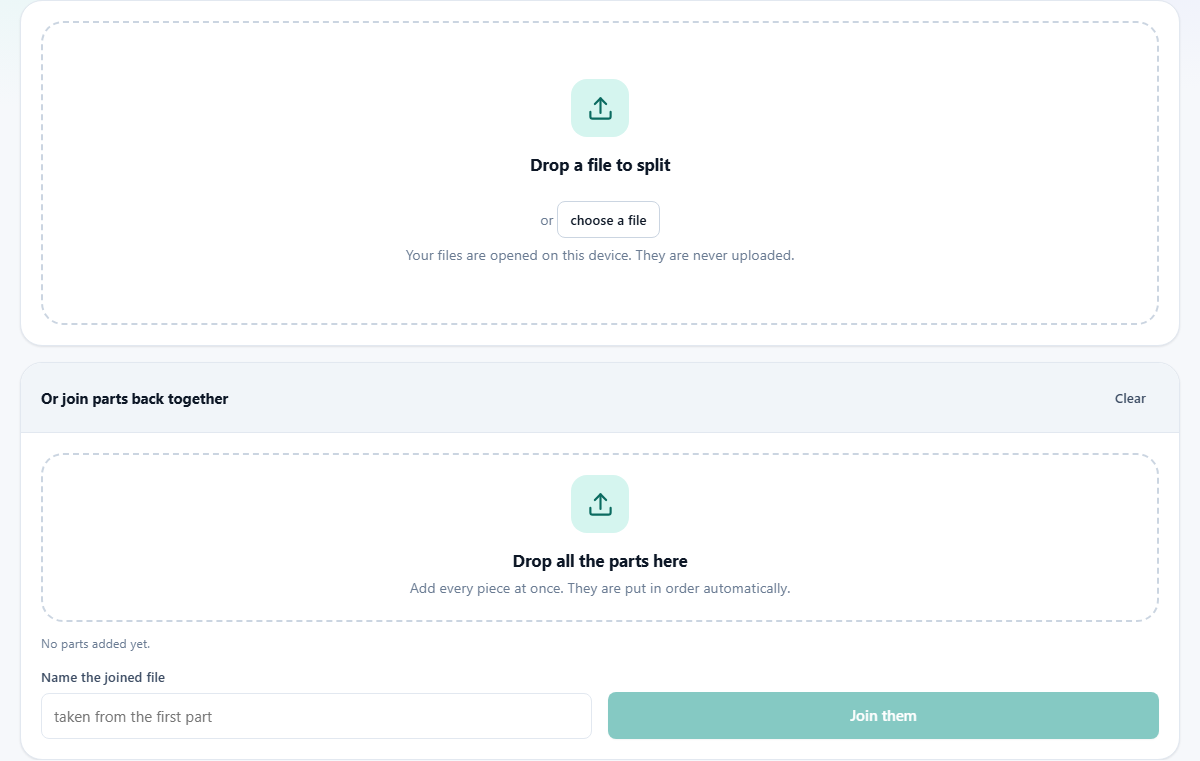
The upper box says Drop a file to split, and there is a choose a file button inside it for people who would rather browse. One file at a time here, since one file is what gets cut up.
As soon as it lands, a panel called Split it appears with two facts on it: the name of the file and its size. Those come from your own system, not from reading the contents. The page never has to load the whole thing to work out the plan, because a browser can take a length out of the middle of a file without touching the rest of it.
The three settings, and the line that does the sums
Each part holds the number, and Size unit beside it says whether that number means KB, MB or GB. It opens at 10 MB. You can go down as far as a hundredth of a unit and up as far as you like, though anything under one kilobyte is quietly raised to that, since a piece smaller than a kilobyte is not worth having.
Put the parts in one ZIP is ticked to begin with. Ticked, you get one download holding all the pieces. Unticked, the pieces arrive one at a time, roughly a third of a second apart, and your browser will very likely ask whether it is allowed to save several files at once. Both routes give identical pieces; the only difference is how they reach your downloads folder.
Beside the Split the file button, a grey line keeps the arithmetic up to date as you type, reading something like 14 parts of up to 10 MB. Watch it, because it is the quickest way to catch a wrong unit. If your settings would make more than five hundred pieces, a red line says so, names the number, and the button switches off until you choose a larger size.
What a part actually is
Each piece is a straight run of bytes lifted out of the original. There is no header on it, no index, no marker of its own, and no way to tell from inside a piece which one it is. All the ordering lives in the name.
The names are the original file name with a number added on the end, starting at .001 and always padded to at least three digits. That padding is the entire reason the pieces sort correctly in a file manager: .010 lands after .009 rather than next to .001. If the ZIP box was ticked, the archive is named after the file too, with -parts.zip on the end, so a folder full of split jobs stays readable.
Because a piece carries nothing but content, the pieces are not tied to this page at all. Any program that can stick files end to end will rebuild the original, which is worth knowing if you are sending them to somebody who will not visit a website to open their post.
Gluing them back together
The lower half of the page does the opposite job. Drop all the parts here takes every piece at once, and it is worth doing exactly that rather than adding them a few at a time. They are sorted by their numbers as they arrive, counting properly, so part 10 falls between 9 and 11 instead of next to part 1.
A line above the list reports how many pieces you have and what they come to in total. The list itself numbers each row, gives its name and size, and puts a small cross at the end so you can throw out anything that does not belong. Clear at the top of the panel empties the whole list in one go.
Name the joined file is the last box. Leave it alone and the name is taken from the first piece with its number stripped off, which gives you back the original name. Fill it in if you would rather call the result something else. Then Join them writes the file, and a short message confirms how many pieces went into it and how big the result is.
The size check, and why the count matters more
When more than two pieces are listed, the page compares them. Every piece except the last should be exactly the same length as the first. If one of them is not, a red line appears warning that a piece is probably missing or out of order. That catches a half finished download, a piece that was opened and re-saved by something, or two different splits mixed in one box.
Understand what it cannot catch, though, because it matters. If a piece from the middle simply never arrived, everything still in the list is the same length as everything else, and the check sees nothing wrong. Missing pieces are found by counting, not by measuring. The number of pieces is printed above the list for exactly that reason. Know how many you made, and check that number before you press the button.
A video sent by mail, from cut to rebuild
A recording called wedding-toast.mov runs to 138 MB. The mail account refuses anything over 25 MB per message, so it goes out in pieces.
Dropping it in shows the name and 138 MB. Each part stays at 10, Size unit stays on MB, and the grey line reads 14 parts of up to 10 MB. Put the parts in one ZIP is left ticked, so pressing Split the file produces a single download named wedding-toast.mov-parts.zip. Inside are wedding-toast.mov.001 through wedding-toast.mov.014, thirteen of them exactly 10 MB and the last one 8 MB.
Those fourteen files go out as fourteen messages, numbered in the subject lines so nothing gets lost in a busy inbox. At the other end, all fourteen are pulled out of the mail into one folder and dropped into the lower box together. The line above the list reads 14 parts and 138 MB in total, which already matches what was sent.
Name the joined file is left empty, because the first piece already carries the right name. Join them produces wedding-toast.mov at 138 MB, and it plays exactly as the original did. Total time at each end, under two minutes.
Where people trip up
- Renaming the pieces to something tidier. The numbers are the only record of the order, so renaming them destroys it.
- Attaching all the pieces to one message. That runs straight back into the limit you were avoiding. One piece per message.
- Dropping a folder into the rebuild box instead of the files. Open it and select the pieces themselves.
- Sending thirteen of fourteen and assuming the warning would have caught it. Count them.
- Setting the unit to KB by accident, then being told there would be hundreds of pieces.
- Expecting a repair. There is no spare information hidden in the pieces, so a lost one cannot be reconstructed from the others.
When a different page is the right answer
- The file would fit if it were smaller: Zip & Unzip often takes a great deal off documents, logs and code, and then no cutting is needed.
- You want proof the rebuild is perfect: Checksum Verifier compares a fingerprint of the original with one of the joined file.
- You are working out what fits on a disc or a stick: Fit Files onto Discs & Drives does that packing sum for you.
- You have many files rather than one huge one: bundle them with Zip & Unzip instead of cutting anything.
- You need to look inside the file rather than move it: Hex Viewer, or the TAR and GZ Extractor for archives.
Nothing is sent anywhere to be cut up
The cutting and the gluing both happen in the tab you have open. Your browser is allowed to take a range of bytes out of a file you chose and write it back out as a download, and that is the whole trick. There is no server in the story, no upload, no queue and nothing to delete afterwards.
That is the point for most people who need this. The files that outgrow a mail limit tend to be the private ones: recordings of family occasions, database dumps, client archives, disc images of a machine. Handing one of those to an unknown website so it can hand you back slices of it is a strange trade. Here, the page is only doing arithmetic on your own device, and it will do it just as well with the network switched off.