
Renaming a hundred files without opening a single one
This walks through every box on the Bulk Renamer, the order the rules are applied in, how to write a Find that only hits what you mean, and one full run on a folder of camera photos with the exact names that come out the other end.
Folders that end up here
A camera does not name pictures. It counts them. After a weekend away you have a folder where every name is the same four letters and a number, and no name tells you a thing about what is in the picture. Sorting it by hand takes an hour and you will make a typo somewhere in the middle.
The same shape of problem turns up all over the place. A scanner writes a date and a counter. A phone recorder writes the time to the second. A colleague sends you thirty attachments and every one of them ends in the word final. In each case you want one small change made the same way to every name.
- Photos off a card, ready to be handed to a client under a sensible name.
- Scanned paperwork that needs a job number in front of it.
- Audio takes that must line up in a strict order in an editing program.
- Files copied from a shared drive with spaces and brackets you would rather not keep.
- A set of exports where the same stale word appears in all forty names.
The ten boxes on the rules panel
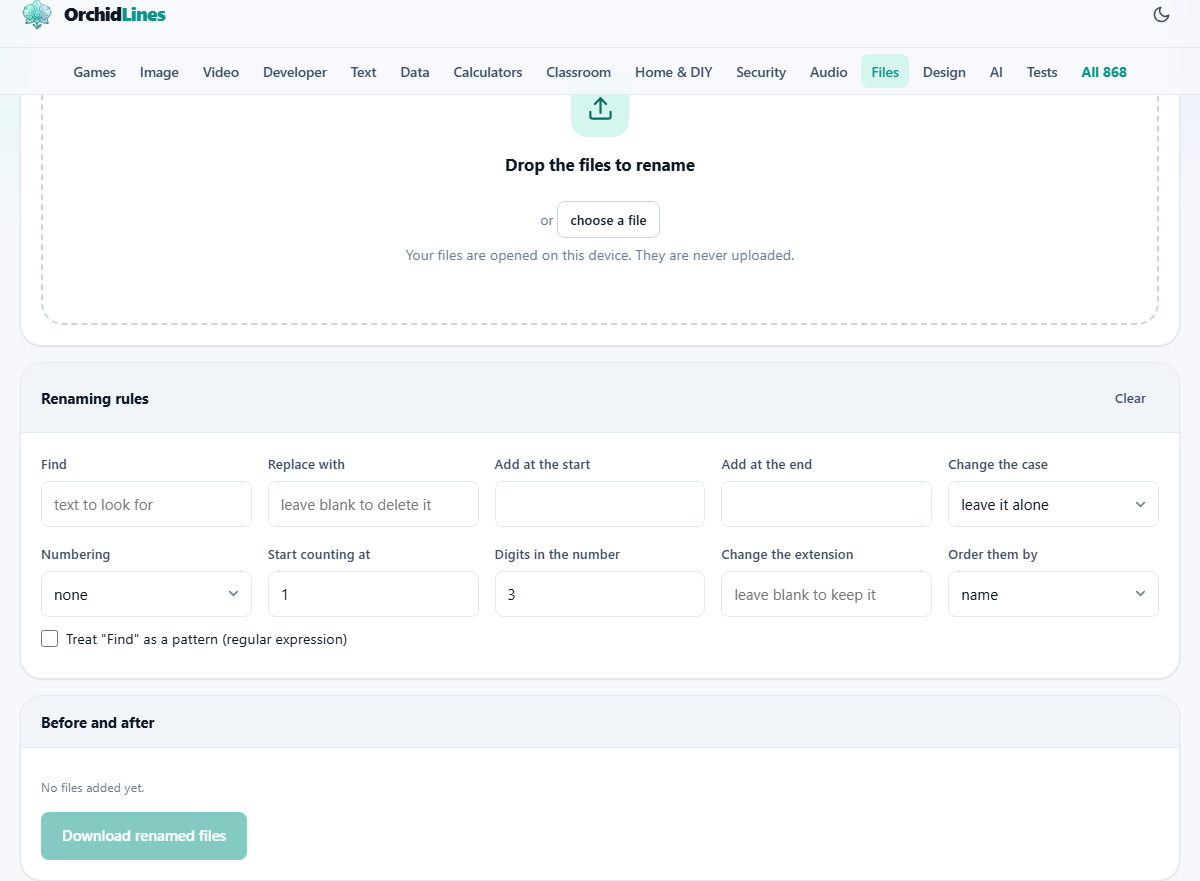
You can fill in one box or all ten. Every box you touch redraws the before and after list straight away, so you are never guessing.
- Find: the text to look for. It is matched exactly, capitals included, and every copy of it in the name is treated the same.
- Replace with: what to put there instead. Leave it empty and the found text is simply removed.
- Add at the start: text glued to the front of the name after everything else is done.
- Add at the end: the same, but on the back, still in front of the dot.
- Change the case: leave it alone, all lower case, ALL UPPER CASE, Title Case, kebab-case or snake_case.
- Numbering: none, number at the start, number at the end, or number only.
- Start counting at: the first number in the run. Set it to 12 and the first file gets 12.
- Digits in the number: how many figures wide, from 1 to 8. Three gives 007 rather than 7.
- Change the extension: type jpg or .jpg, either works. Leave it empty and each file keeps its own.
- Order them by: name, name backwards, size, or date changed. This decides who gets number one.
The order the rules run in
This is the part that surprises people, and knowing it saves a lot of head scratching. The rules do not all act on the same text.
First the name is split at the last dot. Everything before it is the base, and the bit from the dot onwards is the extension. Only the base is touched by Find, by the case setting and by numbering, which is why looking for the letter a cannot damage a .jpg.
Then, in this order: Find and Replace runs, the case setting is applied, the number is glued on, and finally Add at the start and Add at the end wrap the result. The extension is put back last, or swapped for the one you typed.
One consequence is worth spelling out. Number only throws the base away and puts the number there instead, so anything you typed into Find and Replace has nothing left to act on. If you want both a number and a word, use number at the start or number at the end.
Find as plain text, and Find as a pattern
Left alone, Find is dumb and predictable. It looks for those letters and nothing else. A Find of _v2 removes that exact string wherever it sits in the base, and a Find of img will not match IMG because the capitals differ.
Tick the box marked Treat Find as a pattern and the same box becomes a regular expression, which is a small language for describing a shape of text rather than one fixed string. A few pieces cover almost every real job:
- ^IMG_ means the letters IMG_ but only at the very front of the base. Useful when the same letters also appear in the middle.
- _+$ means one or more underscores at the very end. Good for names that trail off into punctuation.
- [0-9]{4} means any four digits in a row.
- \s+ means a run of spaces. Put a single hyphen in Replace with and every gap becomes one hyphen.
- Round brackets remember a piece, and $1 in Replace with puts it back. Find (\d{4})-(\d{2})-(\d{2}) with a Replace of $3.$2.$1 turns 2024-03-09 into 09.03.2024.
Two things patterns do that plain text does not
A full stop in a pattern means any character at all, not a full stop. So a Find of a.b with the pattern box ticked matches axb and a7b as happily as a.b. If you want a real dot, write it as a backslash followed by the dot.
The other difference is that a broken pattern stops everything. Type an opening bracket with no closing one and a red line appears under the rules saying the pattern is not valid, and the download button goes grey until you fix it. That is deliberate. It is better than quietly producing forty files named after your typing mistake.
A card of holiday photos, start to finish
Five pictures come off a camera. Dropped in, sorted by name, they read DSC_0087.JPG, DSC_0088.JPG, DSC_0091.JPG, DSC_0104.JPG and DSC_0105.JPG. The line above the list says 5 files.
Set Find to DSC_ and leave Replace with empty. Set Add at the start to harbour- and Change the case to all lower case. Put jpg in Change the extension. The list now shows harbour-0087.jpg, harbour-0088.jpg, harbour-0091.jpg, harbour-0104.jpg and harbour-0105.jpg, each one in colour beside the old name with an arrow between them.
The gaps in the camera numbers still show. If you would rather have a clean run, set Numbering to number only and Digits in the number to 3, keeping the same prefix. Now you get harbour-001.jpg through harbour-005.jpg, in the order set by Order them by. Switch that to date changed and the numbering follows the order you actually took the shots in.
Press Download renamed files. A file called renamed-files.zip lands in your downloads folder, and a small message confirms how many were saved.
What comes back, and what does not
The result is one ZIP holding copies of your files under their new names. Your originals are exactly where they were, untouched, which means that after you unpack the ZIP you have two sets and it is on you to delete the one you no longer want.
The files inside are stored rather than squeezed, so the ZIP weighs roughly what the originals weigh. Photos and video are already compressed and would not shrink anyway, and storing them keeps the save quick even on a big batch.
Two small clean-ups happen to every new name on the way in. Characters that a file system will not accept are swapped for an underscore, and a very long name is cut back to fit. If two files end up wanting the same name, the second one gets a number added inside the ZIP, so nothing is quietly written over the top of anything else. The red line under Before and after tells you when that is about to happen.
Five ways a batch goes wrong
- The numbers are in the wrong order. Numbering follows Order them by, not the order you dropped things in. Set that first, then look at the list.
- Nothing changed at all. Find is case sensitive without the pattern box, so IMG_ and img_ are two different searches.
- Half a name vanished. With the pattern box ticked, characters such as a full stop, a plus, a star or a bracket have their own meaning. Untick the box for a plain search, or put a backslash before the character.
- The extension came out doubled. Change the extension replaces the old one, so there is no need to type the old one anywhere. Typing jpg and .jpg gives the same result.
- Title Case did not lower anything. It only lifts the first letter of each word, so a name shouting in capitals stays in capitals. Run all lower case first if you want a real title from a shouting name.
When another tool suits the job better
This applies one rule to a batch. If each file needs its own name, taken from a spreadsheet or from something inside the file, no rule can do that and you are better off working through them by hand.
If your worry is not tidiness but whether the names will survive being copied to another computer, the filename checker on this site is the right stop. It reads names only, tests them against the rules of the main systems, and hands you a list of safe replacements without producing any files.
And if what you really want is one document rather than many neatly named ones, the text merger joins the contents instead of touching the names.
Your files stay on your machine
Nothing here is sent anywhere. The page reads the files your browser hands it, builds the new names in your own memory, and writes the ZIP straight back to your disk. There is no account, no queue and no server copy.
The plain test is this: load the page, turn off your connection, and then drop your files in. Everything still works. That is not a promise about a policy somewhere, it is just what the tool is.