
Taking a ZIP apart, and building one from scratch
How the two modes on this page differ, what every line of the file listing is telling you, a run through a real archive in both directions, and the small set of ZIP files that will be refused.
Jobs this page was built for
A ZIP is one file that holds many. It is how a folder travels through email, and how a download often arrives with twenty things inside it.
Most computers can already open one. The trouble starts when yours cannot, when you want a single item out of a long list, or when you are sitting at a machine where you are not allowed to install anything.
- A borrowed or locked down laptop with no archive software on it.
- A phone or tablet, where opening an archive means installing yet another app.
- One invoice you need out of a bundle of eighty scanned pages.
- Forty small text logs that a support desk wants as a single attachment.
- An old download you would rather look inside before you trust it.
Two buttons decide what the rest of the page does
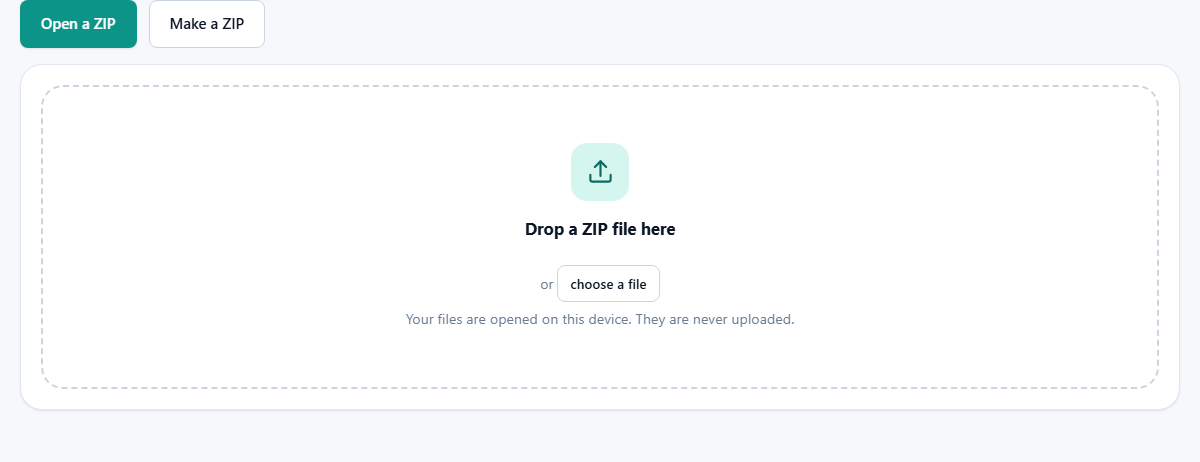
At the top sit Open a ZIP and Make a ZIP. The one that is highlighted is the mode you are in, and everything below it follows.
In Open a ZIP the drop area reads Drop a ZIP file here and takes one archive. In Make a ZIP it reads Drop files to put in a ZIP and takes as many as you care to give it. You can also press choose a file and pick from your folders instead.
Adding files in Make a ZIP mode is cumulative. Drop three now, five more in a minute, and all eight sit in the list waiting.
One shortcut is wired in. If you are in Make a ZIP mode and drop a single file whose name ends in .zip, the page assumes you meant to look inside it and switches modes for you.
Reading the listing
Open an archive and a summary line appears above the contents. It gives the number of files, the unpacked size, the size in the archive, and how much was saved as a percentage.
That last figure is the honest measure of what the compression achieved. A bundle of spreadsheets and code might say saved 78%. A bundle of photographs will say saved 1%, and nothing is wrong.
- The name, exactly as it is stored, with any folders in front of it.
- The unpacked size of that one item.
- The word compressed or the word stored, which says how that item was put in.
- The words password protected, on any entry that was locked when the archive was made.
- A tick box, which decides whether that item joins a bulk unpack.
- A Save button, which pulls out that one item and leaves the rest alone.
Unpacking one item, or the lot
Two buttons sit under the list. Unpack the ticked files does the work. Tick or untick all is the quick way to clear every box so you can pick just two.
What lands in your downloads depends on how many boxes are ticked. A single file arrives on its own under its own name. Two or more arrive together inside a fresh archive named after the original with -unpacked added.
That second archive is built without compression on purpose. Its contents have only just been expanded, and squeezing them again so that you can undo it a second later would cost time and gain nothing.
Tick nothing and press the button and a short message asks you to tick at least one file first.
Building an archive of your own
In Make a ZIP mode every file you add shows up with its size, and a line above the list counts the total, in the shape of 4 files and 6.1 MB.
The cross beside a file drops that one. Clear empties the whole list and starts you again.
Name the ZIP holds the name of the download. It begins as archive, takes up to eighty characters, and quietly strips a .zip if you type one on the end, so you can never end up with archive.zip.zip.
Compress the contents starts ticked. Leave it that way unless you already know the contents will not shrink and you would rather the file were built as quickly as possible.
Make the ZIP saves the result and reports the finished size, along with how much smaller it came out when it managed to save anything at all. Two files with the same name never overwrite each other; the second one gains a number.
A run through, with real numbers
Say a file called accounts-2025.zip arrives and you want one sheet from it. Drop it in with Open a ZIP selected. The summary reads files 34, unpacked size 41.2 MB, in the archive 9.8 MB, saved 76%.
The list is full of names like exports/march/ledger.csv. You find that one, press Save beside it, and ledger.csv appears in your downloads. Folders are dropped from the name of a single save, so you get the file rather than a path.
Now the other direction. Three of those sheets plus a short note have to go back to your accountant. Switch to Make a ZIP, drop all four in, and the counter reads 4 files and 6.1 MB.
Type march-ledgers into Name the ZIP, leave Compress the contents ticked, and press Make the ZIP. The message that follows reads along the lines of Saved march-ledgers.zip, 812 KB, 87% smaller.
Text shaped data behaves like that. Do the same with four holiday photographs and the archive lands within a percent or two of where it started, because the pictures were squeezed before they ever reached you.
When an archive will not open
- That is not a ZIP file, or it is damaged. Every ZIP keeps an index at its very end, and the page looks there first. A download that stopped part way is the usual reason. Fetch it again.
- A Zip64 archive is turned away by name. That variant is used once an archive passes four gigabytes or holds more than 65,535 files, and reading it properly is a separate job.
- Password protected entries are listed and labelled, but they cannot be opened here. There is nowhere to type a password, which is a decision rather than an oversight.
- Files ending in .rar and .7z are different formats with their own methods. Nothing on this page will read them.
- A rare compression method inside an otherwise normal archive is reported for that one entry, so the rest of the list still works.
- A very large archive can run your device out of memory, because the whole thing is held there while you work. Nothing else sets a limit.
Compressed, stored, and why one archive holds both
Every item in a ZIP is marked with how it was put in. Stored means the bytes went in as they were. Compressed means they were squeezed on the way.
Mixing the two inside one archive is normal, and every program that opens ZIP files copes with it. It happens because some things simply refuse to shrink. A picture, a song or a video has already been squeezed by its own format, so pushing it through a second time adds a little bookkeeping and takes nothing away.
That is why a bundle of documents can drop to a fifth of its size while a bundle of photographs barely moves. If you are hoping for a smaller folder of pictures, the format is not the lever to pull.
Very small files stay stored as well. Below roughly a hundred bytes the extra header costs more than the squeeze saves, so they go in whole.
Folder names survive the round trip
Names inside an archive can carry folders, and those are kept when you unpack in bulk. An entry called notes/2025/january.txt goes back into the new archive with that path intact, so the shape of the original folder comes out the other side.
Saving a single entry works the other way. Only the last part of the name is used, so the file lands directly in your downloads rather than trying to create folders there.
When you build an archive, the names come from the files you picked, without the folders they sat in. If the structure matters, put the tree into an archive with your own computer first, or accept a flat list.
When another tool is the better answer
- A file ending in .tar.gz or .tgz is not a ZIP. The TAR and GZ Extractor handles that family.
- If the archive is still too big for the mail server, the File Splitter and Joiner cuts a file into parts and puts them back together at the other end.
- An .epub or a .docx is itself a ZIP, so this page will list the parts. The EPUB Reader and the Word Document Viewer show you the actual book or document instead.
- If the aim is smaller photographs rather than a tidy bundle, an image compressor does what zipping cannot.
- Wondering whether the pile will fit on a memory stick is a question for Fit Files onto Discs and Drives.
- If the same picture is in the folder four times, the Duplicate File Finder is a faster way to lose weight than any archive format.
The compression is the one your browser already has
Squeezing and expanding both use a method your browser carries built in. That is why the page can offer real compression while downloading no extra code at all, and it is also why an old browser may show a warning that archives will only be stored.
None of your files leave the machine. They are read from disk by the page, worked on in memory, and handed back to your downloads folder. You can switch the network off once the page has loaded and both directions still work exactly the same.
Nothing is kept either. Close the tab and the archive and its contents are gone from memory, which is worth knowing when the files are contracts or payroll rather than holiday snaps.