
Reading a .tar.gz without installing a thing
What the two stacked formats are doing, how the page works out which one it has, what every number and button on the results table means, and a real backup archive opened from top to bottom.
One bundle, one squeeze
A file ending in .tar.gz has been through two steps, and the double ending is the receipt. The first step gathers many files into one long file, keeping their names, sizes and dates but making nothing smaller. The second step squeezes that long file down to something worth sending. Undo them in reverse and the original files come back.
You meet the result constantly once you look. Software for servers ships this way. So do database dumps, web hosting backups, log bundles from a support team, research data sets and exports from many online services. On a Mac or a Linux machine a double click deals with it. On a Windows machine people tend to go looking for a program to install, which is the moment this page saves the afternoon.
What it will take, and how it decides
The drop box accepts .tar, .tar.gz, .tgz and a plain .gz. It does not go by the ending, though. It reads the first two bytes to see whether the file has been squeezed, unsqueezes it if so, and then looks a little way in for the short marker that every proper bundle carries. So a file somebody renamed, or one that arrived with no ending at all, is handled on what it contains.
The unsqueezing is done by machinery already built into your browser, which is why no extra download is needed to open one of these. If a browser is too old to have it, a plain message says so and names ones that do. The whole archive is opened in memory, so this is comfortable with the few hundred megabytes most backups run to, rather than with something the size of a disc image.
The four figures across the top
Once the archive is open, four boxes summarise it before you read a single row.
Files counts the entries that can actually be pulled out. Folders inside the bundle are not counted, because a folder holds nothing of its own. Unpacked size adds up the contents, and is the figure that tells you whether you have room. Archive is the size of the file you dropped in, as it sits on disk. Compression turns those two into a percentage, so you can see at a glance how hard the squeeze worked. Text, code and logs often show seventy or eighty per cent saved. A bundle of photographs or videos shows almost nothing, because those were already compressed before they went in.
The table of contents
Below the figures, every file in the archive gets a row with four columns. Name shows the full path exactly as it was stored, so folder structure is visible without anything being created on your disk. Size is the unpacked length of that one file. Modified is the date it was last changed, taken from the archive rather than from today, which is often the only clue you get about when a backup was really made. Where an archive stored no date, a dash appears instead.
The last column holds the buttons. Save writes that one file out on its own. Note that it saves under the last part of the path, so a row reading config/settings.yml arrives in your downloads as settings.yml. Pull out two files with the same name from different folders and the second will need renaming.
Rows appear in the order the archive stores them, which is usually the order the files were gathered up rather than anything alphabetical. That is worth knowing when you are hunting for one name in a thousand: use your browser's own find on the page instead of scrolling, since the whole table is already there.
The two settings above the drop box
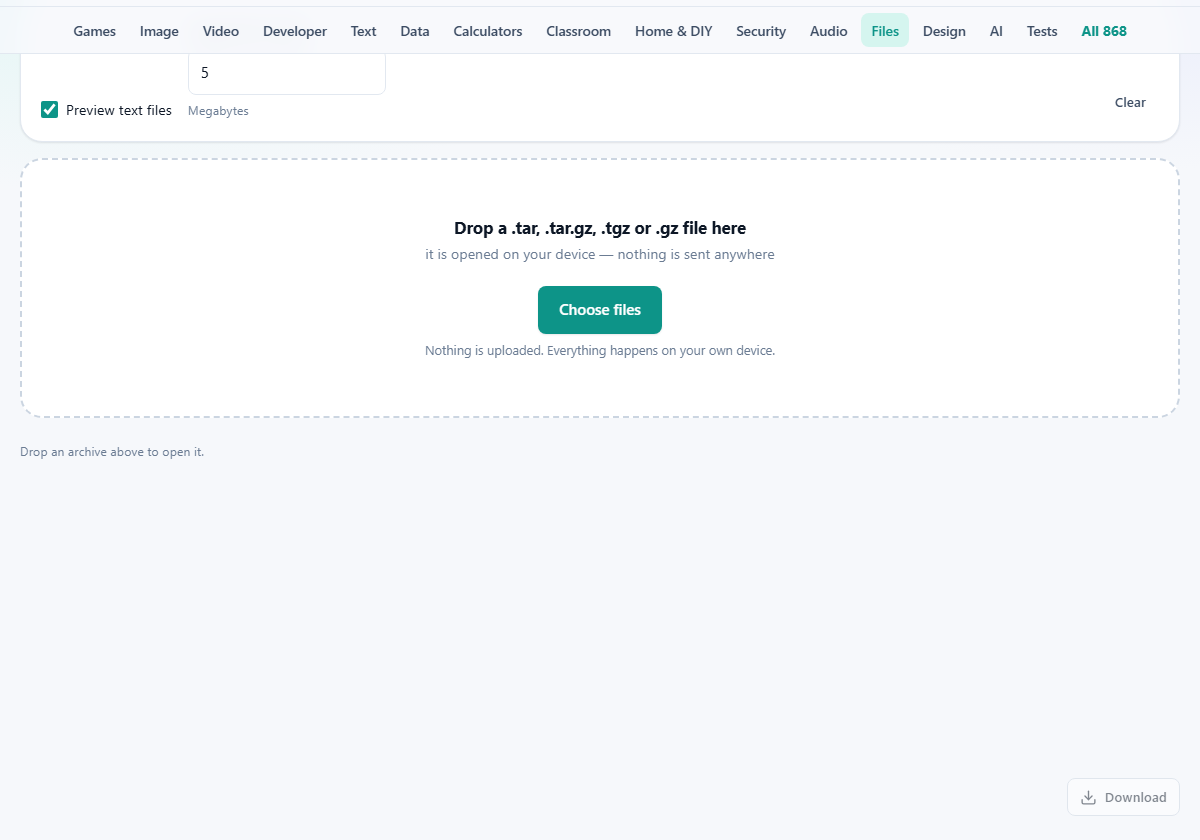
Preview text files is ticked from the start. It controls whether a Peek button is offered next to Save, for having a quick look at a row rather than saving it.
Largest file to open sits beside it, measured in megabytes, starting at 5 and accepting anything from 1 to 200. It is the ceiling on that offer: rows bigger than the number you set are not given a Peek button at all. That is what stops a forty megabyte log being treated as something to glance at. Raise it if your archive is full of large text and you would rather have the option on every row.
Clear, at the right hand end, forgets the archive and empties the table so you can open another.
Getting the contents out
For one file, the Save button on its row is the whole job. For the lot, Save everything as a zip repacks every entry into a single archive called extracted.zip, keeping the folder paths as they were inside the bundle. That is the answer to the Windows problem: a zip opens with a double click on any machine, with nothing installed and nothing to trust.
There is a third thing you can save, and it is easy to miss. A Download button under the results writes archive-contents.txt, a plain list with one line per file: the path, a tab, then the size in bytes. Tabs mean it pastes into a spreadsheet as two neat columns. It is a good record to keep beside a backup, and a quick way to compare last month's archive against this one without unpacking either.
When the file holds only one thing
A plain .gz is different in kind. It is the squeeze without the bundle, so it holds exactly one file and there is no list of contents to draw. Server logs and database dumps very often arrive like this.
The page recognises that case and says so, replacing the table with a short note and a single button reading Save the file. The status line tells you what the unpacked size will be, which is worth reading first, since a small log file can open out to something startling. The name is worked out by taking the .gz off the end, so access.log.gz gives you back access.log.
Opening a hosting backup
A hosting company sends site-backup-2026-05-01.tar.gz, 84 MB, with a message saying the site can be restored from it. Nobody wants to unpack twelve hundred files onto a laptop just to check one setting.
Dropped in, it opens in a few seconds and the boxes read: files 1,204, unpacked size 312.4 MB, archive 84.0 MB, compression 73 per cent saved. That ratio alone says the contents are mostly text, which fits a website.
The table shows the paths, and scrolling to config/settings.yml gives a row of 2.1 KB modified 12 April 2026. That date matters, because it is older than the problem being investigated, which rules the file out. Pressing Save on that row drops settings.yml into the downloads folder to be read properly.
The rest is filed rather than examined. Save everything as a zip produces extracted.zip, which goes onto the backup drive where a colleague on a Windows machine can open it without asking anyone for help. The Download button adds archive-contents.txt beside it as the manifest.
One more habit is worth forming with a backup you have been sent. Read the unpacked size before you save anything. Three hundred megabytes of contents inside an eighty megabyte file is normal, but a small archive that opens out to many gigabytes is a sign to stop and ask what is in it.
The limits, and the easy mistakes
- Two other archive endings, .7z and .rar, are not opened here. They need code no browser carries.
- This reads bundles, it does not build them. There is no way to turn a folder into a .tar.gz on this page.
- Owner, group and permission settings inside the bundle are not carried over into anything you save. On Windows that is no loss at all.
- Links stored inside an archive are not listed as files, so an entry you expected may simply have been a pointer to another one.
- A very large archive can run your device out of memory, since the unsqueezed contents have to fit. If it stalls, that is what has happened.
- Expecting the compression figure to mean something on a plain .tar. Nothing was squeezed, so there is nothing for it to report.
Better pages for neighbouring jobs
- Making or opening an ordinary zip instead: Zip & Unzip covers both directions.
- Not sure what the file even is: the File Type Identifier reads its opening bytes and tells you.
- Wanting the bytes rather than the files: Hex Viewer shows them directly.
- A book or a document that happens to be an archive underneath: the EPUB Reader and the Word Document Viewer display those properly.
- A file too big to send in one go: the File Splitter & Joiner cuts it into pieces and puts it back.
The archive never leaves your desk
Everything here happens inside the page you are looking at. The file is read from your disk by your own browser, unsqueezed by code that is already part of it, and taken apart by the small amount of script that came with this page. No copy is sent anywhere, and there is nothing on any server to expire or be deleted later.
That is not a detail for this kind of file. A hosting backup usually contains the settings, the database and often the keys for a live site. Handing one to an unknown upload page in order to read a single line out of it would be a poor trade, and there is no reason to make it when the work fits in a browser tab.