
Finding one word across a whole folder
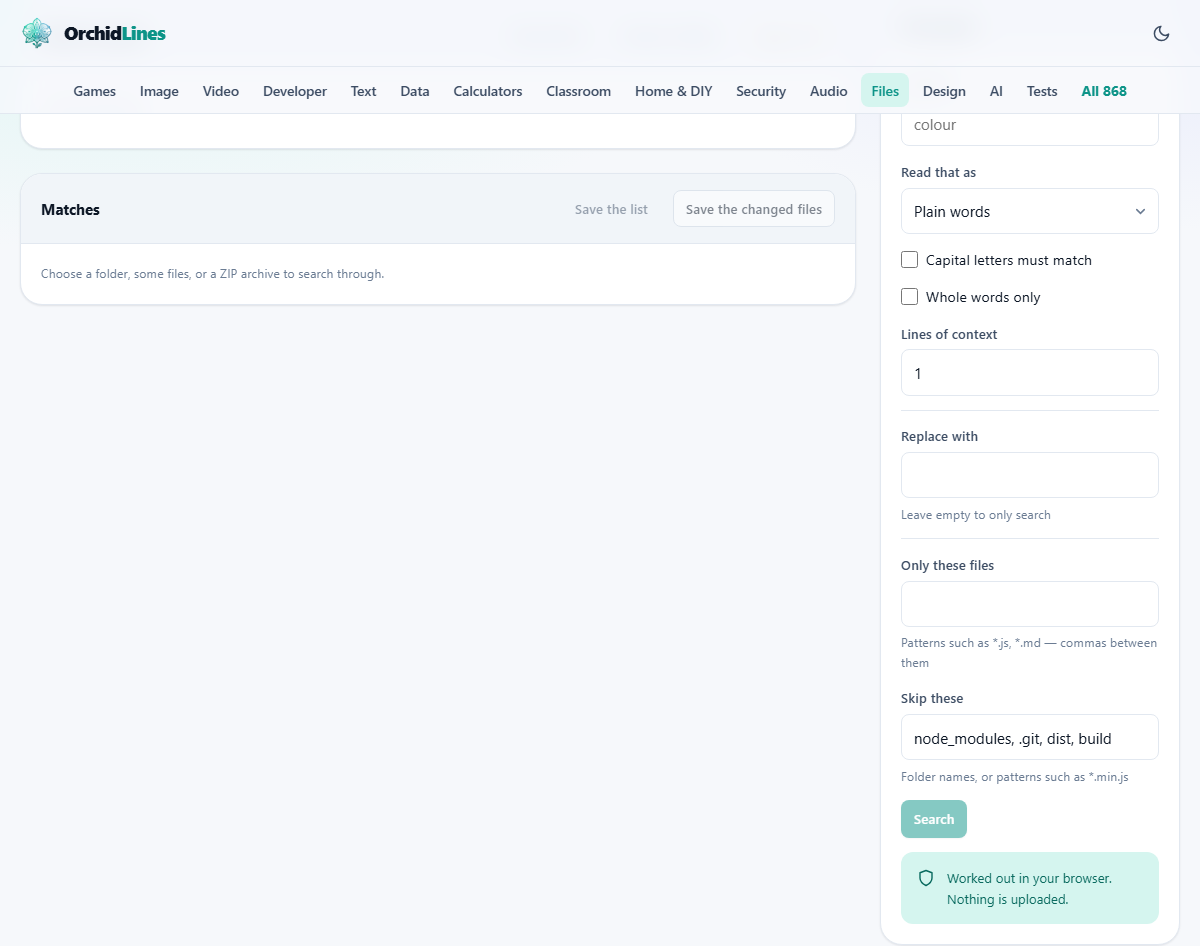
A closer look at the panel on the right: what each box accepts, why the two filter fields behave the way they do, what the replacement archive holds, and a full rename job with real numbers so you can picture the screen at every step.
The jobs that send people here
A word has to change everywhere, and nobody can remember where everywhere is. That is the whole problem. The old support address is buried in a hundred pages of notes. A client picked a new trading name.
This page reads a pile of text files in one go and shows every line that holds what you asked for. If you want, it then hands back edited copies. Reading and editing are separate steps, and stopping after the first one is fine. Plenty of people never touch the second half.
- Chasing an old phone number through years of letters and meeting notes.
- Finding which of six hundred settings files still point at a machine you are switching off.
- Checking an archive somebody sent you for a word, before you unpack it anywhere.
Three ways to hand the files over
Three buttons sit at the top. Choose files opens the normal file picker, and you may select as many as you like. Choose a folder puts that same picker into folder mode, so you pick one folder and everything below it comes in, however deep it goes. Open a ZIP reads the files inside an archive where they lie, with no unpacking step and no leftover folder.
A line of grey text under the buttons keeps score. Before you load anything it reads nothing loaded yet. After that it says something like 287 text files loaded, 46 skipped. Any file above 16 MB is left out, since dragging a video into memory as though it were prose helps nobody. So is anything that is not really text, spotted by a byte of value zero near the front. Each skipped file is listed at the foot of the results with its reason.
When you pick a folder, its own name is trimmed off the front of every path on screen. Results read src/app/main.js rather than repeating the folder name on every line.
Saying what you are hunting for
Change any of these four and the search runs again at once on the files already in memory. Nothing is read from your disk a second time.
- Look for. The word, the phrase or the pattern. Pressing Enter in this box runs the search, so you can type, look, change your mind and look again without reaching for the button.
- Read that as. Plain words is the starting setting and takes your text at face value: a full stop is a full stop, a bracket is a bracket. A search expression turns on pattern matching, where a full stop stands for any character and round brackets hold on to a piece for later. A pattern that is not valid gets an error on the status line.
- Capital letters must match. Off at first, so Colour, colour and COLOUR all come back together. Tick it when the case really matters, which is common in code and rare in prose.
- Whole words only. This wraps your text in a word edge on each side, so cat stops matching catalogue. It is the most useful box on the panel and the one people forget.
Lines of context, and what a result looks like
Lines of context accepts a whole number from 0 to 8 and starts at 1. It sets how many lines above and below each hit come with it. Zero shows the matching line alone, which is the tightest way to scan a long list. Three or four suits you better when you need the sentence a phrase sits in.
Every file with a hit gets a small panel. The path is in bold, then the number of matches, then the lines in a fixed width font with line numbers down the left. The line that matched is numbered in the brand colour and the match itself is picked out. The status bar sums the run up, for example 218 matches in 74 of 366 files.
The screen holds the first 60 files, and the first 25 matches inside each of them, with a note saying how many more there are. That ceiling only keeps the page quick.
Cutting the pile down with the two filter boxes
Only these files begins empty, which means everything. Type patterns such as *.js, *.md with commas between them and only files that match one of them are loaded. A star stands for any run of characters and a question mark for a single one. A pattern with no slash in it is matched against the file name alone, which is what people mean by *.txt. Put a slash in, as in docs/*.md, and it is matched against the whole path.
Skip these comes filled in with node_modules, .git, dist, build. Those are the folders that turn a five second job into a five minute one while holding nothing you wrote. A plain word here matches a folder or file name exactly, anywhere along the path. A pattern with a star in it, such as *.min.js, is matched against the file name.
One thing catches people out. Both boxes are read as the files are loaded, not when the search runs. Edit them after picking a folder and the file count will not move. Pick the folder again and the new rules apply, so set these two first.
Replacing, and what comes back to you
Replace with sits below a divider. Leave it empty and this stays a pure search page. Type into it and the button called Save the changed files wakes up. It only turns on when there are matches on screen and something in the box, which is a deliberate brake. You cannot fire off an edit whose count you have never seen.
In expression mode the replacement understands back references, so $1 puts back whatever the first bracketed group caught. In plain mode a dollar sign is only ever a dollar sign, so a price you type stays a price.
The button builds a ZIP named changed-files.zip. It holds only the files whose text really changed, each under its original path. A short list is good news, because it means the edit was narrow. Nothing is written back into the folder you picked, so your originals sit where they always were. Line endings are left alone, and a file that began with an invisible encoding marker keeps it.
Keeping the findings
Save the list writes a plain file called search-results.txt. It opens with what you looked for and how many files were read, then gives one line per match: the path, a colon, the line number, another colon, then the whole line. That is the layout editors already understand, so a colleague can paste one line in and land on the spot. This file carries every match, not only the ones on screen.
A rename across a handbook, start to finish
A handbook lives in a folder of 412 items: pages in markdown, a few sheets exported as text, and some screenshots. The support address has changed, and every mention must move to support@newco.example.
Before loading, Only these files gets *.md typed into it, because only the pages need editing. Then Choose a folder. The label settles on 366 text files loaded, 46 skipped, and the search fires by itself the moment the files land.
Look for gets help@oldco.example with Read that as still on Plain words, which matters because the address is full of full stops. The status bar reads 218 matches in 74 of 366 files. Lines of context drops to 0 so the list is short enough to skim, and the skim turns up one page where the address sits inside a worked example that ought to stay as it is.
No file can be ticked out of a replacement here, so the plan is simple. Replace with gets support@newco.example, and the archive comes back holding 74 pages. That one worked example is copied back from the original folder afterwards. Comparing the two versions shows 218 changed lines and nothing else.
Where it goes wrong
- Typing a pattern while Read that as still says Plain words. The pattern is then hunted for letter by letter and nothing turns up.
- Leaving Whole words only off for a short word. Looking for art also finds start, chart and party, and a replacement would rewrite all three.
- Editing the two filter boxes after loading and wondering why the count did not shift. Choose the folder again.
- Pointing at a folder that holds build output. The count runs into the tens of thousands and the real hits drown.
- Expecting every file you loaded to be in the archive. Only the ones whose text moved are in there.
- Hoping to delete a word by leaving Replace with empty. An empty box means search only, and the save button stays dark.
When a different page fits the job better
- One document rather than a folder: Find & Replace works on text you paste and answers as you type.
- Building a pattern before you dare trust it: Regex Tester shows you what each piece caught.
- Comparing two versions of the same file: Text Compare, or Diff Viewer for code.
- Two folders that are meant to be the same: Folder Compare names what is missing on each side.
It all happens inside your tab
Every file you pick is read by your own browser, off your own disk, and searched by code that came down with the page. Nothing is posted anywhere. There is no account and no copy of your work on a server. Load the page, switch your network off, and it still works.
This matters more here than on most pages, because of the kind of folder people search. Source code, contracts and settings files with passwords in them are exactly the material somebody needs to look through, and exactly the material that should never be handed to a stranger's website.