
Checking a folder of names before you copy it anywhere
A close look at the Filename Compatibility Checker: the three ways to feed it names, what each system box tests, the steps it follows to build a safe replacement, and a seven name folder taken through the whole report.
The fault that only appears after the copy
A name is not just a label. Every system has its own rules about what a name may contain, how long it may be, and whether two names count as the same. Those rules disagree. So a folder can work for years on the machine where it was made, and lose files the first time it moves.
Nothing warns you. A file quietly does not arrive. An archive unpacks under a name that is not the one it went in under. This page reads the names, tests each against the rules that really exist, and says which will break and where. It cannot rename anything, so running it costs you nothing.
- A project folder about to be handed to a client on a different kind of computer.
- Anything going into an archive that a supplier will unpack.
- Files being pushed onto a Linux server or into version control.
- A naming scheme you are still designing and want to test first.
Three ways to hand it names
Choose files picks out individual files. Choose a folder reads a whole tree at once, which is the usual choice, and gives the checker the full path of each item so it can judge length as well as spelling.
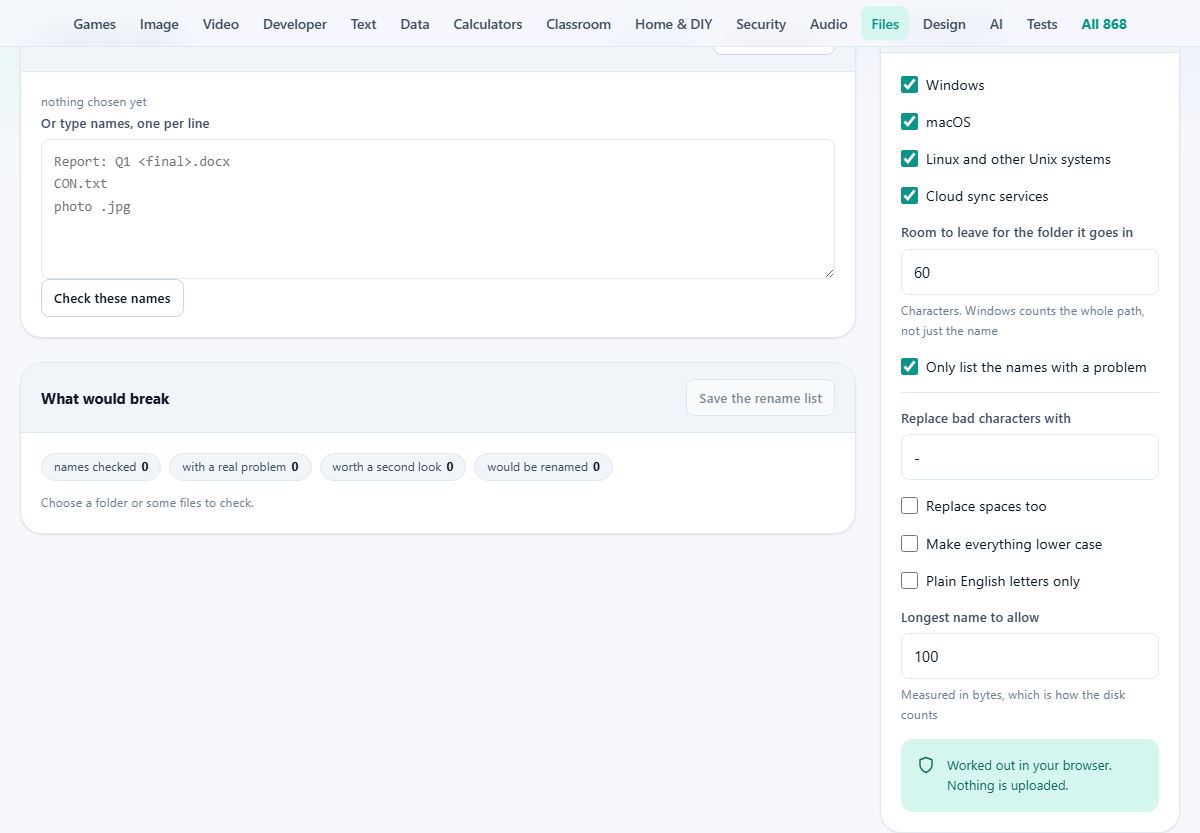
The third way is the box labelled Or type names, one per line, with the Check these names button under it. Anything you type is treated as a path, so a line may include folders. Backslashes are turned into forward slashes and a leading slash is dropped, so you can paste a directory listing straight in.
Typing is the only way to test names for files that do not exist yet. If you are agreeing a naming scheme with a team, write five example names, see what comes back, and settle the argument before anybody creates anything.
Check against: four boxes, four rule books
The four tick boxes in the side panel decide which rule books are applied. Untick the ones that do not matter and the noise drops away.
- Windows: bans a less than sign, a greater than sign, a colon, a double quote mark, a backslash, a vertical bar, a question mark and an asterisk. A name may not finish with a space or a full stop. Old device names such as CON, PRN, AUX, NUL and the numbered COM and LPT names are reserved, and an extension does not rescue them. Path length is checked too.
- macOS: flags a colon, because underneath the friendly view it is still a separator. It also flags a name starting with a full stop, since that hides the file.
- Linux and other Unix systems: almost nothing is forbidden, but a name is limited to 255 bytes rather than 255 letters, and one starting with a hyphen is read by commands as an instruction.
- Cloud sync services: a space at either end, a name starting with a tilde and a dollar sign, which they treat as scratch work and skip, and a path over 400 characters.
The five checks that always run
Some faults belong to no one system, so they are tested whatever you have ticked.
The first is control characters, usually a line break that got into a name by accident. The second is a letter with an accent stored in the split apart form, as a plain letter followed by an invisible mark, rather than as one character. The third is emoji and other characters from the far end of the range, which some older archive programs mangle. The fourth is a grey note rather than a fault: a name with a space, or with a symbol such as an ampersand or a semicolon, is legal everywhere and still needs quoting in a command.
The fifth compares names with each other inside the same folder. Two names that differ only in their capitals, or only in how an accent is stored, are one name on Windows and on an ordinary Mac disk. Both entries are flagged, and each is told which other name it collides with.
The path length sum, with numbers
The box labelled Room to leave for the folder it goes in starts at 60 and moves in steps of five, up to 200. It exists because Windows counts the whole path, and you rarely unpack a folder where it came from.
The sum is simple. The length of the path as the checker sees it, plus the number in that box, must stay under 260. With the default 60, anything over 200 characters is flagged. Drop the box to 0 and only paths over 260 are caught. Push it to 150 for a folder heading somewhere buried deep. A short name can still fail this test, because it is the chain of folders above it that does the damage.
How a safe name is built
The Safe name column is not a guess. The same steps run on every name, in this order, and the settings below the dividing line in the panel control them.
Split accents are joined back up. If Plain English letters only is ticked, accents are then dropped so that a letter with an acute accent becomes the plain letter, and anything still outside the ordinary typewriter set is swapped for your replacement character. Control characters are deleted, and forbidden characters become the replacement character.
Next, spaces. Left alone, a run of spaces collapses to one. Tick Replace spaces too and runs of space become the replacement character instead.
Then the tidying. Two or more replacement characters in a row are squeezed into one. Leading hyphens, spaces and dots are stripped, and trailing dots and spaces go too. A name reduced to nothing becomes file. A reserved device name has -file added, so CON becomes CON-file. Finally the name is trimmed from the end until it fits the byte limit, and if the result would match a name already suggested in that folder, a number is added.
The tidy-up settings themselves
- Replace bad characters with: one character, a hyphen by default. Emptying the box does not delete the offending characters; a hyphen is used instead.
- Replace spaces too: turns every gap into the replacement character. Good for web addresses, worse for anything a person has to read.
- Make everything lower case: the simplest cure for names that clash only by capitals.
- Longest name to allow: 8 to 255, counted in bytes, starting at 100. Bytes, not letters, because an accented letter usually costs two and an emoji costs four.
- Only list the names with a problem: filters the table on screen. It has no effect on the saved list, which always holds every name you checked.
A handover folder, checked line by line
Seven names are typed into the box and Check these names is pressed. Everything is left at its defaults: all four systems ticked, 60 characters of room, a hyphen as the replacement.
Report: Q1 <final>.docx is flagged twice, by Windows for the colon and the two angle brackets and by macOS for the colon. The safe name comes back as Report- Q1 -final-.docx. CON.txt is flagged as a reserved device name and becomes CON-file.txt. budget . ends in a full stop that Windows would silently drop, and the suggestion is simply budget.
resume.pdf and Resume.pdf are each told they collide with the other. The first keeps its name; the second is offered as Resume-2.pdf, because two different names must never be tidied into one. -draft notes.txt is flagged by Linux for its leading hyphen and comes back as draft notes.txt. The seventh, Q3 budget & forecast.xlsx, gets only a grey note about the ampersand and the spaces, and its safe name is unchanged.
The counters at the top of the panel read: names checked 7, with a real problem 6, worth a second look 1, would be renamed 5.
The report and the list you save
On screen you get three columns: the name, what is wrong with it, and the safe version. Real faults are in red, with the system that objects written in front of them. Grey entries are cautions you may reasonably ignore. A suggestion that differs from the original is coloured, so you can scan that column and see how much work is coming.
Very large folders show the first five hundred rows and say so. Save the rename list writes filename-check.csv, with columns for the path, the current name, the suggested name, a yes or no for whether it changed, and the problems. Sort it by the changed column and you have a work list to tick off.
Traps, and how to get out of them
- Everything is flagged. You left all four systems ticked for a folder that will only ever live on one machine. Untick what does not apply.
- The suggestion looks wrong. Change a setting and look again; the table redraws as you type, and nothing is committed either way.
- Two identical looking names appear. That is the accent or the capitals check firing, and it is the most valuable thing on the page. Rename one before you copy the folder anywhere.
- You expected the files themselves to be renamed. Take the CSV and do that with a tool which can write files.
When another tool fits better
If you already know what the names should be and just want them applied, skip the checking and go to the bulk renamer, which builds new names from a rule and hands them back in an archive.
If the trouble is inside the files rather than on them, this page cannot help, because it never opens a single one.
The names never leave, and the contents are never touched
Two promises apply here. The first is the ordinary one: everything is worked out inside your own browser, and nothing crosses your connection. The second is specific to this tool. The contents of your files are never even read.
The browser hands the page a list of names, sizes and paths, and that list is all it uses. Point it at a folder of confidential contracts and it still knows nothing beyond what they are called.