
Reading a file the way software reads it
A practical tour of the byte view: how the format is worked out from the opening bytes, what every control in the strip does, how to read a line of the dump, and how to use all of it to explain a file that refuses to open.
When you need to see the bytes
Files carry two kinds of label. There is the name at the end, which anyone can change in a second, and the pattern of numbers at the start, which only the program that wrote the file put there. Software goes by the second. People go by the first. Nearly every strange file problem lives in that gap.
A byte is just a number from 0 to 255, and a file is a long row of them. This page shows that row. Each number is written in hex, a way of counting with sixteen digits, 0 to 9 and then a to f, so every byte fits into two characters.
You do not need to follow the whole row. Usually the first sixteen numbers answer the question on their own.
- A document that every program refuses to open, with no useful error.
- An upload rejected for being the wrong type, though it opens fine at home.
- A file with no ending at all, recovered from a phone or a damaged card.
- A curiosity: which program produced this, and what did it leave inside?
Handing over a file
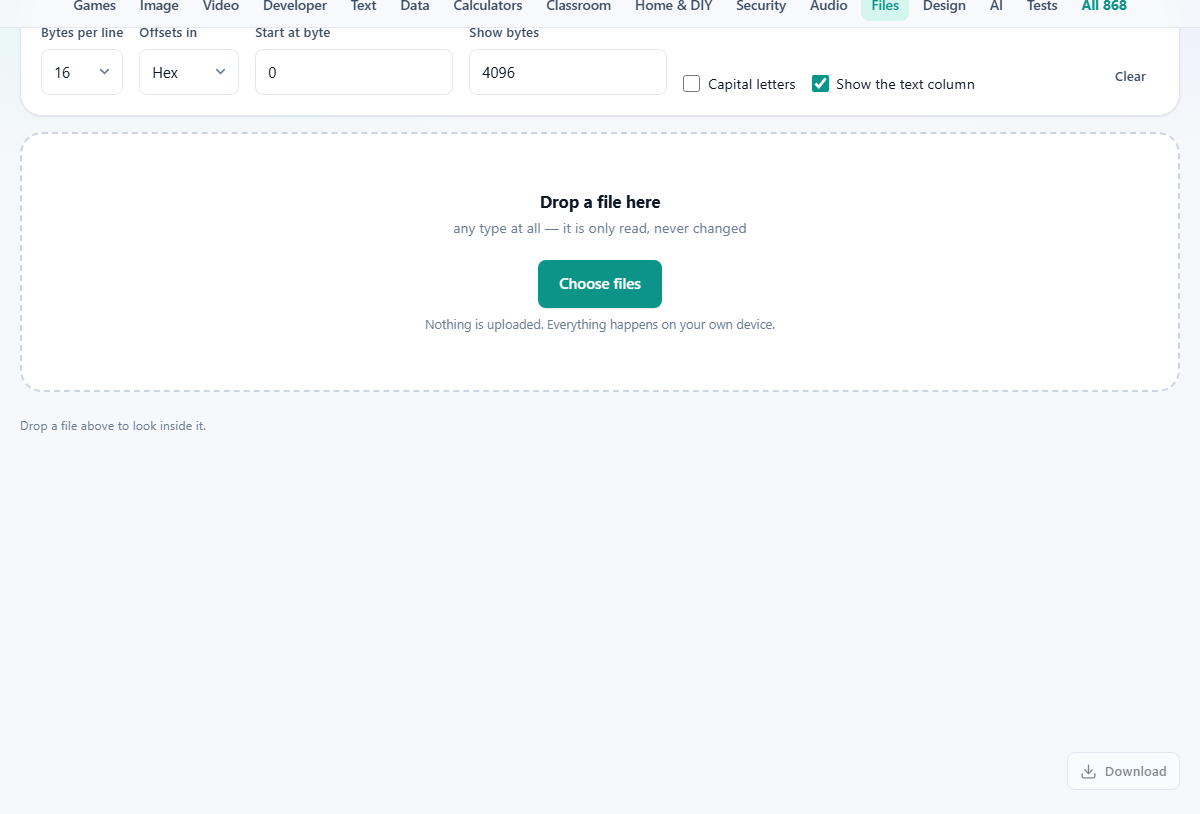
Drop a file on the box, or click it and choose one. Any kind is welcome, and the tool reads without writing: the file on your disk is not touched, moved or altered.
Only two small pieces are actually read: the first 512 bytes for the format check, and the exact window you asked to view. Nothing else is opened, which is why a twelve gigabyte disc image appears as fast as a text note. Size barely affects the speed.
The page sees that one file and nothing else on your machine. It cannot look in the folder around it, and cannot change what it was given.
The four facts at the top
Above the dump sit four short answers. File repeats the name you dropped in. Size gives the length in sensible units. Looks like is the important one: it names the format worked out from the opening bytes. Showing states which stretch of the file is on screen, in plain numbers.
When the ending on the name and the detected format do not line up, an extra line appears saying so, and reminds you that software will believe the bytes. Treat it as a prompt to compare the two yourself. It matches the letters of the ending against the name of the format, so an ordinary pairing can set it off when a short ending and a full format name are not spelled alike. The Looks like line is the thing to read.
How the format is worked out
Around thirty patterns are checked against the opening bytes. Images, documents, every common archive, audio and video containers, font files, programs for the three big systems, database files, and a few text markers. Between them they cover most of what turns up on an ordinary computer.
Two of those patterns sit away from the very beginning, which is worth knowing when you are staring at a dump yourself. One video container puts its marker four bytes in. A tar archive hides its label more than two hundred bytes down, inside the record for the first file it holds.
When nothing matches, the page does not shrug. It counts how many of the first 512 bytes are ordinary readable characters. If nearly all are, it says the file looks like plain text, which is the right answer for source code, notes, comma separated data and settings files, none of which carry a marker. Otherwise it says the format is not one it recognises, which is itself useful for a damaged file.
Every control in the strip
- Bytes per line. 16 to begin with, with 8, 24 and 32 also offered. Sixteen is the tradition and keeps offsets easy to work out. Eight suits a narrow screen; thirty two shows more of a pattern at once.
- Offsets in. Hex or Decimal. Hex is what other tools and format documents quote. Decimal is easier when counting bytes by hand or comparing against a size.
- Start at byte. Where the window begins, counting from zero. Type a position and the view jumps there. Anything past the end is pulled back to the end.
- Show bytes. How much to display, 4,096 by default. There is a ceiling of about 256 KB, so a very large number gives you that much rather than freezing the tab.
- Capital letters. Draws the hex digits and offsets in capitals, which matches the style used in many format documents and error messages.
- Show the text column. On by default. Turning it off gives more room to the numbers.
- Clear. Forgets the file and empties the view.
Reading a single line
Each line has three parts. On the left is the offset, which is the position in the file of the first byte on that line, padded so the column stays straight. Then come the byte values themselves, with a small gap after every eight, so you can count across without losing your place. On the right, between upright bars, is the text column.
That last column is where the human readable pieces show up. Every byte that happens to be an ordinary character is printed as that character, and every other byte becomes a full stop. A row of dots means numbers with no text meaning; a run of letters means real text, such as a program name, an author, a date, or the name of something stored inside.
Read that column first, because it is where the meaning usually sits. And remember that a full stop there is almost never a real full stop. It is a stand-in for a byte with no printable form.
A file that would not open
Someone sends certificate.pdf. No reader will touch it. Drop it here and the facts read: size 486 KB, Looks like JPEG image, showing bytes 0 to 4,096. The extra line points out the disagreement.
The first line of the dump confirms it. The offset reads 00000000, the bytes begin ff d8 ff e0 00 10 4a 46 49 46, and the text column on the right shows six dots followed by JFIF. Those opening numbers are the standard start of a photograph, and JFIF is the name of the arrangement it uses.
So the file is a photograph that somebody renamed. Rename it back to certificate.jpg and it opens at once. Nothing was corrupted and nothing was lost. The name was simply wrong, and every program that refused it was right to.
The same trick answers the opposite question. Drop in a report.docx and Looks like reports a zip archive, noting that office documents and ebooks are built that way. Set Start at byte to 30 and the text column shows the name of the first item packed inside. The document is a small archive, which is why one damaged byte can make a word processor call the whole thing unreadable.
Keeping a copy of what you saw
A Download button sits under the view and saves hex-dump.txt. It is not only the numbers: the file opens with the name, the size, the format that was detected and the range that was on screen, then the dump itself.
That header is what makes it worth sending. Pasted into a support ticket, it shows what the file really is and which part you were looking at, without either of you passing the file itself around. It saves the window you had on screen, so frame what matters before you press it.
Mistakes and misunderstandings
- Expecting to change something. This only reads. Editing bytes needs a hex editor installed on your machine, and doing it by hand breaks far more files than it fixes.
- Asking for the whole file at once. The window is capped for good reason. Move through a large file by setting Start at byte instead, in steps you choose.
- Reading the text column as a translation. Most bytes in a photograph, a video or a program have no text meaning at all. The letters you see are labels the format keeps, not hidden messages.
- Hunting for a password inside a protected document. If it is properly protected, there is nothing there to find, and what looks promising is usually a format keyword.
- Being alarmed by the mismatch line on a normal file. Compare the ending with the Looks like value and decide for yourself.
- Typing a start position larger than the file. You get the end of the file rather than an error, which is easy to miss if you were expecting a jump.
When another page answers faster
- You only want the verdict, without the numbers: the File Type Identifier gives the format and stops there.
- Two files that should match and do not: Binary File Compare finds the first place they differ, which is far quicker than reading two dumps side by side.
- A video or audio file whose real question is length, size and encoding: the Media Info Viewer reads the parts that describe the recording.
- A text file full of odd symbols: that is usually an encoding muddle, and the Text Encoding Converter fixes it rather than just showing it.
Read on your machine, and nowhere else
There is no transfer here at all. Your browser can already open a file you point it at, and that is the whole mechanism: the page asks for two slices, the browser hands them over, and the numbers are turned into text on screen. The file never becomes a network request.
This matters for exactly the files people bring to a tool like this: a contract that will not open, a medical scan, a work database, a folder recovered from a family phone. Those are the last things anybody should post to a stranger's server for identification.
The saved dump is written by your own browser into your downloads folder, from text already in the page. Close the tab and it is gone.