
Trying type on your own words, three files at a time
How to load fonts into the page, what each slider and menu changes, how the three views differ, and a method for judging a face that goes further than looking at it and liking it.
The problem with judging a font from a list
Font menus lie by omission. They show a name in a small line of grey text, which says almost nothing about how the face will behave in the work you are doing. Two faces that look interchangeable in a menu can be miles apart once real words are set in them.
Installing everything to find out is worse. A machine with six hundred families installed is slow to open a design program, the menu becomes unusable, and nobody ever removes any of it.
So the honest way round is to try the file first, in your own words, at the size you will really use, without letting it into the system at all.
- A bundle arrived with forty families and you need three of them.
- A client sent a brand pack and you want to see the headline face before the meeting.
- You are shortlisting two similar faces and cannot choose from the shop page samples.
- You need to know whether a face can set a language, a price or a name with accents in it.
Getting the files onto the page
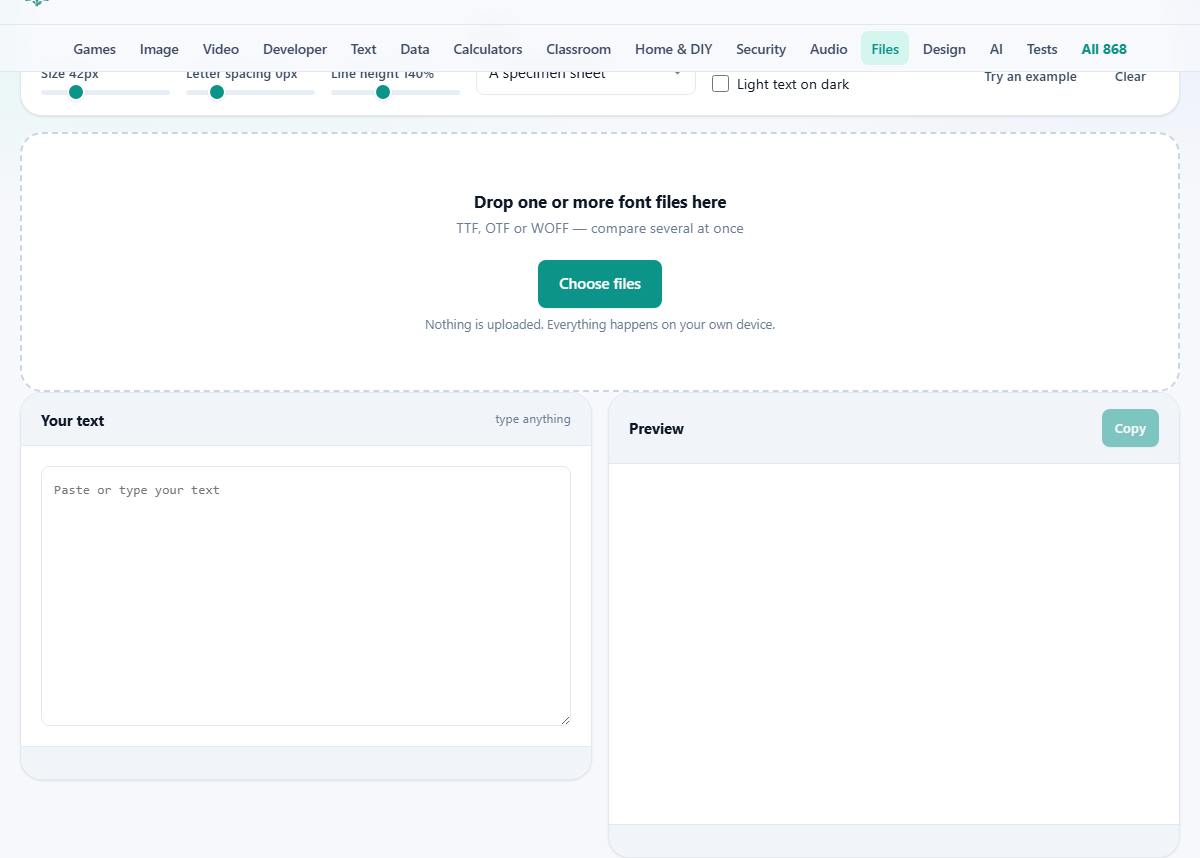
Drop font files on the dashed box, or click it and pick them. Several at once is the point, and each one gets its own panel below, headed with the file name and how big it is. Drop more later and they join the collection rather than replacing it, so you can build up a comparison as files arrive.
Four kinds are accepted: the two installable formats and both web formats. Drag in something that is not a font and a short message says how many files were skipped, and the rest carry on loading. If a font file is damaged and cannot be read, a message names that file and the others still appear.
Each file is loaded under its own private name, invented on the spot. That sounds like a detail, but it is why two files from one family, or two versions of the same font a year apart, can sit together without either masking the other.
The words you test with
The left pane holds a box marked Your text. Whatever you type there appears in every loaded font as you type, with no delay and no button. Line breaks are kept, so a headline and a line of small print underneath both get shown.
Leave it empty and a familiar practice sentence is used instead, which is fine for a first look. Try an example fills the box with two sentences that use every letter of the alphabet, plus a row of digits and a price, which is a better starting point than one plain line.
The text is remembered between visits, along with your slider settings, so coming back tomorrow with three more files means testing the same words as yesterday. That steadiness is worth more than it sounds.
The three views
The menu marked Show decides what each panel draws, and it is where most of the value sits.
A specimen sheet gives your text at the size on the slider, and then the same text again immediately underneath at a small body size. That second block is the quiet hero of the page. It stops you falling for a face that only works as a headline, because the body version is always in view while you admire the big one.
One line at every size takes the first line of your text and repeats it at twelve fixed sizes, from very small up to poster scale, each labelled with its size. Read it from the top: the size where the face stops being comfortable is the size below which you should not use it.
Every character in the font swaps the words for rows of characters, arranged in nine labelled groups. Capitals, lower case and digits come first, then a row of the shapes that are easily confused with one another, then punctuation, currency signs, maths signs, accented letters and a row of symbols. Any character the font does not carry is drawn by the browser in a substitute face, and once you know to look for it, the mismatch is obvious. That is the whole trick of this view.
The four appearance controls
These apply to every loaded font at once, which is the only fair way to compare. Two buttons finish the strip: Try an example, and Clear, which removes the loaded fonts and empties the text box together.
- Size. A slider from 12 to 140, starting at 42, with the current value shown beside the label. It drives the specimen. In the character view it is capped part way up so the rows still fit across the screen.
- Letter spacing. From minus 5 to plus 20, starting at 0. Negative values pull letters together, positive push them apart. Display faces often want a little extra at large sizes and a little less at small ones.
- Line height. From 90 to 220 per cent in steps of 5, starting at 140. This is the gap between lines, set as a share of the text size, so it stays sensible when you move the size slider.
- Light text on dark. Puts the preview block on a near black background with pale text. Type looks noticeably heavier this way, which is why a face chosen on white can disappoint on a dark sign or a dark app.
Choosing a face for a shop sign
Three files come in: Tarnbrook Display.otf, Cove Grotesk.woff and Lyra Text.ttf. Dropping all three at once gives three panels and a chip reading fonts 3.
Into the box goes the real wording rather than a sample: the shop name, then opening hours, then a price line with two currency signs. At 42 pixels all three look good, which is exactly the trap.
One line at every size sorts it out. Tarnbrook Display is beautiful at 48 and above and turns to porridge by 14, so it is a name-on-the-sign face and nothing more. Lyra Text holds its shape all the way down.
Every character in the font settles the rest. In the currency row, one of the three draws the euro sign in an obviously different style, which means that font has no euro sign. For a price list, that rules it out.
Last, because the sign is dark green, Light text on dark goes on and letter spacing rises to 3. The headline gains room to breathe, and the answer is Tarnbrook for the sign, Lyra for everything else.
A better way to judge than looking and liking
- Use your own words every time. A famous practice sentence is designed to include every letter, not to look like your work. Set the actual headline you have to set.
- Type a number with a decimal point and a currency sign. Prices and dates expose fonts whose digits are too narrow, too wide, or of uneven height.
- Put a word in capitals. Some faces space capitals badly, and a name in a heading is where you will find out.
- Compare weight against weight. Load the regular of each candidate first and decide, then load the bolds and check the two still look different at small sizes.
- Check the character rows before falling in love. A face with no accented letters is a slow disaster on a site full of real customer names.
- Judge at the smaller size under the specimen. The big line sells the font. The small line is what readers will really spend their time on.
Things that catch people out
- Nothing happens after choosing files. Look for a message naming a file that could not be read. A file with a font ending is not always a font inside.
- Expecting the font to be usable elsewhere afterwards. It is not installed. It lives in this tab and disappears with it. Installing is a separate step you do yourself.
- Wondering why one letter looks wrong in a word. That letter is missing from the font and the browser quietly borrowed it from another. The character view is where you confirm it.
- Pressing Clear to remove one font. It removes all of them and the text as well. Reload the ones you still want.
- Expecting Copy to capture the look. It copies the words being previewed, handy for moving your test line into a design program, but a picture of the type is not what it hands over.
- Comparing two faces at different slider settings. Set size, spacing and line height once, then leave them alone.
When a different page fits better
- The face is chosen and the file is the wrong shape for the job: the Font Converter turns an installable font into a web one, and back the other way.
- You need to know exactly which character a strange symbol is: the Character Inspector names it rather than just showing it.
- A font file will not open anywhere and you suspect it was renamed: the Hex Viewer reads the opening bytes and names the real format.
- You want the type set in a real layout with columns and margins: preview here to shortlist, then build the layout in a design tool.
Loaded, not installed, and never sent
Two promises are worth separating here. The first is that nothing is uploaded: the file is read from your disk into the tab's memory and stays there. There is no server in this, no account, and nothing to receive a copy of a font you may not be allowed to pass on.
The second is that nothing is installed either. The font is registered with this one page while it is open. It will not appear in your word processor, it cannot slow your system down, and closing the tab removes it. That is what makes it reasonable to drop forty files in and throw thirty seven away.
The only things kept between visits are your typed text and your slider positions, saved by the browser on your own machine. The fonts are not kept, which is why they need dropping in again next time.