
Reading a folder's weight, level by level
How to get a straight answer out of a full disk: what the browser is allowed to see, what each of the four controls does to the chart, how to read the bars without fooling yourself, and what the saved list is good for.
The question behind a full disk
A warning appears saying there is no room left, and the usual reaction is to hunt about deleting things that feel large. That guesswork rarely works. Thousands of small documents look enormous in a list and add up to almost nothing, while one forgotten thing in a folder you never open is quietly holding a tenth of the drive.
This page answers the question properly. It totals up a folder you choose and ranks what is inside it, so instead of a hunch you get a short list in order of weight. Most of the time the top three rows explain more than half the space, and the job is over in a minute.
- A phone or camera backup folder that nobody has pruned since it was made.
- A work laptop that will not update because the free space fell too low.
- A shared drive where you need to name the department that is filling it.
- A project folder you are about to send, which is somehow ten times the size you expected.
Handing over a folder, and only that folder
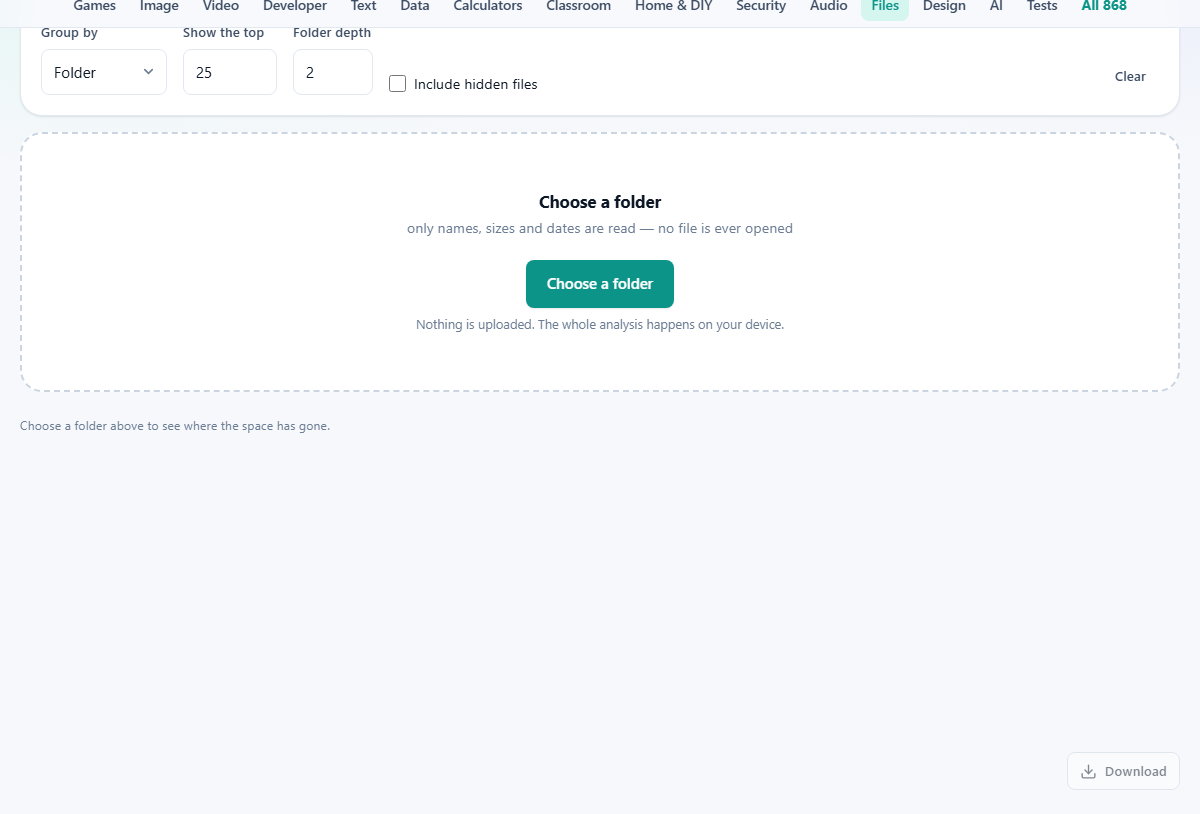
The large dashed box says Choose a folder. Click it and your own browser opens a folder picker. Pick one, agree to the confirmation your browser shows, and the page receives a plain list: the path of every file underneath, its length in bytes, and the date it was last touched.
That list is the whole of what the page works from. No file is opened, so the contents of your documents, photos and messages are never in play at all. It also means the page has no view of anything outside the folder you handed over. There is no way for it to look at a different folder, or to go upwards, or to write or delete anything anywhere.
One practical effect: the browser has to walk the whole tree before it can hand the list across. A folder with a hundred thousand files inside it takes a few seconds to appear. Very large trees are the one case where a program installed on your computer will be quicker.
The controls along the top
Four settings and a button sit in the strip above the chart, and every one of them takes effect the moment you change it. The file list is already in memory, so the totals are worked out again at once and the bars redraw. There is no run button to press.
- Group by. Three ways of adding the same numbers up: Folder, File type, or Biggest files. This is the setting you will change most.
- Show the top. How many bars to draw, starting at 25. It moves in steps of five and accepts anything from 5 to 200. It changes the picture only, never the totals.
- Folder depth. How many levels down the folder view should split, starting at 2. Level 1 is the folder you picked, so depth 2 gives you the rooms inside the house. Raise it to 3 or 4 to open a heavy room and see which corner of it is loaded.
- Include hidden files. Off to begin with, so anything whose name starts with a dot is left out, along with everything inside such a folder. Tick it when you suspect a hidden cache is the culprit.
- Clear. Forgets the folder and empties the chart, ready for the next one.
The three views, and what each is good at
Folder is the place to begin. Each bar is a path, and the numbers roll upwards, so a bar covers everything beneath it. This tells you where to walk next.
File type collects files by their extension into named groups: Video, Images, Audio, Documents, Archives, Code, Disk images, Fonts and Databases. An extension outside those groups gets a bar of its own, labelled Other with the extension in brackets, and files with no extension are gathered under No extension. This view answers a different question, which is what kind of thing you are keeping, wherever it happens to live.
Biggest files drops the grouping entirely and lists single files by size, longest first. It is the fastest route to a decision, because a single item you can name is easy to act on.
Reading the numbers without fooling yourself
Four figures appear above the chart: how many files were counted, the total size, the average file, and how many were skipped as hidden. That last one is worth a glance. If it reads several thousand, a large part of the folder is not in the picture at all.
Each bar shows its size and its share of the total. The bar length is drawn against the largest row, not against the total, so the top bar is always full width. It is a ranking, not a slice of a pie, and the shares of the bars on screen will not add up to a hundred, because only the number you asked for are drawn.
Underneath the chart, one sentence names the heaviest row and gives its share, and adds the share of the top three together. That sentence is usually the answer you came for. The line beneath the box repeats the count and the total, and reminds you that no file was opened.
A full drive, sorted out in four moves
Here is the Downloads folder of a laptop that has run out of room. Choosing it produces 3,417 files, 61.4 GB in total, an average file of 18.4 MB, and 12 skipped as hidden.
The view opens on Folder at depth 2. The top bar is Downloads/vm-images at 28.1 GB, and the sentence underneath reads that it accounts for 46 per cent of the total on its own, and the top three for 71 per cent. Half the problem has a name already.
Switching Group by to File type confirms it from another angle: Disk images 28.4 GB, then Video at 12.2 GB, then Archives at 7.7 GB. So the trouble is not thousands of documents, it is a handful of very large containers.
Switching again to Biggest files puts the individual culprits in order, with Downloads/vm-images/ubuntu-dev.vmdk at 14.9 GB in first place. That single file is a quarter of the folder. Deleting it and one old disc image recovers more space than a whole afternoon of tidying documents would have.
Keeping the result
A Download button sits under the chart. It saves folder-sizes.txt, a plain text file with one line per bar: the label, a tab, then the size as a raw byte count. Tabs make it paste straight into a spreadsheet as two proper columns, and raw bytes mean you can sum them or sort them without the units getting in the way.
It saves the rows that are currently on screen, in the current view, so the setting called Show the top decides how long the file is. If you want a full inventory rather than a top slice, raise that number to 200 before saving. Running the same folder again in a month and comparing the two files is a simple way to see what has grown.
Why the total may not match your computer
Three separate things can pull the figure here away from the one your system shows for the same folder, and knowing which is which saves an argument with yourself.
The first is hidden files. They are left out unless you ask for them, and on a developer's machine that can be a very large slice. The second is the top slice: the bars are only the ones you asked to see, while the total above counts everything. The third is that a disk keeps files in fixed blocks and may compress or share parts of them, so the room a file occupies is rarely exactly the length of its contents.
None of that stops this being useful. Proportions are what you need, and proportions are what it is reliable for. If you want the exact free space figure afterwards, read it from the disk itself once the deleting is done.
Common mistakes, and better tools for some jobs
- Pointing at a folder that is far too high up. Whole drives are slow to walk and awkward to read. Start with the obvious suspects: downloads, media, backups, project folders.
- Leaving the depth at 2 and stopping there. Depth 2 only names the room. Raise it to 4 with the heavy path in view and the actual corner appears.
- Reading the average file as if it means something on a mixed folder. One 15 GB file among small documents drags it upwards and tells you nothing.
- Expecting anything to be deleted here. This only counts. Removing what you find is done in your own file manager, which is safer anyway.
- Looking for copies of the same file rather than large ones: the Duplicate File Finder is the right page, since it groups by content instead of size.
- Wanting the shape of a tree rather than its weight: the Folder Tree Generator draws the structure as text you can paste into a document.
- Working out whether a pile of files will fit on a disc or a memory stick: Fit Files onto Discs and Drives does that arithmetic properly.
It never leaves your machine
Everything above happens in the tab. The counting, the sorting, the grouping and the drawing are all ordinary arithmetic done by your browser, on a list your browser gave it, on your own computer. Nothing is transmitted, and there is no account, no sign in and no server holding a copy of your folder layout.
That matters more than it first appears. A folder listing is revealing on its own, even with every file left shut. Client names, project codes, medical documents and half your working life are visible in the paths alone, which is exactly why a page like this should never send them anywhere. Load it once, then switch your network off and try it again: it behaves the same, because there was nothing to send.