
Checking that one folder really matches another
What each setting in the side panel changes, how to read the verdicts, what the two saved files contain, and the mistakes that make a healthy copy look broken.
The worry this page settles
Most people meet the same moment sooner or later. You copied a folder somewhere else, and now you have to decide whether it is safe to wipe the first one. The copy looked fine. It probably is fine. But "probably" is a thin reason to erase a wedding shoot or seven years of paperwork.
This page turns that feeling into a list. Point it at the old place and the new place. It tells you which files never arrived, which ones turned up that were not in the first folder, and which ones sit in both places but do not hold the same thing.
- A work laptop goes back on Friday and you copied your own files to a drive first.
- A card reader was pulled out early, and half a day of shooting may be missing.
- A backup ran overnight, and you would like proof rather than a green tick.
Setting up the two sides
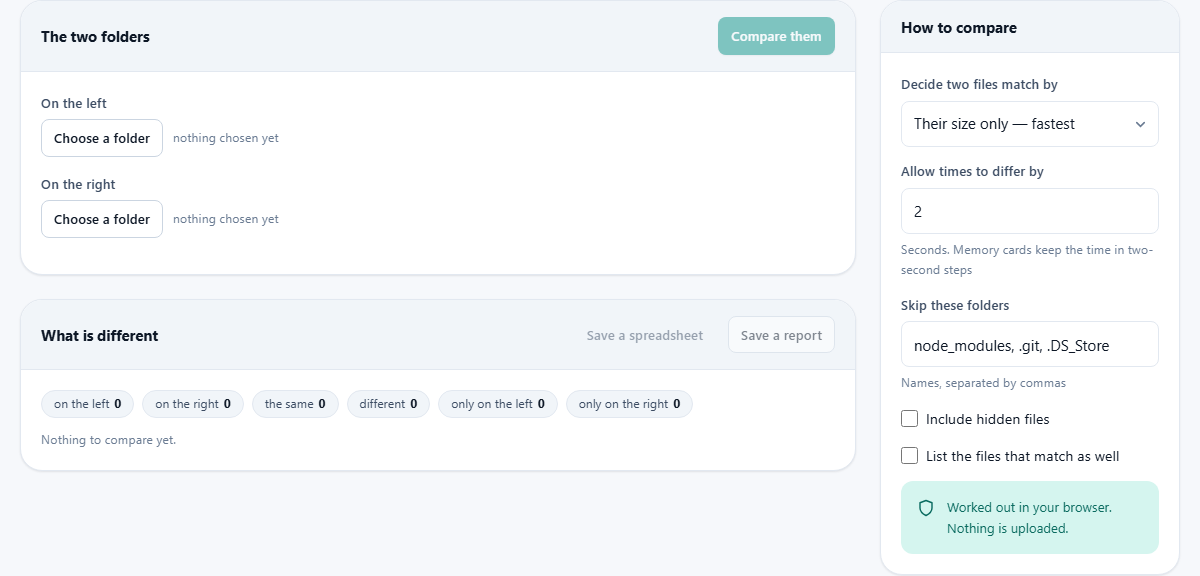
The first panel has two rows, marked On the left and On the right. Each has a button reading Choose a folder. Your browser opens its own picker, and may ask you to confirm that this page can see what is inside. That confirmation is the permission. Without it the page gets nothing.
Once a folder is chosen, the grey words beside the button become a summary, such as photos-2024, 1,204 files, 38.6 GB. Do that on both rows and the Compare them button wakes up.
The name of the top folder does not matter. A folder called shoot-final lines up against one called shoot-backup, because files are paired on the path below that top level. So 2024-05-18/DSC_0442.NEF is matched with 2024-05-18/DSC_0442.NEF and nothing else. Left and right are only labels, though it saves confusion to put the original on the left.
Every control in the side panel
Five settings sit in the panel on the right.
- Decide two files match by. Three choices. Their size only compares nothing but the byte count. Their size and the time they were changed adds the clock. Reading both right through opens each pair and works out a fingerprint of the contents.
- Allow times to differ by. A number of seconds, starting at 2, and accepted up to 7200. Only the middle method uses it. Raise it when a whole drive comes back with times shifted by the same amount.
- Skip these folders. A list separated by commas, which starts with node_modules, .git and .DS_Store. Any file or folder with one of those names drops out of the run, at any level, and capital letters make no difference.
- Include hidden files. Off to begin with. While it is off, a name that starts with a dot is ignored, and so is everything inside a folder whose name starts with a dot.
- List the files that match as well. Also off, so the table shows only what needs a decision from you. Tick it and every matching file joins the list.
How strict do you need to be?
Size only is the quick answer, and it is stronger than it sounds. Two files of different lengths cannot hold the same content, so a copy that stopped halfway is caught at once. A folder of any size finishes in a moment, because nothing is opened.
Adding the time is useful when files were edited rather than copied. Sizes often stay the same while the contents change, and the clock notices.
Reading both right through is the only method that is certain. Each pair is reduced to a SHA-256 value, which is a short fingerprint worked out from every byte. Same contents, same fingerprint. The browser's own built in maths does the work, and only for pairs that already share a size, since the rest are settled. A progress bar appears and the status line counts the pairs as it goes.
There is one honest limit. A file above 256 MB is not read right through, because it would all have to sit in memory at once. Such a pair is reported as the same, and the detail column says so plainly rather than pretending it was checked.
Reading the result
A row of small chips appears above the table: how many files on the left, how many on the right, then counts for the same, different, only on the left and only on the right. A capitals clash chip joins them only when there is one to report.
Those first two chips count everything the picker handed over, before the skip list and the hidden rule were applied. They can be larger than the other counts added together, and that gap measures how much your filters removed.
Below sits a table with three columns: File, Verdict and Detail. The verdict is one of five plain phrases, and the detail says why. You will see 4.1 MB against a file that exists on one side only, 31.5 MB against 30.9 MB for a size mismatch, same size and time, identical byte for byte, or same size with different contents. A name that exists on both sides in different capitals is called out on its own, with the other spelling quoted.
The table stops drawing after 800 rows, since painting a hundred thousand of them would freeze the tab for no gain. A line underneath says how many were left out.
A run from start to finish
Say the job is a photo shoot copied to a USB drive. On the left you choose shoot-2024 on the laptop, and the hint reads 1,204 files, 38.6 GB. On the right you choose the copy on the drive: 1,196 files. The method is left on size only.
The chips come back as the same 1,193, different 3, only on the left 8, only on the right 0. That is the whole story in one line. Eight files never crossed, and three arrived at a different length.
Because the laptop copy is about to be wiped, you switch the method to reading both right through and press Compare them again. The bar creeps along while the status reads Reading 604 of 1,193, and it ends with 1,193 pairs compared byte for byte. Two files that looked fine on size now say same size, different contents. The different count is 5, and you have caught a fault a size check would have missed.
You press Save a spreadsheet, sort folder-compare.csv by the verdict column, and copy the thirteen named files across by hand. Then you run the job once more. Every count except the same is zero, and the drive can be trusted.
The two files you can save
Save a spreadsheet writes folder-compare.csv with five columns: path, verdict, detail, left size and right size. The sizes are plain byte counts, so a spreadsheet can total them. Any field holding a comma is wrapped in quotation marks, which keeps the columns lined up.
Save a report writes folder-compare.md, a written summary instead of a grid. It opens with the counts, then gives a heading per verdict with one bullet per file. It reads well in a message to a colleague, or as a note kept beside the backup.
Both files hold every row, including the ones the table stopped drawing. Work the only on the left group first: that is the list of things that still exist in one place only.
Where people trip up
- Picking folders at different levels. Choose photos/2024 on one side and photos on the other, and every single file looks moved. Pick the two folders that are meant to hold the same thing.
- Forgetting the skip list. Project folders are compared with node_modules already excluded, so the result looks clean while saying nothing about that folder. Clear the box if you want it counted.
- Wondering why a folder came back empty. If everything in it starts with a dot, it was filtered out. Tick Include hidden files and run again.
- Changing a setting and expecting the table to update. A note appears asking you to compare again, because the four run settings are read at the moment you press the button. Only the tick that shows matching files redraws on its own.
- Leaving a huge pair on the strictest method. Every same-size pair is read on both sides, so tens of gigabytes take real minutes. Keep the tab open and let the bar finish.
- Seeing could not be read on one side. Something moved or was locked while the run was in progress. It counts as different on purpose, since an unread file is not a proven match.
When another tool fits better
- Both sides are text and you want to see which lines moved: Text Compare shows the changes themselves, not just the fact of them.
- Two single files rather than two trees: Binary File Compare goes straight to the first byte that differs.
- One folder that has grown copies inside itself: the Duplicate File Finder groups files by content within a single tree.
- A download to check against a published fingerprint: the Checksum Verifier is built for that one job.
- You know what is missing and want it copied: use the sync software on your own machine. This page reports, and stops there.
Nothing is sent anywhere
There is no upload step here, and no server waiting for one. When you choose a folder, the browser hands the page a list of entries with their names, sizes and dates. That alone is enough for two of the three methods.
The strict method does read the bytes, but that happens inside the tab, using the fingerprint function built into your browser. The values are compared in memory and thrown away when the page closes. The saved spreadsheet or report is written by your own browser straight into your downloads folder.
The page also cannot wander. It sees the two folders you handed it and no others, and it has no way to change what it sees. To watch that for yourself, load the page, disconnect from the network, and run a full comparison. It behaves exactly the same.