
Turning a pile of chapters into a file an e-reader will accept
A book is not a folder of files. It is one package with a stated running order, a contents list and a few facts about itself, and reading devices are fussy about how it is put together. Here is what each field feeds, how your formatting survives the trip, and what the checks catch before you get the file.
Who ends up needing one
A novel drafted as a folder of chapter files. A year of newsletters you would like to reread away from a screen. A thesis, a staff handbook, a set of recipes. The words already exist; the problem is packaging.
Packaging matters because a reading device will not simply show you a folder. It wants one file that says: this is the title, this is the author, these are the chapters, read them in this order. Miss a piece and the device either shows the chapters out of order or refuses the book outright.
Bringing the chapters in
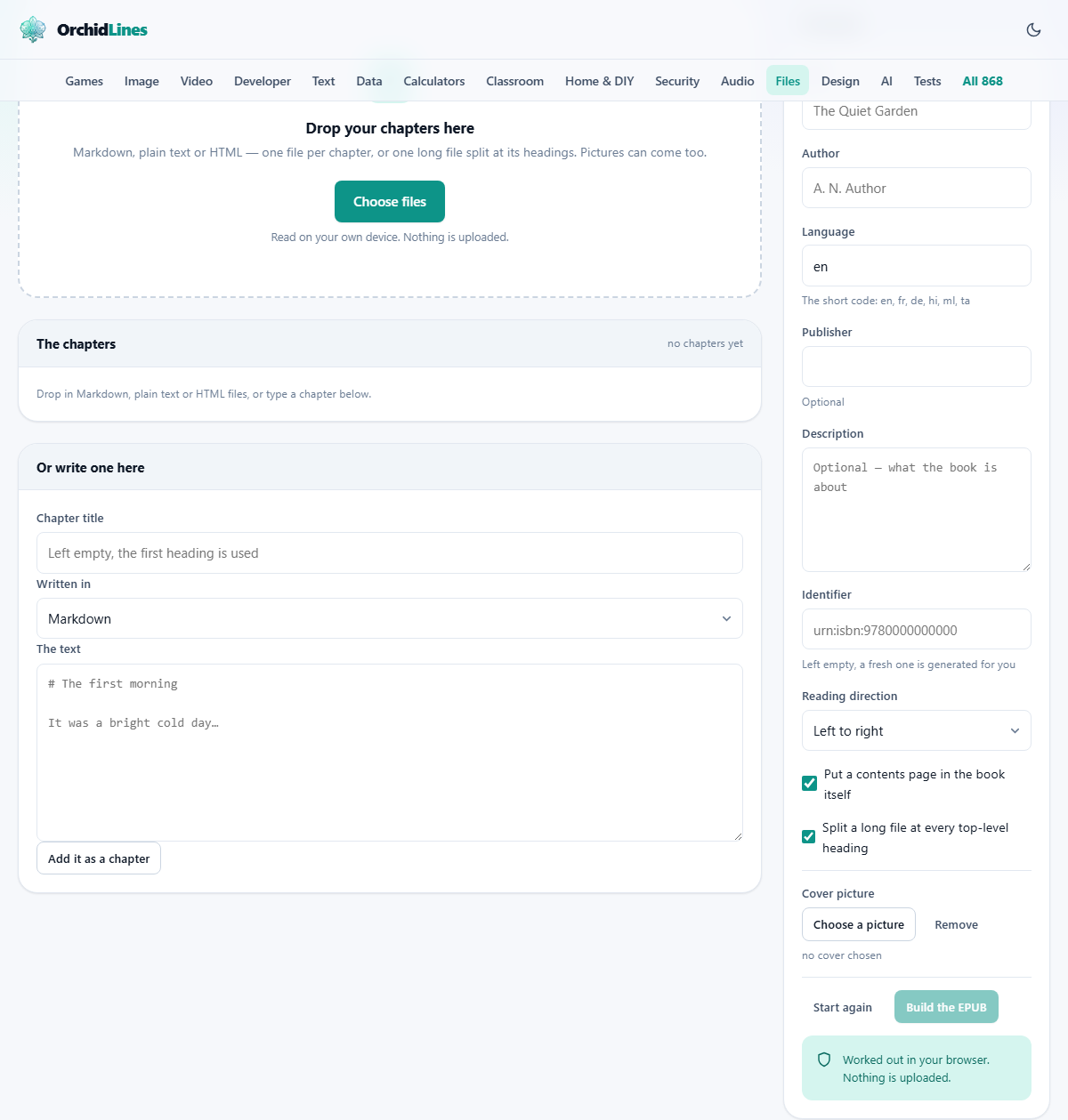
The drop panel takes three kinds of writing: Markdown, plain text and HTML files. It also takes pictures in the usual formats. Drop as many as you like at once. The ending on each file decides how its contents are read, so name them properly.
Each file becomes a row in the chapters panel, showing its position, a box holding the chapter title, and under that the file it came from and its word count. The title box is editable, and what you type there is what appears in the contents of the finished book.
Three small buttons finish each row: up, down and remove. The order of this list is the order of the book, which is exactly what goes wrong when people zip a folder and hope. Chapter 10 will never wander in between 1 and 2 here.
Above the list, a summary counts the chapters, adds up the words and estimates a page count from them, as a rough guide to length.
Writing a chapter straight into the page
Under the list is a small editor for the chapters you do not have as files: a foreword, a copyright page, a short afterword.
Chapter title can be left blank, in which case the first heading in your text is used. Written in tells the page how to read what you type, and offers the same three choices as the file drop. Then the text box, then Add it as a chapter. New chapters land at the bottom, so add your foreword and walk it up with the arrow.
The panel that describes the book
On the right sits everything the reading device will know about your book. Title and Author are the two that show on a shelf. Leave the title empty and the book is called Untitled, and its file is named to match.
Language wants a short code such as en, fr, de, hi, ml or ta, and starts at en. It is not decoration. Devices use it to decide how to break words at the end of a line and how a read-aloud voice pronounces them, so a Malayalam book marked en will be hyphenated as though it were English.
Publisher and Description are optional and appear in the book's details. Identifier is the book's permanent name, the thing that says this is that book rather than a similar one. Leave it empty and a fresh unique code is made. When you fix a typo and rebuild, paste the original code back in, so devices treat the new file as the same book.
Reading direction sets whether pages advance left to right or right to left, which is what a book in Arabic or Hebrew needs.
The two tick boxes
Put a contents page in the book itself decides whether the contents appear as a page you can turn to. The chapter list is always built and always reachable through the device's own contents button; this box adds a visible page at the front as well, as most published books do.
Split a long file at every top-level heading turns an exported document into a proper book. It looks for Markdown headings written as a line beginning with a single hash mark, and starts a new chapter at each one. Every piece gets its own contents entry and its own title, taken from that heading.
Deeper headings inside a chapter, written with two or three hash marks, are left alone as headings. Turn the box off when each of your files is already exactly one chapter.
What survives from your formatting
Markdown is read for the parts a book needs: headings at all six levels, bold, italics, inline code, fenced code blocks, links, pictures, bulleted and numbered lists, block quotes and rules. Anything more exotic is left as the characters you typed.
Plain text is treated simply. A blank line starts a new paragraph, and single line breaks are kept, which suits poetry and addresses.
HTML is handed to the browser to read, then written back out in the stricter form a book requires, with scripts, frames, forms and page furniture stripped on the way through. Hand-written HTML is almost never strict enough to pass on its own, so that conversion is what saves you. One nicety: a chapter that already opens with its own heading does not get the title printed twice.
Pictures, and the cover
Drop your pictures in alongside the chapters. When a chapter names a picture, the reference is joined to the copy inside the book. A picture with a web address is left out, because a book has to work on a train with no signal. In Markdown the description text stays; in HTML the tag simply goes.
The cover has its own controls near the bottom: Choose a picture, and Remove if you change your mind. Once chosen, its name and size are shown so you can be sure of the file.
The usual picture formats are packed in as they are. Anything unusual is quietly redrawn as a photograph format first, because older devices show a blank page for what they do not recognise. A tall rectangle works best. The cover becomes the first page, and is also recorded in the older way that pre-modern devices look for, so it appears as artwork too.
What pressing Build the EPUB actually does
The button wakes up once there is at least one chapter, and what follows is more than zipping a folder.
Every page it writes, including your chapters, the contents and the details file, is parsed strictly before it is allowed into the package. A reading device is far less forgiving than a browser: one tag left open and the whole book fails to open, with no hint about which chapter did it. If a check fails here, the build stops and names the chapter by its title.
Then the archive itself is inspected. The format demands that one particular small item sits first inside the file, stored plainly. Get that wrong and half the readers in the world take the book happily while the strict ones reject it. The finished archive is read back to confirm that item, and rebuilt a safer way if it is not right.
Only then is the file saved, named from your title in lower case with dashes for spaces. A status line reports how many chapters went in and how large the result is.
Building a small book from start to finish
You have twelve Markdown files named 01-morning.md through 12-the-gate.md, and cover.jpg beside them. Select all thirteen and drop them in. The picture is set aside as a picture; the text files become twelve rows.
The summary reads twelve chapters and 41,208 words, roughly 165 pages. Two rows carry the wrong title because those files open with a date line rather than a heading, so you click into their title boxes and type the real ones.
In the right hand panel: Title becomes The Quiet Garden, Author A. N. Author, Language stays en, and you write two sentences in Description. Both tick boxes stay on. Press Choose a picture and pick cover.jpg.
Press Build the EPUB. A moment later the status line says twelve chapters were built and gives a size of about 480 KB, and the-quiet-garden.epub lands in your downloads. Copy it to your reader, or drop it into the EPUB Reader on this site to see it as it will be read.
The traps
Almost everything that goes wrong here is one of these:
- Expecting a word processor document to be accepted. It is not a text file. Export it as Markdown, HTML or plain text first, then come back.
- Splitting that does nothing. The split looks for single hash headings in Markdown, so a document whose chapters open with a bold line has nothing to split on. Add the headings, or split the file yourself.
- Missing pictures. A picture that was not dropped in with the chapters has nothing to join to, so drop the whole set together and match the names exactly, capital letters included.
- A build that stops with a chapter named in the message. That chapter has broken markup, usually an unclosed tag in hand-written HTML. Fix that one file and build again.
- Leaving the language at en for a book that is not English. Nothing looks broken, but the word breaking and the spoken reading will be wrong.
- Expecting page layout to survive. A device reflows text to its own screen and type size, so columns and fixed positions do not travel. Headings, emphasis, lists and quotes do.
When to build something else instead
If the exact look of every page matters, a form or a certificate or sheet music, a flowing ebook is the wrong container and a printed page format is the right one.
If your book is really one long web page with its styling in separate files, the Self-Contained HTML Bundler packs that into a single page instead. And the EPUB Reader here opens the file you just built, which is the cheapest quality check there is.
Your manuscript stays yours
Everything above happens inside the browser tab. The chapters are read from your disk, the pages are generated in memory, the archive is assembled there, and the finished file is written straight back to your machine.
Nothing is sent, and no copy is kept once the tab closes. Unpublished writing is exactly the sort of thing that should not be handed to a stranger's server for the sake of convenience. You can test it: load the page, disconnect from the network, drop your chapters in and build. The file appears just the same.