
Opening an ebook on a computer that has no ebook app
An .epub file is a folder of web pages in disguise, which is why a browser can read one directly. This piece walks through what happens when you drop a book in, what every setting in the reading panel changes, how to pull the whole text out, and which books will refuse to open however hard you try.
The moment you need this
Somebody emails you a book and your computer offers to open it with nothing at all. You are on a work machine where installing software is not allowed. You downloaded a classic from a free library and want to read a chapter before deciding. You made an ebook yourself and want to see what a reader will actually get.
All of those end the same way: a file your machine treats as a mystery. Installing a reading program for one file is a heavy answer to a light question. Dropping it here skips that: the book opens in the tab, in the order it was meant to be read, with the text set the way you like it.
What an ebook is made of
Rename an .epub to .zip and you can open it like any archive. Inside are web pages, one per chapter, plus the pictures, plus a small file that lists everything and states the running order.
That list is the important part. Chapters are rarely named in a helpful way inside a book: you often find files called part0012.xhtml or index_split_007.html. Sorting those by name is how naive readers end up showing chapter 10 between chapter 1 and chapter 2. The order is read from the book's own list instead, so what you get is the order the publisher set.
The same small file holds the title, the author and the rest of the book's details, which is why the panel at the top can fill itself in without you typing anything.
What appears when a book opens
The drop panel is replaced by three stacked panels. The top one carries the book's title as its heading, with the details underneath: author, language, publisher, the publication date and the number of chapters. Anything the book did not record is simply left out rather than shown as blank.
Two buttons sit beside the title. Another book clears everything and gives you the drop panel back. Download as text is covered further down.
Below that is the reading panel itself, and below that the contents. If a book has no title of its own, the file name is used, which is a fair sign that it was made in a hurry.
Getting from chapter to chapter
The heading over the text tells you where you are, as in Chapter 4 of 89, followed by the chapter's own heading when it has one. Previous and Next sit beside it, and the first and last chapters correctly grey out the button that would take you past the end.
The left and right arrow keys do the same as those buttons. One catch is worth knowing: while your cursor is sitting in one of the number boxes in the reading panel, the arrows belong to that box, so click the text of the book once and they work again.
The contents panel at the bottom lists every chapter with a number, and clicking one jumps straight to it. Entries begin as the plain file names from inside the book and change to the chapter's real heading once you have visited it, so the list becomes more useful the further you read. The current chapter is marked.
Turning a page always puts you at the top of the new chapter. There is no memory of where you stopped, so with a long book it is worth noting the chapter number before you close the tab.
The reading panel, setting by setting
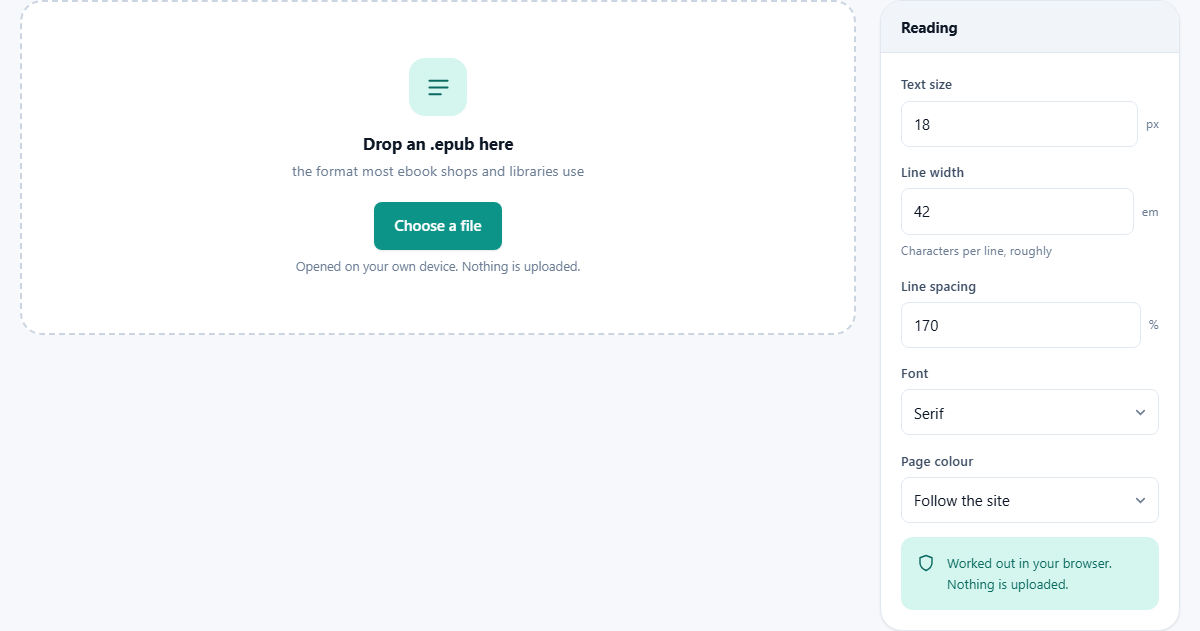
The panel on the right holds five controls, and they change the text the instant you touch them.
Text size is in pixels and starts at 18, with 12 at the bottom and 32 at the top. Line width is measured in ems, a unit that scales with the type, which is why the hint under it talks about characters per line rather than centimetres. It starts at 42 and moves in steps of two between 24 and 90.
That second one does more for comfort than anything else here. Long lines tire the eye because it has to find the start of the next one every time. Somewhere in the high thirties to mid forties is where most people read fastest. If you have widened your window, narrow this instead of enlarging the type.
Line spacing is a percentage of the type size, from 120 to 240, starting at 170. Raise it for dense text or small screens. Font offers a serif face, a sans serif one and a fixed width one. Page colour offers the site's own look, a warm sepia, or a dark night setting for reading with the lights off.
Why every book looks the same here
Books ship with their own stylesheets, and those are dropped, along with anything that could run and any picture that lives on a web address rather than inside the file.
That is a deliberate trade and you should know which side of it you are on. You lose the designer's fonts, drop caps and page furniture. In return, nothing in the book can execute, nothing can report that you opened it, and the type obeys your settings rather than fighting them.
Pictures that travelled inside the file are shown as normal, pulled straight out of the archive. So illustrations, maps and diagrams appear; only the ones that would have to be fetched from elsewhere are missing, and those are rare outside of sample files.
Download as text
This button walks the whole book, chapter by chapter, strips the markup and writes one plain file called book.txt. The title and the author sit at the top, then the chapters follow with blank lines between them.
It is more useful than it sounds. A plain file can be searched all at once, which the reader cannot do, since only the open chapter is on screen. It counts words with any tool you like. It pastes cleanly into notes and documents, without dragging invisible formatting behind it. And it is the format to feed to anything that wants text.
What it will not give you is a facsimile. Headings become ordinary lines, italics are gone, tables flatten and pictures are simply absent. For quoting and searching that is exactly right. For keeping a copy of the book as designed, keep the .epub.
A run through a free classic
You download middlemarch.epub, about 1.2 MB, from a public domain library. Drop it on the panel. The top row of details fills in with the author, the language as en, and 89 chapters.
The heading reads Chapter 1 of 89 and the text is at the default 18 pixels across 42 ems. It reads well, but you are on a wide screen at night. Set Page colour to Night, Text size to 20, Line width to 38 and Line spacing to 185. Each change lands as you make it.
Press Next twice to skip the front matter, then click the text once so the arrow keys are yours. Read a chapter, then open the contents. The three chapters you have visited now show their real headings while the rest still show file names.
Later you want a line for an essay. Press Download as text, open book.txt in any editor, and search the whole novel in one go. Then press Another book and drop in the next one.
Books that will not open
The commonest refusal is a book with protection on it. Most shops wrap the file so that only their own app can decrypt it. Such a file is still called .epub and still looks like one, but the pages inside are scrambled. That protection is not removed here, and the page will tell you it cannot read the file rather than showing you nonsense.
Books from public domain libraries, from small publishers who sell unprotected files, from your own writing and from most library loan schemes that hand you the file directly will open normally.
The other refusals are about format. A file for a device that uses its own ebook format is not an EPUB whatever it is named, and there is nothing inside it this page understands. A part-downloaded file, or an archive that lost its listing file, produces a message saying it is not a valid book. And if one chapter inside an otherwise sound book contains broken markup, you get a short note in place of that chapter and the rest still reads.
Where this stops, and what to reach for
There are no bookmarks, no highlights, no notes and no sync between devices. Nothing about the file is kept once the tab closes, which is the flip side of nothing being stored. If you read long books daily, a proper reading app earns its place, and this page is for the odd file.
If the file you are holding is a PDF, an ebook reader is the wrong shape of tool entirely, because a PDF is fixed pages rather than flowing text. If it is a word processor document, the Word Document Viewer opens that instead.
And if what you actually want is to go the other way, turning your own chapters into a book, the EPUB Maker on this site builds one, cover and contents included. Reading your result back here afterwards is a sound way to check it.
The book never leaves the tab
The archive is opened, the pages are read and the pictures are unpacked inside your browser. There is no account, no library, no sync and no upload. Nothing about which book you opened is recorded anywhere.
That is worth something beyond the usual privacy argument. A borrowed or personal file stays exactly where it was: on your disk, in your hands, with no copy sitting on somebody's server afterwards.
You can confirm it in a few seconds. Load the page, disconnect from the network, then drop a book in. It opens, the chapters turn, the pictures appear and the text download works, because all the reading was always going to happen here.