
Reading a saved email when there is no mail program to open it
An email that has been saved to disk is just a text file with strict rules. This page follows those rules and shows you the message: the header lines, both versions of the text, the reply chain and every attachment. Here is what each control does, what you can carry away, and how a file that is damaged or mislabelled behaves.
Two kinds of file, one job
A file ending in .eml is one message. Drag a message out of most mail programs and this is what lands on your desktop. It holds the header lines, the words, and any attachments, all packed into one long stretch of text.
A file ending in .mbox is a whole folder of mail, written one message after another in the same file. Account exports arrive in this shape, and so do archives handed over when somebody leaves a company. A single one can hold tens of thousands of messages.
People come here for a handful of reasons. A colleague forwards a message as an attachment and your phone will not open it. You closed an old account and only kept the export. Or a dispute has reached the point where the exact header lines matter.
It is also the safest way to look at a message you do not trust. Nothing here is your mailbox, so nothing can be marked read, replied to, or told that you looked.
Opening the file
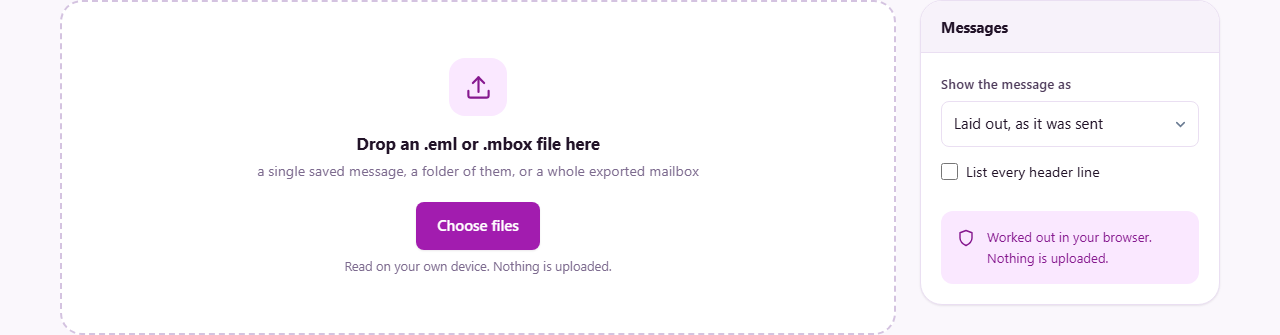
Drop the file onto the panel, or press Choose files and pick it. Several files at once is fine, and they are all poured into the same list. A folder full of individual messages works well this way.
A mailbox is split by finding the lines that separate one message from the next. If one message inside is mangled beyond repair it is quietly passed over and the rest still open, which is far better than losing the whole export to one bad record.
Very large mailboxes are read up to a limit rather than swallowed whole, and a message tells you when that has happened, so you never mistake a partial list for the full one. Another file, at the top of the page, throws everything away and returns you to the drop screen.
The list of messages
The panel on the right holds one row per message, with a count above it. Each row gives the subject, then the sender and the date under it, and a note of how many files are attached. Click a row to open it.
The rows are not in plain date order. Replies are gathered under the message that began the exchange and shifted to the right, so a conversation reads as a block. Two things build those groups. Every message carries a hidden identity code, and a reply carries the code of what it answers, so most chains can be rebuilt exactly. Where those codes are missing, subjects are matched instead, after stripping the Re and Fwd prefixes that pile up at the front.
Show the message as
This menu, in the right hand panel, decides what fills the middle of the page. There are three settings and they answer three different questions.
Laid out, as it was sent is the default. Most mail arrives with a formatted version, and this shows it, with headings, colours and tables intact. It sits inside a frame that has no permissions of its own, and everything that could run has already been taken out. Links still work, open in a new tab, and are marked so the site you land on is not told which page sent you.
Plain text only shows the other version of the same message. Most mail is sent twice over, once as plain words and once with the formatting, so that every program can show something.
The original file shows the raw message as it sits on disk: every header line, the markers between the parts, and the encoded blocks that carry the attachments. This is the view for checking where a message really came from. A very long one is cut off part way with a line saying so.
Headers, and the tick box that shows all of them
Above the body sits a short list of the headers people actually read: who it is from, who it went to, anyone copied in, the subject, the date, a reply address if one was set, and the message identity code. Empty ones are left out rather than shown blank.
Tick List every header line and the full set is added underneath in a small fixed width type. A normal message has twenty or thirty. They record every mail server the message passed through, the checks each one made, the program that wrote it, and often which mailing list it came from.
This is where an odd message gives itself away. If the visible sender is a bank and the path underneath runs through a machine with no connection to that bank, you have your answer without clicking anything.
Names and subjects with accents come out correctly. Header lines may only carry plain English letters, so anything else is written as a code that names its own alphabet first, and those codes are turned back before you see them.
The pictures that are deliberately not fetched
A note beside the message heading reports what happened to the pictures. It says how many remote ones were blocked, how many came with the file, or that there were no remote ones at all.
The reason is worth understanding once. Pictures in an email do not have to travel with it. The message can simply say fetch this from my web server, and the address it gives is unique to you. The moment any program fetches it, the sender learns that this exact copy was opened, at this minute, from this part of the world.
So they are never requested. Each becomes a small dashed box saying the picture was not loaded, carrying the description the sender gave it. The same rule covers pictures called from the styling of the message, which is where trackers hide once the obvious route is closed.
Pictures packed inside the file itself are shown normally, because displaying them tells nobody anything. A message that looks strangely empty is usually built entirely from remote images, and the note tells you how many were left out.
Getting the attachments out
When a message has files attached, a panel appears at the bottom. Every attachment gets a row with its name, the kind of file it claims to be, and its size. A part that arrived with no name is listed by its position instead, so nothing is hidden from you.
Save on a row writes that one file to your disk. Save them all writes the lot into a single archive, with the files stored as they are.
Two more buttons sit at the top of the message. Save as text gives you a plain file with the sender, recipient, subject and date at the top and the text below, which is the shape you want for pasting into a report. Save this message writes the message back out byte for byte, exactly as it arrived, which is the shape you want if it may later be evidence.
A run through an export
You have mail-2016.mbox, 1.4 GB, from an account you closed. Drop it in. After a pause the right hand panel says 1842 messages and the first one opens on its own.
You are hunting one invoice. Scroll to the thread beginning Invoice for March and click the third row in that block, which sits indented because it is a reply. The header list shows the accountant as sender, the date as 14 March 2016, and one file attached.
The note by the heading says three remote pictures were blocked, so the signature has three dashed boxes in it: the company logo and two social badges. Nothing of value is missing.
The attachment panel shows invoice-0412.pdf, marked as a PDF document, 240 KB. Press Save on that row and it lands in your downloads, opening exactly as it would have done in 2016. If you need the message for your records too, press Save this message.
When a file does not behave
The usual disappointment is a file that is not really email. Messages saved by some office programs use a different container altogether, and there is nothing inside one that this page can read. A complaint that no messages were found is very often that.
A file with the wrong ending is handled better than you might expect. What counts is what is inside: if the text begins like a mailbox, it is treated as one whatever the name says. A plain text file with no header lines simply produces a message with almost nothing in it.
A message with no text of its own, only attachments, says so plainly rather than showing an empty page. One that was cut short on its way to you usually still shows its headers, because headers come first in the file and so survive longest.
When a different tool fits better
This page reads. It does not reply, forward, sort, tag or delete, and it holds no account details, so it is no substitute for the mail program you use every day.
If your real problem is an archive rather than a message, unpack it first: an export often arrives inside a ZIP, and Zip and Unzip will open that. If you have pulled an attachment out and cannot tell what it is, the File Type Identifier reads its opening bytes and names it.
The message never leaves your device
Everything described here happens inside the browser tab. The file is opened from your disk, taken apart in memory, and drawn on screen. No copy is sent anywhere, and there is no account to sign into.
The point is sharper than usual on this page. Mail is where your private life and your working life are written down, so a viewer that quietly posted a mailbox to a server would be indefensible. Blocking remote pictures is the same principle one step further out: nothing goes to us, and nothing goes to the sender either.
The proof is easy. Load the page, disconnect from the network, then open your mailbox. Every part still works.