
Knowing the answer before you buy the discs
This page answers one question properly: how many discs, cards or sticks does this pile of files really need, and which file goes on which one. Below you will find every control in the rail explained, the four ways it can share files out, how to read the plan it prints, and two worked examples with the actual figures that come back.
The moments this saves you
A photographer has to hand a client eleven years of shoots. A school clears a shared drive onto discs before the machine goes. Somebody wants their music collection on sticks in the car, and buys three because three felt about right.
In every one of those, the guess is made by adding up file sizes and dividing. That answer is wrong in three separate ways at once, and you only find out an hour into copying, when a card fills early or a film refuses to move.
Blanks get bought in advance and burning is slow, so ten seconds of arithmetic first decides how many to open and what order to work in.
Handing it your files
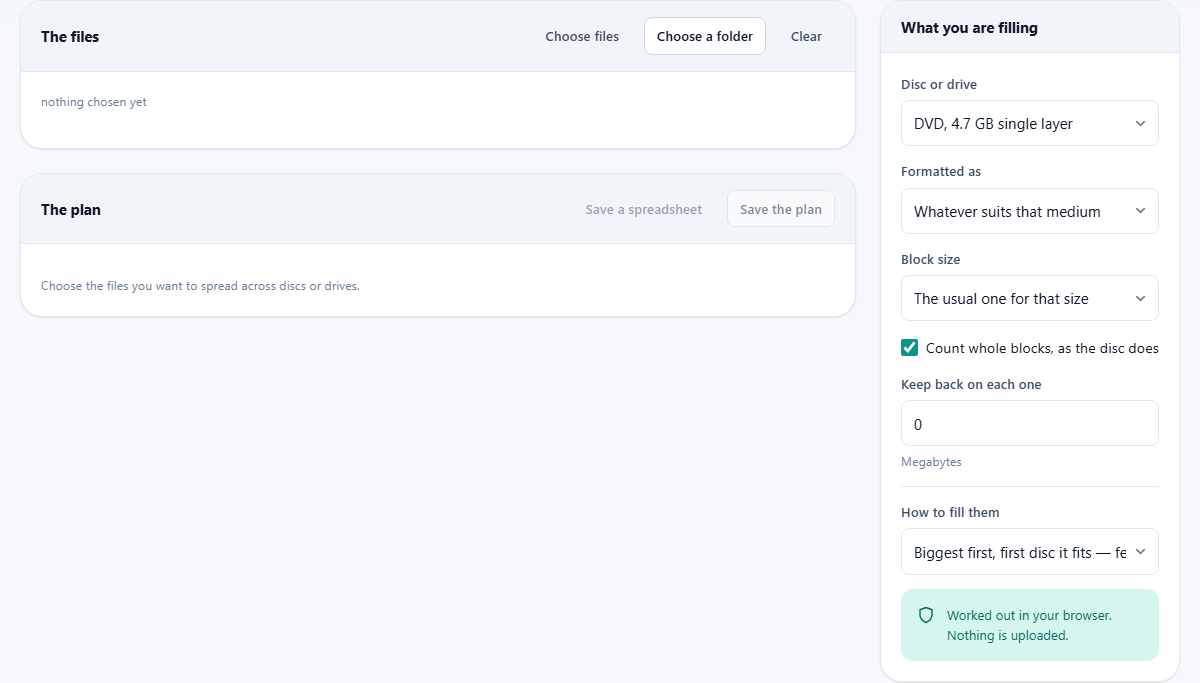
There are two buttons. Choose files opens the ordinary picker for a selection you make by hand. Choose a folder takes a whole folder, everything under it included, which is the usual choice.
Only the names and the sizes are looked at. No file is opened, so a folder holding a hundred gigabytes is measured as fast as a folder holding ten. The line above the status area then reports how many files were found and what they weigh in total.
Picking a folder brings the inside structure with it. The name of the folder you chose is dropped, and what remains is the path within it. That is what the folder-based sharing method later groups on. Clear throws the list away and leaves the settings alone. Very large selections are capped at fifty thousand files, with a message to say so.
Saying what you are filling
Disc or drive is the menu at the top of the rail. It offers CD, 700 MB, then DVD at 4.7 GB single layer and 8.5 GB dual layer, Blu-ray at 25 GB and 50 GB dual layer, sticks and cards sold as 8, 16, 32, 64, 128 and 256 GB, and drives sold as 1 TB and 2 TB.
Each of those carries its real byte count rather than the number printed on the box, and the disc figures are the honest published capacities rather than rounded marketing ones. Where a format exists in two slightly different sizes, the smaller is used, so a plan that fits will fit whichever you happen to buy.
The last entry is A size of my own, which reveals a Size field and an in menu. That menu is the interesting part. GB as sold, MB as sold and TB as sold count the way a manufacturer counts. MiB, GiB and TiB count the way your computer counts. Pick the pair that matches where your number came from: the label on the packet, or the properties window on your screen.
The format and the block size
Formatted as starts on Whatever suits that medium, which chooses sensibly on your behalf: discs get UDF, smaller sticks and cards get FAT32, larger ones get exFAT, and drives get NTFS. You can override it with FAT32, exFAT, NTFS, ext4 or UDF if you know how the thing in your hand is actually set up.
This choice does two things. It sets how much room the format itself consumes before a single file is stored, which ranges from almost nothing on a disc to a twentieth of the whole drive on ext4. It also decides whether the 4 GB single-file barrier applies, because only FAT32 has it.
Block size sits underneath. Left on The usual one for that size it follows the format and the capacity, and you can force it to anything from 2 KB up to 128 KB. Below that, Count whole blocks, as the disc does is ticked by default. Untick it and files are counted at their exact size, which is a fiction, but a useful one if you are comparing plans rather than filling real media.
Two settings people overlook
Keep back on each one reserves a number of megabytes on every disc before anything is placed. It starts at zero. Set it to 50 or 100 when the finished discs need a catalogue file, a set of thumbnails or a readme that does not yet exist, or simply when you want a margin because a card is already in use.
How to fill them chooses the sharing method, and the four options behave quite differently. Biggest first, first disc it fits is the default and gives the fewest discs. Biggest first, tightest gap looks for the snuggest opening rather than the first one, and occasionally does a little better. Keep each folder together tries to give every top-level folder a disc of its own, splitting only a folder too big to fit anywhere. In the order given, one disc at a time fills each disc until something will not go, then starts the next, which wastes space but keeps everything in its original sequence.
The rule of thumb: use the default unless somebody has to find things on these discs by hand later. Then the folder option is worth the extra disc it may cost.
Reading what comes back
The summary line above the plan is where the surprises live. It shows the number of files, their real size, the room on each disc, how many discs are needed, the total space left over, and, when it applies, how much was lost to block rounding.
That last figure is the gap between what your files weigh and what they occupy. It is small on a disc and can be startling on a large card.
Below that, each disc gets its own card: a count of files, how much is used, how much is free, a percentage and a bar. Open What goes on it to see the contents with their paths and sizes. Only the first four hundred are listed there, to keep the page usable; the saved copy holds every one.
Red panels appear above the discs when something cannot be placed. One reports files of 4 GB or more on a FAT32 card. The other reports files bigger than one whole disc. Neither kind is silently dropped, and both are named.
Taking the plan with you
Save the plan writes packing-plan.txt: a readable list with the medium, the room on each disc, the total, then a block per disc naming every file with its size. Print it, or keep it open beside you while you copy.
Save a spreadsheet writes packing-plan.csv with four columns: disc, path, size in bytes, and the space it takes. Open it in any spreadsheet to sort, filter or tick off as you go. Anything that could not be placed still appears, with the word none in the disc column, so nothing quietly falls off the end of the list.
Two examples, with the real numbers
First, a photo archive onto DVDs. Press Choose a folder and pick a folder holding 3,180 photographs totalling 18.6 GB. Leave the menu on DVD, 4.7 GB single layer and the format on automatic, which means UDF with 2 KB blocks. The summary comes back with room on each of 4.4 GB, five discs needed, about 3.2 GB left over and only a few megabytes lost to rounding, because small blocks waste almost nothing. The first four discs sit near full and the fifth is roughly a quarter. Switch How to fill them to Keep each folder together and the count may well rise to six, with each month's folder intact. That is the trade, and now you can see its price before agreeing to it.
Second, a wedding film onto a card. Choose the file, then pick USB stick or card sold as 32 GB. Automatic gives FAT32 with 16 KB blocks and reports room on each of 29.7 GB, which sounds like plenty. Instead, a red panel says one file of 4 GB or more cannot be held at all. The film is 4.3 GB, and that is the wall. Change Formatted as to exFAT: the blocks become 32 KB, the room rises slightly to 29.8 GB, and the film is placed. Now go and actually reformat the card, because the setting here describes the card, it does not change it.
Mistakes that cost an evening
The tool will tell you all of these, if the answer is read rather than skimmed.
- Trusting the number on the packet. A stick sold as 16 GB really holds about 14.9 of the gigabytes your computer counts in, and that is before formatting takes its share.
- Planning a card as exFAT because it is big, when it left the factory as FAT32. Check first; the 4 GB barrier depends on it entirely.
- Ignoring the block rounding figure on a card full of small files. The same photographs that waste a few megabytes on a disc can waste a couple of hundred on a card with big blocks.
- Assuming the discs will be written in the order shown. Only the last method keeps your original ordering; the others sort by size to save discs.
What it deliberately does not do
Nothing is copied, moved, renamed or burned. This page produces a plan and stops there. Carrying it out is your job, with the copy tools you already have.
It also cannot split a file. If something is too large for one disc, or for a FAT32 card, the file splitter elsewhere on this site cuts it into pieces and joins them again at the other end. And if the real aim is to fit more in, the duplicate finder and the folder size analyser free more space than any clever packing method.
Your file names stay on your machine
Choosing a folder here does not send it anywhere. The browser hands the page a list of names and sizes, the arithmetic happens on your own computer, and the contents of the files are never even read, let alone transmitted.
That matters because file names are rarely neutral. Client names, case numbers and payroll folders all announce themselves in a path. Nothing is remembered once the tab closes, so save the plan before you go.