
Getting a file through a text-only door, and back out again
This page runs in two directions, and each has its own set of controls. What follows covers every menu and field by name, the exact shape of all five output wrappers, what the Result pane shows when the decoded bytes are not text, two full walkthroughs with real numbers, and the small traps that turn a working paste into an error message.
Why a file ever needs to be text
Plenty of places accept text and nothing else. A settings file wants a certificate written out in full. A form field on an internal system takes a string, not an attachment. A build script keeps a small logo in the same file as everything else so there is one thing to copy. A stylesheet carries a tiny icon inside it so the browser makes one request instead of two.
Base64 is the trick that makes this possible. It rewrites the raw bytes of any file using only letters, digits and a couple of symbols, so the result survives being pasted, emailed and quoted.
The reverse case is just as common. Someone sends a screen full of characters with no file attached, or you find a long string sitting in a log and want to know what it really is. Switching the direction turns that back into the file it came from.
Going in: dropping a file
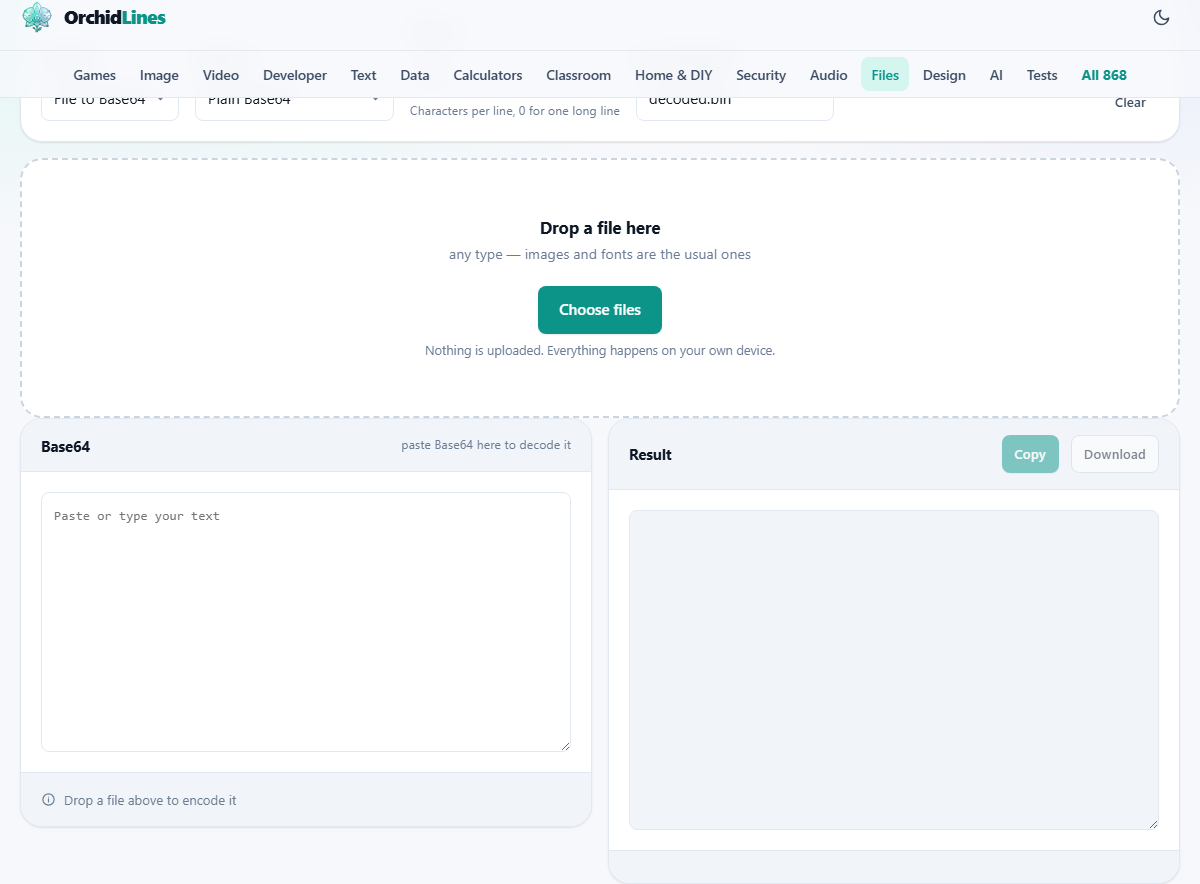
The drop area takes one file of any type. Drag it in, or press Choose files and pick it. If you select several, the first one is used.
The moment a file lands, Direction flips itself to File to Base64 and the Result pane on the right fills up. The status line under the left pane repeats the file name and its size, so you can be sure the right file was picked.
Along the bottom of the Result pane sit four small chips. The first is the size of the original. The second is how long the Base64 came out. The third is the growth as a percentage, which will sit near a third for anything. The last is the file type as your browser reported it, which is the type that gets written into a data link.
Output as: five ways to wrap it
The same encoded bytes can be delivered in five shapes. Only the wrapper changes.
- Plain Base64 gives the bare characters and nothing else. This is what an API field, a config file or a form box normally wants.
- A data link adds the prefix that makes it usable as an address: data:, then the type, then ;base64, then the characters.
- A CSS background rule gives a complete .element block with the data link already inside background-image and url().
- An HTML tag reads the file type and picks the right markup. An image becomes an img tag with an empty alt attribute waiting for your description. A font becomes an @font-face block with the family named Embedded. Anything else becomes a link with the download attribute set.
- A JSON string gives a small object holding three keys: the file name, its type, and the encoded data. Useful when you are posting a file to something that expects a body of JSON.
Wrap at, and why it matters
Wrap at sets how many characters go on a line before a break, moving in steps of four. It starts at 76, which is the old email convention and still what many text-based formats expect.
Set it to 0 and everything comes out as one unbroken line. Do that whenever the result is going into code: a link split across lines will not survive being pasted into an attribute, and JSON has no concept of a continued line.
The setting only touches the two plain shapes, meaning Plain Base64 and A data link. The CSS rule, the HTML tag and the JSON object are always written as one piece, so those are safe whatever the number says.
Coming out: turning characters back into a file
Set Direction to Base64 to file and paste into the left pane. A leading data: prefix is understood and stripped, and every space, tab and line break is ignored, so text copied out of an email or a wrapped config file works as it stands.
What appears on the right depends on what the bytes turn out to be. If they are mostly readable characters, you get the real text, so a decoded note, a certificate or a spreadsheet export can be read on the spot. If they are not, you get a one-line summary with the decoded size, plus the first two dozen bytes written in hexadecimal. That short hex line is often enough to identify a file: a PDF, for instance, starts 25 50 44 46, which spells out its own name.
Save decoded as holds the name the file will be given, starting at decoded.bin. Type the real name and extension there before pressing Download, because the name is how everything afterwards will know what the file is. The status line above tells you how much was decoded, and the type if the pasted text carried one. Clear empties the paste box when you are done.
An icon in, a spreadsheet out
First direction. Suppose you have a small logo saved as a PNG, exactly 3,150 bytes. Drop it in. The chips read 3.1 KB for the file, 4.1 KB as Base64, plus 33 per cent growth, and image/png for the type. The character count is 4,200, because every three bytes always become four characters. With Wrap at left on 76 that arrives as roughly 56 lines.
You want it in a stylesheet, so switch Output as to A CSS background rule. The pane now shows a complete block with the data link inside it, on one line whatever the wrap setting says. Select it, copy it, and paste it into your stylesheet.
Now the other direction. A colleague pastes 1,860 characters into chat that begin with data:text/csv;base64, and says it is this week's prices. Set Direction to Base64 to file and paste the lot into the left pane. The status reads that roughly 1.4 KB of text/csv was decoded, and because a CSV is plain text the rows appear in the Result pane where you can check them immediately. Change Save decoded as to prices.csv, press Download, and the file is on your disk with the right name.
Where people come unstuck
Nearly every problem with this tool falls into one of these.
- The error about stray characters means the pasted text contains something that is not part of the alphabet. Usual causes: quotation marks and a comma carried over from a JSON file, or the > marks an email client adds when quoting a reply.
- A data link pasted into markup does not work: it was still wrapped into 76-character lines. Set Wrap at to 0 and copy it again.
- Only part of the text was pasted. A long string can be thousands of lines, and a partly selected copy decodes to nothing useful or fails outright.
- The type chip says unknown. Your system had no type registered for that extension, so a data link built from it falls back to a generic type. Either write the correct type into the link by hand afterwards, or rename the file to a more common extension before dropping it.
- The decoded file will not open. Almost always the name in Save decoded as kept the .bin ending, so the computer had no idea what it was handed.
- The page slows to a crawl on a very large file. The encoded text is a third bigger than the original and is held in the page while you work, so a 1.5 MB photo becomes about 2 MB of characters. That is not what this is for.
When to reach for something else
Base64 hides nothing. Anyone who receives it can turn it back in seconds, exactly as you just did. If the contents need protecting, encrypt them properly; encoding is not a lock.
It is also the wrong way to move anything big. A file that needs to travel is better zipped, or cut into pieces with the file splitter on this site and joined at the other end. Inlining a photo into a page costs more in bytes and in delay than the request it saves.
For pictures specifically, the image version of this tool is the friendlier route, since it shows you the picture as well as the text. And if you are trying to work out what an unknown file is rather than convert it, the file type identifier and the hex viewer will tell you more than a wall of encoded characters ever will.
Nothing is uploaded, in either direction
The file you drop is opened by your own browser and converted by code running on this page. The characters you paste are decoded the same way. There is no server in the middle, no queue, and no copy kept anywhere. Close the tab and both directions are gone.
That is worth knowing given what usually passes through a tool like this. Keys, certificates, signed documents and internal exports are exactly the sort of thing people encode, and exactly the sort of thing that should never be pasted into a website that quietly sends it somewhere. Here the only file that leaves is the one you press Download on, and it lands on your own disk.