
Keeping a room on schedule without raising your voice
What makes a projected countdown different from a phone timer, how every button and setting works, a full run through a real classroom morning, and the three colour stages that let children read the time from across the room.
A clock sized for a wall, not a pocket
A phone timer buzzes in your pocket. Nobody else in the room knows how long is left, and you end up saying five more minutes three times before the activity actually stops. A projected countdown changes that. The digits are large enough to read from the back row. A coloured bar drains as the seconds pass. And when the bar runs out, a chime sounds so nobody needs to watch the screen at all.
That is what this tool provides. It is a web page, not an app, so it runs on any device with a browser. Plug a laptop into a projector, open the page, and the whole class can see exactly where they stand.
Who uses it and where
Classroom teachers are the obvious audience. Silent reading for ten minutes, group work for fifteen, a test with a fixed time. The timer sits on the board and the teacher can walk around the room instead of watching a clock.
It works just as well in meetings, workshops and training sessions. Any situation where a group needs to finish something by a certain point benefits from a shared, visible countdown. A music teacher giving students eight minutes to rehearse a passage. A sports coach timing drill rotations. A librarian running a timed quiz for a reading club.
Parents at home use it for screen time limits, homework blocks and tidy up warnings. Children respond better to a bar they can see shrinking than to a parent calling out a number.
Setting the time
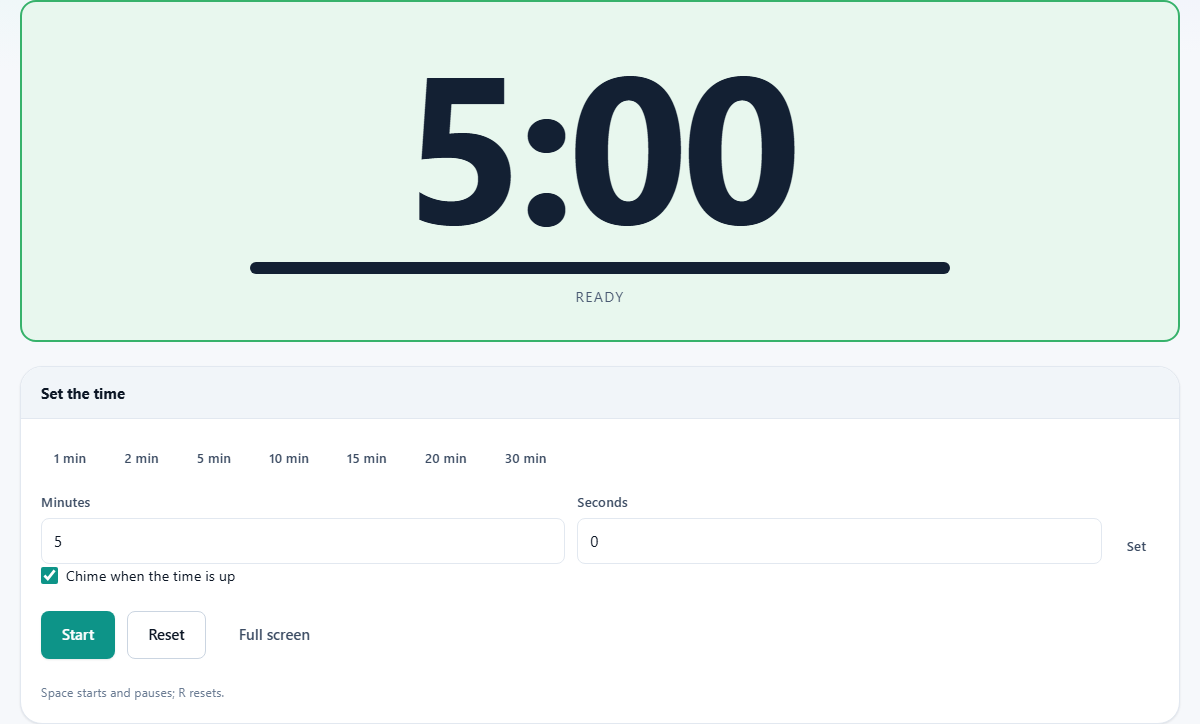
The panel headed Set the time offers two ways to choose a length. The first is a row of preset buttons: 1 min, 2 min, 5 min, 10 min, 15 min, 20 min and 30 min. Pressing any one of them loads that number into the clock immediately.
For anything not on the row, type the exact figure into the two fields labelled Minutes and Seconds. Minutes goes up to 180, which is three hours. Seconds goes up to 59. Press the Set button beside them and the clock face updates. A nine minute and forty five second exam section, for instance, goes in as 9 and 45.
Once the time is loaded, it shows on the large clock face at the top. The word Ready sits underneath it, and the bar is full.
Starting, pausing and resetting
The Start button begins the countdown. While it is running, the same button changes its label to pause, and pressing it freezes the clock where it is. Press it again and the countdown picks up from the same point.
The keyboard shortcut for start and pause is the space bar, which is useful when the laptop is connected to an interactive whiteboard and a physical keyboard is nearby. R on the keyboard resets the clock back to whatever time was last set.
The Reset button does the same thing as R. It puts the clock back to the beginning without changing what time was loaded. If the period was ten minutes and you reset at the six minute mark, the clock goes back to ten, not to the original five minute default.
The Full screen button fills the entire display with the clock face and nothing else. This is the mode meant for projection. There are no toolbars, no browser chrome, and no other controls visible. Press Escape or the same button again to come back.
The three colour stages
The clock face begins green. When a quarter of the time remains, it turns amber. When a tenth of the time remains, it turns red. On a ten minute countdown, that means green for the first seven and a half minutes, amber from two and a half minutes to one minute, and red for the final sixty seconds.
The colour change is deliberate. A child across the room who cannot yet read a digital clock still understands green, amber and red. The draining bar reinforces the message. Together they give a sense of pace that bare numbers never provide.
Below the colour stages, a checkbox labelled Chime when the time is up controls whether a sound plays at zero. It is ticked by default. In an exam room or in a class next to a room that startles easily, untick it. The bar and the colour change still do their job in silence.
Why it stays accurate in the background
Most browser timers count down by ticking every second. That works until you switch tabs to check your lesson slides, and the browser slows the background tab to save power. Five minutes later you switch back and the clock has lost thirty seconds without telling you.
This timer reads the real clock on your computer instead. It notes the time when you press start and compares against it on every update. If the tab sleeps for a minute and then wakes up, the display jumps to the right position straight away. You can switch to your slides, check your email, and come back to find the countdown exactly where it should be.
Open the tool in a second tab and you have two independent timers. Both stay correct because each reads the same system clock rather than counting on its own.
A morning in a primary classroom
The teacher opens the page on the classroom laptop at the start of the day. First activity: silent reading for ten minutes. She presses 10 min, then Start. The green clock appears on the projector. Children read. At two and a half minutes left the screen turns amber and the room quietens a little. At one minute it goes red. The chime sounds and the class puts books away without being asked.
Next: group maths, fifteen minutes. She presses 15 min and Start again. One group finishes early and glances at the board. Four minutes left, still green. They start the extension task. When the amber comes, the slower group picks up speed. The red brings everyone to a stop.
Last before break: tidy up, two minutes. She presses 2 min. The bar drops fast at this length and the red final twelve seconds get the last few pencils into pots. Three activities, no shouting, and every child knew exactly how much time they had.
Common mistakes and how to avoid them
- Forgetting to click the page before expecting sound. Browsers block audio until the page has been interacted with. Pressing Start counts as that first interaction, so the chime will work from the first countdown onward.
- Changing the time while the clock is running. Pause first, then set the new time. The remaining seconds from the old countdown are not carried over.
- Using it on a phone held up to a class. The digits are large, but not that large. On anything smaller than a tablet the tool loses its main advantage. Plug into a screen or projector for best effect.
- Setting very long countdowns and leaving the laptop to sleep. The timer reads the system clock, but if the entire machine goes to sleep rather than just the browser tab, it will jump forward when it wakes. Keep the laptop power settings on stay awake while plugged in.
When another tool does the job better
- For a stopwatch counting up rather than down, the timer here only counts down. A stopwatch page is better for recording how long something takes.
- For a bell or alarm at a fixed clock time rather than after a number of minutes, a clock alarm is what you want, not a countdown.
- For a visible on-screen clock without any countdown at all, just open the computer's own clock in full screen.
- For timed intervals with a repeating cycle, such as fitness circuits or Pomodoro work blocks, a dedicated interval timer handles the looping automatically.
Your data stays on your device
Nothing is sent to any server at any point. The page loads once and runs entirely on your machine after that. There is no account, no login, and nothing stored between sessions. You could disconnect from the internet after the page loads and every feature would still work exactly the same way.