
Splitting a class into fair groups without the awkward shuffle
How to paste a register and get balanced teams in seconds, how the keep-apart list works, what the seed is for, and how to handle the cases where a perfect split is not possible.
Why drawing names out of a hat falls apart
A teacher asks a class of twenty-eight to form groups of four. Some students pair up instantly. Others stand alone. Two friends who always work together end up in the same group again. The quiet student who needs a different partner every time gets the same one as last week.
Random grouping should solve this, but pulling names from a hat in front of the class is slow and visible. A child left standing while names are drawn feels singled out. And there is no way to say that two particular students must not be together without announcing it to the room. A tool that handles the draw beforehand, on a screen only the teacher can see, removes all of that.
Pasting the names
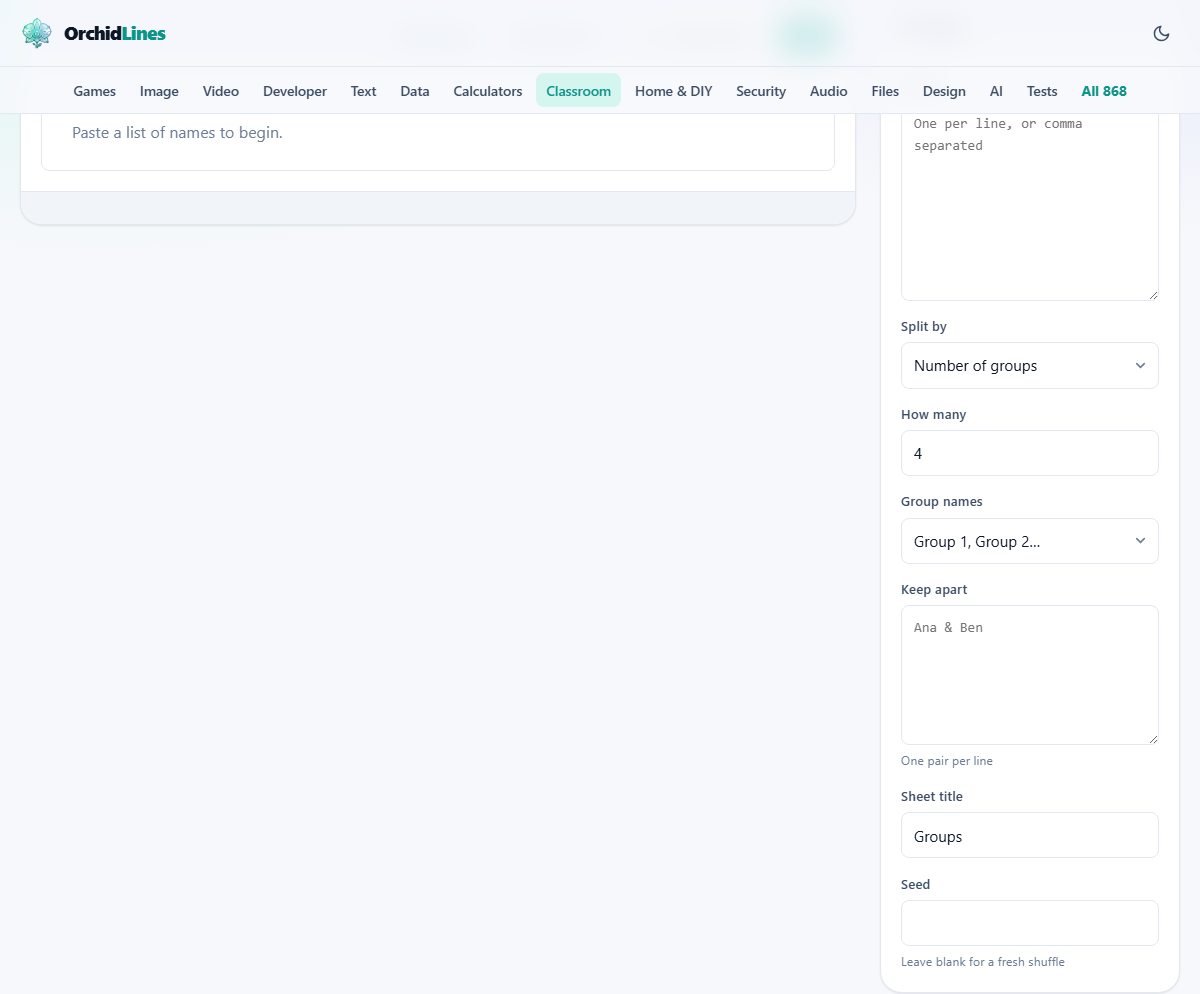
The field labelled Names takes the class list. One name per line works, and so does a comma-separated list. Pasting straight from a school register or a spreadsheet column works fine.
The names are used exactly as typed. If you paste first names only, the groups show first names. If you paste full names, the groups show full names. Blank lines are ignored, so a register with gaps between rows still works without cleaning it up first. There is no practical limit on how many names you can paste. A few hundred split instantly, and the printed sheet flows onto more pages as the list grows.
Choosing how to split
The dropdown labelled Split by has two settings. Number of groups is the starting value. You pick how many groups you want and the tool divides the class evenly. People per group is the other option. You pick how many students you want in each group and the tool works out how many groups that creates.
The field labelled How many sets the number. If you choose four groups from a class of twenty-three, the groups come out as 6, 6, 6, and 5. The extra person is placed in the last group rather than piled onto the first. The sizes are as level as they can be.
If you choose groups of five from a class of twenty-three, you get four groups of five and one group of three. The remainder is handled honestly rather than hidden.
Naming the groups
The dropdown labelled Group names offers three styles. Group 1, Group 2 is the plain numbered style and the starting value. Group A, Group B uses letters. Red, Blue, Green uses colour names.
Colour names are popular in primary schools because they carry no rank. Group 1 can feel like the top group, even when the split is random. Red, Blue, and Green do not have that problem. Letters sit somewhere in between.
The keep-apart list
The field labelled Keep apart takes pairs of names, one pair per line. Write them as Ana and Ben, or Ana, Ben. Each pair is placed in different groups.
This is the feature that makes the tool more useful than a random draw. A teacher who knows that two students distract each other can list them here. The split is built around those rules rather than reshuffled and hoped over.
When there are too few groups to honour every rule, the tool says which pair it could not separate. Three pairs who all must be apart cannot fit into two groups. Rather than quietly breaking a rule, it names the pair it had to give up on, so you can decide what to do.
Keeping people together
There is no keep-together field, but there is a practical workaround. Enter the two students as a single line in the names list, such as Ana + Ben. They are treated as one entry and placed in the same group. Once the groups are drawn, you split the combined entry back into two names on the printed sheet.
This trick also works for students who need a specific partner for accessibility reasons or because one is translating for the other. Once the groups are printed, cross out the combined entry and write the two names separately. The rest of the group is not affected.
The seed and getting the same groups back
Every shuffle prints a short seed code under the sheet. The field labelled Seed lets you type that code back in to reproduce the same arrangement. If you leave the field blank, each press of Shuffle again gives a fresh random split.
The seed is useful in two situations. First, when you want to reuse the same groups for a project that runs across several lessons. Note the seed and type it in each time. Second, when you need to prove the split was fair. The seed is the receipt. Anyone can type it in with the same names and see the same result.
Printing and downloading
The field labelled Sheet title sets the heading printed at the top. The starting value is Groups. You might change it to the date, the activity, or the class name.
Press Print to open the browser's print dialog. The printout shows the groups in a clean layout that fits on one page for most class sizes. Larger classes flow onto extra pages automatically. Press Download .txt for a plain text copy you can paste into a message, an email to a colleague, or a planning document. The text version lists each group on its own line, so it reads clearly even without the formatting of the printed sheet.
A worked example for a project week
A teacher has a class of thirty-two students working on a science fair in groups of four. She pastes the register, sets Split by to People per group, and types 4. She gets eight groups.
She knows that two pairs tend to go off task when together, so she adds them to the Keep apart list. She presses Shuffle again until she gets a layout she likes, then notes the seed. She prints the sheet and pins it to the board.
On Wednesday she needs to reshuffle because a student is absent. She removes the name from the list, types the same seed, and finds that the groups are close to what they were before. She presses Shuffle again for a fresh arrangement, notes the new seed, and prints a replacement sheet.
Mistakes that lead to bad groups
- Listing too many keep-apart pairs for too few groups. Each rule reduces the number of possible splits. With a long list and only two or three groups, the tool may have to break a rule.
- Using the same seed every week. Repeating groups is fine for a project, but for regular lessons it means the same students always work together. Leave the seed blank for variety.
- Forgetting the remainder. Twenty-nine students into groups of five gives five groups of five and one group of four. Make sure the activity works for the smaller group too.
- Pasting names with extra text. A register line like 14. Ana Bello puts the number into the name. Clean the list before pasting, or the groups will show the numbers.
- Not checking the printed result. The tool handles the rules, but the teacher knows the class. A quick scan of the printout catches any combination that the keep-apart list did not cover.
When another classroom tool fits the task
If you need a fill-in-the-blank worksheet for the groups to work on, the Cloze Worksheet Maker builds gap-fill sheets from any passage. If you want to check understanding at the end of the group work, the Exit Ticket Maker prints small slips with a question. If you want to record marks from a group presentation, the Class Marks Sheet handles weighted grades and letter boundaries on a single printable page.
The class list never leaves your browser
A class register is personal data. Names, combinations, and the keep-apart list all stay inside the page. Nothing is uploaded and nothing is stored once you close the tab. You can disconnect from the network before pasting the names and the page still works, because it was never talking to a server. On a school network where data rules matter, that is one fewer form to fill out.