
Putting thirty children in the right seats without losing an hour
How the four room layouts define who counts as a neighbour, what the keep-apart and front-row rules do behind the scenes, how to swap seats by hand after the shuffle, and how the seed lets you bring the same arrangement back next week.
The problem with doing it by hand
A seating plan for thirty children sounds simple until you add the constraints. Two children who cannot sit together. A child who needs the front row for a hearing aid. Another pair who whisper across a table. By the third or fourth rule the mental juggle becomes a trial-and-error exercise that eats a prep period.
This tool takes the class list, the layout, and the constraints, and produces a chart that respects all of them. When a rule cannot be met it says which pair it had to give up on, rather than pretending. That honesty matters more than the arrangement itself, because a plan that looks clean but hides a broken rule will fall apart by Tuesday.
The four layouts and what neighbour means in each
Layout is a dropdown with four choices. Each one changes the shape of the room and the definition of who is next to whom.
Rows facing the front places children in straight lines. A neighbour is the person directly to the left, to the right, or one row in front or behind. Diagonals do not count. You do not hold a conversation over your shoulder, and treating diagonals as adjacent makes most plans impossible for no reason.
Clusters of tables arranges children in groups around shared tables. Everyone at the same table is a neighbour of everyone else. That makes keep-apart rules harder to satisfy, because each table is a tight group.
Pairs puts children in side-by-side desks. Each child has exactly one neighbour. This is the easiest layout for separation rules but the least social for group work.
U-shape arranges the desks in a horseshoe facing the front. Neighbours are the seats on either side along the curve. The child at the middle of the curve is furthest from the teacher.
Filling in the settings panel
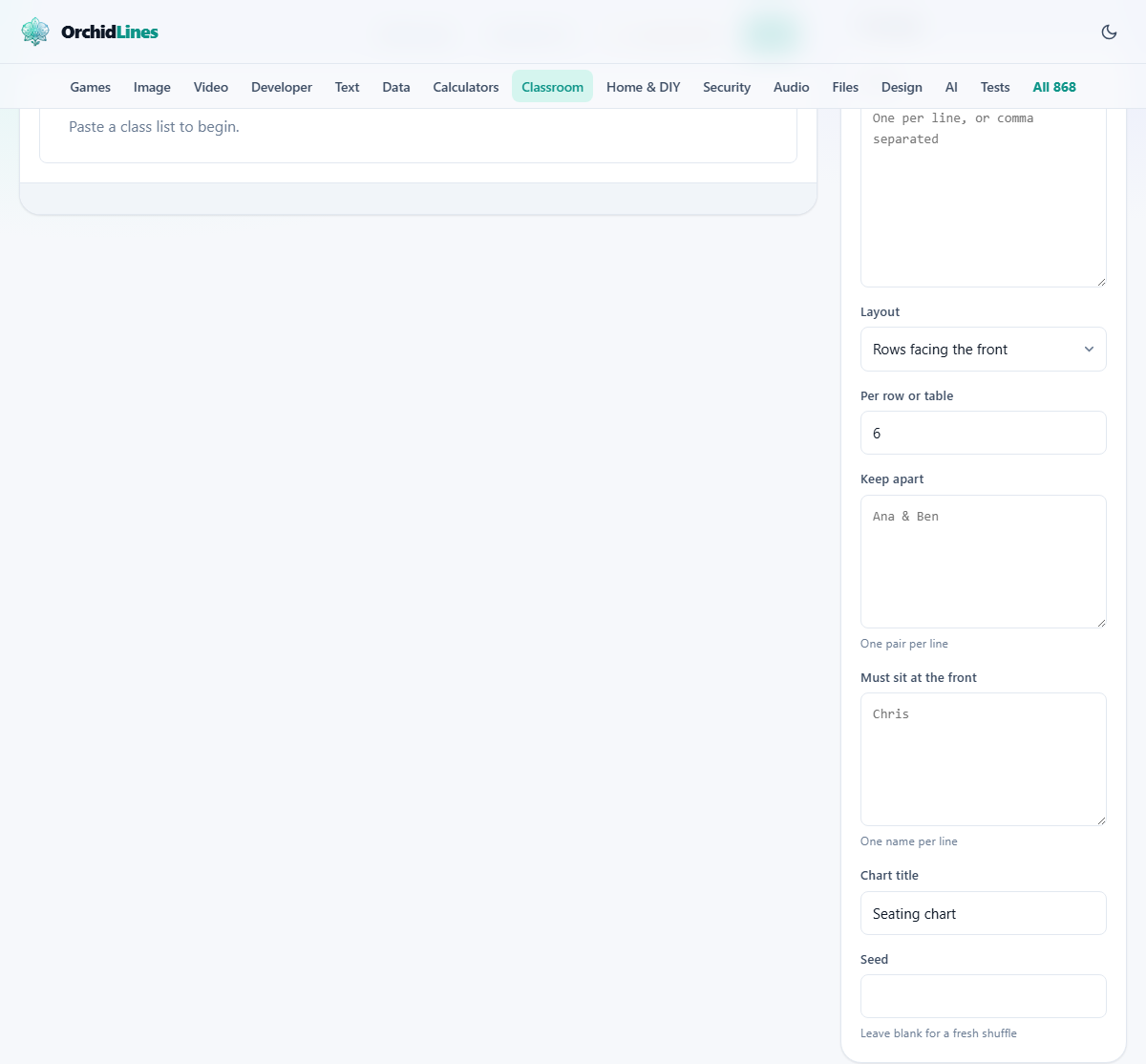
Names takes the class list, one name per line or separated by commas. The tool accepts any length of list. Short names fit better on the printed chart, so first names or initials are easier to read than full surnames.
Per row or table sets how many seats share each row or table. Six is the default. For rows, it is the number of chairs in a line. For clusters, it is the number of seats around each table group.
Keep apart takes pairs of names joined by an ampersand. Write one pair per line. Ana & Ben means Ana and Ben must not be neighbours. The tool places them so that no pair in the list ends up side by side according to the layout's neighbour rule.
Must sit at the front takes names, one per line. These children are placed in the front row before anyone else. That constraint usually comes from a sight or hearing need, so it is never traded away to satisfy a keep-apart rule. A child pinned to the front stays there no matter what.
Chart title defaults to Seating chart. Change it to whatever you want printed at the top. Seed is a text box that controls the random shuffle. Leave it blank for a fresh arrangement every time you load the page.
Generating and adjusting the chart
Press Shuffle again to get a new arrangement with the same settings. Each shuffle picks a different starting order and tries to satisfy the constraints. If it cannot separate a pair, it prints a warning naming the children it had to place together.
After the chart is generated you can swap two seats by hand. Tap one seat, then tap another, and the two names switch. No other seats move. This lets you fix the last detail without regenerating the whole plan.
The printed chart keeps the same layout you see on screen. The label front of the room is printed so nobody reads the chart upside down and seats a child meant for the front at the back.
Using the seed to keep a plan
Below the chart a short note shows the seed that produced the arrangement. It is a small number or word. Write it down or take a photo.
Next week, paste the same names and type the seed back into the Seed box. The same names and the same settings will rebuild the exact same chart. This is how you save a plan without needing a file or an account.
If you add a new child or remove one, the same seed will produce a different result because the list has changed. That is expected. Generate a fresh chart and note the new seed.
A worked example for a class of twenty-eight
A Year 5 teacher has 28 children. She pastes the names and picks Clusters of tables with Per row or table set to 4. That gives seven tables of four.
In the Keep apart box she writes: Leo & Max, Priya & Sana, Jake & Tom. In Must sit at the front she writes: Amira, because Amira wears a hearing aid.
She presses Shuffle again three times until she finds an arrangement she likes. Amira is at the front-left table in every version. Leo and Max are at different tables. Priya and Sana are separated. Jake and Tom are apart as well.
One pair on the third shuffle ended up at the same table in a different plan, and the warning named them. She kept shuffling until they were split. Then she tapped two seats to move a quiet child next to a new starter who needed a buddy.
She notes the seed, prints the chart, and pins it to the wall. On Monday she checks it matches the room. Next term she will type a new list and start again.
Why some constraints cannot be met
In a cluster of four, everyone is a neighbour of everyone. If three children in the same cluster all need to be apart from one another, at least one pair must be at the same table. The tool cannot break the laws of geometry.
Rows are more forgiving because each child has only two or three neighbours. Pairs are the most forgiving of all because each child has exactly one.
If the tool warns you about an unsolvable pair, try changing the layout or increasing the table size. Moving from clusters to rows often fixes a plan that looked impossible.
Mistakes that cause frustration
- Misspelling a name in the Keep apart box. The tool matches names exactly. If the class list says Priya and the constraint says priya, they do not match and the rule is silently ignored.
- Setting Per row or table too high. A row of fifteen children in a room with desks for six creates a plan that does not match the furniture. Count the actual desks.
- Forgetting to check the warning. A chart that looks fine but has a broken constraint is worse than no chart at all. Read the warning line before printing.
- Expecting the same chart after changing the list. Adding or removing a name with the same seed gives a different arrangement. Note the new seed after any list change.
- Printing without checking the room. The chart is a map. If the tables have been moved since last term, the map is wrong.
When a different tool is the better choice
- For tracking attendance day by day, the Attendance Register Maker builds a date grid with codes and percentages.
- For a sticker or reward chart pinned next to the seating plan, the Reward Chart Maker gives larger squares sized for real stickers.
- For grading an assignment rather than placing children in seats, the Rubric Maker builds a weighted scoring grid.
- For preparing a spelling test to hand out once everyone is seated, the Spelling Test Generator produces practice sheets and dictation lists.
The class list never leaves your machine
A register of children's names is personal data, and this page treats it that way. Nothing is uploaded. Nothing is stored on a server. The chart is built inside your browser and stays there.
Closing the tab removes everything. There is no account, no history, and no record. For a school that runs data-protection audits, that is the simplest possible answer: the data was never anywhere but the teacher's own screen.