
Scoring grids where the columns still add up after you edit them
What a rubric is, how weights turn into point values, why the tool leaves the descriptor cells blank on purpose, and a full walkthrough of building a four-level marking grid for a research project.
What a rubric does for a teacher
A rubric is a table. Criteria run down the left side. Levels of quality run across the top. Each cell holds a number of points, and the total at the bottom is the mark.
Without one, marking is a judgment call repeated thirty times with no anchor. With one, the same standard is written down before the first piece of work is opened. The child knows what matters. The teacher marks faster. The moderation meeting has something on the table besides opinions.
The hard part is not the layout. It is the arithmetic. A hand-built rubric breaks the moment you change a criterion or add a level, because the points in the cells quietly stop adding up to the total you want. This tool recalculates every cell whenever you change anything, so the columns always sum correctly.
Who uses it and when
Primary and secondary teachers build rubrics for essays, projects, lab reports and presentations. A Year 6 teacher might have four criteria for a geography poster: content, sources, layout and spelling. A university lecturer might have eight criteria for a dissertation chapter.
Parents who home-school use them for the same reason. A rubric makes expectations visible. A child who can read the grid before starting the work knows where the marks come from, and that changes how they plan.
Coaches and trainers outside the classroom use the same format. A drama teacher scoring a performance, a debating coach judging a speech, or a coding instructor grading a project can all print one and mark from it.
Writing the criteria and setting the weights
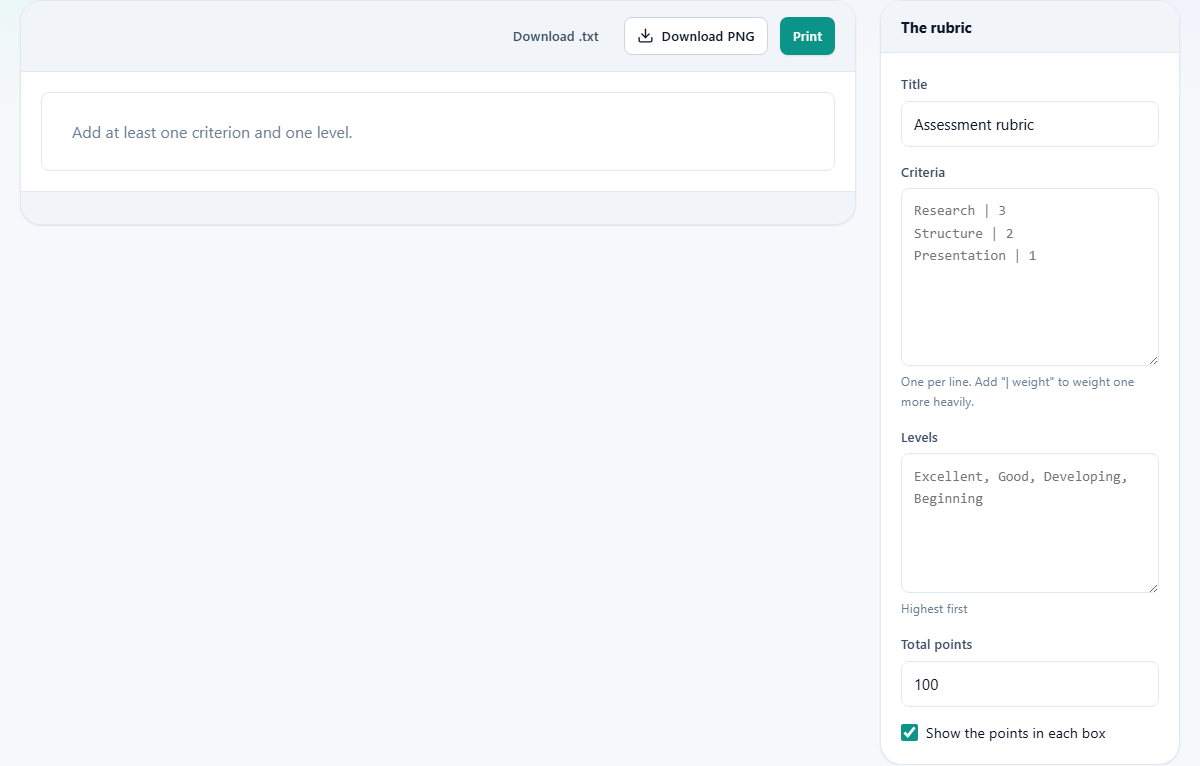
The Criteria box takes one criterion per line. Type the name of each thing you are assessing. Research, Structure, Presentation is a common set for a written project.
To weight one criterion more heavily, add a pipe character and a number after the name. Research | 3 means research counts three times as much as a criterion with no weight. Structure | 2 makes structure count twice as much. A line with no pipe is treated as weight one.
The numbers do not need to follow any particular scale. Weights of 3, 2 and 1 produce exactly the same rubric as weights of 50, 33 and 17. The tool turns them into proportions, so use whatever feels natural.
Naming the levels
The Levels box takes the level names separated by commas or one per line. Put the highest level first. The points step down evenly from the maximum to zero across the row, so the order matters.
Excellent, Good, Developing, Beginning is a four-level set that suits most primary and lower secondary work. Distinction, Merit, Pass is a three-level set for vocational courses. You can write anything that fits your context.
Four levels is usually the sweet spot. Three is often too coarse to separate a class. Five tempts both markers and children towards the safe middle column. Start with four and change it only if you find a good reason.
The total and how the points are shared out
Total points is the mark a perfect piece of work would earn. It defaults to 100. Set it to whatever your grading system uses. A primary school might use 20. A college module might use 50 or 75.
The tool shares the total across the criteria in proportion to their weights, then divides each criterion's share evenly across the levels. Every number is a whole number, and they always sum to exactly the total you asked for.
When the division does not come out evenly, the spare points go to the highest-weighted criteria. That keeps the total exact rather than one point off. If you set a total of 10 with three equally weighted criteria, the top row gets 4 and the other two get 3 each.
Show the points in each box is ticked by default. It prints the point value in the corner of every cell. Untick it if you want the grid without numbers, perhaps because you are writing descriptors by hand and the numbers would crowd the cell.
Why the cells are empty and what to write in them
The grid prints with empty cells on purpose. The wording of what each level means for each criterion is the part only you can write. A generic rubric that says good work under the Good column is not doing anything useful.
Print the grid and fill in the descriptors by hand, or type them directly into the criterion names if they are short enough. A criterion called Uses at least three sources and cites them correctly is already its own descriptor for the top level.
If you prefer typed descriptors, write them out on a separate sheet and staple it to the rubric. The tool gives you the scored grid. The professional judgment is yours to add.
A worked example for a Year 9 history project
A teacher sets up a rubric for a First World War research project worth 60 marks. She types the title WW1 Research Project in the Title box.
In the Criteria box she writes four lines: Use of primary sources | 3, Historical argument | 3, Organisation and structure | 2, Presentation and referencing | 1. The weights mean sources and argument together carry two thirds of the marks.
In the Levels box she types Excellent, Good, Developing, Limited. Total points is set to 60.
The grid appears with four rows and four columns. The top-level points for each criterion are 20, 20, 13 and 7. They step down evenly: the Sources row reads 20, 13, 7, 0. A child who scores Good on everything earns 13 plus 13 plus 9 plus 5, which is 40 out of 60.
She prints one copy with the points showing, writes descriptors in the cells by hand, and photocopies it for the class. Each child staples the rubric to the front of their project folder.
Pitfalls that make a rubric less useful
- Too many criteria. Beyond about eight rows the rubric runs onto a second page and the marker starts skipping rows. Fewer, well-chosen criteria mark faster and give clearer feedback.
- Weights that are all the same. If everything matters equally, the weights add nothing. That is fine, but consider whether one criterion really does matter more. If so, weight it.
- Forgetting to print the points. A rubric without numbers is a checklist. Both are useful, but they are not the same thing. Keep Show the points in each box ticked unless you have a reason to turn it off.
- Relying on the column totals alone. A child who scores top marks on Presentation and zero on Argument has a problem that the total hides. Read across the rows, not just down to the sum.
- Using the rubric once and filing it. Hand it out before the work is due. A rubric the child sees only at the end is feedback. A rubric the child sees at the start is a guide.
Printing and keeping a copy
The preview on the left shows the rubric as it will appear on paper. Print sends it to your printer. Choose Save as PDF in the print dialog if you want a file instead. Download .txt exports the criteria, levels and point values as plain text, which is handy if you want to paste the structure into a lesson plan or a course handbook.
The rubric fits on one sheet when there are up to about eight criteria and four levels. Beyond that it spills onto a second page. If that happens, consider merging closely related criteria rather than shrinking the text. A rubric that is hard to read on paper will not be read at all.
When another tool fits the job
- For tracking who was present rather than how well they performed, the Attendance Register Maker is the right page.
- For a motivation chart with stickers and a goal, the Reward Chart Maker builds a simpler grid with larger squares.
- For arranging desks rather than marking papers, the Seating Chart Maker handles room layouts.
- For practice sheets that test spelling rather than grade it, the Spelling Test Generator turns a word list into printable exercises.
Your criteria stay on your own machine
The rubric is built entirely inside your browser. No data leaves your device. There is no account, no upload, and no server involved.
Print the sheet or save it as a PDF to keep a copy. Download .txt saves the criteria and point values as a plain text file. Nothing is stored after you close the tab, so there is nothing to delete and nothing to worry about on a shared computer.