
Building a sticker chart that actually works on a wall
What makes a reward chart useful, how to set up the names and columns, why the square size matters more than the number of columns, and how the same grid works for a classroom of thirty or a single child at home.
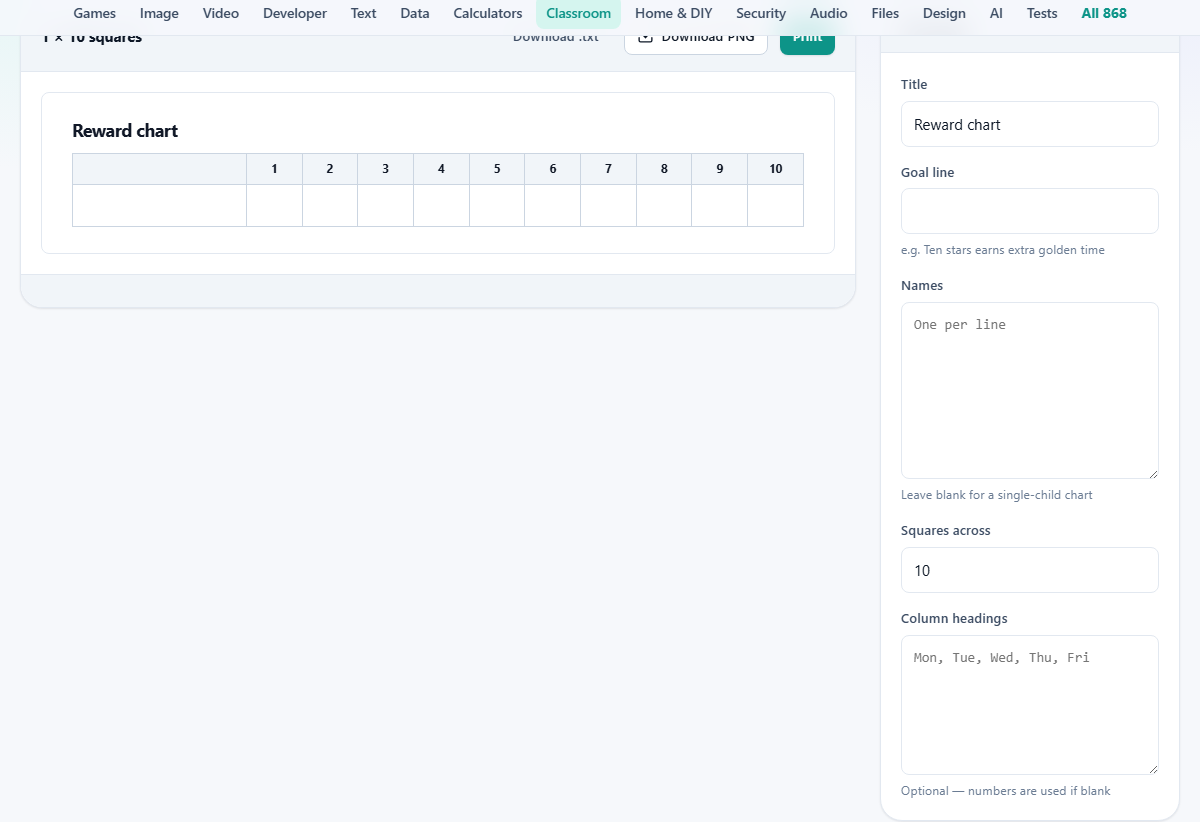
A grid with one real constraint
A reward chart is a grid with names down one side and squares across the top. Each square holds a sticker, a stamp or a tick. When the row is full, the child has met the goal.
The one thing that separates a useful chart from a useless one is the size of the squares. A standard reward sticker is about 18 to 25 millimetres across. A chart whose cells are smaller than that is a chart no child can fill in without help. This tool keeps the squares large enough to hold a real sticker and warns you when the layout pushes them below that size.
Teachers pin these to a classroom wall. Parents stick them on the fridge. A tutor working with one child prints a single-name chart with days of the week across the top. The grid is the same in every case. The only difference is who fills it in and what it tracks.
Who uses it and what for
In a primary classroom the chart often sits next to the whiteboard. Each child earns a sticker for good behaviour, completed homework, or reading at home. The teacher adds a sticker at the end of the day, and the whole class can see where they stand.
At home the chart tracks chores, bedtime routines or screen time limits. A parent puts chore names as the column headings and the children as the names. Or a chart for one child has days across the top and a single row.
Sports coaches, music teachers and youth group leaders use the same layout. Anyone who needs a visible record of progress for a small group can print one and start today.
Setting up the chart step by step
The panel on the right holds every setting. Title defaults to Reward chart. Change it to whatever belongs at the top of the printed sheet.
Goal line is a sentence printed below the title. It says what filling the row earns. A chart that spells out the reward works better than one that just collects stars. Something like Ten stickers earns ten minutes of extra play gives the chart a purpose a child can read.
Names takes one name per line. For a class chart, paste the register. For a single child at home, leave the box empty and the chart prints without a name column, giving every square more room.
Squares across sets how many columns the grid has. Ten is a good starting point for a weekly target. Five suits the five days of the week. The tool warns you if the number you pick squeezes the cells below sticker size.
Column headings lets you label the columns. Type the labels separated by commas. Mon, Tue, Wed, Thu, Fri labels a school week. Tidy room, Feed cat, Set table labels a chore chart. Leave the box blank and the columns are simply numbered.
Printing and downloading
The preview panel on the left shows the chart as it will print. Above it are two buttons. Download .txt saves the name list as a plain text file you can paste back in next term. Print sends the sheet to your printer.
If you do not have a printer to hand, choose Save as PDF in your browser's print dialog. That gives you a file to print later or send to a colleague.
Landscape orientation fits more columns at a readable size. Portrait works when the list of names is long but the number of squares is small. The tool does not force a choice. Use whatever your print dialog offers and check the preview it shows you.
Print on card rather than paper. A paper chart on a classroom wall lasts about a week before a corner tears. A sheet of light card lasts a term.
A worked example for a class of twenty-four
A Year 2 teacher wants a behaviour chart for the last three weeks of term. She types Star chart - Autumn term in the Title box and writes Fifteen stars earns a certificate in the Goal line.
She pastes the 24 names from her class list. Squares across is set to 15 because there are 15 school days left. Column headings is left blank, so the columns are numbered 1 to 15.
The preview shows 24 rows of 15 squares with a name column on the left. Each square is wide enough for a foil star. She prints two copies on card, pins one to the board and keeps the spare in her desk.
At home, a parent sets it up differently. Names is left empty. Squares across is 7. Column headings reads Mon, Tue, Wed, Thu, Fri, Sat, Sun. The chart prints as a single unnamed row of seven large squares, and the child puts a sticker on each day the bedtime routine is followed.
Getting the column count right
About seven columns fit at full sticker size when there is a name column, or ten without one. Beyond that the squares begin to shrink. The tool shows a warning when the cells cross below the usable threshold.
If you need more columns, try landscape printing first. That gives roughly 40 per cent more width. If that is still not enough, consider splitting the chart into two sheets - one for the first two weeks and one for the last two.
Too few columns is rarely a problem, but a chart with only two or three squares finishes too quickly to build a habit. Five is a practical minimum for most purposes.
Mistakes that weaken the chart
- No goal on the chart. A row of empty squares collects stickers but does not motivate. Write the reward in the Goal line so the child can read it every time they look at the chart.
- Too many columns on one sheet. The squares shrink until a sticker does not fit. Heed the warning and split the chart instead.
- Printing on thin paper. The chart gets handled every day. Card survives. Paper does not.
- Forgetting to label the columns. Numbered columns work, but named ones are clearer. Days of the week, or the specific targets a child is working on, tell the story at a glance.
- Making the chart too long. A chart that takes two months to complete loses its pull after the first week. Print a fresh one every fortnight with a smaller, reachable goal.
Adapting it for different settings
A chore chart puts the tasks as column headings and the family members as names. Each person gets a sticker when their chore is done. The goal line says what a full row earns.
A reading log uses books or chapters as the targets. The child adds a sticker for each one finished. There is no deadline, so the number of squares is simply the number needed for the reward.
A group reward chart has one row for the whole class rather than one row per child. Each square is earned by the group together, and the reward is shared. That changes the dynamic from individual competition to collective effort, and it often suits a class that struggles with jealousy over who has more stickers.
When a different tool suits better
- For tracking daily attendance with codes and percentages, the Attendance Register Maker is the right page.
- For a test or assignment that needs scored criteria, the Rubric Maker builds a weighted marking grid.
- For arranging children in desks rather than listing them in rows, the Seating Chart Maker handles layouts and separation rules.
- For a spelling practice sheet to hand out alongside the stickers, the Spelling Test Generator turns a word list into three printable formats.
Nothing leaves your machine
The chart is built entirely in your browser. No names are sent anywhere. There is no server in the loop, no login, and no data stored after you close the tab.
That makes it safe to use on a school network that blocks outside services. It also means there is nothing to delete afterwards. If you want to keep the chart, print it or save it as a PDF. If you want to reuse the name list, download the text file and paste it back in next time.