
Tracking who showed up, and dividing by the right number
How to build a printable attendance grid from a class list, what each code means, why the percentage leaves unmarked boxes out of the sum, and the settings that keep the sheet honest over a whole term.
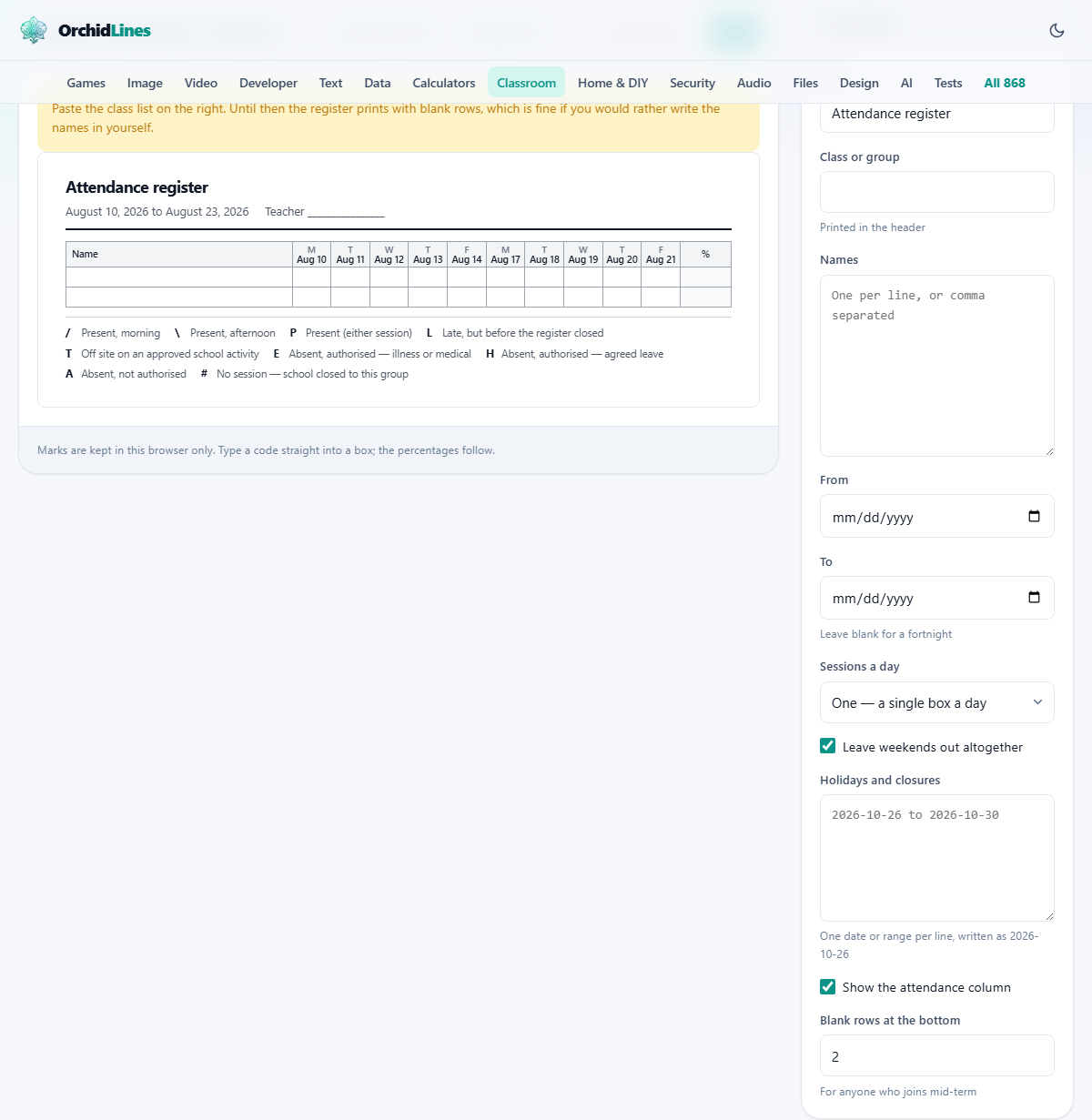
What the register does
A class register is a grid. Names run down one side and school days run across the top. Each box holds a single letter that says whether a child was there, late, away with permission or away without it. The sum at the end of the row turns that into a percentage.
This tool builds that grid from a pasted name list and a date range. Weekends are shaded out by default. Holidays and closures you add are shaded too. The boxes that remain are the ones the percentage is worked out from.
Teachers use it as the sheet they carry to the playground or hand to a supply teacher. Parents see it at a meeting. A tutor running a small group can print one for the fridge. It is not the statutory record a school has to keep in its own system, but it is the working copy that goes where the official system cannot.
Filling in the panel on the right
Title is a free text field at the top. It defaults to Attendance register, but you can write anything that belongs in the printed header. Class or group prints underneath it, so you can tell one sheet from another when several are pinned to the wall.
Names takes one name per line, or names separated by commas. If two children share the same name the second one is numbered so their marks stay apart. Typing surnames or initials avoids that and keeps the printout easy to read.
From and To set the date range. A fortnight is about what fits across a sheet of paper at a readable size. Leave To blank and you get a fortnight automatically.
Sessions a day offers two choices. One gives a single box per day. Two splits each day into a morning and an afternoon column, which doubles the number of boxes across the page.
Leave weekends out altogether is ticked by default. Unticking it adds Saturday and Sunday columns, which suits a boarding house or a weekend class.
Holidays and closures is a text box for dates. Write each date as a number in the form 2026-10-26, or a range like 2026-10-26 to 2026-10-30. Those columns are shaded and left out of every sum.
Show the attendance column controls whether the percentage appears at the end of each row. Turn it off if you only want the grid. Blank rows at the bottom adds spare lines for anyone who joins mid-term. It starts at two.
The codes and what they count as
The legend prints along the foot of every sheet so nobody has to memorise it. A forward slash or a back slash counts as present. L is late but arrived in time to be marked present. T is an approved trip. E and H are authorised absence. A is unauthorised absence. The hash symbol means there was no session at all.
Present codes add to the top of the fraction. Absence codes add to the bottom but not the top. The hash adds to neither side. That last point matters more than it sounds. Marking a snow day as an absence invents an absence that never happened, and the percentage drops for every child in the room.
How the percentage works
The formula is sessions present divided by sessions that counted, times a hundred. Sessions that counted means every box that has a present or absent code in it. Boxes still empty and boxes marked with a hash are left out of the bottom of that sum.
This protects a half-finished register from looking like a disaster. If you have only filled in Monday and Tuesday, the percentage is based on two days, not five. The foot of the sheet says how many boxes are still unmarked, so you can see at a glance how complete the register is.
An authorised absence still counts as an absence in the percentage. Authorising it changes the paperwork, not the number. A child off ill for two weeks has the same attendance figure as one who was truant, and a parent looking at 85 per cent deserves to know which it was.
Marking the grid, or printing it blank
You can type directly into the boxes on screen. Each box accepts one letter. The arrow keys move you along the row or down the column, which is faster than clicking every cell. The percentages update as you type.
If you prefer pen and paper, print the sheet without entering any marks. The grid comes out with empty boxes, the legend at the foot, and a header with the title, class name and date range. Landscape printing fits more days across the page. A fortnight of two-session days is twenty boxes wide, and portrait squeezes them narrower than a pen nib can handle.
Clear every mark wipes everything you have typed. Download .txt saves a plain text copy of the names and marks. Print sends the sheet to your printer or, if you choose Save as PDF in the print dialog, saves it as a file.
A worked example from start to finish
A Year 4 teacher has 28 children and wants a register for the first two weeks of November. She pastes the names from a spreadsheet, sets From to 2026-11-02 and leaves To blank. The tool adds a fortnight ending 2026-11-13.
Sessions a day is set to Two. Leave weekends out altogether stays ticked. She types 2026-11-06 into the Holidays and closures box because that Friday is a staff training day. The grid now shows eighteen columns: nine school days times two sessions, minus the two sessions on the training day which are shaded.
She prints one copy blank for the wall. On Friday she opens the page again, types the codes into the boxes for the week, and prints a second copy to file. The child who was absent on Wednesday morning and afternoon shows two A marks. The percentage reads 87.5 - that is seven sessions present out of eight that counted, since the training day was not counted.
The next Monday she moves the From date forward a week and the marks she entered the previous week are still there, stored in the browser. She can keep going week by week through the term.
Mistakes that quietly change the numbers
- Forgetting to mark a closure. Every unmarked box on a closure day is an absence waiting to happen. Add it to the holidays box and the column is shaded and excluded.
- Using A for a snow day. The hash is the right code. A means someone chose not to come. A closed school is not that.
- Printing in portrait with two sessions a day. The columns come out too narrow to write in. Switch to landscape or drop to one session a day.
- Leaving old marks in and changing the date range. The tool stores marks against the name and the date, so sliding the range forward is fine. Changing names or restarting the range can leave stale data behind. Clear every mark resets it.
- Treating the percentage as a report. It is a live count, not an official figure. The school's own management system is the record that matters.
When a different classroom tool fits better
- For a simple tick chart with stars or stickers, the Reward Chart Maker gives bigger squares and a goal line.
- For a chart that arranges children into seats rather than rows of a register, the Seating Chart Maker handles layouts and keep-apart rules.
- For marking work rather than presence, the Rubric Maker builds a weighted scoring grid.
- For a quick roll call with no dates or columns, a plain checklist printed from any text editor is simpler than a register.
The names stay on your own device
A class list is personal data, and this tool treats it that way. Names and marks are held in the browser on your own machine. Nothing is sent to a server. There is no account, no upload, and no copy sitting anywhere else.
You can prove it. Load the page, disconnect from the network, paste a name list and press Print. Everything still works. Closing the tab and clearing your browser data is all the cleanup there is. For a school laptop on a locked-down network, that simplicity is a feature rather than a limitation.