
Designing a reading log that matches the age group
Why a five-year-old's reading record needs different columns from an eleven-year-old's, how each checkbox and field on the page controls the printed sheet, a worked example for two year groups, and the date-filling tricks that save time.
What a reading log is for
A reading log is a simple record. The child fills in one row each time they read. The row might hold the date, the book title, how many pages or minutes they read, a short comment, and a parent's signature. Over a term it turns an invisible habit into a visible one.
The record also travels between school and home. A teacher who sends a log home is asking the parent to confirm that reading happened, and giving the parent a reason to sit down with the child for ten minutes. A blank signature column at the end of the row makes that exchange clear without a covering letter.
Why the columns should change with the class
A reception child reads for five minutes at a time and cannot yet write the title of the book. That child's log needs just a date column, a minutes column, and a signature column. Three columns, big cells, minimum writing.
An older child reads whole chapters and can write a sentence about what happened. That child benefits from a book column, a pages column, and a comment column. Adding all six columns for a five-year-old crowds the sheet and frustrates both child and parent. Removing the comment for an eleven-year-old wastes the chance to practice writing about reading.
The tool lets you tick exactly the columns you want. The printed table adjusts its widths to fit whatever you choose, so four columns are wider than six and the cells are always big enough to write in.
Every control on the settings panel
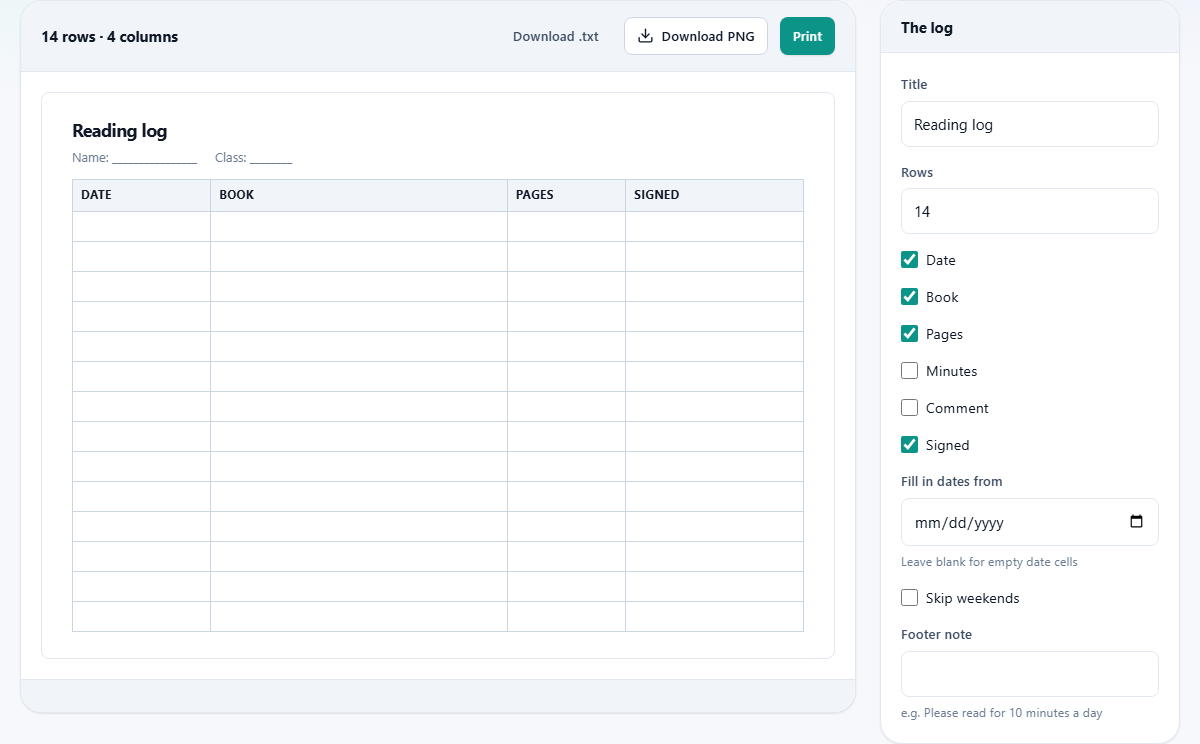
Title sets the heading printed at the top of the sheet. The default is 'Reading log'. Change it to include the child's name, the class, or the term.
Rows controls how many rows the table has. The default is 14, which is a fortnight of daily reading. Set it to 20 for a month of weekday entries, or 7 for a single week.
Six checkboxes control the columns. Date puts a date column on the left. Book adds a column for the book title. Pages adds a column for pages read. Minutes adds a column for how long the child read. Comment adds a wide column for a short sentence. Signed adds a narrow column for a parent or teacher signature. Tick the ones that suit the class and leave the rest unchecked.
Fill in dates from accepts a date. If you set one, the date column is pre-printed with the dates starting from that day, one row per day. Leave it blank and the cells are empty, which makes the sheet reusable any week.
Skip weekends is a checkbox that appears alongside the date field. When ticked, Saturdays and Sundays are left out of the sequence. A fourteen-row sheet with weekends skipped covers exactly two school weeks, with no wasted rows.
Footer note is a text field for a message printed at the bottom of the sheet. The classic use is 'Please read for 10 minutes a day'. It goes on the paper where the parent will see it.
What the printed sheet looks like
The preview updates as you change settings. The table fills the width of the page. Columns widen or narrow to fit the set you picked. The date column is narrow because dates are short. The book column is wide because titles are long. The comment column stretches to fill whatever space is left.
Two buttons sit above the preview. Print opens the browser's print dialog, which can send the sheet to a printer or save it as a PDF. Download .txt saves the table as a plain text file for reference. To print a class set cheaply, print one copy and photocopy it. The table is designed to survive photocopying at any darkness setting.
Worked example: a Year 1 reading log
A Year 1 teacher wants a simple log to go home each Monday. She ticks Date, Minutes, and Signed. She unticks Book, Pages, and Comment because her children cannot fill those in yet.
She sets Rows to 5, one for each school night. Fill in dates from is set to the coming Monday. Skip weekends is ticked. Footer note reads 'Please listen to your child read for 10 minutes'.
The preview shows a compact table with five rows. The dates read Monday through Friday. Each row has a space for minutes and a space for a signature. She prints thirty copies and staples them into the children's reading folders. Each log lasts exactly one week.
Worked example: a Year 6 reading log
A Year 6 teacher wants more detail. She ticks Date, Book, Pages, Comment, and Signed. She unticks Minutes because older children track pages, not clock time.
She sets Rows to 20 to cover a full month of school days. Fill in dates from is left blank so the sheet works whenever it is handed out. Skip weekends is ticked. Footer note reads 'Write one sentence about what happened in your reading today'.
The preview shows a wide table. The comment column takes up the most space. The teacher prints one copy, photocopies it onto both sides of a sheet of card, and hands them out at the start of the month. Each child fills in one row per evening. At the end of the month the cards come back and the teacher can see who read steadily and who left it all to the last weekend.
Getting the dates right
The dates run in a continuous sequence from the start day. They do not know about school holidays. If half term falls in the middle, the dates keep counting through it. The simplest fix is to print two logs with different start dates: one before the break and one after.
The date format uses the day and the short month name in whatever language and conventions your device is set to. A computer set to British English prints '3 Sep'. One set to American English prints 'Sep 3'. One set to French prints '3 sept'. The log reads naturally wherever it is printed, without any format setting to change.
If you leave the date field blank, the column prints empty cells. That is often the better choice. A log with printed dates gets thrown away the week it goes home late. Blank cells survive the whole term because the child writes the date by hand.
Mistakes that waste paper
- Ticking all six columns for young children. Three wide columns are better than six cramped ones. A five-year-old with a pencil needs room to write.
- Printing dated logs too far in advance. Half term or a school closure means the dates no longer match. Print one batch at a time, or leave the dates blank.
- Forgetting Skip weekends on a school log. Two rows out of every seven sit empty, and children notice the gap and stop filling the sheet in.
- Setting too few rows. A seven-row log needs replacing every week, which means more printing and more stapling. Fourteen or twenty rows last longer and save effort.
- Missing the Footer note. The instruction to parents belongs on the sheet itself, not in a covering letter that gets lost in the book bag.
When a different tool is the right pick
- For a quiz or test with questions and an answer key, the Quiz and Test Maker is the page you want.
- For handwriting practice with four ruled lines, the Handwriting Practice Sheets tool builds those worksheets.
- For a weekly classroom job rota that cycles through every child, the Class Job Rota Maker handles that.
- For a number line or fraction strip, the Number Lines and Fraction Strips page prints those.
The log stays on your device
The table is built entirely inside your browser. No names, no book titles, and no dates are sent anywhere. The page works offline and produces the same sheet whether the internet is connected or not. There is no account, no cloud save, and nothing stored between visits. When you close the tab, the only copy of the log is the one you printed or saved as a PDF.