
Building a quiz that marks itself and stops copying
How to enter questions with marked answers, how the version shuffle keeps neighbours honest, what the answer key looks like after shuffling, and a full walkthrough for a ten-question geography test.
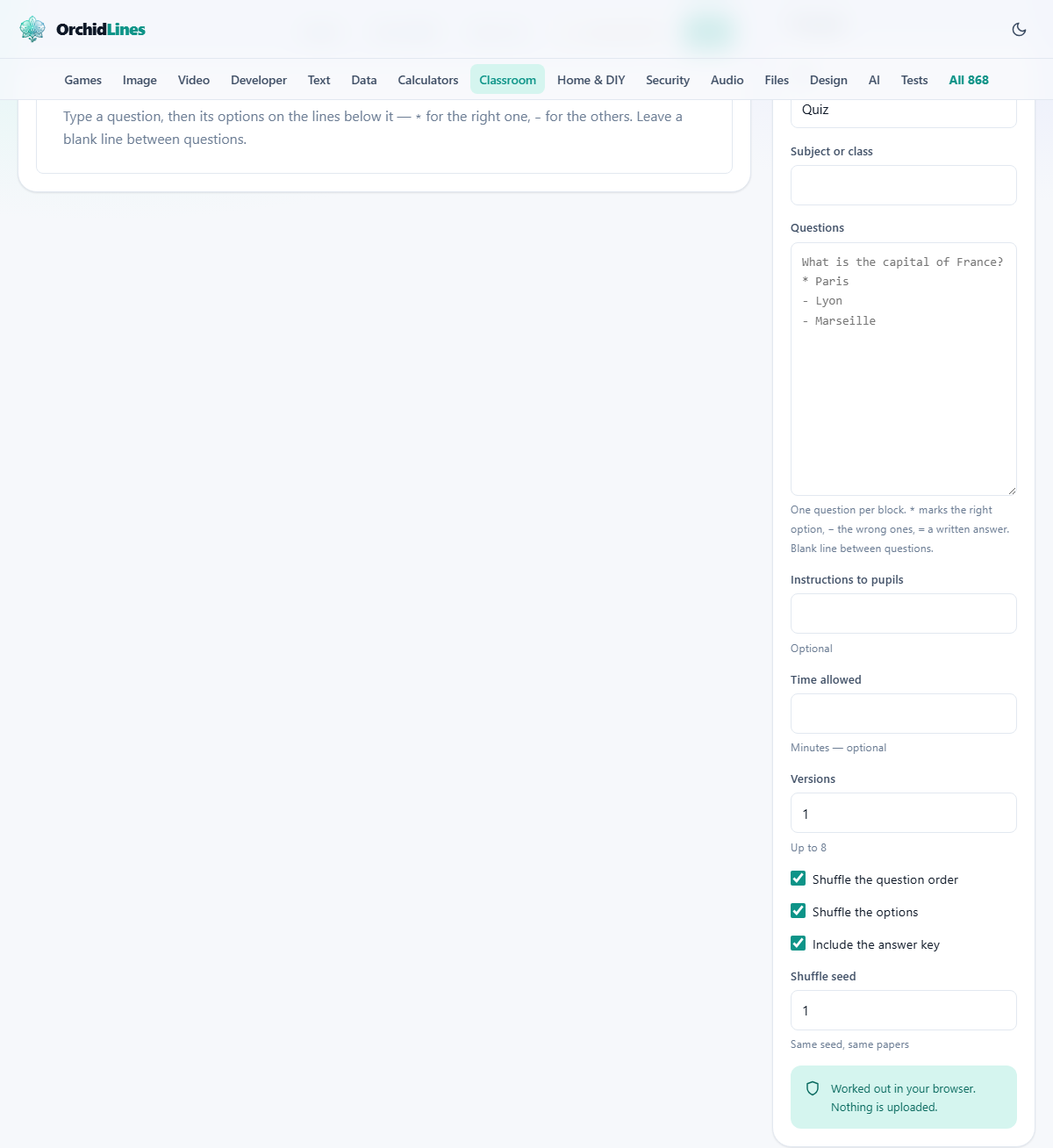
What the tool produces
You type your questions once. The tool turns them into a printable quiz with lettered options, a name and date line at the top, and a separate answer key at the end. If you ask for more than one version, each version gets the questions in a different order, the options in a different order, and its own key with the correct letters recalculated. Version A is always the original order you typed, so it doubles as a proof copy.
The result is a sheet of paper, not a screen quiz. It prints from the browser and can also be saved as a PDF through the browser's own print dialog. Nothing fancy is loaded to make that happen.
The format looks like a proper test. The title, subject, and any instructions sit at the top. Questions are numbered. Multiple-choice options get lettered labels. Written-answer questions get ruled lines. A total mark appears if you tagged questions with mark values. It looks professional enough to hand out in an exam hall.
Who reaches for this page
Teachers setting end-of-topic tests or weekly quizzes are the main users. A tutor preparing a practice paper for one student uses it the same way. Home-schooling parents who want a formal-looking quiz without buying worksheet packs find it useful.
It also works for training sessions outside schools. A first-aid instructor can build a twenty-question paper, print four shuffled versions, and hand them to tables of trainees seated next to each other. The versions stop anyone reading a neighbour's sheet.
Supply teachers find it handy for cover lessons. Type a few recall questions from the textbook, print four versions, and the lesson runs itself for twenty minutes while the class works in silence.
Entering multiple-choice questions
The Questions field takes a plain-text format. Write the question on its own line. Below it, write each option on a separate line. Start the correct option with an asterisk and a space. Start every wrong option with a hyphen and a space. Leave a blank line before the next question.
For example, a geography question looks like this. First line: What is the capital of France? Second line: * Paris. Third line: - Lyon. Fourth line: - Marseille. The asterisk tells the tool which option belongs in the answer key.
If you mark two options with an asterisk, the quiz labels the question as having more than one correct answer, and both letters appear in the key. That covers questions like 'which two of these are prime numbers' without any extra settings.
Written-answer questions and marks
Not every question needs options. Leave the options out entirely and the quiz prints ruled lines for a written answer instead. If you want the expected answer to appear in the key, add a line below the question starting with an equals sign: = The answer is 42. That text goes into the key but never appears on the pupil's paper.
You can tag any question with a mark value by ending it with square brackets. For instance, Name three causes of erosion [3 marks] sets that question's weight to three, adds three to the running total on the paper, and gives a written-answer question three ruled lines instead of the default two. The total score is printed on the quiz automatically.
Versions, shuffling, and the seed
Versions sets how many distinct papers the tool builds. The maximum is eight, labelled A through H. Each version after A shuffles the question order, the option order, or both, depending on two checkboxes.
Shuffle the question order moves the questions around. Shuffle the options moves the lettered choices within each question. Both are ticked by default. Turn one off if you need the questions in a fixed sequence but still want the option letters to change between versions.
Shuffle seed is a number that controls the random order. The same seed with the same questions always gives the same papers. That matters when a child who was away needs to sit the test later. You reprint their version by entering the same seed and the same questions, and the paper comes out identical.
New shuffle generates a fresh seed when you want a genuinely different arrangement. The Sample button loads a short demo quiz so you can see the format before typing your own.
The answer key and how to get it
When Include the answer key is ticked, the key prints as the last page. Each version gets its own section in the key, with the question numbers and correct letters listed. Because the key is worked out after shuffling, the letters are always right for the paper they belong to.
Key as .txt saves a plain text copy of every version's answers. That is handy for marking at home without carrying the printed key. The text file lists each version on its own line.
To print only the key without reprinting the whole quiz, open the browser's print dialog and set the page range to the last page. The quiz and key are separate pages by design, so this always works.
A worked example: ten-question geography test
A teacher types ten questions about capital cities. Each has four options, one marked with an asterisk. She sets the Title to 'Geography Quiz', the Subject or class to 'Year 6', and Instructions to pupils to 'Circle the correct letter'.
She sets Time allowed to 15 minutes. Versions goes to 4. Both shuffle boxes stay ticked. Shuffle seed stays at 1.
The preview shows four papers. Version A matches her original order. Version B has the same ten questions but in a different sequence, and the options within each question are also reordered. The answer key at the end has four sections, one per version. Question 1 on Version A might be question 7 on Version C, and the correct letter shifts from B to D because the options moved.
She hits Print, sets the printer to collated copies, and gets thirty papers. Tables of four sit the four versions. No two neighbours share the same paper. Marking takes five minutes because the key already accounts for the shuffle.
A child who was absent the following week sits Version B. The teacher enters the same seed, the same questions, and prints only Version B. The paper is identical to the one the class sat, because the shuffle is tied to the seed, not to the date or time.
Mistakes worth avoiding
- Forgetting the asterisk. A question with no starred option has no correct answer in the key. The tool cannot guess which one you meant.
- Putting all questions on one line. Each question needs its own block with options below it and a blank line before the next. Running them together produces one long question with no options.
- Setting eight versions for a class of six. More versions than tables is waste. Match the version count to the number of groups who sit near enough to copy.
- Changing the questions and expecting the same seed to give the same papers. The seed controls the shuffle of whatever questions exist at that moment. Add or remove a question and every version changes.
- Printing double sided without checking the page count. The key might end up on the back of the last quiz page if the total is odd. Check the preview first.
When another tool suits the task
- For a reading log with dated rows and a parent signature column, the Reading Log Maker is what you want.
- For handwriting worksheets with four-line ruled grids, the Handwriting Practice Sheets tool handles that.
- For a weekly job rota that cycles fairly through the class, the Class Job Rota Maker does that job.
- For a number line or fraction strip activity, the Number Lines and Fraction Strips page prints those.
Your questions never leave the browser
The entire quiz is built on your own computer. No question text, no answer, and no student name is sent anywhere. The tool works the same way with the internet switched off. There is no login, no cloud storage, and nothing to delete afterwards. When you close the tab, the quiz exists only on the paper you printed or the PDF you saved.