
Turning raw marks into fair grades on one printable sheet
How weighted marks work, why adding scores from different maximums without scaling gives wrong results, how to set grade boundaries, and what the class statistics actually tell you.
The problem with adding marks straight up
A student scores 45 out of 50 on coursework and 72 out of 100 on an exam. Adding those gives 117, but 117 out of what? The coursework was worth 50 and the exam was worth 100, so a simple sum treats the exam as twice as important even if the teacher wanted both to count equally.
The fix is to scale each mark to its own maximum first. 45 out of 50 becomes 90 per cent. 72 out of 100 becomes 72 per cent. Now both figures sit on the same scale and can be combined with whatever weightings the teacher intended. That scaling step is what this tool does before it does anything else.
Pasting the marks
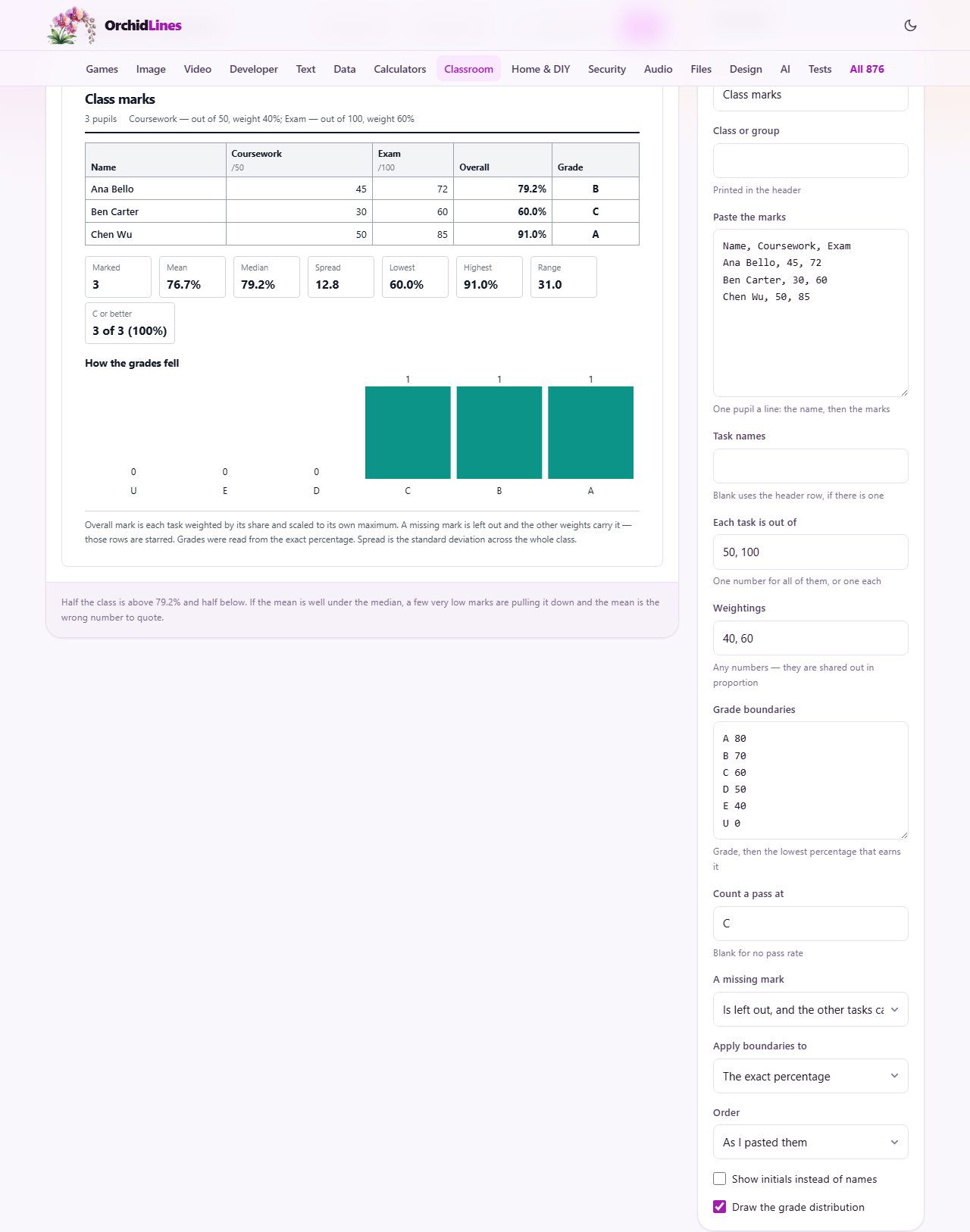
The field labelled Paste the marks takes one pupil per line. Each line starts with the name, then the marks, separated by commas or tabs. Pasting straight from a spreadsheet works because spreadsheet cells are tab-separated when copied.
If the first line looks like a header rather than a set of numbers, it is treated as the task names. So a block copied from a spreadsheet with a header row of Name, Coursework, Exam will label the tasks on the printed sheet automatically. You can also type names by hand in the field labelled Task names.
The starting example in the field shows three pupils with two marks each. Replace it with your own data. There is no limit on how many pupils or tasks you can include, though the printout grows longer with larger classes.
Maximums and weightings
The field labelled Each task is out of takes one number for every task, separated by commas. If all tasks share the same maximum, one number is enough. The starting value is 50, 100, matching the two-task example.
The field labelled Weightings sets how much each task counts toward the overall mark. The numbers do not have to add up to a hundred. Three tasks weighted 1, 1, and 2 give the last one half the overall mark. Whatever you type is shared out in proportion. The starting value is 40, 60, which gives the exam sixty per cent of the final mark and the coursework forty.
Getting these two fields right is the whole point. If the maximums are wrong, the scaling is wrong and every grade on the sheet follows from a bad starting number. If a mark ends up higher than its maximum, the cell is coloured and a warning appears, because it is nearly always the maximum that is wrong rather than the mark.
Setting the grade boundaries
The field labelled Grade boundaries takes one grade per line. Each line has the letter, then the lowest percentage that earns it. The starting set runs from A at 80 down to U at 0, which is a common pattern in British schools.
You can change the letters, the numbers, and the number of grades to suit any scheme. A pass-fail system needs only two lines. An American letter-grade system might use A through F with pluses and minuses. A numerical scale can use 9, 8, 7 down to 1.
The field labelled Count a pass at sets which grade counts as a pass. The sheet prints a pass rate for the class if you fill this in. Leave it blank if you do not want one.
Missing marks, rounding, and sorting
The dropdown labelled A missing mark has two settings. The first, which is the starting value, leaves the missing task out and lets the other tasks carry its weight. The second counts a blank as zero. The first is kinder and usually more honest, because a pupil who missed the coursework has no coursework mark, and scoring them nought turns an absence into a failure. The row is starred on the sheet so the decision is visible.
The dropdown labelled Apply boundaries to controls whether the grade is assigned from the exact percentage or from the percentage rounded to a whole number. A mark of 79.6 is a B against a boundary of 80, and an A the moment it is rounded up. Both rules are fair as long as you use one and report which it was. The sheet prints the rule it used.
The dropdown labelled Order lets you show pupils as you pasted them, sorted by highest mark first, or sorted by name.
The class statistics and what they mean
Below the mark table sit three numbers: mean, median, and spread. The mean is the average. The median is the middle value when you line them up in order. The spread is roughly how far a typical pupil sits from the average.
Comparing the mean with the median is worth more than either number alone. A mean well below the median means a few very low marks are pulling it down, and the median describes the class better. A mean well above the median means a few high marks are lifting it, and again the median is the safer figure to quote.
The spread divides by the number of pupils, not by one fewer, because the class is the whole group being described, not a sample drawn from a bigger one. A spread of 5 means the marks are tight. A spread of 20 means you are looking at two different groups in one room.
The grade chart and printing
The checkbox labelled Draw the grade distribution adds a bar chart showing how many pupils fell into each grade. This is the quickest way to spot whether the boundaries fit the class or whether the exam was too easy or too hard.
The checkbox labelled Show initials instead of names replaces full names with initials on the sheet. This is useful when the same printout needs to go on a display board or into a meeting where naming individual children is not appropriate.
Press Print to send the sheet to the printer. Press Download .csv for a file you can open in a spreadsheet. Press Download .txt for a plain text copy.
A worked example with three tasks
A maths teacher has a class of twenty-five. She pastes the marks from her spreadsheet: three columns for homework, a class test, and a term exam, out of 20, 40, and 100 respectively. She types the weightings as 10, 30, 60.
She sets the boundaries with A at 85, B at 70, C at 55, D at 40, and U at 0. She sets the pass grade to D. The sheet scales each mark, applies the weights, works out the overall percentage, assigns the letter, and prints the pass rate at the bottom.
The mean comes out at 63 and the median at 67. The gap tells her that a few low scores are pulling the mean down, and the median is the better figure to report to a parent. She prints the sheet, downloads the CSV for her records, and keeps the page open to recheck when a late homework arrives.
Mistakes that produce wrong grades
- Entering the wrong maximum. A task out of 50 entered as out of 100 halves every mark on it. Check the maximum first.
- Adding marks without scaling. If you paste totals that were already added by hand, the weightings double-count the imbalance.
- Rounding without saying so. A grade awarded from a rounded percentage is defensible, but only if the sheet says that is what happened.
- Counting a missing mark as zero when the child was absent. Absence is not failure. Use the setting that leaves it out unless your school policy says otherwise.
- Quoting the mean when the median tells a different story. Report both, or report the one that describes the group more honestly.
When another classroom tool fits the job
If you need to test reading fluency rather than grade a set of marks, the Reading Fluency Recorder runs a timed oral reading and tracks each pupil over time. If you want a quick written check at the end of a lesson, the Exit Ticket Maker prints small slips with your own question. If you need to divide the class into groups before starting group work, the Group Maker handles the names and keeps chosen pairs apart.
The marks stay on your own device
Every calculation runs inside your browser. No marks, no names, and no grades are sent to any server. Nothing is stored after you close the tab. Download the CSV or print the sheet if you need a lasting copy. On a school network where data protection rules restrict which services can handle pupil data, there is nothing to clear because nothing was uploaded in the first place.