
Clock worksheets where the hands sit in the right place
Why the hour hand moves between numbers, what each of the four task modes asks a child to do, how every setting on the page shapes the worksheet, a worked example for a mixed-ability class, and the seed trick that brings the same sheet back next year.
The sums that place the hour and minute hands
Each face is drawn on a square grid 100 units wide. The dial is a circle centred at 50, 50 with a radius of 45. Both hands begin at that centre. To draw a time, the tool works out one angle per hand, measured clockwise from the top of the dial.
The minute hand is the simple one. A full turn is 360 degrees and an hour holds 60 minutes, so one minute is worth 6 degrees. At 45 minutes past, the minute hand sits at 45 times 6, which is 270 degrees.
The hour hand is two parts added together. The twelve hour marks are 30 degrees apart, because 360 shared between 12 is 30. The hand also drifts on while the minutes pass. It covers 30 degrees in 60 minutes, so it moves half a degree a minute. The angle is therefore the hour times 30, plus the minutes times 0.5.
Each angle then becomes a point. The tool uses x = 50 + L times the sine of the angle, and y = 50 minus L times the cosine, where L is the length of the hand. The minus sign is there because y grows downward in a drawing like this. The hour hand is 24 units long and 4 units thick. The minute hand is 35 units long and 2.4 thick, so it is both longer and finer. Each hand also gets a stub behind the centre worth 0.16 of its own length, which is what makes it read as a hand rather than a spoke.
Try it on 3:45. The hour angle is 3 times 30, plus 45 times 0.5. That is 90 plus 22.5, or 112.5 degrees. The 3 sits at 90 degrees and the 4 sits at 120, so the hand has already crossed 22.5 of the 30 degrees between them. Now for the point. The sine of 112.5 degrees is about 0.9239, so x is 50 plus 24 times 0.9239, which comes to 72.17. The cosine is about minus 0.3827, so y is 50 minus 24 times minus 0.3827, which comes to 59.18. The stub behind the centre lands at 46.45, 48.53. The minute hand, at 270 degrees, runs flat to the left and stops at 15, 50. Those are the exact numbers in the line the page draws.
The rest of the dial never changes. Sixty tick marks sit one every 6 degrees. Every fifth mark is longer and heavier, running from radius 38 out to 44 at 1.6 thick, while the other marks run from 41 to 44 at 0.6. When numbers are shown, they sit on a circle of radius 31 at font size 10. The 3 is placed at x 81, y 53.6. The y value carries an extra 3.6 so the digit sits level with its mark instead of floating above it.
A few things follow from all that. There is no second hand, and no seconds anywhere in the tool. The face is one near-black colour on white, which keeps it cheap to print. Every drawn number is rounded to two decimal places, and on paper each face is capped at 34mm wide, so that rounding is far finer than any pen line.
Choosing the times, timing the gaps, and the corners it cuts
The five difficulty settings are one number in the code: a step in minutes. The hour only is 60. Half hours is 30. Quarter hours is 15. Five minutes is 5. Any minute is 1.
To choose a time, the tool divides 60 by that step, picks a whole number below the result at random, then multiplies back up. At quarter hours, 60 shared by 15 is 4, so the minutes can only come out as 0, 15, 30 or 45. At five minutes there are 12 values to land on. At any minute there are 60.
The hour is picked on its own, from 1 to 12. Choose the 24-hour format and it runs from 12 to 23 instead. That is where the afternoon and evening rule actually sits.
So the pool of times is smaller than it looks. It is twelve hours times the number of minute values: 12 times at the hour only, 24 at half hours, 48 at quarter hours, 144 at five minutes, and 720 at any minute. Each question is drawn on its own and nothing checks for a repeat. The seed tuesday at the hour only, with 12 questions, gives six, ten, five, eleven, two, five, four, three, three, one, two and seven o'clock. That is 9 different times across 12 questions. With only 12 to draw from, a repeat is normal rather than a fault.
The written answers follow one rule. Up to 29 minutes the tool counts forward from the hour you are in. From 31 minutes it counts back from the next hour. 15, 30 and 45 get their own names instead. At 3:50 the sheet prints 10 minutes to four, because 60 minus 50 is 10, and the hour after 3 is 4.
Elapsed questions always use a whole number of steps, so the answer can be said at the level being taught. The smallest gap is one step. The largest is 180 divided by the step, rounded down, then multiplied by the step again. At quarter hours that is 12 steps, so gaps run from 15 minutes up to 3 hours. Take the first question from the seed tuesday at quarter hours. The start is 6:00 and the gap is 45 minutes. In minutes that is 6 times 60, plus 0, plus 45, giving 405. Then 405 divided by 60 is 6 with 45 left over, so the second clock shows 6:45. The answer key says 45 minutes.
One thing is worth knowing before you print. The seed box takes text, and hashes whatever you type into a starting number. The same text always rebuilds the same sheet, so a word like tuesday is safe to reuse. The number printed under the sheet is that starting number, though, not the text behind it. Type the number in and it gets hashed like any other word, which lands you on a different sheet. On a sheet printed with 167059169 under it, typing that number back gave twelve different times. If you want a sheet you can rebuild later, type your own word into the seed box before you print, and keep the word.
- Matching sheets run out of labels. The letter list holds 16, A to P. Ask for 20 questions and the last four clocks print with no letter, and four rows of the answer key come out empty. Keep a matching sheet to 16 or fewer.
- At the any-minute setting, an elapsed gap of exactly one minute prints as 1 minutes. The plural is not adjusted for that single case.
- Elapsed questions can cross midnight without saying so. In 24-hour format a start of 21:44 with a gap of 169 minutes gives a finish of 00:33. Both clocks and the answer are right, but nothing marks it as the next day.
- The elapsed answer key gives the gap and nothing else. It never prints the time on the second clock.
- The draw-the-hands key simply repeats the time already printed under the blank face. It does not give the angles, so you still mark those by eye.
- Columns are capped by task: 2 across for elapsed, 4 for matching, and 1 to 6 for the rest. The question count is held between 1 and 48 whatever you type.
What the worksheet looks like
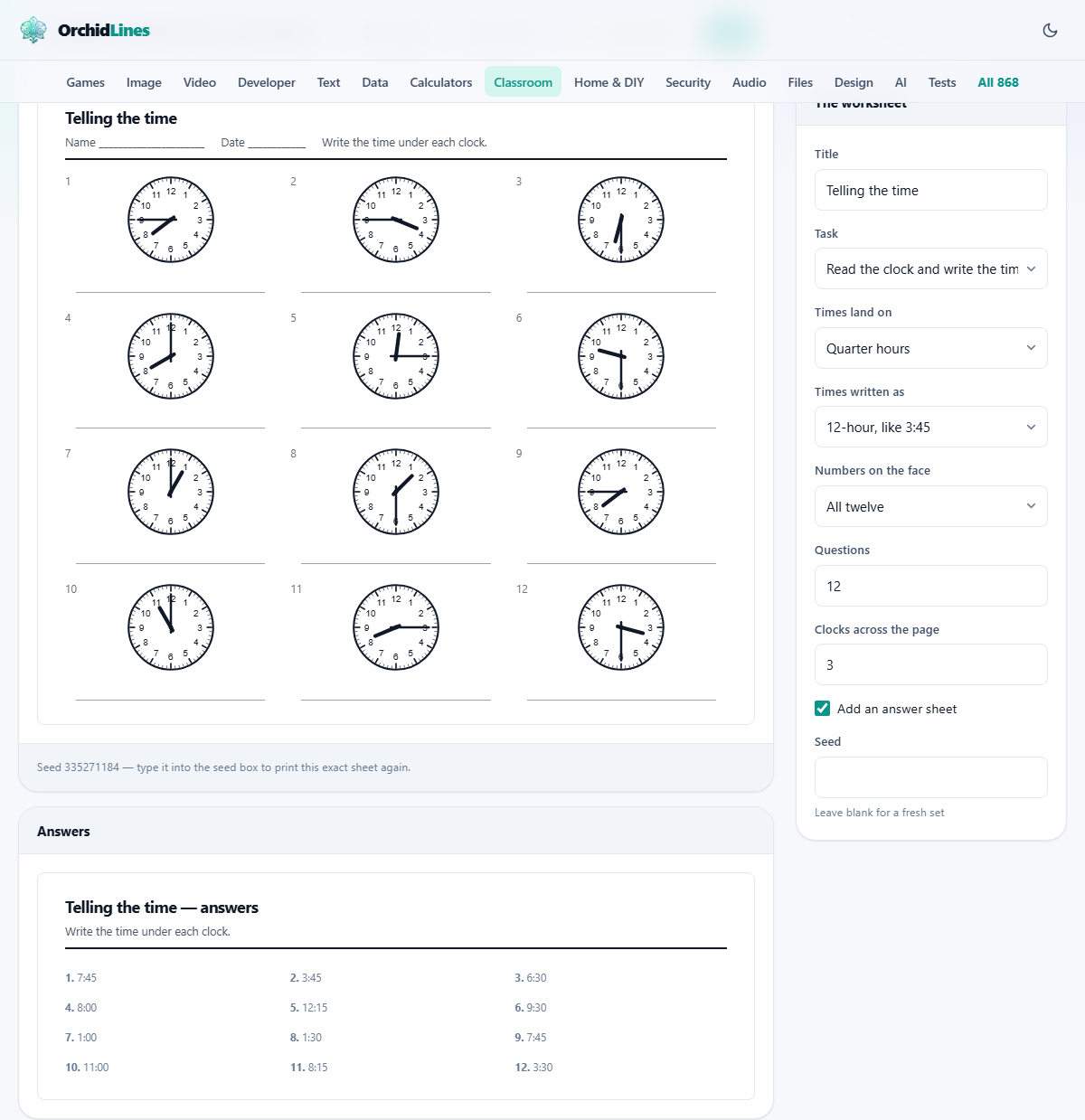
The page draws a grid of analogue clock faces on a printable sheet. Each face has a round dial, tick marks around the edge, and two hands pointing to a time. Underneath each face is a numbered space where the student writes an answer. An answer page follows on a separate sheet.
The hands are drawn exactly where they would sit on a real clock. At quarter to four, the hour hand is three quarters of the way from the three to the four, not parked on the three. That detail is the whole reason these worksheets exist. Hand-drawn clock faces nearly always put the hour hand on the nearest number, which teaches children to ignore a movement they need to learn to read.
Who uses them
Primary and infant school teachers covering the telling-the-time unit. Teaching assistants pulling a small group for extra practice. Parents drilling the skill at home before a test. Tutors working one-to-one with a child who is struggling.
The worksheets scale from very easy to quite hard, so the same page serves a reception class learning whole hours and a year-four class reading any minute. A teacher can print two versions of the same sheet at different difficulty levels, and from across the room nobody can see which child has which.
The four task types
Task is a dropdown with four choices. Read the clock and write the time shows hands on the face and the student writes the time in the space below. This is the most common version and the place to start.
Draw the hands gives a blank face and a printed time. The student draws the hour and minute hands to match. This is harder than reading, because the child must work out where each hand goes rather than recognising a position.
Match the clock to the time shows a row of faces and a row of printed times. The student draws lines to pair them up. It tests recognition without writing and works well for younger children.
How much time has passed shows two faces side by side and asks how many minutes or hours separate them. This is the hardest mode and belongs in upper primary.
Choosing the difficulty
Times land on controls how precise the times are. The hour only gives clean positions like three, seven, or eleven. Half hours adds times like half past two. Quarter hours adds quarter past and quarter to. Five minutes allows any time that falls on a five-minute mark. Any minute removes all restrictions and produces times like 4:07 or 11:53.
Start at the easy end and move along. Jumping a child from whole hours straight to any minute usually leads to tears. Quarter hours are the level where past-and-to language locks in, and most teachers spend several weeks there.
Times written as offers three formats. 12-hour uses a figure like 3:45. 24-hour uses 15:45. In words writes quarter to four. Choose the format that matches what you are teaching that week.
The face, the grid, and the answer sheet
Numbers on the face has three options. All twelve prints every number around the dial. 12, 3, 6 and 9 only prints the four cardinal marks and leaves the rest as bare ticks. None removes all numbers and shows only the tick marks. Taking the numbers off forces the child to count around in fives rather than reading a label, and it is where the real skill lands.
Questions sets how many clock faces appear on the sheet, from one to forty-eight. Twelve is a good default for a quick starter activity. Twenty-four fills a page densely for a test. Clocks across the page sets the number of columns. Three across suits most layouts. The elapsed-time mode uses two faces per question and caps itself at two columns.
Tick Add an answer sheet and a second printable page appears below the first. It lists the correct time beside each question number. The answers always start on a fresh page so you can print the student sheets and keep the answer page for yourself.
The seed and how to reuse a sheet
Every time the page generates a set of clocks it picks a random seed. That seed is printed in small text under the worksheet. If you type the same seed back into the Seed field and keep the same settings, you get exactly the same worksheet.
This matters in two places. First, when half the class was absent and you need to print the same test again a week later. Second, when you want to reuse a worksheet next year without saving the file. Write the seed in your planner and it rebuilds the whole sheet from that short code.
Leave the field blank and press Shuffle again to get a fresh set of random times. Each press picks a new seed and draws new faces.
The seed only reproduces the same worksheet when the settings match. Changing the task type, the number of questions, or the time granularity after entering a saved seed will produce a different sheet, because those settings shape which times are possible. Keep the seed and the settings together if you want a faithful copy.
A worked example for a mixed-ability group
A year-three teacher wants a starter activity on quarter hours. She sets Task to Read the clock and write the time, Times land on to Quarter hours, and Times written as to In words. She sets Questions to twelve and Clocks across the page to three. Numbers on the face stays on All twelve.
She prints the sheet and the answer page. For two children who find quarter hours hard, she prints a second version with Times land on set to Half hours and Questions set to six. The two sheets look the same from a distance, so nobody feels singled out.
For one child who is ahead, she prints a third version with Numbers on the face set to 12, 3, 6 and 9 only and Times land on set to Five minutes. That child works from the same grid but at a higher demand, and the teacher marks all three versions from their own answer page.
Mistakes that lead to wrong answers or blank faces
- Choosing 24-hour times and expecting morning readings. A clock face cannot tell nine in the morning from nine at night. If you pick 24-hour format, the tool only generates afternoon and evening times and says so on the sheet.
- Jumping to any minute before the child can handle five-minute intervals. The hour hand sits between two numbers and the minute hand points at a bare tick. Both skills need to be solid before that combination works.
- Forgetting to tell the class which hand is which before a draw-the-hands sheet. About half of all wrong answers on that task type come from putting the right times on the wrong hands.
- Printing without checking the seed. If you need the same sheet again later and you did not write the seed down, there is no way to recreate it.
- Setting too many questions for the column count. Twelve questions at one column across means twelve faces stacked tall, which runs off the page. Three or four columns keep the sheet compact.
When a different tool fits better
- If you need a blank clock face for a lesson demonstration rather than a worksheet, a single large printable clock is a different job.
- If the exercise is about reading a digital clock and converting to words, that is a text conversion exercise and does not need drawn faces.
- If you are building a bell schedule for the school day, the timetable builder handles start and end times for periods and breaks.
No data leaves your device
The faces are drawn inside your browser. No worksheet data is sent to a server, no account is needed, and nothing is stored after you close the tab. Once the page has loaded it works offline. The seed is the only record, and you keep that yourself.