
Printing answer sheets that line up with a marking key
What the maker draws, why the corner squares and the 100 mm ruler bar are there, every setting from bubble size to paper choice, a complete walk-through, and the one print setting that ruins every sheet if you leave it on.
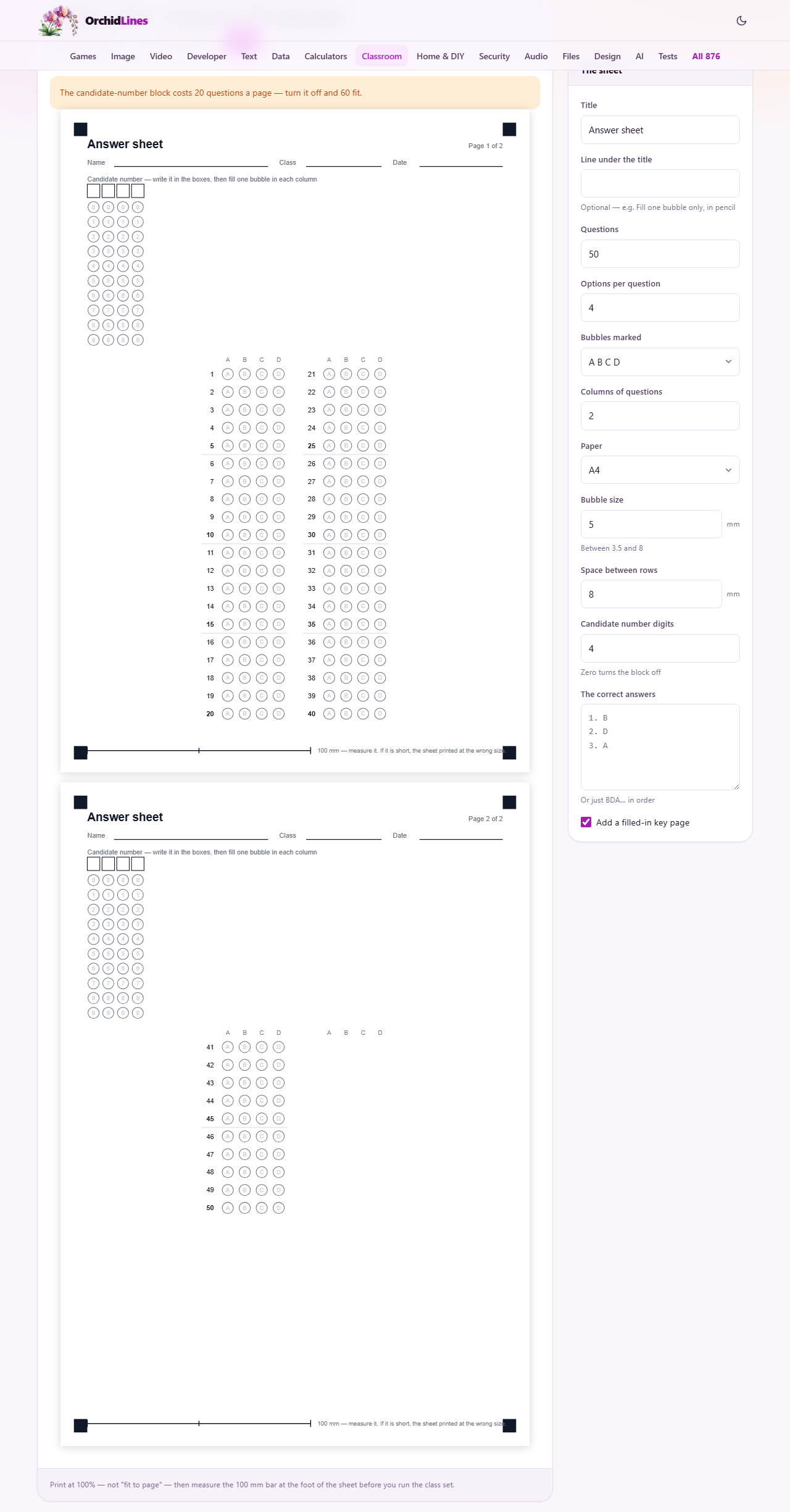
What the sheet looks like
The page draws a multiple-choice answer sheet at real size in millimetres. Each question is a numbered row of small circles. The rows are arranged in columns across the page, grouped in fives with a hairline separator so that finding question 37 is quick. A space at the top holds the student's name. A grid of digit bubbles at the top right holds a candidate number.
If you paste the correct answers, the page also draws a second sheet with those bubbles filled in. Print one copy of each, lay the key over a student's paper, and every correct answer shows through the hole. That is the entire marking method, and it only works if both sheets were printed at exactly the same size.
Who uses it and when
Teachers setting end-of-topic quizzes or mock exams. Tutoring centres that run weekly practice papers. Home-schooling parents who want a more structured test than a blank page. Trainers in corporate settings who need a quick scored assessment.
The sheet is designed for hand marking, not machine scanning. Optical mark readers need their own paper with specific registration marks and timing tracks that differ by manufacturer. This sheet is for the teacher who wants to mark a stack of thirty papers in five minutes flat with a printed overlay.
Setting the questions and options
Questions sets the number of rows. It accepts any number from one to five hundred. Fifty is a common choice for a class test. Options per question sets how many bubbles each row holds. Four is standard for A through D. Two works for true-or-false. Ten is the maximum.
Bubbles marked changes what is printed inside each circle. A B C D is the default. 1 2 3 4 uses numbers instead. True and false prints T and F and is meant for two-option questions. Yes and no prints Y and N.
Columns of questions controls how many columns of question rows fit across the page. Two is the default for A4 with four options. If you ask for more columns than the paper can hold at the chosen bubble size, the page draws as many as really fit and tells you what it did.
Paper, size, and spacing
Paper offers A4, US Letter, and A5. The choice sets the drawing area in millimetres so that the output matches the paper in your printer tray.
Bubble size is the diameter of each circle, between 3.5 and 8 millimetres. Five millimetres is the default and suits secondary-age students. Take it up to seven for younger children whose pencil control is still developing. Smaller bubbles pack more questions onto a page but are harder to fill neatly.
Space between rows sets the vertical gap between one row of bubbles and the next, from 5 to 16 millimetres. Eight is the default. Wider spacing is easier to mark but fits fewer questions before the sheet spills onto a second page. The summary line at the top tells you how many questions fit on one page at your current settings.
The candidate number block
Candidate number digits controls a grid of small digit bubbles at the top of the sheet. Each column holds the digits zero through nine, and the student fills one per column to spell out a roll number or exam number. Four digits is the default.
The block takes space. With four digits, about a third of the top of the page is used before the first question row begins. Set the value to zero and the block disappears, freeing room for more questions. The summary line tells you exactly how many extra rows you gain.
Entering the answer key
The correct answers is a text area in the settings rail. It accepts two formats. The first is a numbered list with one answer per line, like 1. B on the first line, 2. D on the second, and so on. The second is a plain run of letters in question order, like BDACAB. Both are read and both produce the same key page.
Numbered lines are safer. If you accidentally skip a question in a plain run, every answer after it shifts by one and the whole key is wrong. With numbered lines, a missing entry is obvious and nothing drifts.
Tick Add a filled-in key page and the output includes a second sheet with the correct bubbles darkened. Leave it unticked and you only get the blank student sheet.
Printing at real size
This is the step that matters most. The sheet is drawn in real millimetres. A 100 mm ruler bar is printed at the foot of every page, and small squares sit in the corners. If the printed bar measures 100 mm with a ruler, every bubble on the page is where it should be and the key will line up.
Browsers have a habit of quietly shrinking the page to fit their own margins. The scaling is usually around 94 per cent. On screen that is invisible, but on paper it shifts every bubble, and by the bottom of the sheet the key sits half a row out. Turn off any fit-to-page or scale-to-fit option in the print dialog before you print.
Print one blank and one key first. Hold them one on top of the other against a window or a light. If the bubbles overlap all the way down, the printer is honest and you can run the class set. That half-minute test has saved entire afternoons of re-marking.
A complete example
A science teacher is setting a forty-question quiz with four options per question. She leaves Bubbles marked on A B C D, sets Columns of questions to two, and keeps Paper on A4. The summary says all forty questions fit on one page.
She types her answers into the key box as a numbered list. She ticks Add a filled-in key page. The preview shows two pages: the blank sheet and the key.
She presses Print, turns off scaling in the print dialog, and prints one of each. She holds them together against the staffroom window. The bubbles line up. She prints thirty blank copies and one more key, then marks the whole stack in four minutes using the overlay method.
The next week she sets a twenty-question true-or-false quiz. She changes Options per question to two, switches Bubbles marked to True and false, and lowers Questions to twenty. The sheet now fits comfortably in a single narrow column on A4, leaving plenty of room for younger hands. She reuses the same workflow and the marking takes under two minutes.
Mistakes that cost you a re-print
- Leaving fit-to-page on in the browser print dialog. The sheet shrinks by a few per cent and the key drifts out of alignment.
- Writing the answer key as a bare string and missing one letter. Every answer after the gap is wrong by one position. Use numbered lines instead.
- Asking for more columns than the paper width allows. The page quietly reduces the column count to what fits, but if you do not read the summary you may not notice.
- Setting the bubble size too small for the age group. A six-year-old filling a 3.5 mm circle will overflow into the next bubble and the mark becomes ambiguous.
- Printing the key on a different printer or paper size. Even a small difference in margin offsets ruins the overlay.
When a different tool fits better
- If you need a worksheet with written answers rather than bubbles, a general worksheet maker is a better starting point.
- If the test is a timed quiz with auto-marking on screen, that is a different category of tool and not what this page does.
- If you need to read student responses into a spreadsheet automatically, you need a dedicated optical mark reader system. This sheet is for hand marking only.
Nothing leaves your device
The sheet is drawn inside your browser. No questions, no answers, and no student names are sent anywhere. There is no account and no stored data. Once the page has loaded, it works without a network connection. Close the tab and everything is gone.