
Finding a meeting time that works across the world
How to compare a proposed time in one city against every other city that matters, what the coloured dots mean, why the date changes the answer, and how to share the result without anyone doing the conversion themselves.
The problem this solves
Scheduling a call with people in three or four countries means juggling time differences. A 2pm meeting in London is 9am in New York, 6:30pm in Mumbai, and 11pm in Tokyo. Doing that arithmetic by hand is tedious and easy to get wrong, especially when daylight saving is involved.
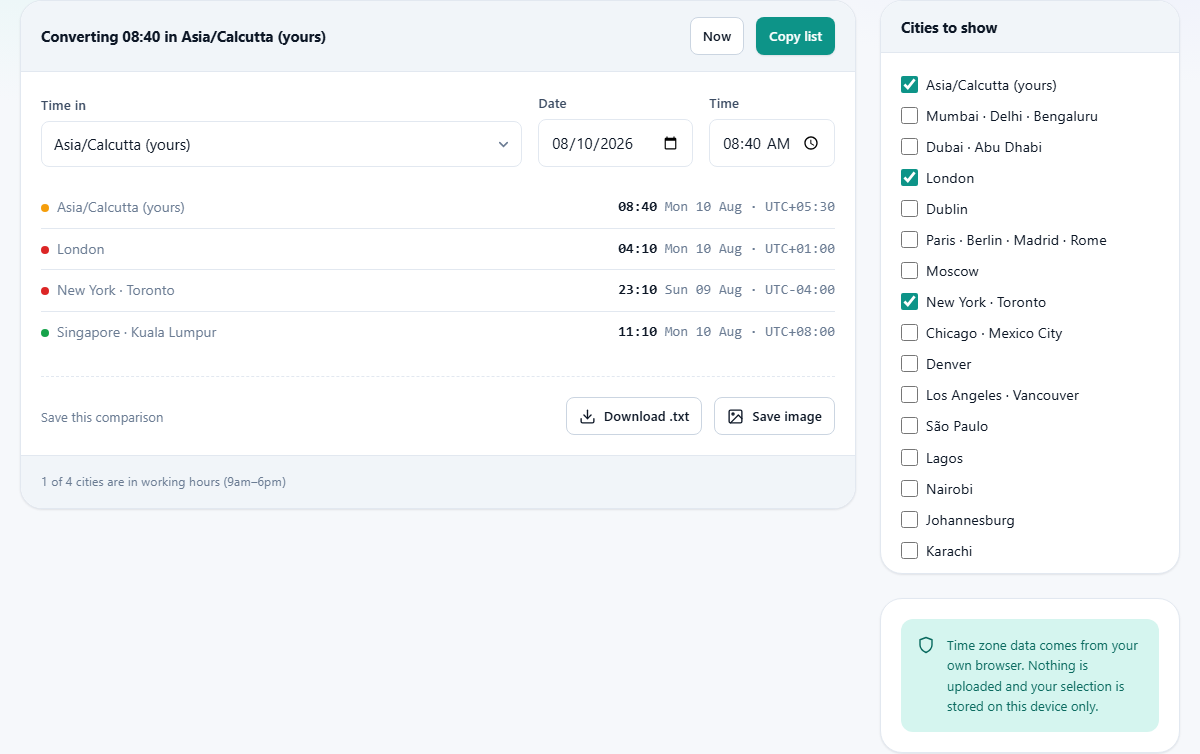
The converter shows all of those times at once. You pick a moment in one city, and every other city you have selected shows its matching local time. A coloured dot beside each one tells you immediately whether that city is in normal working hours, at the edge of the day, or in the middle of the night.
Picking the cities you care about
A panel on the right side of the page lists major business cities. Tick the ones you want to compare. You can select as many as you like. Each ticked city appears in the results list on the left with its local time and date.
Your own time zone is added to the list automatically if it is not already one of the options. That means you can always work from your own clock even if your city is not among the preset choices.
The cities you select are remembered in your browser. Come back next week and the same set is already ticked. You do not need to pick them again each time.
Setting the time and date
Three controls sit at the top of the results panel. Time in is a dropdown that sets which city you are working from. Date is a date picker. Time is a time picker. Together they define the moment you are proposing.
The page loads with the current date and time in your own zone. To test a meeting slot, change the time to the hour you are considering. The results update instantly. To plan something weeks ahead, change the date as well, because the time difference may not be the same by then.
The Now button resets everything back to the present moment in your selected city. Use it to get back to the starting point after trying several options.
Reading the coloured dots
Each city in the results list has a small coloured dot beside its time. Green means the local time falls between 9am and 6pm, which is the standard working day. Amber means the time is outside that window but still liveable, roughly early morning or evening. Red means before 7am or after 10pm, which is a time nobody wants to be on a call.
The dots give you a fast visual scan. If every dot is green, you have found a slot that works for everyone. If one is red, that person is being asked to meet in the middle of the night. If one is amber, the time is workable but not ideal, perhaps 7am or 8pm.
When a team spans three continents there is often no time when all dots are green. In that case, rotating who takes the amber slot is usually the fairest approach. Try moving the proposed time in one-hour steps and watch the dots change until you find the least painful combination.
Why the date changes the difference
Time zone offsets are not fixed numbers. Most of Europe and North America shift by an hour twice a year for daylight saving, but they do not all change on the same weekend. For two or three weeks each spring and autumn, the gap between London and New York is four hours instead of the usual five.
India, China, Japan, and most of Africa do not observe daylight saving at all. Their clocks never move, but their difference from London or New York changes twice a year because the other side moved.
This is exactly why the date field exists. If you schedule a meeting six weeks out using today's offsets, the actual time could be an hour off by the day it happens. The converter computes every offset for the exact date you choose, using the time zone database built into your browser. That database tracks every historical and current transition, so the answer is correct even when the clocks changed last weekend.
Copying the list
The Copy list button puts the entire comparison onto your clipboard as plain text. Each line shows the city name, the local time, the date, and the offset. You can paste this directly into a calendar invite, an email, or a group chat.
This is the single most useful feature for avoiding confusion. Instead of writing 3pm my time and expecting everyone else to look it up, you paste the full list so each person sees the meeting in their own clock. That removes the step where somebody does the conversion wrong and misses the call.
The copied text is plain and works in any context. It fits neatly into a Slack message, an email body, or a calendar description. No formatting to clean up, no images to load.
A worked example
You are in London and need to find a time for a weekly standup with colleagues in New York, Dubai, and Singapore. Tick those four cities. Set the date to next Tuesday. Try 9am London time.
The results show: New York 4am (red dot), Dubai 1pm (green), Singapore 5pm (green). New York is asleep. Move the time to 3pm London. Now it reads: New York 10am (green), Dubai 7pm (amber), Singapore 11pm (red). Singapore is now in the red.
Try 12pm London. New York is 7am (amber), Dubai is 4pm (green), Singapore is 8pm (amber). Every dot is amber or green. That is probably the best you can do across four time zones spanning 12 hours. Press Copy list and paste it into the calendar invite.
Check the date beside the time, not just the hour
When you set a late evening time, some cities may already be on the next calendar day. A 9pm meeting in London on Tuesday is 6am Wednesday in Sydney. If you only look at the hour and miss the date change, you might book a room on the wrong day.
The converter shows the full date beside each city's time for exactly this reason. Pay attention to it whenever the times span midnight in any direction.
Practical tips for global scheduling
- Aim for amber, not perfection. Across three or more continents there is rarely a slot where every participant is in the green window.
- Rotate who takes the awkward hour. A recurring meeting always at the same time means the same person always gets the worst slot. Move it around and share the burden.
- Send the full list, not just your own time. Paste the copied comparison into the invite so nobody has to do the conversion themselves.
- Check the date a few days before the meeting. If daylight saving changed in the meantime, re-run the converter for the actual meeting date to confirm.
- Account for travel. If a colleague will be in a different city that week, tick their temporary location instead of their usual one.
Common mistakes when converting time zones
- Using a fixed offset like UTC plus 5 instead of checking the actual date. The offset may shift by an hour during daylight saving.
- Forgetting that half-hour and quarter-hour zones exist. India is UTC plus 5:30 and Nepal is UTC plus 5:45. A round-number estimate is always wrong for those places.
- Scheduling during the daylight-saving transition gap. For the two or three weeks when countries change on different dates, your usual mental shortcut is off by an hour.
- Writing my 3pm in a message without saying which city. That only works if everyone is in the same zone, which is the one scenario where you do not need this tool.
All the data stays on your device
The time zone information comes from the database built into your own browser. No server is contacted to do the conversion. Your city selection is stored locally on your device and is never uploaded. There is no account, no login, and no tracking of which times you looked up. You can even load the page while offline and it still works, because the zone data ships with the browser itself.